Solved computers will enter hibernate by themselves

gwmax44907

New member
Local time
3:36 PM
Messages
6
i have 2 different computers:
1. Acer
2. HP

both PC's were running windows 7 (the HP auto-updated to Win 10 a few days ago)

the Acer will hibernate (or the screen will turn off) after about 5 minutes of inactivity.

the HP will hibernate (or the screen will turn off) after about 1 minute whether active or inactivity.

all Power Options and Power Savers on both PC's are turned off. (disabled)

this seemed to have happened only after installing some Win 7 updates.

neither of these PC's did this before the updates.

when the HP auto-updated to Win 10, the same sort of activity was still happening.

does anybody know if there is a Win 7 update that will cause this, & if so, what is the update "KB" number ??? (so i can uninstall it)

if there is NO update that causes this, does anybody know how to fix this problem ???

any help will be appreciated
 

My Computer

Computer type
PC/Desktop
OS
Windows 7 Ultimate x64
Hi GW (that sounds presidential)

I am running the same OS on several PC's, both desktops and laptops,
and once I've permanently disabled Hibernate, it never comes back.
And after I've disabled the screen saver for whatever theme I happen
to be on at the time, and I've gone into Power Management in the
control panel and set all options for screen blanking, sleep, etc., to NEVER,
I never have to worry about my screen going black or my PC going
into either Sleep or Hibernate.

Note: When you make changes to things like Power Options, be sure you
"Apply" the changes before you leave the option screen.

Cheers Mate!
TechnoMage :cool:
 

My Computer

Computer type
PC/Desktop
Computer Manufacturer/Model Number
Various
OS
Win 7 Pro, SP1, x86, Win-11/Pro/64
CPU
AMD
Motherboard
Various
Memory
8GB Crucial
Graphics Card(s)
Various
Sound Card
OnBoard
Monitor(s) Displays
Acer 21.5"
Hard Drives
Crucial SSD, 500 GB
PSU
OEM
Case
SFF Slim Line Case
Cooling
OEM
Keyboard
eMachines
Mouse
Logitech Wireless
Internet Speed
varies
Antivirus
Windows Defender/Super Anti-Spyware
Browser
Firefox
hi TechnoMage2016,

tnkx for the quick reply.

neither PC has a screen saver active.

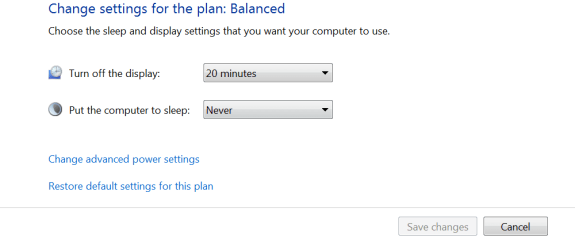
all Power options are set to NEVER

feno5j.jpg


r0z8sz.jpg


i work on PC's for friends & family cleaning up virus's, adjusting settings, & install Operating Systems... i have never seen this problem before.

after a Google search i found a few other people with the same problem but never saw a working answer.
 

My Computer

Computer type
PC/Desktop
OS
Windows 7 Ultimate x64
i have 2 different computers:
1. Acer
2. HP

both PC's were running windows 7 (the HP auto-updated to Win 10 a few days ago)

Could you expand on your OS changing to Win 10? Did it just happen one day? Did you do anything to make it happen? There has been speculation on here about that and it would be of help to everyone if you could state exactly what happened. Thanks,
 

My Computer

Computer type
PC/Desktop
Computer Manufacturer/Model Number
Custom Build
OS
Windows 7 Home Premium 32-Bit - Build 7600 SP1
CPU
Intel Core i3-2120 3.30Ghz
Motherboard
Asus P8Z68-V LX Intel Z68 Socket H2 ATX
Memory
Kingston 4 GB DDR3 1333 mhz
Graphics Card(s)
AMD Radeon HD6670
Sound Card
Sound Blaster Audigy SE 24-Bit
Monitor(s) Displays
Asus VE228
Screen Resolution
1440 X 900
Hard Drives
OCZ Vertex 3 120 GB Sata 3 SSD ==
Kingston SH103/S3 120 G Hyper X 120 GB SSD ==
Western Digital 500 GB Caviar Green 7200 RPM ==
PSU
Corsair CX600M == 600 Watt
Case
NZXT Apollo - Silver with Clear Side Panel
Cooling
Three 120 mm Fans
Keyboard
Microsoft Natural 4000
Mouse
Microsoft Custom Optical 3000
Internet Speed
AT&T Fiber Optic Wireless Network
Antivirus
Microsoft Security Essentials
Browser
Chrome
Other Info
120 mm Blue LED Fan -- Three Blue LED Lazer Light Sticks
hi bigmck,

i think the problem was Windows Updates was turned ON so Windows auto-downloaded the Win 10 update.

next time the PC was rebooted, Win 10 was installed.

there are 2 updates you need to watch out for...

KB3035583 (this is the Windows 10 Upgrade Notifications}

& the Update to Windows 10 update (no KB number)

when you see them in the Win updates, choose to "Hide" them by r-click & choose to hide

if you already have the KB3035583 update on your PC, you can uninstall by launch Control Panel, click on Programs > Programs and Features, and in the left side of the screen hit the “View installed updates” section.

look for KB3035583 in the list, (you can search for it in the installed programs search in the top right corner) right-click it and hit the remove option. If you don’t want to be bothered again in the future, just hide it and no other notifications will be displayed because the update won’t be installed again on your PC.
 

My Computer

Computer type
PC/Desktop
OS
Windows 7 Ultimate x64

My Computer

Computer type
PC/Desktop
Computer Manufacturer/Model Number
Custom Build
OS
Windows 7 Home Premium 32-Bit - Build 7600 SP1
CPU
Intel Core i3-2120 3.30Ghz
Motherboard
Asus P8Z68-V LX Intel Z68 Socket H2 ATX
Memory
Kingston 4 GB DDR3 1333 mhz
Graphics Card(s)
AMD Radeon HD6670
Sound Card
Sound Blaster Audigy SE 24-Bit
Monitor(s) Displays
Asus VE228
Screen Resolution
1440 X 900
Hard Drives
OCZ Vertex 3 120 GB Sata 3 SSD ==
Kingston SH103/S3 120 G Hyper X 120 GB SSD ==
Western Digital 500 GB Caviar Green 7200 RPM ==
PSU
Corsair CX600M == 600 Watt
Case
NZXT Apollo - Silver with Clear Side Panel
Cooling
Three 120 mm Fans
Keyboard
Microsoft Natural 4000
Mouse
Microsoft Custom Optical 3000
Internet Speed
AT&T Fiber Optic Wireless Network
Antivirus
Microsoft Security Essentials
Browser
Chrome
Other Info
120 mm Blue LED Fan -- Three Blue LED Lazer Light Sticks
Code:
Tip:       [URL="https://adclick.g.doubleclick.net/pcs/click%253Fxai%253DAKAOjssagQfE4fRLy8Ld2DcvGUpPWYcQlSKDfkGe5IF4LC7mLx5Om8F-92bPKPIuE52MGdXNQh5DAsNdRZmraA_p3nFUHYZTdXztiWL8USHRuFo36dDiGq8bzrST_S_krwICRt3jobicXeZ94oJfvifP8_3xK1HFBpLOOV3w11h7aZt09lNHOcnZqbcpG-IvZPqR_StiFhYRvnJqQLHR%2526sai%253DAMfl-YQB6HuTHQJ20--pPPJFmZiB1Ri415_kxx48-akNRc70w0jx40_3j9FVNIVpmCelHzttzZ6UTqtnTA%2526sig%253DCg0ArKJSzDONB9EZlO80EAE%2526urlfix%253D1%2526adurl%253Dhttp://www.reimageplus.com/includes/router_land.php?tracking=forum&lpx=sys"]Download Windows Repair Tool[/URL]
seems like a nice program... too bad it costs $30 US
~~~~~~~~~~~~~~~~~~~~~~~~~~~~~~~~~~~~~~

bigmck,

that is correct
 

My Computer

Computer type
PC/Desktop
OS
Windows 7 Ultimate x64
hi gwmax44907 i have something to contribute, but i hope it it relevant to your issue. are any of ur computers laptops?

i experienced this last week because i have been testing a custom build. Fiddling at Control Panel>Hardware>Hardware Sound>Power Options>Edit Plan Settings is not enough, u were right to go into advanced power settings. but the important thing to note is when u go through the settings. for my case, i already went through the list straight after windows installation. i had set some options under Display Tree, but this was done before i installed NVidia drivers/dell system software (pretty sure it was the NVidia, but not 100%). then i noticed, my screen still dimmed after a certain amount of time. i found that several additional options were now added under Display Tree in advanced system settings.

i took a closer look and under Control Panel>Hardware>Hardware Sound>Power Options>Edit Plan Settings, 'Dim the display' was correctly set to Never/Never,

BUT

under Advanced Power Settings, the entry entered/changed by the later driver installation for
'Dim display after' was automatically set to :-

On battery: 0 Minutes
Plugged in: 0 Minutes

lol but '0 minutes' and 'Never' are not the same if you think about it. i had no option to set it to proper 'Never'.

how i resolved this in the end was to set the value (under advanced power settings) to the max :-

'Dim display after'
On battery: 9,999,999 Minutes
Plugged in: 9,999,999 Minutes

9 million 999,999 minutes ... that's days ... it is improbable that i would not restart my machine/log off before that amount of time expires. my screen never dimmed anymore.

i'm suggesting this because maybe you went through advanced power settings earlier on, before you installed updates/drivers. perhaps some actions had changed the advanced settings' options now.

here's my options for sleep/hibernate/lid close/power button :-

Sleep
-Sleep
--On battery: Never
--Plugged in: Never
-Allow hydrid sleep
--On battery: Off
--Plugged in: Off
-Hibernate after
--On battery: Never
--Plugged in: Never
-Allow wake timers
--On battery: Disabled
--Plugged in: Disabled
USB settings
-USB selective suspend setting
--On battery: Disabled
--Plugged in: Disabled
Power button and lid
-Lid close action
--On battery: Do nothing
--Plugged in: Do nothing
-Power button action
--On battery: Shut down
--Plugged in: Shut down
-Sleep button action
--On battery: Sleep
--Plugged in: Sleep

no apparent adverse effect for me on these options, everything appears to work.
i do not believe in auto win updates (if one is required i would/l that manually), it is one of the first few things i would disable after installation. i've been practicing that for about 2 decades.
 
Last edited:

My Computer

Computer type
PC/Desktop
OS
Windows 7 Ultimate x64
hi Magnakai,

tnkx for reply.

no laptop but i will check these setting anyways.

my Acer is a Aspire (tower)

the HP is a Pavilion Model MS225 AIO

as i recall, i think i do remember seeing of settings of
On battery 0 Minutes
Plugged in 0 Minutes

will check tomorrow as it is time for me to start my Memorial Day BBQ


hi gwmax44907 i have something to contribute, i hope it it relevant to your issue. are any of ur computers laptops?

i experienced this last week because i have been testing a custom build. Fiddling at Control Panel>Hardware>Hardware Sound>Power Options>Edit Plan Settings is not enough, u were right to go into advanced power settings. but the important thing to note is when u go through the settings. for my case, i already went through the list straight after windows installation. i had set some options under Display Tree, but this was done before i installed NVidia drivers/dell system software (pretty sure it was the NVidia, but not 100%). then i noticed, my screen still dimmed after a certain amount of time. i found that several additional options were now added under Display Tree in advanced system settings.

I took a closer look and under Control Panel>Hardware>Hardware Sound>Power Options>Edit Plan Settings :-
Dim the display was correctly set to Never/Never,

BUT

under Advanced Power Settings, the entry entered/changed by the later driver installation for 'Dim display after' was automatically set to:

On battery: 0 Minutes
Plugged in: 0 Minutes

even though both are not laptops.

have to start my Memorial Day BBQ now, so i will check setting tomorrow.

will post back with results
 

My Computer

Computer type
PC/Desktop
OS
Windows 7 Ultimate x64
You can't have any Battery Settings on a Desktop Computer. The Battery is only on Laptops. == Here is how I have my Power Settings set. You want your Monitor to turn off within a short period. It should not stay on forever.
 

Attachments

  • Power.PNG
    Power.PNG
    9.3 KB · Views: 3

My Computer

Computer type
PC/Desktop
Computer Manufacturer/Model Number
Custom Build
OS
Windows 7 Home Premium 32-Bit - Build 7600 SP1
CPU
Intel Core i3-2120 3.30Ghz
Motherboard
Asus P8Z68-V LX Intel Z68 Socket H2 ATX
Memory
Kingston 4 GB DDR3 1333 mhz
Graphics Card(s)
AMD Radeon HD6670
Sound Card
Sound Blaster Audigy SE 24-Bit
Monitor(s) Displays
Asus VE228
Screen Resolution
1440 X 900
Hard Drives
OCZ Vertex 3 120 GB Sata 3 SSD ==
Kingston SH103/S3 120 G Hyper X 120 GB SSD ==
Western Digital 500 GB Caviar Green 7200 RPM ==
PSU
Corsair CX600M == 600 Watt
Case
NZXT Apollo - Silver with Clear Side Panel
Cooling
Three 120 mm Fans
Keyboard
Microsoft Natural 4000
Mouse
Microsoft Custom Optical 3000
Internet Speed
AT&T Fiber Optic Wireless Network
Antivirus
Microsoft Security Essentials
Browser
Chrome
Other Info
120 mm Blue LED Fan -- Three Blue LED Lazer Light Sticks
ANSWER FOUND !!!

It is Windows 7 Ultimate. (x64)

The HP computer (I mentioned above) needed a fdisk & reformat.

Instead of installing Windows 7 Ultimate again, I installed Windows 7 Pro. (x64)

PC has been on for 2 days & no hibernation problem.
(after Power Options disabled)

Will fdisk & reformat the Acer PC after backing up my files.

I hope this information is helpful to other members inflicted with this problem.

I thank all members that responded to my request for assistance !!!
 
Last edited:

My Computer

Computer type
PC/Desktop
OS
Windows 7 Ultimate x64
ANSWER FOUND !!!

It is Windows 7 Ultimate. (x64)

The HP computer (I mentioned above) needed a fdisk & reformat.

Instead of installing Windows 7 Ultimate again, I installed Windows 7 Pro. (x64)

PC has been on for 2 days & no hibernation problem.
(after Power Options disabled)

Will fdisk & reformat the Acer PC after backing up my files.

I hope this information is helpful to other members inflicted with this problem.

I thank all members that responded to my request for assistance !!!

That was an expensive way to solve your problem by buying another Win 7. I assume that is what you did since you would have to activate the new install.
 

My Computer

Computer type
PC/Desktop
Computer Manufacturer/Model Number
Custom Build
OS
Windows 7 Home Premium 32-Bit - Build 7600 SP1
CPU
Intel Core i3-2120 3.30Ghz
Motherboard
Asus P8Z68-V LX Intel Z68 Socket H2 ATX
Memory
Kingston 4 GB DDR3 1333 mhz
Graphics Card(s)
AMD Radeon HD6670
Sound Card
Sound Blaster Audigy SE 24-Bit
Monitor(s) Displays
Asus VE228
Screen Resolution
1440 X 900
Hard Drives
OCZ Vertex 3 120 GB Sata 3 SSD ==
Kingston SH103/S3 120 G Hyper X 120 GB SSD ==
Western Digital 500 GB Caviar Green 7200 RPM ==
PSU
Corsair CX600M == 600 Watt
Case
NZXT Apollo - Silver with Clear Side Panel
Cooling
Three 120 mm Fans
Keyboard
Microsoft Natural 4000
Mouse
Microsoft Custom Optical 3000
Internet Speed
AT&T Fiber Optic Wireless Network
Antivirus
Microsoft Security Essentials
Browser
Chrome
Other Info
120 mm Blue LED Fan -- Three Blue LED Lazer Light Sticks
Back
Top