Confused with results after merging 2 partitions--they appear as 2 & 1

pintree3

Mich
Member
VIP
Local time
5:04 PM
Messages
394
Location
Canada
Confused with results after merging 2 partitions--they appear as 2 & 1

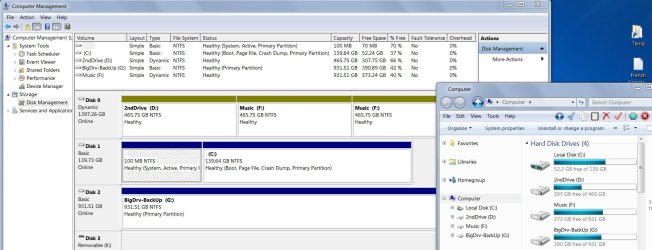
I went to 'Disk Management'. I had an E: drive and F: drive
I R-clicked on the E, 'delete volume'--pop up window clicked Yes, now had unlocated space on that drive. I then r-clicked on in F: drive, 'Extend the volume' and voila-it's done. However, instead of now seeing those 2 drives become one (Both F:) I actually see 2 of them both named ' F: '. Shouldn't they be one? If I go to my computer I no longer see the E: drive meaning the merging did succeed. But I'm confused as to why 'Disk Management' shows 2 of them (F:). Any advice? I want to change my drive letters (So that H: becomes, G:, and G: Becomes F: and F: becomes E:) and with 2 F's I think something may go wrong.
Thank you
 

My Computer My Computer

At a glance

Windows 7 Home Premium 64Intel Core i5 760 @ 2800MHz12288MBAMD Radeon HD 7800 Series
Computer type
PC/Desktop
Computer Manufacturer/Model Number
OEM Designed by me :-)
OS
Windows 7 Home Premium 64
CPU
Intel Core i5 760 @ 2800MHz
Motherboard
Asus P7P55D-E LX
Memory
12288MB
Graphics Card(s)
AMD Radeon HD 7800 Series
Sound Card
ASUS Xonar DG
Monitor(s) Displays
ViewSonic VX2453 Series, HDMI 1080p Full HD
Screen Resolution
1920X1080
Hard Drives
Samsung SSD 840 EVO 250GB& two others
PSU
Tagan BZ Series, TG800-BZ 800W
Keyboard
Logitech MK250
Mouse
Logitech M310
Internet Speed
toppest, mostest :-) <-- bad, but fun English
Browser
Firefox, Crrome, IE
OK thanks
 

Attachments

  • Capture.JPG
    Capture.JPG
    154.7 KB · Views: 9

My Computer My Computer

At a glance

Windows 7 Home Premium 64Intel Core i5 760 @ 2800MHz12288MBAMD Radeon HD 7800 Series
Computer type
PC/Desktop
Computer Manufacturer/Model Number
OEM Designed by me :-)
OS
Windows 7 Home Premium 64
CPU
Intel Core i5 760 @ 2800MHz
Motherboard
Asus P7P55D-E LX
Memory
12288MB
Graphics Card(s)
AMD Radeon HD 7800 Series
Sound Card
ASUS Xonar DG
Monitor(s) Displays
ViewSonic VX2453 Series, HDMI 1080p Full HD
Screen Resolution
1920X1080
Hard Drives
Samsung SSD 840 EVO 250GB& two others
PSU
Tagan BZ Series, TG800-BZ 800W
Keyboard
Logitech MK250
Mouse
Logitech M310
Internet Speed
toppest, mostest :-) <-- bad, but fun English
Browser
Firefox, Crrome, IE
The problem is that you converted your HD to Dynamic which is only meant to be used to span a partition across multiple HD's. Apparently you didn't see the warning message.

The solution to solve this non-destructively is shown in the first two options in Convert a Dynamic Disk to a Basic Disk - Windows 7 Help Forums

After conversion you should be able to do what you want in DIsk Mgmt. Otherwise post back another screenshot.
 
Thank you gregrocker. If the HD was converted to dynamic, it was not done now when I got rid of the E:drive.
I say this because D: E: and F: were/are all part of the same physical HD (Disk 0). And D: says it's dynamic as well. My question now is, just to understand things better, are you telling me to change all of the drives (at this point D: and the 2 F:s) into simple?
 

My Computer My Computer

At a glance

Windows 7 Home Premium 64Intel Core i5 760 @ 2800MHz12288MBAMD Radeon HD 7800 Series
Computer type
PC/Desktop
Computer Manufacturer/Model Number
OEM Designed by me :-)
OS
Windows 7 Home Premium 64
CPU
Intel Core i5 760 @ 2800MHz
Motherboard
Asus P7P55D-E LX
Memory
12288MB
Graphics Card(s)
AMD Radeon HD 7800 Series
Sound Card
ASUS Xonar DG
Monitor(s) Displays
ViewSonic VX2453 Series, HDMI 1080p Full HD
Screen Resolution
1920X1080
Hard Drives
Samsung SSD 840 EVO 250GB& two others
PSU
Tagan BZ Series, TG800-BZ 800W
Keyboard
Logitech MK250
Mouse
Logitech M310
Internet Speed
toppest, mostest :-) <-- bad, but fun English
Browser
Firefox, Crrome, IE
got error pop up window

Yes, gregrocker you were specific--My apologies. It is I who obviously misunderstood.
I tried what you said (Option 2) and immediately after R-clicking and making the choice you said (the only choice) I got a pop up error window which said: "Partition Wizard can not convert the specified dynamic disk to basic disk. Because the partition Wizard can not convert any dynamic volume type except the simple or mirrored volume."
Now what?
 

My Computer My Computer

At a glance

Windows 7 Home Premium 64Intel Core i5 760 @ 2800MHz12288MBAMD Radeon HD 7800 Series
Computer type
PC/Desktop
Computer Manufacturer/Model Number
OEM Designed by me :-)
OS
Windows 7 Home Premium 64
CPU
Intel Core i5 760 @ 2800MHz
Motherboard
Asus P7P55D-E LX
Memory
12288MB
Graphics Card(s)
AMD Radeon HD 7800 Series
Sound Card
ASUS Xonar DG
Monitor(s) Displays
ViewSonic VX2453 Series, HDMI 1080p Full HD
Screen Resolution
1920X1080
Hard Drives
Samsung SSD 840 EVO 250GB& two others
PSU
Tagan BZ Series, TG800-BZ 800W
Keyboard
Logitech MK250
Mouse
Logitech M310
Internet Speed
toppest, mostest :-) <-- bad, but fun English
Browser
Firefox, Crrome, IE
I think it interprets the second F partition as having been spanned onto another HD as I see no other reason why it would duplicate it. So what I would do is delete the second partition since it is obviously not correct, the result of trying to delete another partition and extend the existing F.

Be sure to back up your files for the entire HD first. THis should already have been done.

Then try non-destructive conversion by PW Home again. If it fails try it via the PW boot disk which is most stable. I would even try Easeus home if the other two methods fail.

If all fails then I would use the destructive Option 4 to Clean the HD of all code which gives you the cleanest slate going forward. You will need to repartition afterwards in Disk Mgmt and copy in your data from backup.

If all of these fail and you exhaust all the Options in the tutorial, then I would test the HD using the maker's HD Diagnostic extended bootable CD test.
 
Thanks gregrocker, I truly appreciate all of the help you've giving me and your time as well. And yes all has been backed up. I have a worry about the 1st part of your suggestion. When you say, "delete the second partition" my 1st question here is, how would I know which of the 2 F:s is the '2nd one'? And then, how would I know if what is already on that F: drive is distributed over the two F:s or not? I would assume the answer here is, continue with the steps you suggested and then use the back up to put everything back where it was. Would I be correct in this assumption? I know the answer seems to be self-explanatory (especially to those like you) but, paranoia and insecurity, makes me want to double-check.
 

My Computer My Computer

At a glance

Windows 7 Home Premium 64Intel Core i5 760 @ 2800MHz12288MBAMD Radeon HD 7800 Series
Computer type
PC/Desktop
Computer Manufacturer/Model Number
OEM Designed by me :-)
OS
Windows 7 Home Premium 64
CPU
Intel Core i5 760 @ 2800MHz
Motherboard
Asus P7P55D-E LX
Memory
12288MB
Graphics Card(s)
AMD Radeon HD 7800 Series
Sound Card
ASUS Xonar DG
Monitor(s) Displays
ViewSonic VX2453 Series, HDMI 1080p Full HD
Screen Resolution
1920X1080
Hard Drives
Samsung SSD 840 EVO 250GB& two others
PSU
Tagan BZ Series, TG800-BZ 800W
Keyboard
Logitech MK250
Mouse
Logitech M310
Internet Speed
toppest, mostest :-) <-- bad, but fun English
Browser
Firefox, Crrome, IE
You said you had in Disk Mgmt deleted the last (or third) E partition, then tried to extend the second partition F into its space, but instead it mirrored or created another F partition. Is this correct? If instead the deleted E was the middle partition and you were trying to extend F from the last partition, Disk Mgmt cannot Extend to the left. That is done using Partition Wizard Resize Partition - Video Help.

Rightclick each of those F partitions in Disk Mgmt and Partition Wizard to Explore, confirm your data is intact on both. I think you'll find the one you tried to delete and recreate is a mirror of the other one. If not try changing the letter of the one which was created new if you can determine that, to see if it will now non-destructively convert to Basic.

Either way make sure all data from the disk is backed up so that you can wipe the HD to repartition and copy your data back in. There's really no reason to waste any more time trying to non-destructively convert if it still refuses when you have your data backed and can start over with a clean HD which is newly partitioned.

In addition if you intend to keep that data HD in Disk0 position, I would use Partition Wizard to format the new data partitions Logical so that none can be marked Active to derail the System boot files as can happen if a preceding Primary partition is located before the current System partition: Partition Wizard Create Partition - Video Help
 
Back
Top