
Control Panel - Add or Remove "System Configuration" (msconfig)
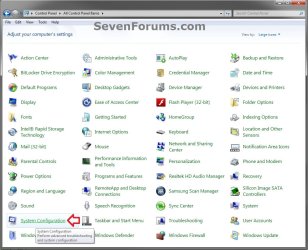
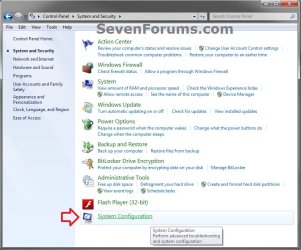
EXAMPLE: "System Configuration" (msconfig) added to Control Panel
NOTE: This is the Control Panel icons and category view.
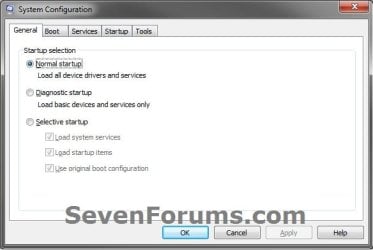
EXAMPLE: System Configuration
Here's How:
1. To Remove "System Configuration" from Control Panel
NOTE: This is the default setting.
A) Click/tap on the Download button below to download the file below.
Remove_msconfig_from_Control Panel.reg
Download
B) Go to step 3.
2. To Add "System Configuration" to Control Panel
A) Click/tap on the Download button below to download the file below.
Add_msconfig_to_Control Panel.reg
Download
3. Save the .reg file to the Desktop.
4. Double click/tap on the downloaded .reg file to Merge it.
5. Click/tap on Run, Yes, Yes (UAC-Windowws 7/8) or Continue (UAC-Vista), and OK when prompted.
6. When finished, you can delete the .reg file if you like.
That's it,
Shawn
How to Add or Remove "System Configuration" (msconfig) from Control Panel in Windows
Information
System Configuration (msconfig) is a tool that can help identify problems that might prevent Windows from starting correctly.
This tutorial will show you how to add System Configuration (msconfig) to the Control Panel for all users in Vista, Windows 7, and Windows 8.
This tutorial will show you how to add System Configuration (msconfig) to the Control Panel for all users in Vista, Windows 7, and Windows 8.
EXAMPLE: "System Configuration" (msconfig) added to Control Panel
NOTE: This is the Control Panel icons and category view.
EXAMPLE: System Configuration
Here's How:
1. To Remove "System Configuration" from Control Panel
NOTE: This is the default setting.
A) Click/tap on the Download button below to download the file below.
Remove_msconfig_from_Control Panel.reg
Download
B) Go to step 3.
2. To Add "System Configuration" to Control Panel
A) Click/tap on the Download button below to download the file below.
Add_msconfig_to_Control Panel.reg
Download
3. Save the .reg file to the Desktop.
4. Double click/tap on the downloaded .reg file to Merge it.
5. Click/tap on Run, Yes, Yes (UAC-Windowws 7/8) or Continue (UAC-Vista), and OK when prompted.
6. When finished, you can delete the .reg file if you like.
That's it,
Shawn
Related Tutorials
- How to Create System Configuration (msconfig) Shortcuts in Windows
- How to Add or Remove "All Tasks" (God Mode) from Control Panel in Windows
- How to Add or Remove "Hyper-V Manager" to Control Panel in Windows 8
- How to Add or Remove "Local Group Policy Editor" from Control Panel in Windows
- How to Add or Remove "Advanced User Accounts" from Control Panel in Windows
- How to Add or Remove "Registry Editor" from Control Panel in Windows
- How to Add or Remove "Services" from Control Panel in Windows
- How to Hide or Show Icons in the Control Panel in Vista, Windows 7, and Windows 8
Attachments
Last edited:


