
How to Add "Copy Content to Clipboard" to Context Menu in Vista, Windows 7, and Windows 8
Information
This tutorial will show you how to add or remove Copy to Clipboard from the right context menu of BAT, CMD, CSS, HTML, JS, LOG (txt), REG, RTF, TXT, and VBS files in Vista, Windows 7, and Windows 8.
If added, this makes it a lot easier to copy the entire contents of a file with one of these file extensions to the clipboard, then paste the contents where you like.
If added, this makes it a lot easier to copy the entire contents of a file with one of these file extensions to the clipboard, then paste the contents where you like.
Note
This will not work for the RTF (WordPad) file extension context menus if you have Microsoft Office Word installed and set as the default program to open RTF files instead of WordPad.
EXAMPLE: Context Menu with "Copy Content to Clipboard" Added or Removed
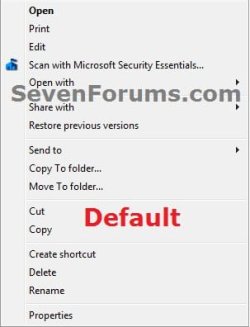
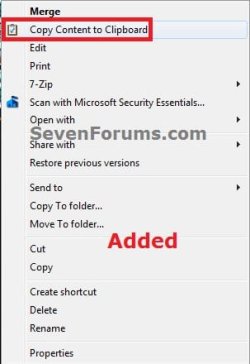
OPTION ONE
Add or Remove "Copy Content to Clipboard" using REG File
NOTE: This option will allow you to automatically add or remove Copy to Clipboard from all of the context menus of the BAT, CMD, CSS, HTML, JS, LOG (txt), REG, RTF, TXT, and VBS files at once.
1. Do step 2 or 3 below for what you would like to do.
2. To Add "Copy Content to Clipboard"
A) Click/tap on the download button below to download the file below, and go to step 4 below.
Add_Copy_Content_to_Clipboard.reg
Download
3. To Remove "Copy Content to Clipboard"
A) Click/tap on the download button below to download the file below, and go to step 4 below.
Remove_Copy_Content_to_Clipboard.reg
Download
4. Save the .reg file to your Desktop.
5. Double click/tap on the downloaded .reg file to merge it.
6. Click/tap on Run, Continue (UAC-Vista) or Yes (UAC-Windows 7/8), Yes, and then OK when prompted.
7. When done, you can delete the downloaded .reg file if you like.
OPTION TWO
Add or Remove "Copy Content to Clipboard" in Registry Editor
NOTE: This option will allow you to manually pick and choose to add or remove Copy to Clipboard from either one, more, or all of the context menus of the BAT, CMD, CSS, HTML, JS, LOG (txt), REG, RTF, TXT, and VBS files.
1. Press the Windows + R keys to open the Run dialog, type regedit, and press Enter.
2. If prompted by UAC, then click/tap on Continue (Vista) or Yes (Windows 7/8).
3. Do step 4 or 5 below for what you would like to do.
4. To Add "Copy Content to Clipboard" to the Context Menu
A) In regedit, navigate to the location below for the file extension that you wish to add Copy Content to Clipboard to.
- HKEY_CLASSES_ROOT\batfile\shell
- HKEY_CLASSES_ROOT\cmdfile\shell
- HKEY_CLASSES_ROOT\CSSfile\shell
- HKEY_CLASSES_ROOT\htmlfile\shell
- HKEY_CLASSES_ROOT\JSFile\shell
- HKEY_CLASSES_ROOT\regfile\shell
- HKEY_CLASSES_ROOT\rtffile\shell
- HKEY_CLASSES_ROOT\txtfile\shell
- HKEY_CLASSES_ROOT\VBSFile\shell
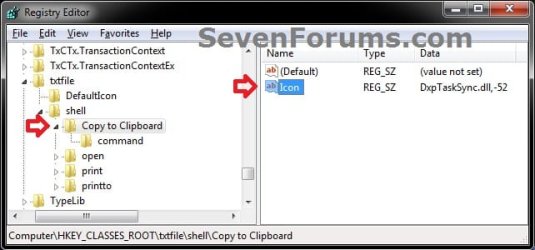
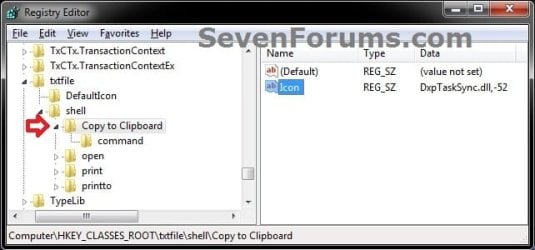
C) In the right pane of Copy Content to Clipboard, right click on a empty space, click on New and String Value, type Icon, press Enter, and double click/tap on Icon to modify it. (see screenshot above)
D) In the Edit String box, copy and paste the commmand below, and click/tap on OK.
DxpTaskSync.dll,-52
E) In the left pane of regedit, right click on Copy Content to Clipboard, click/tap on New and Key, type command, and press Enter. (see screenshot below)
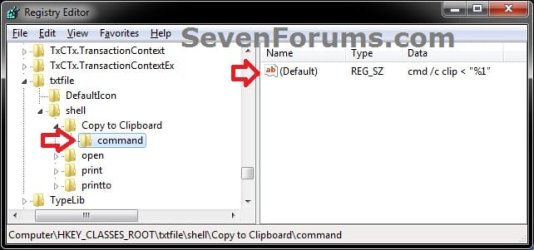
F) In the right pane of command, double click/tap on (Default) to modify it. (see screenshot above)
G) In the Edit String box, copy and paste the commmand below, and click/tap on OK.
cmd /c clip < "%1"
H) Repeat step 3 above for any other file extenstion that you wish to add Copy Content to Clipboard to it's context menu.
I) When finished, go to step 6 below.
5. To REMOVE "Copy Content to Clipboard" from the Context Menu
A) In regedit, navigate to the location below for the file extension that you wish to remove Copy Content to Clipboard from.
- HKEY_CLASSES_ROOT\batfile\shell\Copy Content to Clipboard
- HKEY_CLASSES_ROOT\cmdfile\shell\Copy Content to Clipboard
- HKEY_CLASSES_ROOT\CSSfile\shell\Copy Content to Clipboard
- HKEY_CLASSES_ROOT\htmlfile\shell\Copy Content to Clipboard
- HKEY_CLASSES_ROOT\JSFile\shell\Copy Content to Clipboard
- HKEY_CLASSES_ROOT\regfile\shell\Copy Content to Clipboard
- HKEY_CLASSES_ROOT\rtffile\shell\Copy Content to Clipboard
- HKEY_CLASSES_ROOT\txtfile\shell\Copy Content to Clipboard
- HKEY_CLASSES_ROOT\VBSFile\shell\Copy Content to Clipboard
C) Click/tap on Yes to approve deleting the key. (see screenshot below)

D) Repeat step 4 above for any other file extenstion that you wish to remove Copy Content to Clipboard from it's context menu.
E) When finished, continue on to step 6.
6. Close Registry Editor.
That's it,
Shawn
Related Tutorials
- How to Add COPY TO FOLDER and MOVE TO FOLDER to Windows 7 Context Menu
- How to Add or Remove "Copy as Path" from the Vista and Windows 7 Context Menu
- How to Add "View and Print File Directory" to the Context Menu in Vista and Windows 7
- How to Add "Clear Clipboard" to the Context Menu in Windows
- How to Create a "Clear Clipboard" Shortcut in Windows
Attachments
Last edited:


