

- Local time
- 8:32 PM
- Messages
- 79
Adding an icon to Control Panel manually using Registry Editor
The Microsoft Security Essentials applet, is not in the Control Panel by default so we can add it.
1. To add any item to Control Panel, you need to know the full command line/path of the command you are adding.
2. To begin, you will first need to install Microsoft Security Essentials on your computer.
3. For every item you add to Control Panel, you need a unique GUID/CLSID. Class IDs for hundreds of ActiveX objects are stored in the Windows Registry at HKEY_CLASSES_ROOT\CLSID\ key. If the command you want to add does not have a GUID, then we can generate it.
4. Download GUIDEN.exe (Win7 version) and run it. It is a self-extracting, compressed exe. Extract it to any path such as a folder on the Desktop and click OK to continue.
5. Open the folder where you extracted it and run GUIDGEN.exe. Select 'Registry Format' and click Copy, so it will be copied to the Clipboard.
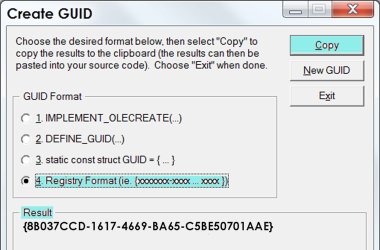
6. Now open the Registry Editor and go to this key: HKEY_CLASSES_ROOT\CLSID
7. Right click the CLSID key -> New -> Key and paste the name of the key you copied in step 5 here by pressing Ctrl+V. The resulting key should be:
HKEY_CLASSES_ROOT\CLSID\{8B037CCD-1617-4669-BA65-C5BE50701AAE}
8. Now with the key you created {8B037CCD-1617-4669-BA65-C5BE50701AAE}, in the left pane, double click the (Default) value in the right pane. Type the name of the item as you want it to appear in Control Panel - Security Essentials.
9. Create another string value in the right pane and give it the name "InfoTip". Type the description you want to see as the tooltip when you hover over that item.

10. Now, right click the {8B037CCD-1617-4669-BA65-C5BE50701AAE} key in the left pane and create another key called DefaultIcon. In the (Default) value of DefaultIcon key, enter the path to the icon you wish to use for the Control Panel item you are adding - C:\Program Files\Microsoft Security Client\eppmanifest.dll

11. Right click the {8B037CCD-1617-4669-BA65-C5BE50701AAE} key in the left pane again and create another new key called Shell. Right click the Shell key and create a new 'subkey' called Open. Finally, right click the Open key and create a key called Command.
12. With the Command key selected, type the path to the Control Panel item that you wish to add - C:\Program Files\Microsoft Security Client\msseces.exe

13. Finally go to the Registry key where we must add this GUID so Windows knows that it must show in the Control Panel.
Open HKEY_LOCAL_MACHINE\SOFTWARE\Microsoft\Windows\CurrentVersion\Explorer\ControlPanel\NameSpace\
14. Right click the Namespace key -> New -> Key. Enter or copy-paste the GUID as this key's name.
In this example, the key created will be:
HKLM\SOFTWARE\Microsoft\Windows\CurrentVersion\Explorer\ControlPanel\NameSpace\{8B037CCD-1617-4669-BA65-C5BE50701AAE}
The Default key on the right, double-click and type Security Essentials

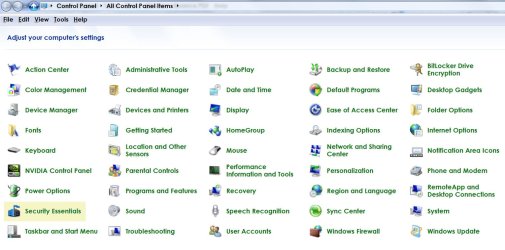
The Microsoft Security Essentials applet, is not in the Control Panel by default so we can add it.
1. To add any item to Control Panel, you need to know the full command line/path of the command you are adding.
2. To begin, you will first need to install Microsoft Security Essentials on your computer.
3. For every item you add to Control Panel, you need a unique GUID/CLSID. Class IDs for hundreds of ActiveX objects are stored in the Windows Registry at HKEY_CLASSES_ROOT\CLSID\ key. If the command you want to add does not have a GUID, then we can generate it.
4. Download GUIDEN.exe (Win7 version) and run it. It is a self-extracting, compressed exe. Extract it to any path such as a folder on the Desktop and click OK to continue.
5. Open the folder where you extracted it and run GUIDGEN.exe. Select 'Registry Format' and click Copy, so it will be copied to the Clipboard.
6. Now open the Registry Editor and go to this key: HKEY_CLASSES_ROOT\CLSID
7. Right click the CLSID key -> New -> Key and paste the name of the key you copied in step 5 here by pressing Ctrl+V. The resulting key should be:
HKEY_CLASSES_ROOT\CLSID\{8B037CCD-1617-4669-BA65-C5BE50701AAE}
8. Now with the key you created {8B037CCD-1617-4669-BA65-C5BE50701AAE}, in the left pane, double click the (Default) value in the right pane. Type the name of the item as you want it to appear in Control Panel - Security Essentials.
9. Create another string value in the right pane and give it the name "InfoTip". Type the description you want to see as the tooltip when you hover over that item.
10. Now, right click the {8B037CCD-1617-4669-BA65-C5BE50701AAE} key in the left pane and create another key called DefaultIcon. In the (Default) value of DefaultIcon key, enter the path to the icon you wish to use for the Control Panel item you are adding - C:\Program Files\Microsoft Security Client\eppmanifest.dll
11. Right click the {8B037CCD-1617-4669-BA65-C5BE50701AAE} key in the left pane again and create another new key called Shell. Right click the Shell key and create a new 'subkey' called Open. Finally, right click the Open key and create a key called Command.
12. With the Command key selected, type the path to the Control Panel item that you wish to add - C:\Program Files\Microsoft Security Client\msseces.exe
13. Finally go to the Registry key where we must add this GUID so Windows knows that it must show in the Control Panel.
Open HKEY_LOCAL_MACHINE\SOFTWARE\Microsoft\Windows\CurrentVersion\Explorer\ControlPanel\NameSpace\
14. Right click the Namespace key -> New -> Key. Enter or copy-paste the GUID as this key's name.
In this example, the key created will be:
HKLM\SOFTWARE\Microsoft\Windows\CurrentVersion\Explorer\ControlPanel\NameSpace\{8B037CCD-1617-4669-BA65-C5BE50701AAE}
The Default key on the right, double-click and type Security Essentials
Last edited:
My Computer
At a glance
Windows 7 Ultimate x64 SP1Intel i7 6700Crucial 16 GB (x1)Nvidia GeForce GTX1050Ti
- Computer type
- PC/Desktop
- Computer Manufacturer/Model Number
- Custom built
- OS
- Windows 7 Ultimate x64 SP1
- CPU
- Intel i7 6700
- Motherboard
- Asus H170-Pro
- Memory
- Crucial 16 GB (x1)
- Graphics Card(s)
- Nvidia GeForce GTX1050Ti
- Sound Card
- (incorporated with Nvidia Graphics Card)
- Monitor(s) Displays
- LG HDR WFHD 29" Model 705948
- Screen Resolution
- 3840 x 2160
- Hard Drives
- 1 x M.2 2TB, 1 x WD black 1TB
- PSU
- 650 W
- Case
- traditional design
- Cooling
- 2 fans
- Keyboard
- Wireless
- Mouse
- Wireless
- Internet Speed
- NBN fixed wireless
- Antivirus
- Microsoft Security Essentials
- Browser
- Mozilla
- Other Info
- *Acer Ultrabook, 500GB M.2, 8GB RAM - partitioned Win7 & Linux Mint
*Gigabyte Mini-PC (x64) 1TB HDD, 8GB RAM Windows7
*Windows7 setup identical to Main computer*


