Corrupted disk structure, tried repair, only found one partition.

neoplasm

New member
Local time
2:51 AM
Messages
9
I'm running windows 10 on a Samsung 250gb SSD.
Along with it I have two 500gb seagate hard drives, each partitioned in half. Giving me 4 separate volumes from the OS which I used for games, music, picture, etc.

A couple of nights ago, I woke up to notice that windows had run a scheduled update and was now restarting, but was stuck at 0% running a check disk on one of the volumes that belonged to one of the Seagate drives. One of the partitions on this drive was for my steam games folder. However I can't remember what exactly was on the other sister volume. As it was the middle of the night and the check disk was not advancing any further after a good half an hour I turned off the PC in case the hard drive was failing so I could take a look at it later.

Later being today, the first thing I did was go into the disk management utility built into windows, where I quickly noticed that the drive is flagged as an Invalid Disk. A quick search led me to a tutorial that instructed to download a hex editor and look for a value of 42 in Sector 0 under line 1C0 and changing it to 07.

Which I did, but the tutorial also instructed to look elsewhere for the same value under other lines in case the drive had several partitions, which is my case, however I couldn't not find the value in the other lines it suggested, and just changing all instances of the 42 value throughout the whole drive doesn't seem safe.

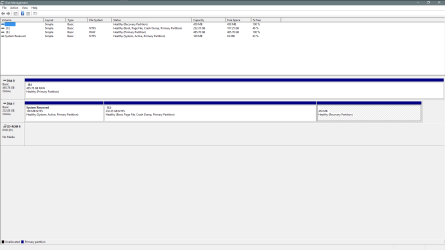
The problem I'm having is that the fix from the tutorial only partially worked, as the drive is no longer getting flagged as invalid, but windows still doesn't recognize the drive properly; it lists it as a RAW partition. Doing some more searching here led me to download MiniTool Partition Wizard.

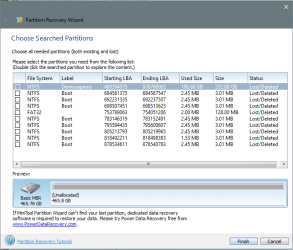
I ran the scan and it was able to find one of the volumes that was previously there, which I'm guessing is the first volume on the drive and was flagged as active or fixed by the hex edit from the tutorial. I closed the partition wizard without making any changes because it advised it would delete the missing partition as it saw it as unallocated space in order to activate the one it found.

My question is; should I go ahead and do what the tutorial suggests and change all instances of the value 42 with the hex editor, and then run the partition wizard to see if the other volume is found, or is there another tool that will help me unlock the other partition?
 

My Computer My Computer

At a glance

Windows 10 64 bit.G35288GBRadeon 7870
Computer type
PC/Desktop
Computer Manufacturer/Model Number
custom build
OS
Windows 10 64 bit.
CPU
G3528
Motherboard
Asrock Z97
Memory
8GB
Graphics Card(s)
Radeon 7870
Run this command: CHKDSK N: /f /v /r /x. Replace N with the letter of your disk.
 

My Computer My Computer

At a glance

Vista, Windows7, Mint Mate, Zorin, Windows 8from 1.6GHz Duo to i7
Computer Manufacturer/Model Number
HP, Dell, Gateway, Toshiba - 4 laptops and 2 desktops
OS
Vista, Windows7, Mint Mate, Zorin, Windows 8
CPU
from 1.6GHz Duo to i7
Monitor(s) Displays
2x HP w2207
Hard Drives
5x HDD, 7x SSD, 12x Externals
Keyboard
with trackball - no mices
Mouse
Trackball mice
Internet Speed
DSL 6000
Here's what I got after I ran it.

C:\WINDOWS\system32>CHKDSK E: /f /v /r /x
The type of the file system is NTFS.
Volume label is SG-01.
Corrupt master file table. Windows will attempt to recover
master file table from disk.
Windows cannot recover master file table. CHKDSK aborted.


Is there a utility or way to rebuild the master file table?
 

My Computer My Computer

At a glance

Windows 10 64 bit.G35288GBRadeon 7870
Computer type
PC/Desktop
Computer Manufacturer/Model Number
custom build
OS
Windows 10 64 bit.
CPU
G3528
Motherboard
Asrock Z97
Memory
8GB
Graphics Card(s)
Radeon 7870
Supposedly there are ways to rebuild the MFT. I have never used one and do not know how well they work.
 

My Computer My Computer

At a glance

Vista, Windows7, Mint Mate, Zorin, Windows 8from 1.6GHz Duo to i7
Computer Manufacturer/Model Number
HP, Dell, Gateway, Toshiba - 4 laptops and 2 desktops
OS
Vista, Windows7, Mint Mate, Zorin, Windows 8
CPU
from 1.6GHz Duo to i7
Monitor(s) Displays
2x HP w2207
Hard Drives
5x HDD, 7x SSD, 12x Externals
Keyboard
with trackball - no mices
Mouse
Trackball mice
Internet Speed
DSL 6000
Hi neoplasm,

1. Please post the link to the tutorial you mentioned suggesting to look for a value of 42 in Sector 0 under line 1C0 and changing it to 07. I have to assess whether this could have led to the Corrupt MFT. Did you save the original Sector 0, before you modified it?

2. Partition Wizard: Please upload the following screenshots:
a) The first screen that appears when you launch PW showing all your drives.
b) Run Partition Recovery Wizard Quick Scan on the corrupt 500GB Seagate drive and post the
screenshot of the found partitions.
c) Next do a Full Scan - which may take quite sometime - and post the screenshot of Found
Partitions.

And yes, Cancel the operation at the end and do not make any changes.

3. We do have some definite information as a result of the checkdisk run - Corrupt Master File Table.We shall see how to deal with it after the above inputs.

Upload the screenshots to SevenForum Servers. http://www.sevenforums.com/tutorials/9733-screenshots-files-upload-post-seven-forums.html
 

My Computer My Computer

At a glance

Windows 7 Home Premium 32 bit
OS
Windows 7 Home Premium 32 bit
Hello thanks for helping me out.

Here is the link to the tutorial

https://www.youtube.com/watch?v=QQgRkEuFQac

I did not save the sector before editing as I was not able to make the drive accessible before the edit, and I was not familiar with the features of the editor.

a)
1.PNG

b)
2.2.PNG

c)
3.PNG

DM)
DM.PNG
 

My Computer My Computer

At a glance

Windows 10 64 bit.G35288GBRadeon 7870
Computer type
PC/Desktop
Computer Manufacturer/Model Number
custom build
OS
Windows 10 64 bit.
CPU
G3528
Motherboard
Asrock Z97
Memory
8GB
Graphics Card(s)
Radeon 7870
A quick question now before you retire for the day. ( I shall write a detailed post later which you can see tomorrow morning. You are almost 12 hours behind me. My morning is your previous day night.)

You said you have two 500GB drives each partitioned into two. But I see only one in all the screenshots. What about the other?
 

My Computer My Computer

At a glance

Windows 7 Home Premium 32 bit
OS
Windows 7 Home Premium 32 bit
Thanks you're right I'm about to retire for the night. Hope you have a good day.
Look forward to reading your follow up tomorrow morning.

I disconnected that drive when I first started to diagnose the issue. I didn't want to confuse myself by having that other drive in there.
 

My Computer My Computer

At a glance

Windows 10 64 bit.G35288GBRadeon 7870
Computer type
PC/Desktop
Computer Manufacturer/Model Number
custom build
OS
Windows 10 64 bit.
CPU
G3528
Motherboard
Asrock Z97
Memory
8GB
Graphics Card(s)
Radeon 7870
My observations:

1. Though Partition Wizard shows one Partition/ drive E: NTFS 232.88 GB Used 100% and another Unallocated 232.88GB, Windows Disk Management shows the full volume E: 465.76GB, as RAW. So Check disk ran on the full volume - not appropriate when we know that there were two volumes in it - and for that reason I shall reject its finding.( There were two volumes and two MFTs. Which MFT did it tackle? :confused:)
No action is required on your part on this observation. Just confirm that the WDM screenshot is the current one and not one taken much earlier/ prior to the PW screenshot/prior to running checkdisk.

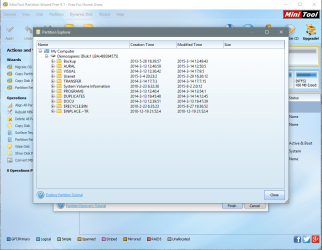
2. Action required: Run PW PRW Quickscan again. When it shows the found partition as in your screenshot b) in your post #7, just doubleclick on that line (as instructed in that Window) and check whether it shows all your files. Post a screenshot.

08-02-2016 12-02-32.jpg

Cancel after you take the screenshot without making any changes.

Will continue after a breather.
 

My Computer My Computer

At a glance

Windows 7 Home Premium 32 bit
OS
Windows 7 Home Premium 32 bit
Continuing....

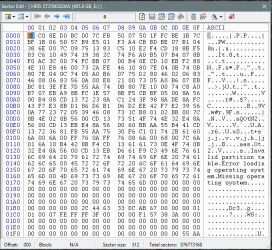
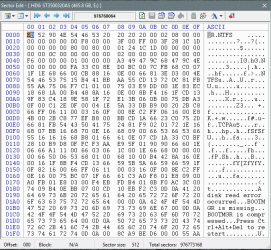
3. PW does not find any second partition even with a Full Scan.That could be because you didn't change 42 to 07 for the second partition.( But do not change it on your own. Let me examine Sector 0 and then tell you) That necessitates examining Sector 0 for the second partition string and also sector 976768064 for the presence of Volume Boot Record. Again with a Hex Editor. So here we go.
Action Required: Since you have Windows 10 64bit version download BOOTICEx64 v1.332 from 【BOOTICE v1.3.3.2: 功能强大的启动维护工具】-å*é€¸è½© ( Don't worry if it is all Chinese. THe program runs in English :)) .It will be a .rar file. Extract it to a folder named Booticex64 anywhere on your system drive. It will be a single BOOTICEx64.exe which you will run.At this point read through this post to familiarise yourself with using bootice http://www.sevenforums.com/hardware-devices/310295-lost-partitions.html#post2584426
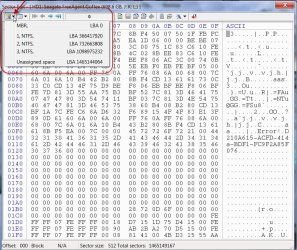
Now make sure you have selected the right drive, click on Sector Edit and post a screenshot of sector 0.Then go to Sector 976768064 ( you can simply click on the sector field ,enter the sector No. and then click on OK) and post a screenshot. Close bootice.

4. "the first thing I did was go into the disk management utility built into windows, where I quickly noticed that the drive is flagged as an Invalid Disk" Did you also notice it was flagged as a Dynamic Disk??? Did you at anytime convert it as a dynamic disk?

5. Since you also have another 500GB drive, I would like to see the Partition Table in it. So connect the other 500GB drive, run bootice, Click on the partitions button and post a screenshot like the one below.I may use it as a reference template if need arises. Once you have posted the screenshot, you may disconnect it again so that there is no confusion later as we proceed.

08-02-2016 16-01-26.jpg

Note: All the sections in the above two posts are selfcontained and independent. You may do it one by one at your leisure and at your own pace and post. There is absolutely no hurry. Do things in a calm and composed manner - not when you had a fight with someone else :) or stressed in any other way. .
 
Last edited:

My Computer My Computer

At a glance

Windows 7 Home Premium 32 bit
OS
Windows 7 Home Premium 32 bit
1. Yes the WDM screenshot is current.

2. Here is the new screenshot requested. All files seem to be there as best I can remember.

new3.PNG
 

My Computer My Computer

At a glance

Windows 10 64 bit.G35288GBRadeon 7870
Computer type
PC/Desktop
Computer Manufacturer/Model Number
custom build
OS
Windows 10 64 bit.
CPU
G3528
Motherboard
Asrock Z97
Memory
8GB
Graphics Card(s)
Radeon 7870
3.

Sector 0

SECTOR 0.PNG

Sector 976768064

second sector.PNG


4. I honestly can't exactly remember about the dynamic part.
 

My Computer My Computer

At a glance

Windows 10 64 bit.G35288GBRadeon 7870
Computer type
PC/Desktop
Computer Manufacturer/Model Number
custom build
OS
Windows 10 64 bit.
CPU
G3528
Motherboard
Asrock Z97
Memory
8GB
Graphics Card(s)
Radeon 7870
I have seen upto this point. I shall now wait for your response to section 5. Take your time since I am retiring now. After you complete it, I shall post on further course of action. Good day.
 

My Computer My Computer

At a glance

Windows 7 Home Premium 32 bit
OS
Windows 7 Home Premium 32 bit
5. I just now remembered/realized that the other drive is no longer a Seagate drive of the same size as this one. I took it out of use and disposed of it a couple of years ago after experiencing a BSY error that required connecting it to a software terminal to bring it out of that state. The other drive in there now that is not connected is a newer Western Digital. Please forgive the incorrect information.
 

My Computer My Computer

At a glance

Windows 10 64 bit.G35288GBRadeon 7870
Computer type
PC/Desktop
Computer Manufacturer/Model Number
custom build
OS
Windows 10 64 bit.
CPU
G3528
Motherboard
Asrock Z97
Memory
8GB
Graphics Card(s)
Radeon 7870
OK, The data on your first partition is still there. There should be no problem in recovering it. You need 200GB of free space on your Western Digital drive to copy those. Check and confirm. Then we shall do it with some freeware (Partition Find and Mount ( easy to use) and if it fails TestDisk ( little difficult to use, but a power machine)).

Your second partition: The partition string(table) for the second partition is missing in sector 0 (How come????). It is as if no second partition exists. Volume boot record in some form is present at sector 976768064, the first sector of the second partition. However PW is unable to identify it even with a Full Scan to be able to write the partition table in sector 0.So we have to give up on Partition Recovery and move to data recovery as aforesaid in para 1..

Now what is the data in the second partition? You do not know. That means you have no need for that data and it has been so for a longtime :).

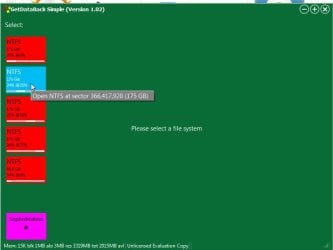
Still if you want to find if there is something in there, try GetDatabackSimple v2.00 5.6MB Free Trial version.. https://www.runtime.org/data-recovery-software.htm Download, install and run it. When it detects your system drive and the 500GB Seagate drive, click on the 500GB drive which should then show the detected partitions.Hover the mouse pointer over each partition and click on the partition which shows "Open NTFS at Sector 976768064 ......" See whether you can see the files and you need those.

( You can do this even for the first partition and see the files. But you can't copy those with the Trial version. You need to buy a license for $80).

09-02-2016 08-30-00.jpg
 
Last edited:

My Computer My Computer

At a glance

Windows 7 Home Premium 32 bit
OS
Windows 7 Home Premium 32 bit
Hello, thank you very much for your help thus far. Sorry I'm just getting back to you. Been out of town away from the affected drive and not been able to continue this process until today.

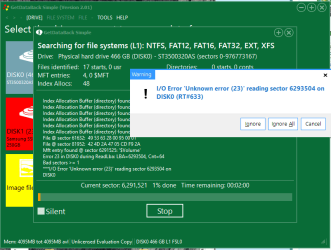
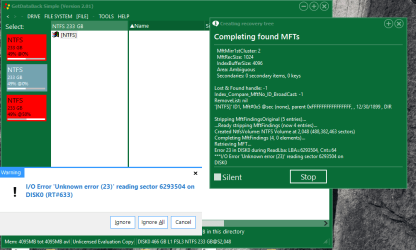
I downloaded GetDataBack Simple, installed it and ran it but got the following error twice before I could get to the screen you posted. In addition to coming up for sector 6293504 it also showed up for sector 6293568

gbs.PNG


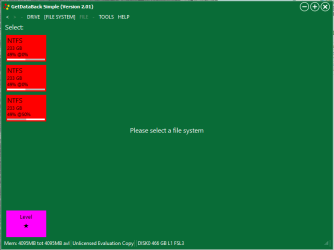
I clicked ignore on both of those instances and this is the screen that came up after that.

sectors.PNG

When I hover over the first partition it shows it's open at sector 63, the second one at 2,048, and the third at 488,396,608

When I tried to click on the second one I got this error on sectors 6293504 and 6293505.

Capture3.PNG

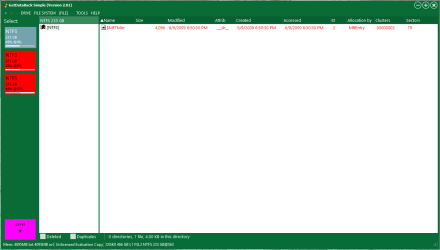
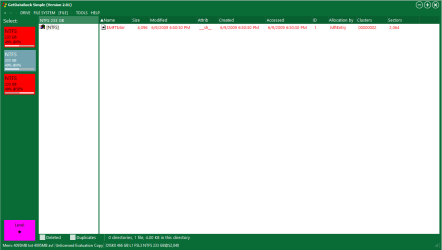
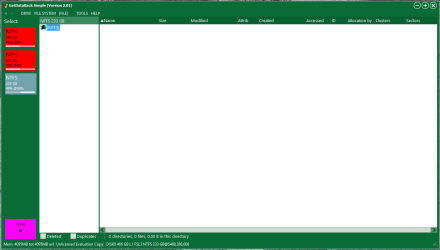
After clicking ignore on each instance this is what I show now on each partition.

par1.PNG

par2.PNG

par3.PNG

I've downloaded Partition Find and Mount and Test Disk and have them installed and ready to use when and if we need them.

I'm currently running MiniTool Partition Wizard again to see if the files that showed up there ealier still come up as I figured they would have also showed up on GetBackData.

Again, thank you for your help and patience.
 

My Computer My Computer

At a glance

Windows 10 64 bit.G35288GBRadeon 7870
Computer type
PC/Desktop
Computer Manufacturer/Model Number
custom build
OS
Windows 10 64 bit.
CPU
G3528
Motherboard
Asrock Z97
Memory
8GB
Graphics Card(s)
Radeon 7870
Yes,check again with PW and confirm whether you can still see the files in the first partition. Getdataback did not give any useful information and if things were still good, it should have shown your files in the first partition atleast. Now I have a doubt that the HDD may be regressing day by day.

If you confirm that you can still see the files in PW, we shall then straightaway get on to TestDisk and try to recover whatever can be recovered.
 

My Computer My Computer

At a glance

Windows 7 Home Premium 32 bit
OS
Windows 7 Home Premium 32 bit
PW came back with the same results as before and the files do show up there.
I'll await your instructions for continuing with TestDisk.
 

My Computer My Computer

At a glance

Windows 10 64 bit.G35288GBRadeon 7870
Computer type
PC/Desktop
Computer Manufacturer/Model Number
custom build
OS
Windows 10 64 bit.
CPU
G3528
Motherboard
Asrock Z97
Memory
8GB
Graphics Card(s)
Radeon 7870
I was composing a reply - a long post detailing the TestDisk steps. When I was almost at the finishing stage, CKWD sent a PM and at that instant my writeup disappeared inexplicably.So I had to pick up steam to redo it .

OK, I hope you have downloaded the Windows version of TestDisk testdisk-7.0.win.zip and extracted it.
I also hope you have enough space on your WD internal drive to copy the files listed by TestDisk. Connect it and create a folder named Recovery where you will copy the files. You can also use an external drive and create that folder if you have space on it. Before running TestDisk the destination drive should remain connected for TestDisk to recognise. ( You cannot connect those after starting TestDisk)

With the destination drive connected/plugged in, run testdisk_win.exe

First Screen: With up/Down arrow keys, highlight/select No Log Press Enter

Second screen: You should see all your connected disks and drives. Post a screenshot. Highlight the Disk ( not Drive) you want to recover Disk ( sda /dev /* ) You should be able to identify the drives with the capacity.
[Proceed] Enter

Third Screen:Highlight [Intel] if not highlighted already Enter

Fourth Screen: [Analyse] Enter

Fifth Screen: Current Partition Structure will be shown. Post a screenshot. [Quick Search] should be highlighted Enter

Sixth Screen: Let the analysis complete. You can see the progress. When complete it may show a number of partitions. Post a screenshot.

At this point click on X at top right corner to quit TestDisk.( You may also press q repeatedly till it takes you out)

Let me see the above three screenshots and decide on the next step. You can run TestDisk again.

Note: If you have any doubts on dealing with any screen post a screenshot and quit TestDisk.

Do not go to any step, choose any command on your own. Especially do not give a [Write]
command unless instructed.

( I was at this stage when CKWD sent a PM and the whole writeup vanished instantly. When I write the steps I always run TestDisk, see the screen and write because it is very difficult to remember the DOS steps.I had to rerun TestDisk again and rewrite the steps.)

Before you run TestDisk, take your time to read the following threads/posts to familiarise with TestDisk. You may then feel comfortable when you run it.

Running TestDisk: http://www.sevenforums.com/software/190430-regain-lost-drive-using-test-disk-illustrated-guide.html

Copying files listed by TestDisk: http://www.sevenforums.com/hardware...suddenly-became-unllocated-3.html#post2395385
 

My Computer My Computer

At a glance

Windows 7 Home Premium 32 bit
OS
Windows 7 Home Premium 32 bit
Back
Top