create a popup reminder using batch file

kiwichick

New member
Member
Local time
11:02 AM
Messages
81
Hi there, In XP I used 2 batch files to create a popup reminder in a cmd window. I don't want to use a program like task manager as it requires to much input for the type of reminder I want. With these batch files I would run one of them, enter a time, enter a description and that was it. A cmd window would popup at the set time and show me whatever I had typed in the description. Quick and easy, no mucking around. I have tried to use them on W7 but they don't seem to work. Can someone please tell me if I can do this on W7 and how? Here are the details of the 2 batch files used in XP:

They both go in C:\Windows. Run setalarm.bat to create the reminder. Type time in 00:00 format and press Enter. Type description and press Enter.

1: setalarm.bat

@ECHO OFF
SETLOCAL
SET _t=%1
SET _d=%2 %3 %4 %5
SET _x=%_d: =%
IF NOT DEFINED _t (SET /P _t=Enter the time: )
IF NOT DEFINED _x (SET /p _d=Enter the description: )
IF NOT DEFINED _d (SET /p _d=Enter the description: )
ECHO. reminder at %_t% to %_d%
at \\%COMPUTERNAME% %_t% /interactive cmd /c showalarm "%_d%"

2: showalarm.bat

@echo off
cls
echo.
echo.
echo %1
echo.
echo.
pause

Cheers.
 

My Computer

Computer Manufacturer/Model Number
Acer Aspire 5741
OS
windows 7 Home Premium
CPU
Intel Core i5 @ 2.27GHz 32nm Technology
Motherboard
Acer Aspire 5741 (CPU)
Memory
DDR3 4.0GB
Graphics Card(s)
Intel(R) Graphics Media Accelerator HD
Sound Card
Realtek High Definition Audio Intel(R) Display Audio
Monitor(s) Displays
Generic PnP Monitor on Intel Graphics Media Accelerator HD
Screen Resolution
1366x768
Hard Drives
Seagate 2.5" SATA 500GB
Keyboard
Synaptics PS/2 Port TouchPad
Mouse
Microsoft Comfort Mouse 4500 (IntelliPoint)
Oh woe is me. Can nobody help me with this?
 

My Computer

Computer Manufacturer/Model Number
Acer Aspire 5741
OS
windows 7 Home Premium
CPU
Intel Core i5 @ 2.27GHz 32nm Technology
Motherboard
Acer Aspire 5741 (CPU)
Memory
DDR3 4.0GB
Graphics Card(s)
Intel(R) Graphics Media Accelerator HD
Sound Card
Realtek High Definition Audio Intel(R) Display Audio
Monitor(s) Displays
Generic PnP Monitor on Intel Graphics Media Accelerator HD
Screen Resolution
1366x768
Hard Drives
Seagate 2.5" SATA 500GB
Keyboard
Synaptics PS/2 Port TouchPad
Mouse
Microsoft Comfort Mouse 4500 (IntelliPoint)
Please help with my batch files

I am so disappointed :cry: Everyone here at sevenforums is usually soooooooo amazing but this post has had 180+ views over a week and not one reply. I'm sure this must be possible in w7 but is there no-one out there who can show me how? (Or at least confirm it's possible.) Please help!! Please please please.

PS: I can run the setalarm.bat and enter the details but at the entered time, showalarm.bat doesn't show - nothing happens.
 

My Computer

Computer Manufacturer/Model Number
Acer Aspire 5741
OS
windows 7 Home Premium
CPU
Intel Core i5 @ 2.27GHz 32nm Technology
Motherboard
Acer Aspire 5741 (CPU)
Memory
DDR3 4.0GB
Graphics Card(s)
Intel(R) Graphics Media Accelerator HD
Sound Card
Realtek High Definition Audio Intel(R) Display Audio
Monitor(s) Displays
Generic PnP Monitor on Intel Graphics Media Accelerator HD
Screen Resolution
1366x768
Hard Drives
Seagate 2.5" SATA 500GB
Keyboard
Synaptics PS/2 Port TouchPad
Mouse
Microsoft Comfort Mouse 4500 (IntelliPoint)
Well kiwichick, Firstly can I apologise for not replying before, I hadnt seen this post.

I have just done a bit of research on this, and it seems while it could be done in XP, it cant be done in the same way on Vista or 7 (typical huh?)

The only workaround I can think of, is to maybe create a Scheduled Task that will open a Notepad window with your reminder on it? Sorry I cant be more help :confused:
 

My Computer

Computer type
PC/Desktop
Computer Manufacturer/Model Number
Medion Erazer (note to self: insert model number) - with custom additions
OS
Windows 10 Pro x64
CPU
Intel Core i5 7400 @ 3.00GHz
Motherboard
OEM supllied with PC
Memory
8GB 2133Mhz DDR4 (OEM supplied)
Graphics Card(s)
Gygabyte Windforce GTX 1050Ti (Factory Overclocked)
Sound Card
Realtek
Monitor(s) Displays
Acer Al1980 + HKC
Screen Resolution
1360*768(HKC) / 1280*1024(Acer)
Hard Drives
1TB Toshiba
1TB WD Caviar Green
120GB Samsung Evo 840
PSU
OEM supplied (no power rating on case)
Case
OEM Supplied
Cooling
Stock
Keyboard
Logitech Wireless
Mouse
Logitect Wireless
Internet Speed
40Mb/s Down 10Mb/s Up
Antivirus
Defender
Browser
Firefox
The only workaround I can think of, is to maybe create a Scheduled Task that will open a Notepad window with your reminder on it? Sorry I cant be more help :confused:

The opening of Notepad would not be needed if the bat files were entered as a scheduled task/tasks with the option Run with highest privileges. I use shortcuts to bat files which turn SRP on and off on the fly from within the Start Menu. The shortcut/bat's are much quicker than entering in Local Security to turn SRP on or off. For some reason Local Security is time consuming for me to load

http://www.sevenforums.com/tutorials/11949-elevated-program-shortcut-without-uac-prompt-create.html
 

My Computer

Computer Manufacturer/Model Number
Averatec 6130HS-20
OS
Windows 7 Professional 32-bit (6.1, Build 7600)
CPU
Intel(R) Pentium(R) 4 3.00 GHz HT
Memory
2.0 GB
Graphics Card(s)
ATI Mobility Radeon 9600 64MB
Sound Card
Realtek AC'97 Audio
Screen Resolution
1280 x 800
Hard Drives
Seagate 96023A 60GB 7200RPM -
Seagate FreeAgentDesktop 250GB
Cooling
20 Inch Box Fan
Mouse
Targus PAWM10 Wireless Optical Laptop Mouse
Hi guys thank you so so much!!!

Ok so the upshot is it can't be done by simply running the setalarm.bat. Yes, typical indeed!! As a new W7 user I find some of new things added are just so awesome I get blown away. And some of the things they've taken out, changed or disabled are totally inexplicable! The number of times I've said WTF.

severedsolo: Thanks for the advice of Task Scheduler but as I originally said, the beauty of the batch files were their simplicity - double-click, type-enter, type-enter, done. Just creating the notepad reminder would take more than that.

Greg S: Are you saying that the code is correct but (referring to the link you've posted) it's a UAC problem and the batch files will work if executed another way? I don't have UAC turned on so should that even matter? I'm not sure I understand about adding the batch files to Task Scheduler because I've never used it but I'll go have a look. Any further help in the regard would be great.

Thanks again guys. SevenForums still ROCKS!!!!
 

My Computer

Computer Manufacturer/Model Number
Acer Aspire 5741
OS
windows 7 Home Premium
CPU
Intel Core i5 @ 2.27GHz 32nm Technology
Motherboard
Acer Aspire 5741 (CPU)
Memory
DDR3 4.0GB
Graphics Card(s)
Intel(R) Graphics Media Accelerator HD
Sound Card
Realtek High Definition Audio Intel(R) Display Audio
Monitor(s) Displays
Generic PnP Monitor on Intel Graphics Media Accelerator HD
Screen Resolution
1366x768
Hard Drives
Seagate 2.5" SATA 500GB
Keyboard
Synaptics PS/2 Port TouchPad
Mouse
Microsoft Comfort Mouse 4500 (IntelliPoint)
Greg S: Are you saying that the code is correct but (referring to the link you've posted) it's a UAC problem and the batch files will work if executed another way? I don't have UAC turned on so should that even matter? I'm not sure I understand about adding the batch files to Task Scheduler because I've never used it but I'll go have a look. Any further help in the regard would be great.

Thanks again guys. SevenForums still ROCKS!!!!
Your bat code for setting the time works for me. I do use UAC so the command console will not appear for me but I have hunch that if I create the Scheduled Task for it, it will popup.....

It appears that it will not popup, hmm

When setalarm.bat is run, it's automatically added to the scheduled tasks. When the time comes to trigger showalarm.bat, it seems to be spinning it's wheels,lol. I'll have to do some digging on this.
 

My Computer

Computer Manufacturer/Model Number
Averatec 6130HS-20
OS
Windows 7 Professional 32-bit (6.1, Build 7600)
CPU
Intel(R) Pentium(R) 4 3.00 GHz HT
Memory
2.0 GB
Graphics Card(s)
ATI Mobility Radeon 9600 64MB
Sound Card
Realtek AC'97 Audio
Screen Resolution
1280 x 800
Hard Drives
Seagate 96023A 60GB 7200RPM -
Seagate FreeAgentDesktop 250GB
Cooling
20 Inch Box Fan
Mouse
Targus PAWM10 Wireless Optical Laptop Mouse
Thanks Greg S, You would be the absolute bomb if you could figure it out. Glad to know to care enough to try :D
 

My Computer

Computer Manufacturer/Model Number
Acer Aspire 5741
OS
windows 7 Home Premium
CPU
Intel Core i5 @ 2.27GHz 32nm Technology
Motherboard
Acer Aspire 5741 (CPU)
Memory
DDR3 4.0GB
Graphics Card(s)
Intel(R) Graphics Media Accelerator HD
Sound Card
Realtek High Definition Audio Intel(R) Display Audio
Monitor(s) Displays
Generic PnP Monitor on Intel Graphics Media Accelerator HD
Screen Resolution
1366x768
Hard Drives
Seagate 2.5" SATA 500GB
Keyboard
Synaptics PS/2 Port TouchPad
Mouse
Microsoft Comfort Mouse 4500 (IntelliPoint)
Thanks Greg S, You would be the absolute bomb if you could figure it out. Glad to know to care enough to try :D

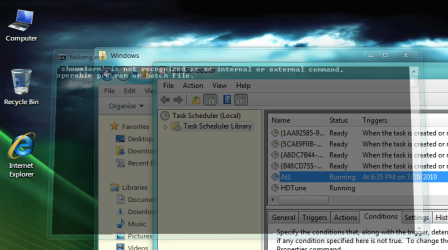
Well I finally got it to run sort of. As I mentioned earlier, when you run setalarm it automatically adds a task to Task Scheduler as At1. In Task Scheduler, I double clicked the At1 and at the bottom changed the configure for: to Windows 7, Windows Server. Just above that, Change User or Group..., I added Users in an attempt to see if it would do anything. It did, but so far not enough.

Untitled.png
 

My Computer

Computer Manufacturer/Model Number
Averatec 6130HS-20
OS
Windows 7 Professional 32-bit (6.1, Build 7600)
CPU
Intel(R) Pentium(R) 4 3.00 GHz HT
Memory
2.0 GB
Graphics Card(s)
ATI Mobility Radeon 9600 64MB
Sound Card
Realtek AC'97 Audio
Screen Resolution
1280 x 800
Hard Drives
Seagate 96023A 60GB 7200RPM -
Seagate FreeAgentDesktop 250GB
Cooling
20 Inch Box Fan
Mouse
Targus PAWM10 Wireless Optical Laptop Mouse
Got it to work by adding the full path to showalarm.bat.
Code:
@ECHO OFF
SETLOCAL
SET _t=%1
SET _d=%2 %3 %4 %5
SET _x=%_d: =%
IF NOT DEFINED _t (SET /P _t=Enter the time: )
IF NOT DEFINED _x (SET /p _d=Enter the description: )
IF NOT DEFINED _d (SET /p _d=Enter the description: )
ECHO. reminder at %_t% to %_d%
at [URL="file://%25computername%25/"][U][COLOR=#0066cc]\\%COMPUTERNAME%[/COLOR][/U][/URL] %_t% /interactive cmd /c E:\windows\showalarm "%_d%"

Untitled.png
 

My Computer

Computer Manufacturer/Model Number
Averatec 6130HS-20
OS
Windows 7 Professional 32-bit (6.1, Build 7600)
CPU
Intel(R) Pentium(R) 4 3.00 GHz HT
Memory
2.0 GB
Graphics Card(s)
ATI Mobility Radeon 9600 64MB
Sound Card
Realtek AC'97 Audio
Screen Resolution
1280 x 800
Hard Drives
Seagate 96023A 60GB 7200RPM -
Seagate FreeAgentDesktop 250GB
Cooling
20 Inch Box Fan
Mouse
Targus PAWM10 Wireless Optical Laptop Mouse
Hi Greg S, I'm so stoked you got it to work! Unfortunately it's still not working for me. Can you confirm I have the code correct:

setalarm.bat:

@ECHO OFF
SETLOCAL
SET _t=%1
SET _d=%2 %3 %4 %5
SET _x=%_d: =%
IF NOT DEFINED _t (SET /P _t=Enter the time: )
IF NOT DEFINED _x (SET /p _d=Enter the description: )
IF NOT DEFINED _d (SET /p _d=Enter the description: )
ECHO. reminder at %_t% to %_d%
at \\%COMPUTERNAME% %_t% /interactive cmd /c C:\windows\showalarm "%_d%"

showalarm.bat:

@echo off
cls
echo.
echo.
echo %1
echo.
echo.
pause

They are both in C:\Windows. I can still run setalarm.bat and enter the details but nothing happens when it reaches the set time although in Task Scheduler it says it's running.

You didn't mention whether you had also changed "configure for" when you got it to work. I have tried with and without changing it but it makes no difference. But even if that worked it would defeat the purpose because it would still involve more than just running the batch file.

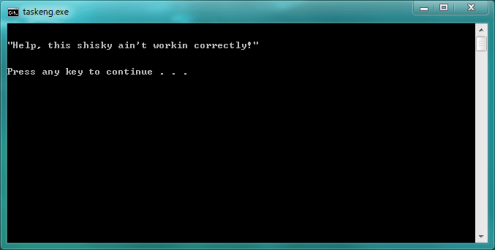
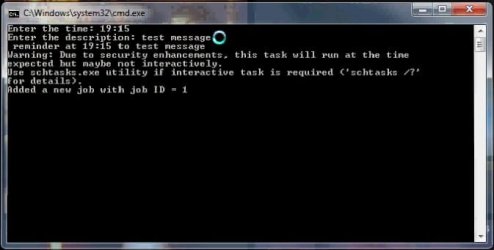
After running setalarm I can briefly see a warning before the cmd window closes. After recording it to video I can read it:

21-07-2010_192047.jpg

Any further thoughts would be gratefully accepted.
 

My Computer

Computer Manufacturer/Model Number
Acer Aspire 5741
OS
windows 7 Home Premium
CPU
Intel Core i5 @ 2.27GHz 32nm Technology
Motherboard
Acer Aspire 5741 (CPU)
Memory
DDR3 4.0GB
Graphics Card(s)
Intel(R) Graphics Media Accelerator HD
Sound Card
Realtek High Definition Audio Intel(R) Display Audio
Monitor(s) Displays
Generic PnP Monitor on Intel Graphics Media Accelerator HD
Screen Resolution
1366x768
Hard Drives
Seagate 2.5" SATA 500GB
Keyboard
Synaptics PS/2 Port TouchPad
Mouse
Microsoft Comfort Mouse 4500 (IntelliPoint)
Hi Greg S, I'm so stoked you got it to work! Unfortunately it's still not working for me. Can you confirm I have the code correct:

setalarm.bat:

@ECHO OFF
SETLOCAL
SET _t=%1
SET _d=%2 %3 %4 %5
SET _x=%_d: =%
IF NOT DEFINED _t (SET /P _t=Enter the time: )
IF NOT DEFINED _x (SET /p _d=Enter the description: )
IF NOT DEFINED _d (SET /p _d=Enter the description: )
ECHO. reminder at %_t% to %_d%
at \\%COMPUTERNAME% %_t% /interactive cmd /c C:\windows\showalarm "%_d%"

showalarm.bat:

@echo off
cls
echo.
echo.
echo %1
echo.
echo.
pause

They are both in C:\Windows. I can still run setalarm.bat and enter the details but nothing happens when it reaches the set time although in Task Scheduler it says it's running.

You didn't mention whether you had also changed "configure for" when you got it to work. I have tried with and without changing it but it makes no difference. But even if that worked it would defeat the purpose because it would still involve more than just running the batch file.

After running setalarm I can briefly see a warning before the cmd window closes. After recording it to video I can read it:

View attachment 86531

Any further thoughts would be gratefully accepted.
Yes it's correct. It seems that you have found out what I had typed in my last reply but I deleted it at the last moment. I have a feeling that each time you run setalarm.bat, it will create a new task in scheduler which will cause you more extra steps each time. Getting it to work for me went like this, launch setalarm.bat, after that go into task scheduler and change the Configure for: to Win 7 and I also had to add me as a User instead of the default System. The adding of User is just above the Configure for:
 

My Computer

Computer Manufacturer/Model Number
Averatec 6130HS-20
OS
Windows 7 Professional 32-bit (6.1, Build 7600)
CPU
Intel(R) Pentium(R) 4 3.00 GHz HT
Memory
2.0 GB
Graphics Card(s)
ATI Mobility Radeon 9600 64MB
Sound Card
Realtek AC'97 Audio
Screen Resolution
1280 x 800
Hard Drives
Seagate 96023A 60GB 7200RPM -
Seagate FreeAgentDesktop 250GB
Cooling
20 Inch Box Fan
Mouse
Targus PAWM10 Wireless Optical Laptop Mouse
Thanks yet again Greg S, I don't understand what you mean about adding you as a user. Can you please explain how you did that? I see the Change User button but when I open it I don't see how to add me. But as I said before, if I have to change settings and things every time I run the setalarm.bat, it defeats the purpose of having it. I may as well just use Task Scheduler itself.
 

My Computer

Computer Manufacturer/Model Number
Acer Aspire 5741
OS
windows 7 Home Premium
CPU
Intel Core i5 @ 2.27GHz 32nm Technology
Motherboard
Acer Aspire 5741 (CPU)
Memory
DDR3 4.0GB
Graphics Card(s)
Intel(R) Graphics Media Accelerator HD
Sound Card
Realtek High Definition Audio Intel(R) Display Audio
Monitor(s) Displays
Generic PnP Monitor on Intel Graphics Media Accelerator HD
Screen Resolution
1366x768
Hard Drives
Seagate 2.5" SATA 500GB
Keyboard
Synaptics PS/2 Port TouchPad
Mouse
Microsoft Comfort Mouse 4500 (IntelliPoint)
Thanks yet again Greg S, I don't understand what you mean about adding you as a user. Can you please explain how you did that? I see the Change User button but when I open it I don't see how to add me. But as I said before, if I have to change settings and things every time I run the setalarm.bat, it defeats the purpose of having it. I may as well just use Task Scheduler itself.

After clicking the button, type Users inside that box and on the right, select Check Names. Your user name should pop into view, click it once and select OK. That's from memory so post back if it doesn't work for you and I can give more specifics and screenshots
 

My Computer

Computer Manufacturer/Model Number
Averatec 6130HS-20
OS
Windows 7 Professional 32-bit (6.1, Build 7600)
CPU
Intel(R) Pentium(R) 4 3.00 GHz HT
Memory
2.0 GB
Graphics Card(s)
ATI Mobility Radeon 9600 64MB
Sound Card
Realtek AC'97 Audio
Screen Resolution
1280 x 800
Hard Drives
Seagate 96023A 60GB 7200RPM -
Seagate FreeAgentDesktop 250GB
Cooling
20 Inch Box Fan
Mouse
Targus PAWM10 Wireless Optical Laptop Mouse
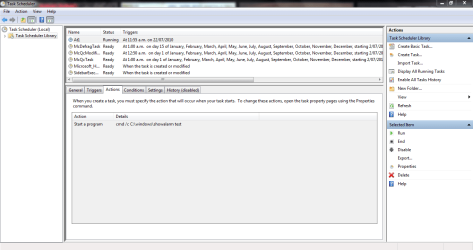
I'm getting really bummed now :cry: I'm sure I've done everything as you instructed but it still won't work. Here are screenshots of At1 in Task Scheduler.

At1 General.PNG

At1 Actions.PNG
 

My Computer

Computer Manufacturer/Model Number
Acer Aspire 5741
OS
windows 7 Home Premium
CPU
Intel Core i5 @ 2.27GHz 32nm Technology
Motherboard
Acer Aspire 5741 (CPU)
Memory
DDR3 4.0GB
Graphics Card(s)
Intel(R) Graphics Media Accelerator HD
Sound Card
Realtek High Definition Audio Intel(R) Display Audio
Monitor(s) Displays
Generic PnP Monitor on Intel Graphics Media Accelerator HD
Screen Resolution
1366x768
Hard Drives
Seagate 2.5" SATA 500GB
Keyboard
Synaptics PS/2 Port TouchPad
Mouse
Microsoft Comfort Mouse 4500 (IntelliPoint)
I'm getting really bummed now :cry: I'm sure I've done everything as you instructed but it still won't work. Here are screenshots of At1 in Task Scheduler.

View attachment 86712

View attachment 86711

If you have done the two steps mentioned in my last reply, right click At1 and select End. Open task manager and make sure cmd is not running, if it is, end the process. Back in task scheduler, select Refresh, next right click At1 again but this time select Run. This is to see if it will run when invoked. If it will run by doing that, then it will run if you adjust the time for say one minute later. If you haven't done the two steps mentioned earlier, let me know.
 

My Computer

Computer Manufacturer/Model Number
Averatec 6130HS-20
OS
Windows 7 Professional 32-bit (6.1, Build 7600)
CPU
Intel(R) Pentium(R) 4 3.00 GHz HT
Memory
2.0 GB
Graphics Card(s)
ATI Mobility Radeon 9600 64MB
Sound Card
Realtek AC'97 Audio
Screen Resolution
1280 x 800
Hard Drives
Seagate 96023A 60GB 7200RPM -
Seagate FreeAgentDesktop 250GB
Cooling
20 Inch Box Fan
Mouse
Targus PAWM10 Wireless Optical Laptop Mouse
well the screenshots were supposed to be for you to confirm I had done those steps but never mind. I'm over it. As I've said before, if it requires all this mucking around to make it work, it defeats the purpose. I'll look for some kind of third-party software that doesn't require too much input to set a reminder. Thanks for all your help Greg S. You've been absolutely amazing.
 

My Computer

Computer Manufacturer/Model Number
Acer Aspire 5741
OS
windows 7 Home Premium
CPU
Intel Core i5 @ 2.27GHz 32nm Technology
Motherboard
Acer Aspire 5741 (CPU)
Memory
DDR3 4.0GB
Graphics Card(s)
Intel(R) Graphics Media Accelerator HD
Sound Card
Realtek High Definition Audio Intel(R) Display Audio
Monitor(s) Displays
Generic PnP Monitor on Intel Graphics Media Accelerator HD
Screen Resolution
1366x768
Hard Drives
Seagate 2.5" SATA 500GB
Keyboard
Synaptics PS/2 Port TouchPad
Mouse
Microsoft Comfort Mouse 4500 (IntelliPoint)
The last post here was 1695 days ago, but I was having the same problem and came up with the following solution:

It's not a batch, but a vbs. To use it, copy the text between the dotted lines and paste it into notepad. Then save the file as "reminder.vbs" (don't forget to switch the file type to "all files"). Then, double click the "reminder.vbs" script and try it out. Note: you will have to enter the time in minutes, so if you want a reminder set for 6:00am, and it's 4:00am when you create the reminder, enter the time as "120".

------------------------------------------------
'ask for info to be reminded about
strUserIn = InputBox("Remind me to: ")
'and in how many minutes
intUserIn = InputBox("In X minutes. X =")
'confirmation
wscript.echo "Ok, I'll remind you to " & strUserIn & " in " & intUserIn & " minutes."
'wait the specified number of minutes
wscript.sleep (intUserIn*60000)

'play a sound
strSoundFile = "C:\Windows\Media\Speech On.wav"
Set objShell = CreateObject("Wscript.Shell")
strCommand = "wmplayer.exe /play /close " & chr(34) & strSoundFile & chr(34)
objShell.Run strCommand, 0, false
'display reminder
MsgBox "Don't forget to " & strUserIn & "!"

'script by adam1
------------------------------------------------------

I hope this helps someone out there.
It's just a quick, simple way to set reminders for yourself.
 

My Computer

Computer type
PC/Desktop
OS
Windows 7 Professional (64-bit)
Back
Top