
Note
As this is not a Windows related feature i've not put it in the tutorials section
This tutorial/how-to will show you how to create a new style in Adobe Photoshop CS4
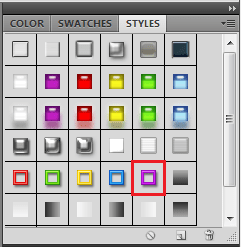
Here's How:
1, With CS4 open, create a new file
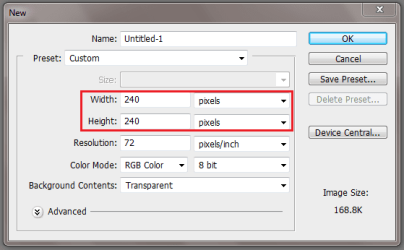
Note
I've selected a relatively small resolution of 240x240, any resolution works
2, Select the 'Rectangle' tool and draw a new 'Rectangle/Square' then click on a style


Note
For this i'm using the 'Paperclip' style
3, In the right-hand panel (with the new layer selected), right-click the layer & select 'Blending Options'
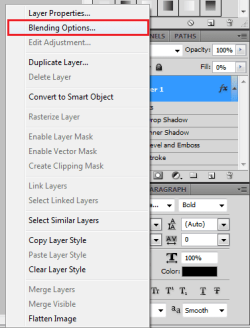
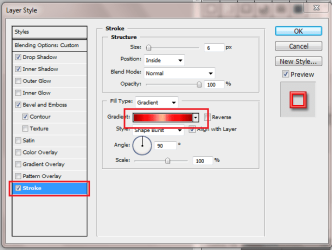
4, Click on the 'Stroke' section then the 'Gradient' fill section
Tip
You need to click within the Gradient to get the custom gradient options
5, You need to double-click each small box (highlighted) and change the colour to one of your choice
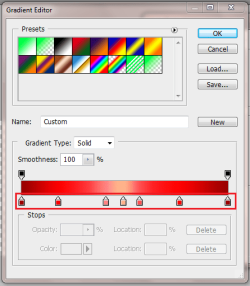
Once done, your new gradient is ready, just click 'OK' then 'OK'
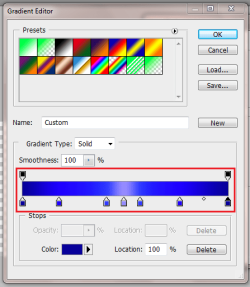
Once done, your new gradient is ready, just click 'OK' then 'OK'
6, Next, click the dropdown next to the styles selection on the right-hand panel and click 'New Style' and name the new style
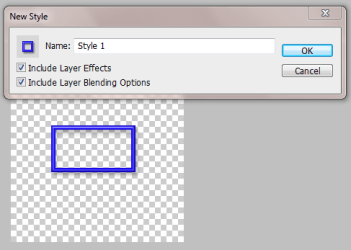
7, Next, in order to have the new style(s) in order, click the dropdown again and select 'Preset Manager'

You can now drag & drop the styles as you see fit
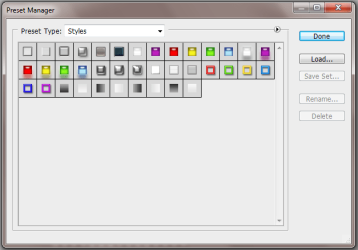
You can now drag & drop the styles as you see fit
That's all there is to it 
Enjoy
Last edited:
My Computer
At a glance
Windows 7 Ultimate x64AMD Sempron Dual Core3GBNVIDIA GeForce 6150SE nForce 430
- Computer Manufacturer/Model Number
- Compaq Desktop
- OS
- Windows 7 Ultimate x64
- CPU
- AMD Sempron Dual Core
- Memory
- 3GB
- Graphics Card(s)
- NVIDIA GeForce 6150SE nForce 430
- Screen Resolution
- 1024x768
- Hard Drives
- 150GB Sata


