
How to Require Users to Press CTRL+ALT+DEL to Approve UAC Elevation
Information
This will show you how to require users to have to press Control+ALT+Delete to approve or enter the administrator's password on the Secure Desktop screen for a UAC prompt to elevate a running application in Vista and Windows 7.
If enabled, this helps to prevent a Trojan horse or other types of malicious code from stealing the user’s Windows credentials.
You must be logged in as an administrator to be able to do this tutorial.
If enabled, this helps to prevent a Trojan horse or other types of malicious code from stealing the user’s Windows credentials.
You must be logged in as an administrator to be able to do this tutorial.
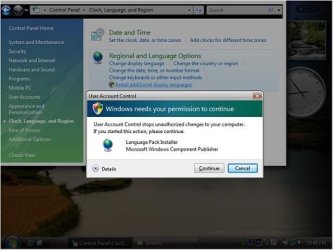
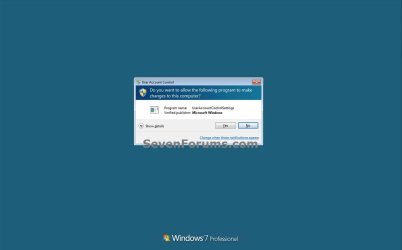
EXAMPLE: Default UAC prompt
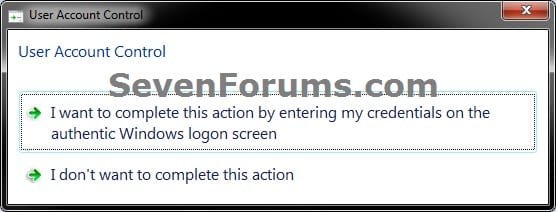
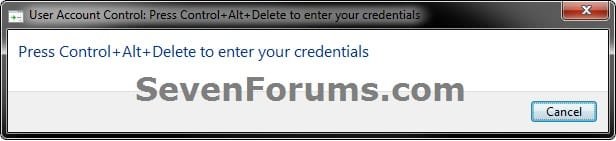
EXAMPLE: Having to Press CTRL+ALT+DEL to Approve UAC Prompt
OPTION ONE
Using a REG File Download
Require_CTRL+ALT+DEL_for_UAC_Elevation.reg
Download
B) Go to step 3.
2. To Not Require Pressing CTRL+ALT+DEL to Approve UAC Prompts
NOTE: This is the default settingA) Click on the Download button below to download the file below.
Not_Require_CTRL+ALT+DEL_for_UAC_Elevation.reg
Download
3. Click on Save, and save the .reg file to the desktop.
4. Right click on the downloaded .reg file and click on Merge.
5. Click on Run, Yes (Windows 7) or Continue (Vista), Yes, and OK when prompted.
6. When done, you can delete the downloaded .reg file if you like.
OPTION TWO
Through the Local Group Policy Editor
2. In the left pane, click on to expand Computer Configuration, Administrative Templates, Windows Components, and Credential User Interface. (see screenshot below)
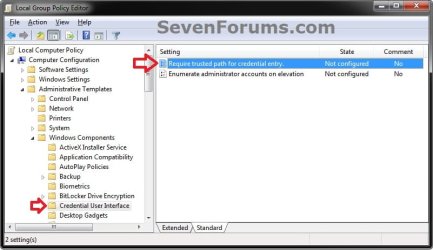
3. In the right pane, right click on Require trusted path for credential entry and click on Edit. (see screenshot above)
4. To Not Require Pressing CTRL+ALT+DEL to Approve UAC Prompts A) Select (dot) either Not Configured or Disabled. (see screenshot below step 6)
NOTE: Not Configured is the default setting.
B) Go to step 6.
5. To Require Pressing CTRL+ALT+DEL to Approve UAC Prompts A) Select (dot) Enabled. (see screenshot below step 6)
6. Click on OK. (see screenshot below)
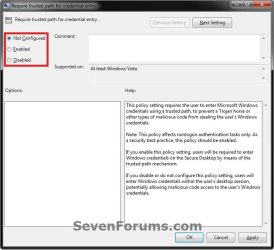
7. Close the Local Group Policy Editor window.
That's it,
Shawn
Related Tutorials
- How to Change UAC Notification Settings in Windows 7
- How to Create a Elevated Program Shortcut without a UAC Prompt
- How to Configure UAC to Require a Password for Administrator
- How to Enable or Disable the User Account Control (UAC) Blacking Out of Screen in Vista and Windows 7
- How to Create a User Account Control Settings Shortcut in Windows 7
- How to Elevate All Administrator Accounts UAC Privilege Level
- How to Change Behavior of User Account Control (UAC) Prompt for Standard Users
- How to Enable or Disable Secure Log On CTRL+ALT+DELETE in Windows 7
Attachments
Last edited:


