Hello everyone, I'm hoping one of you can help me retrieve data off a hard drive that came from an old Dell XPS and was running Windows 7 Pro. The PC was approximately 8 to 10 years old and was running great up until about a month ago. I ran regular backups but I admit, there are still some files I'd like to get off the hard drive if possible.
I'll give you as much info as I can but please be patient, I was diagnosed with something called siderosis about a year ago and so my memory is very poor. The problem I had with the PC started when I had to reboot it for some reason, when I did, instead of Windows restarting, the screen turned black displaying an error message " Bootmgr is missing Press Ctrl+Alt+Del to restart". Pressing those keys just brought me back to the same error message so I got my Windows 7 Pro install disk and inserted into the external DVD burner. FYI, a few months before the PCs built in DVD burner had stopped working. Also FYI, prior running the install disc, I went into the BIOS and made the external DVD burner the first boot device. Also FYI, no where in the Bios could I see my PCs internal hard drive listed.
I rebooted the machine and the Windows 7 Pro install disc started running but when I chose the repair option, it said the disc wasn't valid for the operating system on the PC and to use another disk. I did have a Windows 7 Home install disc so I'm assuming at one point I must have upgraded to Windows 7 Pro and that's why I was getting this message? Anyway, I ran the Windows 7 Home install disc instead, and selected the repair option but when the window that was supposed to list my operating system for me to select to repair, that part of the window was blank. There was no operating system or anything listed.
Being desperate, I selected the first repair option and clicked next and thank goodness, the menu with all the various repair options popped up. I clicked the startup repair and windows ran a quick program which ended with a message saying it was successful. There was a link to see what was done which I looked at, I don't recall all the text but there were about five or six different tests listed, the first few seem to have run fine, ending with code 00 and the last one listed said the partition table was missing a valid system partition and the repair done was a partition table repair and that the repair was successful.
I clicked finish and a message was displayed saying the machine might have to reboot twice in order to complete the repairs and so I let it run. I guess because the install disc was still in the drive, the install disk just ran again so out of curiosity, I clicked the repair option to see if the operating system would be displayed this time but it was not. So, I removed the install disc and rebooted the machine and this time, I got what looked like a bios menu asking me to choose a disk to boot from but this time, the PC's internal hard drive was the first one listed! WDCxxx, whatever it was I was psyched! I hit enter and sure enough Windows restarted after displaying the not shutting down properly message.
Considering the PCS age, I knew I could run into that problem again so I started backing up as much data as I could. The first thing I did was to run one of the backups I had set up to an external drive, this was mostly documents and pictures. There was still quite a bit of data in folders on my desktop that I wanted to back up but unfortunately, I was never able to get around to it as after a few more days, I got the same boot manager missing error message. I went through the same procedure to try and repair it and even got the same results including the final message that the partition table was successfully repaired. However, this time when I rebooted, Windows would never restart, I kept getting the Boot Manager missing error. I tried several times but could never get Windows back.
So, I ended up buying a new pc, a Dell XPS with Windows 10. My brother has a cable that can attach to a hard drive and a USB connector to attach to a PC to allow a person to access the data on that hard drive. Unfortunately, when he attached the cable to my old hard drive and the other end to my new pc, nothing happened, no new drives appeared. We tried the same thing on an old Dell 1525 laptop running Windows Vista, no new drives were recognized.
I don't know the brand name of this cable but I'm wondering if all those devices operate the same? I know some companies make similar devices but instead of a cable they offer an enclosure you put the hard drive in and hook it up to a PC with hopes of accessing the data on the hard drive, any idea if I'd have any better luck with one of those? any other ideas on getting access to the data on the hard drive? Some of the data it is fairly important, I suppose I'd be willing to spend around $100 to get access to the data.
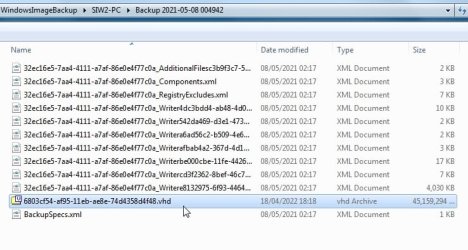
The other question I had was about the original file backup I mentioned, can I use Windows 10 to restore that to my new pc? When I right click the file and click properties, it ask me " do you want to restore files from this backup?" & " how do I manage the disk space used by the backup?". When I click that second link, nothing happens. Will Windows 10 create the same folders and files that were on my old Windows 7 machine? Thanks in advance for any info you can provide!
I'll give you as much info as I can but please be patient, I was diagnosed with something called siderosis about a year ago and so my memory is very poor. The problem I had with the PC started when I had to reboot it for some reason, when I did, instead of Windows restarting, the screen turned black displaying an error message " Bootmgr is missing Press Ctrl+Alt+Del to restart". Pressing those keys just brought me back to the same error message so I got my Windows 7 Pro install disk and inserted into the external DVD burner. FYI, a few months before the PCs built in DVD burner had stopped working. Also FYI, prior running the install disc, I went into the BIOS and made the external DVD burner the first boot device. Also FYI, no where in the Bios could I see my PCs internal hard drive listed.
I rebooted the machine and the Windows 7 Pro install disc started running but when I chose the repair option, it said the disc wasn't valid for the operating system on the PC and to use another disk. I did have a Windows 7 Home install disc so I'm assuming at one point I must have upgraded to Windows 7 Pro and that's why I was getting this message? Anyway, I ran the Windows 7 Home install disc instead, and selected the repair option but when the window that was supposed to list my operating system for me to select to repair, that part of the window was blank. There was no operating system or anything listed.
Being desperate, I selected the first repair option and clicked next and thank goodness, the menu with all the various repair options popped up. I clicked the startup repair and windows ran a quick program which ended with a message saying it was successful. There was a link to see what was done which I looked at, I don't recall all the text but there were about five or six different tests listed, the first few seem to have run fine, ending with code 00 and the last one listed said the partition table was missing a valid system partition and the repair done was a partition table repair and that the repair was successful.
I clicked finish and a message was displayed saying the machine might have to reboot twice in order to complete the repairs and so I let it run. I guess because the install disc was still in the drive, the install disk just ran again so out of curiosity, I clicked the repair option to see if the operating system would be displayed this time but it was not. So, I removed the install disc and rebooted the machine and this time, I got what looked like a bios menu asking me to choose a disk to boot from but this time, the PC's internal hard drive was the first one listed! WDCxxx, whatever it was I was psyched! I hit enter and sure enough Windows restarted after displaying the not shutting down properly message.
Considering the PCS age, I knew I could run into that problem again so I started backing up as much data as I could. The first thing I did was to run one of the backups I had set up to an external drive, this was mostly documents and pictures. There was still quite a bit of data in folders on my desktop that I wanted to back up but unfortunately, I was never able to get around to it as after a few more days, I got the same boot manager missing error message. I went through the same procedure to try and repair it and even got the same results including the final message that the partition table was successfully repaired. However, this time when I rebooted, Windows would never restart, I kept getting the Boot Manager missing error. I tried several times but could never get Windows back.
So, I ended up buying a new pc, a Dell XPS with Windows 10. My brother has a cable that can attach to a hard drive and a USB connector to attach to a PC to allow a person to access the data on that hard drive. Unfortunately, when he attached the cable to my old hard drive and the other end to my new pc, nothing happened, no new drives appeared. We tried the same thing on an old Dell 1525 laptop running Windows Vista, no new drives were recognized.
I don't know the brand name of this cable but I'm wondering if all those devices operate the same? I know some companies make similar devices but instead of a cable they offer an enclosure you put the hard drive in and hook it up to a PC with hopes of accessing the data on the hard drive, any idea if I'd have any better luck with one of those? any other ideas on getting access to the data on the hard drive? Some of the data it is fairly important, I suppose I'd be willing to spend around $100 to get access to the data.
The other question I had was about the original file backup I mentioned, can I use Windows 10 to restore that to my new pc? When I right click the file and click properties, it ask me " do you want to restore files from this backup?" & " how do I manage the disk space used by the backup?". When I click that second link, nothing happens. Will Windows 10 create the same folders and files that were on my old Windows 7 machine? Thanks in advance for any info you can provide!
My Computer
At a glance
Windows 7 Proffessional 64-biti 712 GB tape
- Computer type
- PC/Desktop
- Computer Manufacturer/Model Number
- Dell XPS
- OS
- Windows 7 Proffessional 64-bit
- CPU
- i 7
- Memory
- 12 GB tape