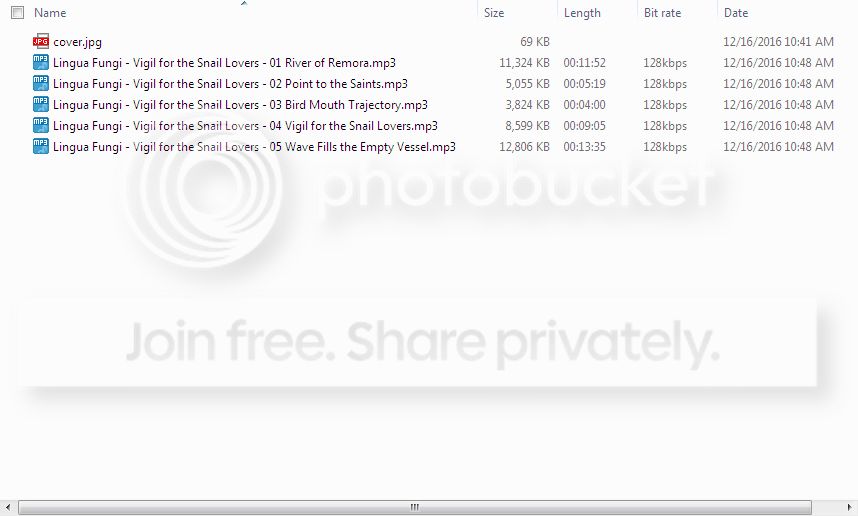
In a very round about way. The following solution is found on the web. Works for me but it involves editing the registry so you might want to have a fresh backup of your system in case something goes wrong. For the last part: it is important that the change is made on the built-in Music/Pictures/Documents folders, even if you moved them from their original location.
- Open the Registry Editor and go to the following keys:
[HKEY_CURRENT_USER\Software\Classes\Local Settings\Software\Microsoft\Windows\Shell\Bags]
[HKEY_CURRENT_USER\Software\Classes\Local Settings\Software\Microsoft\Windows\Shell\BagMRU]
- Right-click on the Bags key in the left pane and select Delete, then do the same thing for BagMRU. This will remove most existing customizations for things like window sizes, positions and views. While still in the same place in the Registry Editor, you will need to manually recreate one of these keys with a new setting. Right-click on the following key in the left pane:
[HKEY_CURRENT_USER\Software\Classes\Local Settings\Software\Microsoft\Windows\Shell]
- Create a new key called Bags to replace the one you just deleted. Right-click on Bags, select New>Key and name this new key AllFolders. Right-click on AllFolders, select New>Key and name this new key Shell. The end result should look like this:
[HKEY_CURRENT_USER\Software\Classes\Local Settings\Software\Microsoft\ Windows\Shell\Bags\AllFolders\Shell]
- Now left-click on the last Shell key and in the right pane right-click in an empty area and select New>String Value. Name this new string FolderType and once created, double-click on it and in the Value Data box you can set the default view which all folders will initially take (unless otherwise specified) by entering one of the following values:
- NotSpecified
- Contacts
- Documents
- Music
- Pictures
- For example if you enter Documents in the FolderType Value Data box (which I recommend), then all folders for which you do not manually set a view will default to the standard Documents folder view as you set it.
Now in Windows Explorer go to your \Users[username]\ directory and for each of the main folder types under there (Documents, Pictures, Music, Videos), make sure that you set the view you wish, including things like choosing which columns to show and how wide they each are, the size of any icons/thumbnails, the way in which they are sorted, etc. As you make the changes, for each folder click the Organize button at the top of Windows Explorer, select 'Folder and Search Options', go to the View tab and click the 'Apply to Folders' button. This will set this view for all folders of that same type, and this method also means that should you copy files of any other type into a folder, it will not alter that folder's view settings - from now on the settings should remain exactly as you leave them.