Hi Billberry12, welcome to SevenForums.

Please follow the following steps to sort out your problem. It is a procedure that sounds more complicated than it actually is, so don't be concerned.

-Open Outllook and click on the
Tools menu and select
Options.
-In the
Options dialog box, click the
Mail Setup tab and then click the
Data Files button.
-In the
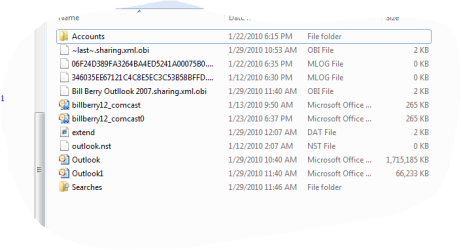
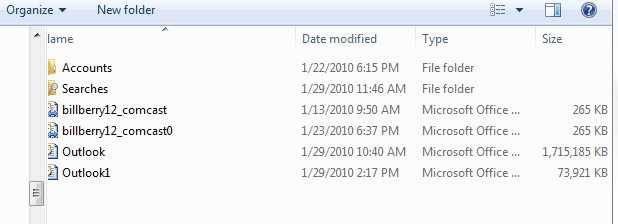
Account settings window, you will see all of your personal Outlook data files listed. Here, you want to note the full path to each data file. ( The easiest way to do this is to open a "new text document" on your desktop and then copy the path from account settings and paste it in your text doc.)
-The path should read something similar to C:\Documents and Settings\*user name*\Local Settings\Application Data\Microsoft\Outlook
-Once you have this information, close the
Account Settings dialog box and then close the
Outlook Options window.
Now that you have the location of your Outlook data files, you need to check and repair them using the Microsoft Office Outlook 2007 Inbox Repair Tool-SCANPST.exe. By default, you should see SCANPST.exe in the Microsoft Office installation folder's "Office 12" subfolder.
On my system, SCANPST.exe is located in D:\Program Files\Microsoft Office\Office 12.
Right, now to check and repair your Outlook data files, follow these steps:
-First, close Outlook 2007.
-Use Windows Explorer to browse to SCANPST.exe, then double-click it.
-When the Outlook 2007 Inbox Repair Tool opens, click Browse and navigate to the Outlook data file location that you found earlier. (or, if you saved the file paths to your text file, copy and paste the path into the application.)
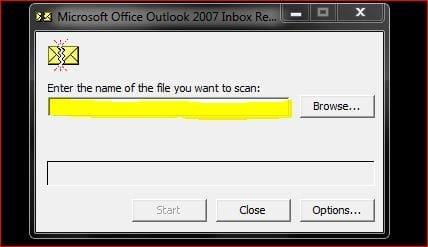
-You will need to check each file listed.
-Now click Start to begin the repair process. If errors are encountered, you will see a window requesting you to "Repair" the errors.
-Make sure you tick "Make backup of scanned file before repairing" and click
Repair.

-Once you see the "Repair Complete" popup, click OK.
-Repeat steps 2-6 to scan the same file that was just checked and repaired by SCANPST.exe.
-If necessary continue to run the check against the same file until no errors are found.
-Repeat the above steps for all additional pst files that are located in your Outlook folder.
And that is that.

Once all of your Outlook .pst files are successfully repaired, you should be able to open Outlook and no longer see the error message that had been plaguing you.
I hope this helps.
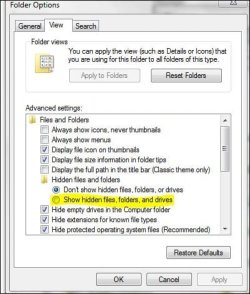
Edit: To find C:\Documents and Settings\*user name*\Local Settings\Application Data\Microsoft\Outlook you may have to go to your "Folder options" and enable "Show hidden files, folders and drives"