Bingo! I've found the solution. Total Commander can solve my problem in an easy way. Open Total Commander , choose Commands and then choose Branch View. What you get is a list of all files in a selected folder no matter if they are placed in a subfolder or not. Just a list of all files. That's it!!!
Interesting.
This Total Commander program looks very similar to
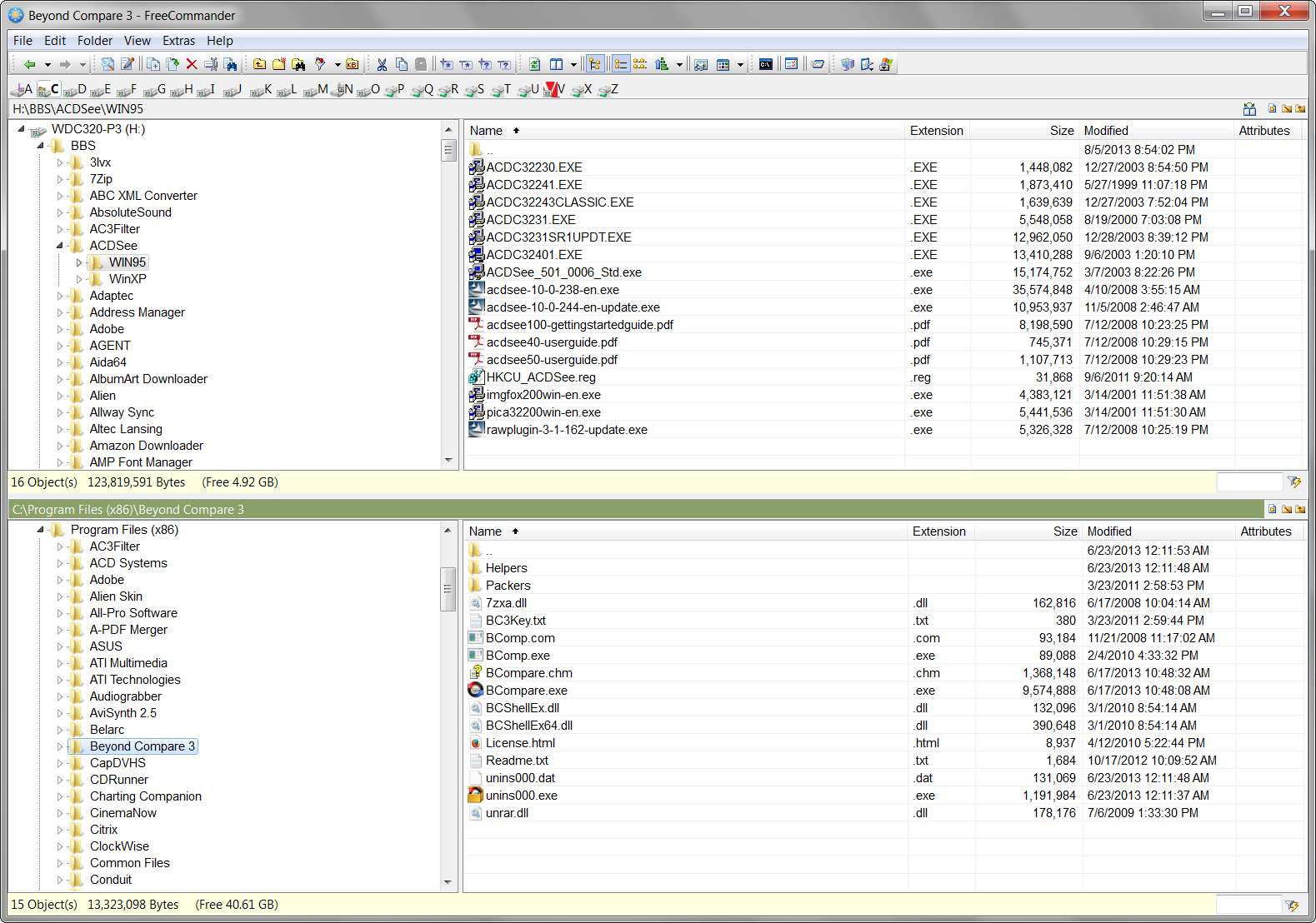
FreeCommander which is what I've been using as my Windows Explorer replacement ever since going from WinXP to Win7 back in late 2009. I used to use Power File Gold in WinXP, but it dropped off into legacy status (no longer listed on the vendor's web site as a product) and was incompatible with Win7 in its final form.
FreeCommander does not have this "branch view", which while I can see its purpose have never actually had the need to use in quite that form. I installed Total Commander to try it out, but didn't spend enough time to learn all of its configuration and settings options.
I normally use FreeCommander in a 2-pane OVER/UNDER presentation, which gives me much wider column content (including the Explorer-tree pane on the left of top and bottom, so that there really are FOUR panes in view) in the top and bottom panes than would otherwise be possible in left/right side-by-side presentation. I couldn't find where one could do that in Total Commander. FreeCommander also has a button to toggle it into and out of SINGLE PANE mode (i.e. still with Explorer Tree on the left, so it's actually two-panes but only for a single folder) in case you want to use the whole screen to look at a single folder with no need to have two folders in view at one time. I didn't see where Total Commander had such a toggle between 1-pane and 2-pane mode.
In other words FreeCommander had over/under or left/right views (both with and without the Explorer Tree pane) for both of its supported presentations, which are either single-folder full-screen or two-folder half-screen formats.
But there is another excellent Explorer-like two-pane side-by-side utility named
Beyond Compare which is specifically designed to COMPARE two "supposedly parallel" directory structures including all of the files inside of them. It has a left/right 2-pane presentation and can show in "ALL" and "DIFFERENCES ONLY" mode. It also has a simple button to conveniently single-click "expand all folders" or "collapse all folder" from whatever are the top-level folders currently selected on the left and right side. This is sort of like Total Commander's "branch view" but it retains the folder-levels as visible breaks, showing both all folders and all files from that top level down. Obviously this is a different objective than just showing all files, but depending on your need this can also be exactly what you wanted or not.

Above is (a) differences only, and also (b) "expand all", meaning it is showing only those folders which contained differences and fully expanding them and any lower-level sub-folders as well. The program uses color coding to visibly designate when things are equal or not equal, or equal other than for date/time differences and therefore which side is "newer", or which side might have an "orphan" that is not on the other side.
Beyond Compare has hugely convenient and intuitive capability to copy/move/update/mirror from left side to right side or vice versa, either selectively just per your selections or automatically according to common-sense needs. It can also compare not only folders/files based on a whole variety of comparison criteria (including taking into account time-zone differences in directory date/time stamps, etc.) but can also compare file-to-file for content, both in text and binary and for commonly known file types. File-to-file comparison presentations can also be in "all" or "differences only" mode. Very convenient for keeping INI or CFG files up-to-date with previous modifications when installing a new version of a program.
Many ways to skin that cat.