Desktop Slideshow

How to Create a Desktop Slideshow in Windows 7

   Information
This will show you how to create a slideshow of wallpaper images (pictures) on your Windows 7 desktop. You will have the option to select how often the pictures change and to shuffle them.

The default folder that Windows 7 uses to store the pictures in is located at:
C:\Windows\Web\Wallpaper.

   Note
The Windows 7 Starter and Home Basic editions do not include the Desktop Slideshow feature.

Lets talk about Windows 7 Starter - Windows 7 Team Blog - The Windows Blog

Instead, you will need to use the tutorial in the link below to have a Desktop Slideshow in the Windows 7 Starter and Home Basic editions.

How to Change the Desktop Background in Windows 7 Starter Edition

   Warning
If you checked the Turn off all unnecceassary animations box in the Ease of Access Center, or uncheck the Animate controls and elements inside windows option in the Visual Effects settings, then this will also remove the fade effect between wallpapers in the desktop slideshow.

You must also be using a Aero theme to be able to use and set the desktop slideshow.


Here's How:
1. Right click on a empty space on the desktop and click on Personalize.

2. Click on the Desktop Background link at the bottom of the window. (see screenshot below)
NOTE: The name in gray under Desktop Background is the current desktop background file name.
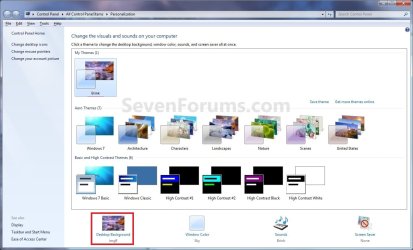
Personalize.jpg
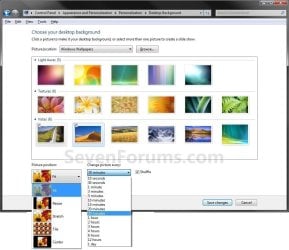
3. You will now see this window. (see screenshots below)
NOTE: You may need to scroll down or enlarge the window to see all available options like below.
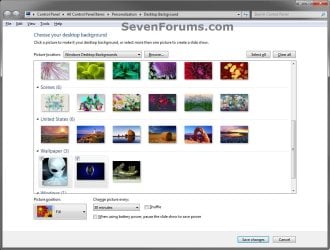
change-2.jpg

Desktop_Background.jpg

4. Select a Picture Location
A) Click on the drop down arrow menu to select from the list of available picture folder locations, or click on the Browse button to navigate to the picture folder or library location. (see screenshots above)

B) Select the picture folder and click on Select Folder.
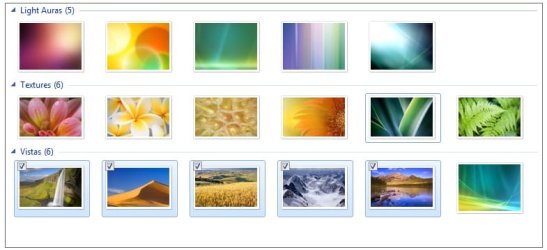
5. Select Desktop Background Pictures
A) Select more than one picture by right clicking on an available picture, or clicking on the check box (to check) in the upper left corner of the picture. (see screenshots below and below step 3)
Select_Images.jpg
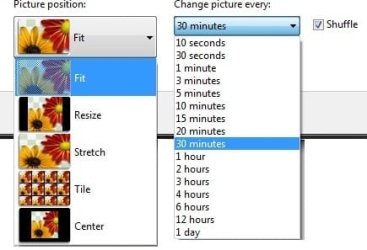
6. Select the Picture Position
A) Click on the drop down arrow menu, and click on the picture position you want for the desktop background images. (see screenshots below and below step 3)
Options.jpg
7. Select How Often to Change Pictures
A) Click on the drop down arrow menu, and click on how often you want the pictures to change. (see screenshots above and below step 3)
8. To Shuffle the Pictures
A) Check the Shuffle box to shuffle the selected pictures to change in a random order. (see screenshot below step 3 and below step 6)
NOTE: Uncheck the Shuffle box to have the selected pictures change in order.
9. To Pause Slide Show when on Battery Power
A) Check or uncheck the When using battery, pause the slide show to save power box for what you would like. (see left screenshot below step 3)
NOTE: This option is only available if you have a PC that has a battery (ex: laptop), or a destop with a UPS and it's data cable connected.
10. Click on Save changes to apply the changes. (see screenshots below step 3)

11. Close the Personalize window when done. (see screenshots below step 2)

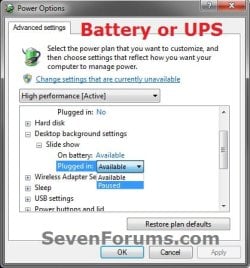
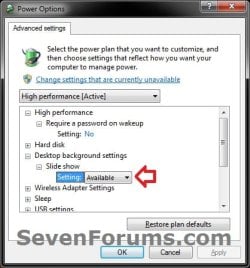
12. Open your Advanced Power Plan Settings. Under Desktop background settings for Slide show, make sure that you have the setting as Available for both "Plugged in" or "On battery" (if available), and click on OK. (see screenshots below)
NOTE: The "On battery" option is the same setting in step 9 above.
Slide_Show.jpgPower_Options-2.jpg
13. You will now have your selected images (step 5) change automatically on your desktop for how often (step 7) you set it to.

   Tip
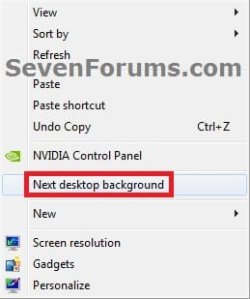
You can now also right click on your desktop, and click on Next desktop background to change or scroll your desktop background to the next image you had selected (step 5) in the slideshow.

The keyboard shortcut for this is:
Shift+F10 and press N
Next_desktop_background.jpg


That's it,
Shawn


Last edited:
I realized that if you put the computer to sleep, it would rapidly cycle through several wallpapers within a few minutes once you wake the computer up.
 

My Computer

Computer Manufacturer/Model Number
Custom
OS
Windows 7 Home Premium 64
CPU
Core i7 870 2.93 GHz
Motherboard
Gigabyte P55A-UD3
Memory
16 GB G-Skills DDR3 1333
Graphics Card(s)
ASUS GTX 680 DirectCu-II Top
Sound Card
Realtek 5.1 audio
Monitor(s) Displays
Samsung 23" widescreen
Screen Resolution
2048x1152
Hard Drives
OCZ Vertex III 128 GB (primary)
OCZ Vertex II 128 GB (data)
PSU
Corsair 650W
Case
CoolerMaster HAF 920
Cooling
Arctic Cooling Freezer 7 Pro
Keyboard
DAS Model S Ultimate keyboard
Mouse
Logitech G5 gaming mouse
Internet Speed
Cable
Browser
Chrome
Other Info
Built in December 2010
Umm, interesting.
 

My Computer

Computer type
PC/Desktop
Computer Manufacturer/Model Number
Self built custom
OS
64-bit Windows 11 Pro for Workstations
CPU
Intel i7-8700K OC'd to 5 GHz
Motherboard
ASUS ROG Maximus XI Formula Z390
Memory
64 GB (4x16GB) G.SKILL TridentZ RGB DDR4 3600 MHz
Graphics Card(s)
ASUS ROG-STRIX-GTX1080TI-O11G-GAMING
Sound Card
Integrated
Monitor(s) Displays
2 x Samsung Odyssey G7 27"
Screen Resolution
2560x1440
Hard Drives
1TB Samsung 990 PRO M.2,
4TB Samsung 990 PRO PRO M.2,
TerraMaster F8 SSD Plus NAS
PSU
Seasonic Prime Titanium 850W
Case
Thermaltake Core P3
Cooling
Corsair Hydro H115i
Keyboard
Logitech wireless K800
Mouse
Logitech MX Master 4
Internet Speed
2 Gb/s Download and 100 Mb/s Upload
Antivirus
Malwarebyte Anti-Malware Premium
Browser
Google Chrome
Other Info
Logitech Z625 speaker system,
Logitech BRIO 4K Pro webcam,
HP Color LaserJet Pro MFP M477fdn,
APC SMART-UPS RT 1000 XL - SURT1000XLI,
Galaxy S23 Plus phone
Hello Brink,

Thank you for this cool tutorial ;-)

I use Windows Home Premium, and as far as I can see, I don't need to unlock anything to get the slideshow working, is this correct?

Have a nice day, and keep writing the cool tutorials!

Best regards,

zx81
 

My Computer

Computer Manufacturer/Model Number
Dell Inpspiron 1720
OS
Windows 7 Home Premium x64
CPU
Intel 1720 Core 2 Duo 2.00GHz,800,2M
Memory
4GB 667MHz DDR2 SDRAM (2x2048)
Graphics Card(s)
NVIDIA Geforce Go 8600M GT 256MB DDR2
Sound Card
SigmaTel
Monitor(s) Displays
17.0" Widescreen WXGA+ (1440x900) TFT with TrueLife
Screen Resolution
1440x900
Hard Drives
2x160GB 5400RPM Serial ATA
Mouse
Logitech
Hello zx81,

Nope, it should work right out of the box for the Home Premium edition as well. :)
 

My Computer

Computer type
PC/Desktop
Computer Manufacturer/Model Number
Self built custom
OS
64-bit Windows 11 Pro for Workstations
CPU
Intel i7-8700K OC'd to 5 GHz
Motherboard
ASUS ROG Maximus XI Formula Z390
Memory
64 GB (4x16GB) G.SKILL TridentZ RGB DDR4 3600 MHz
Graphics Card(s)
ASUS ROG-STRIX-GTX1080TI-O11G-GAMING
Sound Card
Integrated
Monitor(s) Displays
2 x Samsung Odyssey G7 27"
Screen Resolution
2560x1440
Hard Drives
1TB Samsung 990 PRO M.2,
4TB Samsung 990 PRO PRO M.2,
TerraMaster F8 SSD Plus NAS
PSU
Seasonic Prime Titanium 850W
Case
Thermaltake Core P3
Cooling
Corsair Hydro H115i
Keyboard
Logitech wireless K800
Mouse
Logitech MX Master 4
Internet Speed
2 Gb/s Download and 100 Mb/s Upload
Antivirus
Malwarebyte Anti-Malware Premium
Browser
Google Chrome
Other Info
Logitech Z625 speaker system,
Logitech BRIO 4K Pro webcam,
HP Color LaserJet Pro MFP M477fdn,
APC SMART-UPS RT 1000 XL - SURT1000XLI,
Galaxy S23 Plus phone
I think the unlocking step was necessary for the RC or beta versions, correct?
 

My Computer

Computer Manufacturer/Model Number
Custom
OS
Windows 7 Home Premium 64
CPU
Core i7 870 2.93 GHz
Motherboard
Gigabyte P55A-UD3
Memory
16 GB G-Skills DDR3 1333
Graphics Card(s)
ASUS GTX 680 DirectCu-II Top
Sound Card
Realtek 5.1 audio
Monitor(s) Displays
Samsung 23" widescreen
Screen Resolution
2048x1152
Hard Drives
OCZ Vertex III 128 GB (primary)
OCZ Vertex II 128 GB (data)
PSU
Corsair 650W
Case
CoolerMaster HAF 920
Cooling
Arctic Cooling Freezer 7 Pro
Keyboard
DAS Model S Ultimate keyboard
Mouse
Logitech G5 gaming mouse
Internet Speed
Cable
Browser
Chrome
Other Info
Built in December 2010
Hello Satchmo,

To be honest I do not remember having to unlock anything for it to work in the early pre-release builds of Windows 7, but I may be mistaken.
 

My Computer

Computer type
PC/Desktop
Computer Manufacturer/Model Number
Self built custom
OS
64-bit Windows 11 Pro for Workstations
CPU
Intel i7-8700K OC'd to 5 GHz
Motherboard
ASUS ROG Maximus XI Formula Z390
Memory
64 GB (4x16GB) G.SKILL TridentZ RGB DDR4 3600 MHz
Graphics Card(s)
ASUS ROG-STRIX-GTX1080TI-O11G-GAMING
Sound Card
Integrated
Monitor(s) Displays
2 x Samsung Odyssey G7 27"
Screen Resolution
2560x1440
Hard Drives
1TB Samsung 990 PRO M.2,
4TB Samsung 990 PRO PRO M.2,
TerraMaster F8 SSD Plus NAS
PSU
Seasonic Prime Titanium 850W
Case
Thermaltake Core P3
Cooling
Corsair Hydro H115i
Keyboard
Logitech wireless K800
Mouse
Logitech MX Master 4
Internet Speed
2 Gb/s Download and 100 Mb/s Upload
Antivirus
Malwarebyte Anti-Malware Premium
Browser
Google Chrome
Other Info
Logitech Z625 speaker system,
Logitech BRIO 4K Pro webcam,
HP Color LaserJet Pro MFP M477fdn,
APC SMART-UPS RT 1000 XL - SURT1000XLI,
Galaxy S23 Plus phone
I don't have the option ''Change picture every...'' that you mention in step 7 and that you can see in the picture in step 3.

Any of you guys know what i can do to activate that option ?

I can change between wallpaper manually (right click on desktop)

I have Windows 7 Home Premium edition

thanks
 

My Computer

OS
Windows 7 Home Premium edition
When you right click on desktop, then personalization,then desktop background and you should see it like the pictures show.
 

My Computer

Computer type
PC/Desktop
Computer Manufacturer/Model Number
Self Built
OS
Win 10 Pro x64
CPU
Intel I5-2500K @3.3GHz
Motherboard
Asrock P67 Extreme4
Memory
16GB G.Skill Ripjaws X (4x4GB)
Graphics Card(s)
EVGA GeForce 750 Ti SC 2GB
Sound Card
ASUS Xonar DG 5.1 Channels 24-bit 96KHz PCI Interface Sound
Monitor(s) Displays
auria eq2367
Screen Resolution
1920 x 1080
Hard Drives
250GB Samsung 850 EVO SSD
1TB WD Blue
1TB Hitachi
PSU
SeaSonic X 650W 80 Plus Gold
Case
Corsair Obsidian 750D
Cooling
Corsair H60, Three 140mm case fans
Keyboard
Logitech Wireless Keyboard K520
Mouse
Logitech Wireless Mouse M310
Internet Speed
Wave Broadband ~ 100 dn 5 up
Antivirus
Windows Defender, Malwarebytes Premium
Browser
Edge, IE11, Chrome
Other Info
Laptop specs: HP g7-1365dx /
CPU: AMD A6-3420M APU with Radeon(tm) HD Graphics /
RAM: Crucial 8Gb (2x4Gb) /
SSD: Crucial M4-CT128M4SSD2 ATA Device/ FW 000F /
GFX: AMD Radeon HD 6520G /
OS: Windows 10 Pro x64
When you right click on desktop, then personalization,then desktop background and you should see it like the pictures show.

I know it is supposed to be there but for some reason, it isn't. The only option i have is the picture position. I don't have any other options.

I'm looking for a way to make the option available
 

My Computer

OS
Windows 7 Home Premium edition
When you right click on desktop, then personalization,then desktop background and you should see it like the pictures show.

I know it is supposed to be there but for some reason, it isn't. The only option i have is the picture position. I don't have any other options.

I'm looking for a way to make the option available


Do you have the option to put a check-mark on several different pictures?

Then the Change picture every;


becomes available :)
 

Attachments

  • Background_Change.JPG
    Background_Change.JPG
    111.2 KB · Views: 273
Last edited:

My Computer

Computer type
PC/Desktop
Computer Manufacturer/Model Number
Built them myself, Science Experiments !
OS
Win7 Enterprise, Win7 x86 (Ult 7600), Win7 x64 Ult 7600, TechNet RTM on AMD x64 (2.8Ghz)
CPU
AMD fx8350 4ghz, AMD-32 2400mhz, AMD-64 3200mhz, AMDx64 2.8G
Motherboard
SIS 755, ECS-K8M890M-M (Ult 7600), GigaByte & others
Memory
2gb, 4gb on the Ult 7600, 4gb on Technet RTM, 32gb on FX8350
Graphics Card(s)
Draw my own Graphics, several nVidia cards
Sound Card
on motherboard
Monitor(s) Displays
19" flat scr, 28" I-Inc widescr,22" Emprex Widescr, 23" Acer
Screen Resolution
1280 x 1024, 1440 x 900, 1920 x 1080
Hard Drives
6 pata Ide HD's & 2 Sata HD's
added 80gb external on Ult 7600 computer,
numerous extra 1tb, 2TB, 3Tb SATA HD's
A collection of ext HD Docks w/ HDs
PSU
430w, 550w, 600w, 700, 800, etc
Case
All Generic Full Towers
Cooling
Open Air & a few fans, some w/ colored LEDs
Keyboard
Compaq & Dell recycled from GoodWill
Mouse
Made in China Optical Wired Mouse
Internet Speed
Fast Cable InterNet
Antivirus
AVG Free on 24 different Desktops, NO Problems!
Browser
IE 8 is preferred, but use FireFox sometimes
Other Info
Linksys Routers, switches, & Hubs
Too Many USB Flash Drives to count, Biggest is 64GB !
Eight computers in my home network.
Sixteen computers at my business network.
Linked via TeamViewer !
Lots of old used spare computer parts everywhere!
Yes i have the option to put a checkmark on each picture but even when i select every pictures, the option '' Change picture every '' doesn't appear.
 

My Computer

OS
Windows 7 Home Premium edition
Penny,

Has it always been like this. If not, then you might see if doing a system restore using a restore point dated when it was not like this may be able to fix this for you.

You might also see if running a sfc /scannow command may help. If not, then a repair install may be able to fix this for you.
 

My Computer

Computer type
PC/Desktop
Computer Manufacturer/Model Number
Self built custom
OS
64-bit Windows 11 Pro for Workstations
CPU
Intel i7-8700K OC'd to 5 GHz
Motherboard
ASUS ROG Maximus XI Formula Z390
Memory
64 GB (4x16GB) G.SKILL TridentZ RGB DDR4 3600 MHz
Graphics Card(s)
ASUS ROG-STRIX-GTX1080TI-O11G-GAMING
Sound Card
Integrated
Monitor(s) Displays
2 x Samsung Odyssey G7 27"
Screen Resolution
2560x1440
Hard Drives
1TB Samsung 990 PRO M.2,
4TB Samsung 990 PRO PRO M.2,
TerraMaster F8 SSD Plus NAS
PSU
Seasonic Prime Titanium 850W
Case
Thermaltake Core P3
Cooling
Corsair Hydro H115i
Keyboard
Logitech wireless K800
Mouse
Logitech MX Master 4
Internet Speed
2 Gb/s Download and 100 Mb/s Upload
Antivirus
Malwarebyte Anti-Malware Premium
Browser
Google Chrome
Other Info
Logitech Z625 speaker system,
Logitech BRIO 4K Pro webcam,
HP Color LaserJet Pro MFP M477fdn,
APC SMART-UPS RT 1000 XL - SURT1000XLI,
Galaxy S23 Plus phone
Penny,

Has it always been like this. If not, then you might see if doing a system restore using a restore point dated when it was not like this may be able to fix this for you.

You might also see if running a sfc /scannow command may help. If not, then a repair install may be able to fix this for you.


Yes, its been like this since i had my new laptop.

I've done the sfc /scannow and it found nothing wrong with the integrity of the files. I might do the repair install solution if nothing else works but i dont know if its worth the hassle only for this option.

I was hoping there was a quick easy fix for it.

Thanks for your help.
 

My Computer

OS
Windows 7 Home Premium edition
Would this work the same for screen saver photo slide show only being different by selecting change screen saver instead of desktop?
 

My Computer

OS
windows 7
Hello Hesdp, and welcome to Seven Forums.

Sorry, but no. It's only for a slideshow with background "images" for the desktop and not screen savers. :(
 

My Computer

Computer type
PC/Desktop
Computer Manufacturer/Model Number
Self built custom
OS
64-bit Windows 11 Pro for Workstations
CPU
Intel i7-8700K OC'd to 5 GHz
Motherboard
ASUS ROG Maximus XI Formula Z390
Memory
64 GB (4x16GB) G.SKILL TridentZ RGB DDR4 3600 MHz
Graphics Card(s)
ASUS ROG-STRIX-GTX1080TI-O11G-GAMING
Sound Card
Integrated
Monitor(s) Displays
2 x Samsung Odyssey G7 27"
Screen Resolution
2560x1440
Hard Drives
1TB Samsung 990 PRO M.2,
4TB Samsung 990 PRO PRO M.2,
TerraMaster F8 SSD Plus NAS
PSU
Seasonic Prime Titanium 850W
Case
Thermaltake Core P3
Cooling
Corsair Hydro H115i
Keyboard
Logitech wireless K800
Mouse
Logitech MX Master 4
Internet Speed
2 Gb/s Download and 100 Mb/s Upload
Antivirus
Malwarebyte Anti-Malware Premium
Browser
Google Chrome
Other Info
Logitech Z625 speaker system,
Logitech BRIO 4K Pro webcam,
HP Color LaserJet Pro MFP M477fdn,
APC SMART-UPS RT 1000 XL - SURT1000XLI,
Galaxy S23 Plus phone
hi,
I try to load images that are located in subfolders for slideshow but I can't.for example I have a folder named Car and it contains other folders like BMW,Nissan,etc... that pictures are located there,when I choose the Car folder to show all pictures in it's subfolders,it doesn't.
please help me out.
 

My Computer

OS
Windows 7 Ultimate Service Pack 1 32bit
CPU
Intel Celeron 2.53GHz
Motherboard
Solonex
Memory
512 MB
Graphics Card(s)
NVIDIA GeForce FX 5200LE
Sound Card
Realtek AC'97
Monitor(s) Displays
LG F700B
Screen Resolution
1024*768
Hard Drives
Maxtor 2F040L0 ATA
Case
Generous
Keyboard
Turbo-Media
Mouse
SONY
Internet Speed
128 Kbps
Hello Arsalanronin, and welcome to Seven Forums.

Sorry, but is will only show the pictures in the single selected folder, and not in it the selected folder's subfolders. You would have to select the subfolder to see the pictures in it.

A workaround to this is to include (click on link for more details on how) each folder and subfolder in a library (ex: Pictures Library), then select the library instead.

Hope this helps,
Shawn
 

My Computer

Computer type
PC/Desktop
Computer Manufacturer/Model Number
Self built custom
OS
64-bit Windows 11 Pro for Workstations
CPU
Intel i7-8700K OC'd to 5 GHz
Motherboard
ASUS ROG Maximus XI Formula Z390
Memory
64 GB (4x16GB) G.SKILL TridentZ RGB DDR4 3600 MHz
Graphics Card(s)
ASUS ROG-STRIX-GTX1080TI-O11G-GAMING
Sound Card
Integrated
Monitor(s) Displays
2 x Samsung Odyssey G7 27"
Screen Resolution
2560x1440
Hard Drives
1TB Samsung 990 PRO M.2,
4TB Samsung 990 PRO PRO M.2,
TerraMaster F8 SSD Plus NAS
PSU
Seasonic Prime Titanium 850W
Case
Thermaltake Core P3
Cooling
Corsair Hydro H115i
Keyboard
Logitech wireless K800
Mouse
Logitech MX Master 4
Internet Speed
2 Gb/s Download and 100 Mb/s Upload
Antivirus
Malwarebyte Anti-Malware Premium
Browser
Google Chrome
Other Info
Logitech Z625 speaker system,
Logitech BRIO 4K Pro webcam,
HP Color LaserJet Pro MFP M477fdn,
APC SMART-UPS RT 1000 XL - SURT1000XLI,
Galaxy S23 Plus phone
I'll try it and by the way many thanks for your prompt reply.
 

My Computer

OS
Windows 7 Ultimate Service Pack 1 32bit
CPU
Intel Celeron 2.53GHz
Motherboard
Solonex
Memory
512 MB
Graphics Card(s)
NVIDIA GeForce FX 5200LE
Sound Card
Realtek AC'97
Monitor(s) Displays
LG F700B
Screen Resolution
1024*768
Hard Drives
Maxtor 2F040L0 ATA
Case
Generous
Keyboard
Turbo-Media
Mouse
SONY
Internet Speed
128 Kbps
You're most welcome Arsalanronin. :)
 

My Computer

Computer type
PC/Desktop
Computer Manufacturer/Model Number
Self built custom
OS
64-bit Windows 11 Pro for Workstations
CPU
Intel i7-8700K OC'd to 5 GHz
Motherboard
ASUS ROG Maximus XI Formula Z390
Memory
64 GB (4x16GB) G.SKILL TridentZ RGB DDR4 3600 MHz
Graphics Card(s)
ASUS ROG-STRIX-GTX1080TI-O11G-GAMING
Sound Card
Integrated
Monitor(s) Displays
2 x Samsung Odyssey G7 27"
Screen Resolution
2560x1440
Hard Drives
1TB Samsung 990 PRO M.2,
4TB Samsung 990 PRO PRO M.2,
TerraMaster F8 SSD Plus NAS
PSU
Seasonic Prime Titanium 850W
Case
Thermaltake Core P3
Cooling
Corsair Hydro H115i
Keyboard
Logitech wireless K800
Mouse
Logitech MX Master 4
Internet Speed
2 Gb/s Download and 100 Mb/s Upload
Antivirus
Malwarebyte Anti-Malware Premium
Browser
Google Chrome
Other Info
Logitech Z625 speaker system,
Logitech BRIO 4K Pro webcam,
HP Color LaserJet Pro MFP M477fdn,
APC SMART-UPS RT 1000 XL - SURT1000XLI,
Galaxy S23 Plus phone
sorry to bother you but,how am I going to exclude a folder which is already included in libraries?
 

My Computer

OS
Windows 7 Ultimate Service Pack 1 32bit
CPU
Intel Celeron 2.53GHz
Motherboard
Solonex
Memory
512 MB
Graphics Card(s)
NVIDIA GeForce FX 5200LE
Sound Card
Realtek AC'97
Monitor(s) Displays
LG F700B
Screen Resolution
1024*768
Hard Drives
Maxtor 2F040L0 ATA
Case
Generous
Keyboard
Turbo-Media
Mouse
SONY
Internet Speed
128 Kbps
Back
Top