
Desktop Toolbar on Taskbar - Add or Remove

How to Add or Remove the Desktop Toolbar on the Windows 7 Taskbar

   Information
This will show you how to add or remove the Desktop toolbar on the taskbar in Windows 7. This includes expandable shortcuts to Libraries, Homegroup, User Folder (your user-name folder), Computer, Network, Control Panel, and Recycle Bin.

   Note
This is the same Desktop shortcut under Favorites in the Windows Explorer Navigation Pane.

Any shortcut that you add to this location or on your desktop will also be included in the Desktop toolbar.


EXAMPLE: Desktop Toolbar
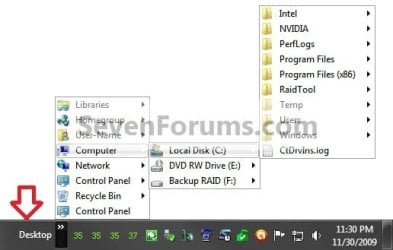
Example.jpg


OPTION ONE

To Add the Desktop Toolbar


1. Right click on a empty space on the taskbar and click on Toolbars and Desktop to check Desktop. (See screenshot below)
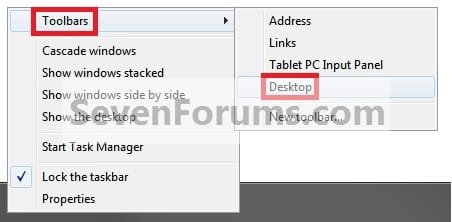
Step1.jpg
2. To Add or Remove the Desktop Toolbar's Text or Title
A) Unlock the taskbar.

B) Right click on the dotted lines to the left of the "Desktop" toolbar, and check (add) or uncheck (remove) Show Text or Show Title. (see screenshot below)
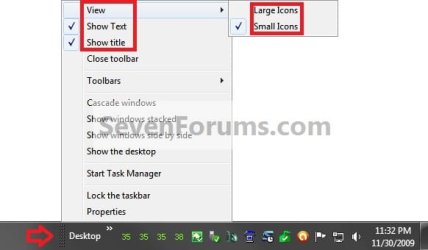
Step2.jpg
C) Lock the taskbar.
3. To Have Small or Large Icons for the Desktop Toolbar
A) Unlock the taskbar.

B) Right click on the dotted lines to the left of the "Desktop" toolbar, and click on View and check Large Icons or Small Icons. (see screenshot above)
NOTE: This is only for the icons on the taskbar in the Desktop toolbar, and not the icons in the expandable (arrow icon) menu of the Desktop toolbar.

C) Lock the taskbar.
4. To Have the Desktop Toolbar on the Left Side of the Taskbar
A) Unlock the taskbar.

B) Left click and hold on the dotted lines to the left of the "Desktop" toolbar, and drag it to the left until you reach the pinned taskbar icons and drop it. (see screenshot below)

Step3.jpg
C) Now, left click and hold on the dotted lines of the pinned taskbar programs on the far left side, then drag it to the right past the dotted lines of the Desktop toolbar and release. (See screenshot below)

Step4.jpg
D) Left click and hold on the dotted lines of the pinned taskbar programs on the right side of the Desktop toolbar now, then drag it to the left and right to adjust how much of the items you want to see in the Desktop toolbar. When done, drop it. (See screenshot below)

Step5.jpg
E) Lock the taskbar.


OPTION TWO

To Remove the Desktop Toolbar


1. Right click on a empty space on the taskbar and click on Toolbars and Desktop to uncheck Desktop. (See screenshot below)
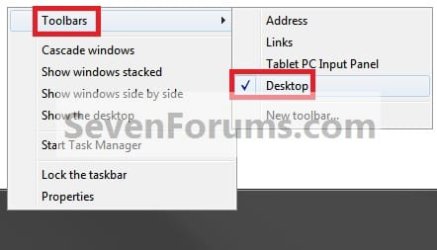
Remove.jpg
That's it,
Shawn


Last edited:
Taskbar Trouble

This tutorial was very helpful in exploring the toolbar option in Windows 7. I also managed to play around with it and learned how to make New Toolbars.

While making one for my schoolwork, I've run into the problem that a sliver of a folder is always showing next to the title. It's not a big deal but it is a bit unsightly on what is otherwise a very attractive new taskbar. This does not happen when I add the desktop taskbar.

Any idea of how to correct this? Simply dragging the dotted line bars doesn't seem to help. I have them over as far as possible.

windowstaskbar.jpg
 
Last edited by a moderator:

My Computer

Computer Manufacturer/Model Number
Acer Aspire One AOA-150
OS
Windows 7
CPU
1.6 Ghz Intel Atom
Memory
1024MB
Graphics Card(s)
Intel Graphics Accelerator
Sound Card
On board
Monitor(s) Displays
Laptop
Hard Drives
140GB HHD
Cooling
Fan cooled
Hello Tgz, and welcome to Seven Forums.

See if using "Large icons" with the folder instead may allow you to drag the dotted lines to hide it the folder icon. If you find the taskbar to large for you liking afterwards, you could pin the School toolbar as a folder with a icon instead.

http://www.sevenforums.com/tutorials/9305-taskbar-pin-unpin-folder.html

Hope this helps,
Shawn
 

My Computer

Computer type
PC/Desktop
Computer Manufacturer/Model Number
Self built custom
OS
64-bit Windows 11 Pro for Workstations
CPU
Intel i7-8700K OC'd to 5 GHz
Motherboard
ASUS ROG Maximus XI Formula Z390
Memory
64 GB (4x16GB) G.SKILL TridentZ RGB DDR4 3600 MHz
Graphics Card(s)
ASUS ROG-STRIX-GTX1080TI-O11G-GAMING
Sound Card
Integrated
Monitor(s) Displays
2 x Samsung Odyssey G7 27"
Screen Resolution
2560x1440
Hard Drives
1TB Samsung 990 PRO M.2,
4TB Samsung 990 PRO PRO M.2,
TerraMaster F8 SSD Plus NAS
PSU
Seasonic Prime Titanium 850W
Case
Thermaltake Core P3
Cooling
Corsair Hydro H115i
Keyboard
Logitech wireless K800
Mouse
Logitech MX Master 4
Internet Speed
2 Gb/s Download and 100 Mb/s Upload
Antivirus
Malwarebyte Anti-Malware Premium
Browser
Google Chrome
Other Info
Logitech Z625 speaker system,
Logitech BRIO 4K Pro webcam,
HP Color LaserJet Pro MFP M477fdn,
APC SMART-UPS RT 1000 XL - SURT1000XLI,
Galaxy S23 Plus phone
Thank you for the reply.

I use the small icons because I'm on an Acer netbook and it frees up some of that precious screen space. However, even when I switched to large icons I seemed to have the same problem.

The solution I finally found was on accident. I found that if I made the new toolbars, dragged the taskbar to the side of the screen, shrank the toolbar as much as possible again (changing the taskbar orientation changed the toolbar size), and then dragged the taskbar back to the bottom, then it looked right.

It worked, but it still seems like a rather silly aesthetic problem. And I prefer the toolbar to the pinned folder because I can look through all my files and subfolders without having to bring up another window. I'm very pleased with the results, but wish there had been a more practical way of fixing the problem.
 

My Computer

Computer Manufacturer/Model Number
Acer Aspire One AOA-150
OS
Windows 7
CPU
1.6 Ghz Intel Atom
Memory
1024MB
Graphics Card(s)
Intel Graphics Accelerator
Sound Card
On board
Monitor(s) Displays
Laptop
Hard Drives
140GB HHD
Cooling
Fan cooled
TGZ,

I'm happy to hear that you got it sorted. Yeah, it would be nice to not have to play the curly shuffle to get it to display properly. ;)
 

My Computer

Computer type
PC/Desktop
Computer Manufacturer/Model Number
Self built custom
OS
64-bit Windows 11 Pro for Workstations
CPU
Intel i7-8700K OC'd to 5 GHz
Motherboard
ASUS ROG Maximus XI Formula Z390
Memory
64 GB (4x16GB) G.SKILL TridentZ RGB DDR4 3600 MHz
Graphics Card(s)
ASUS ROG-STRIX-GTX1080TI-O11G-GAMING
Sound Card
Integrated
Monitor(s) Displays
2 x Samsung Odyssey G7 27"
Screen Resolution
2560x1440
Hard Drives
1TB Samsung 990 PRO M.2,
4TB Samsung 990 PRO PRO M.2,
TerraMaster F8 SSD Plus NAS
PSU
Seasonic Prime Titanium 850W
Case
Thermaltake Core P3
Cooling
Corsair Hydro H115i
Keyboard
Logitech wireless K800
Mouse
Logitech MX Master 4
Internet Speed
2 Gb/s Download and 100 Mb/s Upload
Antivirus
Malwarebyte Anti-Malware Premium
Browser
Google Chrome
Other Info
Logitech Z625 speaker system,
Logitech BRIO 4K Pro webcam,
HP Color LaserJet Pro MFP M477fdn,
APC SMART-UPS RT 1000 XL - SURT1000XLI,
Galaxy S23 Plus phone
Hi I added the Desktop toolbar to taskbar but every time I restart the windows it's gone and I have to add it again, what should I do?
 

My Computer

OS
Windows 7 Ultimate x32
Hello Ebic, and welcome to Seven Forums.

As a test to see if it may just ne something wrong in your current user account, create a new administrator account, log in to it, and see if it may work properly in this new account.
 

My Computer

Computer type
PC/Desktop
Computer Manufacturer/Model Number
Self built custom
OS
64-bit Windows 11 Pro for Workstations
CPU
Intel i7-8700K OC'd to 5 GHz
Motherboard
ASUS ROG Maximus XI Formula Z390
Memory
64 GB (4x16GB) G.SKILL TridentZ RGB DDR4 3600 MHz
Graphics Card(s)
ASUS ROG-STRIX-GTX1080TI-O11G-GAMING
Sound Card
Integrated
Monitor(s) Displays
2 x Samsung Odyssey G7 27"
Screen Resolution
2560x1440
Hard Drives
1TB Samsung 990 PRO M.2,
4TB Samsung 990 PRO PRO M.2,
TerraMaster F8 SSD Plus NAS
PSU
Seasonic Prime Titanium 850W
Case
Thermaltake Core P3
Cooling
Corsair Hydro H115i
Keyboard
Logitech wireless K800
Mouse
Logitech MX Master 4
Internet Speed
2 Gb/s Download and 100 Mb/s Upload
Antivirus
Malwarebyte Anti-Malware Premium
Browser
Google Chrome
Other Info
Logitech Z625 speaker system,
Logitech BRIO 4K Pro webcam,
HP Color LaserJet Pro MFP M477fdn,
APC SMART-UPS RT 1000 XL - SURT1000XLI,
Galaxy S23 Plus phone
I created a new administrator account , it worked fine there. So is there a way to fix the current account? I have installed lots of programs only for this one. thank you for the help.
 

My Computer

OS
Windows 7 Ultimate x32
You could see if running a sfc /scannow may be able to fix it.

If not, then you could copy over any desktop and Start Menu shortcuts and user files from the old account into the new account to have and use in the new account instead.
 

My Computer

Computer type
PC/Desktop
Computer Manufacturer/Model Number
Self built custom
OS
64-bit Windows 11 Pro for Workstations
CPU
Intel i7-8700K OC'd to 5 GHz
Motherboard
ASUS ROG Maximus XI Formula Z390
Memory
64 GB (4x16GB) G.SKILL TridentZ RGB DDR4 3600 MHz
Graphics Card(s)
ASUS ROG-STRIX-GTX1080TI-O11G-GAMING
Sound Card
Integrated
Monitor(s) Displays
2 x Samsung Odyssey G7 27"
Screen Resolution
2560x1440
Hard Drives
1TB Samsung 990 PRO M.2,
4TB Samsung 990 PRO PRO M.2,
TerraMaster F8 SSD Plus NAS
PSU
Seasonic Prime Titanium 850W
Case
Thermaltake Core P3
Cooling
Corsair Hydro H115i
Keyboard
Logitech wireless K800
Mouse
Logitech MX Master 4
Internet Speed
2 Gb/s Download and 100 Mb/s Upload
Antivirus
Malwarebyte Anti-Malware Premium
Browser
Google Chrome
Other Info
Logitech Z625 speaker system,
Logitech BRIO 4K Pro webcam,
HP Color LaserJet Pro MFP M477fdn,
APC SMART-UPS RT 1000 XL - SURT1000XLI,
Galaxy S23 Plus phone
Hi,

Thank you for this tutorial. Though, one thing is rather an annoyance, every time when I open one of these toolbars it populates the lists, sometimes instantly and sometimes with lag. Even more so when there are folders within the toolbar. Is there a way to make this constant and preferably instant?

Thanks in advance.
 

My Computer

Computer Manufacturer/Model Number
Toshiba L500-1ZP
OS
Windows 7 Home Premium x64
Hello t1n5l3y, and welcome to Seven Forums.

It may depend on what menu is being expanded. For example, if you have your HDD's set to turn off after X amount of minutes of being idle, then it may take a moment to expand and populate a menu that includes a item from the HDD that is turned off until the HDD spins back up.

You might see if using the tutorial below may be able to help though.

http://www.sevenforums.com/tutorials/731-menu-show-delay-time.html

Hope this helps,
Shawn
 

My Computer

Computer type
PC/Desktop
Computer Manufacturer/Model Number
Self built custom
OS
64-bit Windows 11 Pro for Workstations
CPU
Intel i7-8700K OC'd to 5 GHz
Motherboard
ASUS ROG Maximus XI Formula Z390
Memory
64 GB (4x16GB) G.SKILL TridentZ RGB DDR4 3600 MHz
Graphics Card(s)
ASUS ROG-STRIX-GTX1080TI-O11G-GAMING
Sound Card
Integrated
Monitor(s) Displays
2 x Samsung Odyssey G7 27"
Screen Resolution
2560x1440
Hard Drives
1TB Samsung 990 PRO M.2,
4TB Samsung 990 PRO PRO M.2,
TerraMaster F8 SSD Plus NAS
PSU
Seasonic Prime Titanium 850W
Case
Thermaltake Core P3
Cooling
Corsair Hydro H115i
Keyboard
Logitech wireless K800
Mouse
Logitech MX Master 4
Internet Speed
2 Gb/s Download and 100 Mb/s Upload
Antivirus
Malwarebyte Anti-Malware Premium
Browser
Google Chrome
Other Info
Logitech Z625 speaker system,
Logitech BRIO 4K Pro webcam,
HP Color LaserJet Pro MFP M477fdn,
APC SMART-UPS RT 1000 XL - SURT1000XLI,
Galaxy S23 Plus phone
How to add desktop toolbar using registry ???

I need to add desktop toolbar at the taskbar using registry editor ???

can anyone help... :)
 

My Computer

OS
Windows 7 Ultimate x64
I don't know what happened. I have both folders and shortcuts in the toolbar. If I dragged the folders to the bottom in the order I wanted, it stayed that way. Now every time I reboot or log off, it's folders on top, then shortcuts. Really annoying.
 

My Computer

Computer Manufacturer/Model Number
HP Media Center
OS
Windows 7 32 bit
CPU
AMD 5200+ dual core
Memory
2 GB
Graphics Card(s)
NVidia GeForce 6150SE 128 MB
Monitor(s) Displays
CRT
Screen Resolution
1280x1024
Hard Drives
500 GB Sata internal :

SIIG USB 3.0 docking stations w/WD Caviar Black 6 Gb/s drives
Keyboard
PS/2
Mouse
PS/2 Wheel Mouse
Other Info
SIIG USB 3.0 PCIexpress card.
Hey Miles,

That would be the default view for folders over files. Open the folder that the toolbar is for, and see if setting it's folder view how you wanted for this order, then closing the folder may help it to stick in the toolbar.
 

My Computer

Computer type
PC/Desktop
Computer Manufacturer/Model Number
Self built custom
OS
64-bit Windows 11 Pro for Workstations
CPU
Intel i7-8700K OC'd to 5 GHz
Motherboard
ASUS ROG Maximus XI Formula Z390
Memory
64 GB (4x16GB) G.SKILL TridentZ RGB DDR4 3600 MHz
Graphics Card(s)
ASUS ROG-STRIX-GTX1080TI-O11G-GAMING
Sound Card
Integrated
Monitor(s) Displays
2 x Samsung Odyssey G7 27"
Screen Resolution
2560x1440
Hard Drives
1TB Samsung 990 PRO M.2,
4TB Samsung 990 PRO PRO M.2,
TerraMaster F8 SSD Plus NAS
PSU
Seasonic Prime Titanium 850W
Case
Thermaltake Core P3
Cooling
Corsair Hydro H115i
Keyboard
Logitech wireless K800
Mouse
Logitech MX Master 4
Internet Speed
2 Gb/s Download and 100 Mb/s Upload
Antivirus
Malwarebyte Anti-Malware Premium
Browser
Google Chrome
Other Info
Logitech Z625 speaker system,
Logitech BRIO 4K Pro webcam,
HP Color LaserJet Pro MFP M477fdn,
APC SMART-UPS RT 1000 XL - SURT1000XLI,
Galaxy S23 Plus phone
How the folder displays when I open it in Explorer seems to have no effect. If I sort by modification date, when opened as a toolbar things are sorted by name with folders on top. Pretty weird.
 

My Computer

Computer Manufacturer/Model Number
HP Media Center
OS
Windows 7 32 bit
CPU
AMD 5200+ dual core
Memory
2 GB
Graphics Card(s)
NVidia GeForce 6150SE 128 MB
Monitor(s) Displays
CRT
Screen Resolution
1280x1024
Hard Drives
500 GB Sata internal :

SIIG USB 3.0 docking stations w/WD Caviar Black 6 Gb/s drives
Keyboard
PS/2
Mouse
PS/2 Wheel Mouse
Other Info
SIIG USB 3.0 PCIexpress card.
I've always thought that a toolbar from a folder would always show folders over files by default. Has it not always done that other than when you manually move them until a restart?
 

My Computer

Computer type
PC/Desktop
Computer Manufacturer/Model Number
Self built custom
OS
64-bit Windows 11 Pro for Workstations
CPU
Intel i7-8700K OC'd to 5 GHz
Motherboard
ASUS ROG Maximus XI Formula Z390
Memory
64 GB (4x16GB) G.SKILL TridentZ RGB DDR4 3600 MHz
Graphics Card(s)
ASUS ROG-STRIX-GTX1080TI-O11G-GAMING
Sound Card
Integrated
Monitor(s) Displays
2 x Samsung Odyssey G7 27"
Screen Resolution
2560x1440
Hard Drives
1TB Samsung 990 PRO M.2,
4TB Samsung 990 PRO PRO M.2,
TerraMaster F8 SSD Plus NAS
PSU
Seasonic Prime Titanium 850W
Case
Thermaltake Core P3
Cooling
Corsair Hydro H115i
Keyboard
Logitech wireless K800
Mouse
Logitech MX Master 4
Internet Speed
2 Gb/s Download and 100 Mb/s Upload
Antivirus
Malwarebyte Anti-Malware Premium
Browser
Google Chrome
Other Info
Logitech Z625 speaker system,
Logitech BRIO 4K Pro webcam,
HP Color LaserJet Pro MFP M477fdn,
APC SMART-UPS RT 1000 XL - SURT1000XLI,
Galaxy S23 Plus phone
I've always thought that a toolbar from a folder would always show folders over files by default. Has it not always done that other than when you manually move them until a restart?

When I dragged the folders where I wanted for some reason the change survived restarts. I always had the Start folder at the bottom. I guess it was a quirk that it worked. Or as that electronics co. is fond of saying, if it works it's a fluke. :)
 

My Computer

Computer Manufacturer/Model Number
HP Media Center
OS
Windows 7 32 bit
CPU
AMD 5200+ dual core
Memory
2 GB
Graphics Card(s)
NVidia GeForce 6150SE 128 MB
Monitor(s) Displays
CRT
Screen Resolution
1280x1024
Hard Drives
500 GB Sata internal :

SIIG USB 3.0 docking stations w/WD Caviar Black 6 Gb/s drives
Keyboard
PS/2
Mouse
PS/2 Wheel Mouse
Other Info
SIIG USB 3.0 PCIexpress card.
Interesting.
 

My Computer

Computer type
PC/Desktop
Computer Manufacturer/Model Number
Self built custom
OS
64-bit Windows 11 Pro for Workstations
CPU
Intel i7-8700K OC'd to 5 GHz
Motherboard
ASUS ROG Maximus XI Formula Z390
Memory
64 GB (4x16GB) G.SKILL TridentZ RGB DDR4 3600 MHz
Graphics Card(s)
ASUS ROG-STRIX-GTX1080TI-O11G-GAMING
Sound Card
Integrated
Monitor(s) Displays
2 x Samsung Odyssey G7 27"
Screen Resolution
2560x1440
Hard Drives
1TB Samsung 990 PRO M.2,
4TB Samsung 990 PRO PRO M.2,
TerraMaster F8 SSD Plus NAS
PSU
Seasonic Prime Titanium 850W
Case
Thermaltake Core P3
Cooling
Corsair Hydro H115i
Keyboard
Logitech wireless K800
Mouse
Logitech MX Master 4
Internet Speed
2 Gb/s Download and 100 Mb/s Upload
Antivirus
Malwarebyte Anti-Malware Premium
Browser
Google Chrome
Other Info
Logitech Z625 speaker system,
Logitech BRIO 4K Pro webcam,
HP Color LaserJet Pro MFP M477fdn,
APC SMART-UPS RT 1000 XL - SURT1000XLI,
Galaxy S23 Plus phone
Back
Top
