Window Explorer Toolbar - Remove

How to Remove Windows Explorer Toolbar in Windows 7


   Information
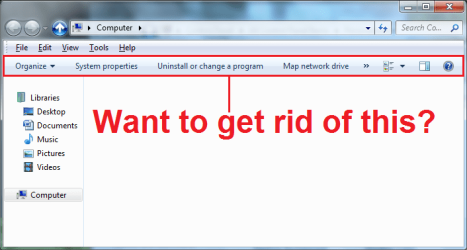
In windows 7 Microsoft implemented a new toolbar in Windows Explorer. It has options like: Organize, Share with, Burn, New Folder. Do you want to get rid of this for good? This is how.

attachment.php

   Note
If you do this you will not be able to access any of the features that are on this bar, that includes changing which panes are up. You can however use these tutorials registry edits to turn them on or off:

To use custom themes after removing the explorer toolbar, you will have to extract the file to:

C:\Windows\Resources\Themes\"Custom Theme"\Shell\NormalColor


OPTION ONE

To Remove Windows Explorer Toolbar


1. Click on the Download button below to download the Remove Explorer Bar.zip file.

Download


2. Disable Aero.

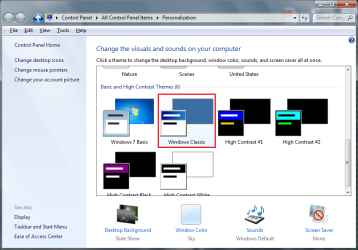
  1. Right click on the Desktop, select "Personalize"
  2. Select "Windows Classic" theme:

    attachment.php
3. Download and install "Add_Take_Ownership.reg".

  1. Extract: "Add_Take_Ownership.reg"
  2. Run: "Add_Take_Ownership.reg"
  3. If prompted by User Access Control, then select "Yes".
  4. "Registry Editor" will ask something like:

    attachment.php
  5. Select "Yes"
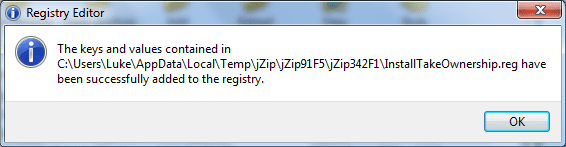
  6. "Registry Editor" will say something like:

    attachment.php
  7. Select "OK"
4. Determine whether your operating system is 64 bit or 32 bit.

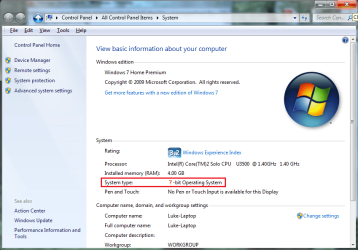
  1. Right Click on "Computer", select "Properties"
  2. Look next to "System type:", it will say one of these: "64-bit Operating System" or "32-bit Operating System":

    attachment.php
5. Taking control of necessary files.
   Warning
You MUST back up the following files if you ever wish to revert back. One way you might backup a file is by copying the original file and then renaming the copy "shellstyle - Original.dll" or "shellstyle - Backup.dll". Make sure you do a backup file for each file that you are going to change.


  1. Navigate to the folder:
    Code:
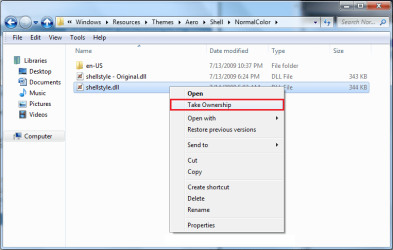
    C:\Windows\Resources\Themes\Aero\Shell\NormalColor
  2. Right click on the file: "shellstyle.dll", select "Take Ownership":

    attachment.php
  3. If prompted by User Access Control, then select "Yes".
  4. The following Steps 5-7 are for "64-bit Operating System" only.
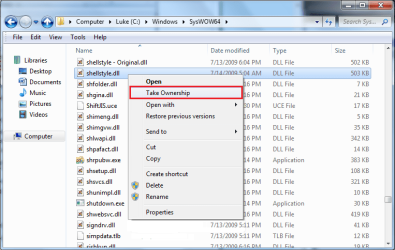
  5. Navigate to the folder: "C:\Windows\SysWOW64"
  6. Right click on the file: "shellstyle.dll", select "Take Ownership":

    attachment.php
  7. If prompted by User Access Control, then select "Yes".

6. If your system is a "64-bit Operating System" perform steps 1-2.
  1. Extract (drag and drop to your desktop) and run the following files: "Shellstyle Extract x64.exe", "Shellstyle Extract x64_2.exe" from the download in step 1 above.
  2. If prompted by User Access Control, then select "Yes".
7. If your system is a "32-bit Operating System" perform steps 1-2.

  1. Extract (drag and drop to your desktop) and run the following file: "Shellstyle Extract x86.exe" from the download in step 1 above.
  2. If prompted by User Access Control, then select "Yes".
8. Re enable your original theme.

  1. Right click on your Desktop, click "Personalize"
  2. Enable your desired theme
9. You are Done!


OPTION TWO

To Restore Windows Explorer Toolbar


1. Disable Aero.

  1. Right click on your desktop, click "Personalize"
  2. Select "Windows Classic" theme
2. Restore Backups.

  1. Navigate to the folder:
    Code:
    C:\Windows\Resources\Themes\Aero\Shell\NormalColor
  2. Change the file "shellstyle.dll" to another name I.E. "shellstyle - NEW.dll"
  3. Put the original file back in this folder and name it "shellstyle.dll"
  1. Navigate to the folder: "C:\Windows\SysWOW64" (Note this folder is only on 64 bit versions of windows 7)
  2. Change the file "shellstyle.dll" to another name I.E. "shellstyle - NEW.dll"
  3. Put the original file back in this folder and name it "shellstyle.dll"
3. Re enable your original theme.

  1. Right click on your Desktop, click "Personalize"
  2. Enable your desired theme
4. You are Done!


Attachments

  • registry asks.png
    registry asks.png
    9.4 KB · Views: 27,738
  • shell resource.png
    shell resource.png
    26.5 KB · Views: 29,809
  • shell SysWOW64.png
    shell SysWOW64.png
    34.3 KB · Views: 28,238
  • system type.png
    system type.png
    52.5 KB · Views: 28,177
  • want to get rid of this.png
    want to get rid of this.png
    23.9 KB · Views: 31,747
  • Personailize.png
    Personailize.png
    48.3 KB · Views: 28,307
  • Registry editor.png
    Registry editor.png
    9.9 KB · Views: 27,819
  • Remove Explorer Bar.zip
    Remove Explorer Bar.zip
    334.6 KB · Views: 5,067
Last edited by a moderator:
Is there a way to remove the same bar from windows 7 photo viewer?
 

My Computer

Computer type
Laptop
Computer Manufacturer/Model Number
Toshiba
OS
Windows 7 32bit
CPU
intel 575 2ghz
Motherboard
????
Memory
3 gb
Graphics Card(s)
intel gma 4500m
Hard Drives
seagate 500gb 5400 rpm
Antivirus
microstof security essentials
Browser
internet explorer 11
i always get this error message when trying to install
 

Attachments

  • Unbenannt.jpg
    Unbenannt.jpg
    21.8 KB · Views: 773

My Computer

Computer type
PC/Desktop
OS
23
Hello Molaa, and welcome to Seven Forums.

Double check to make sure that you did all of the steps in the tutorial. It's easy to miss one. :)
 

My Computer

Computer type
PC/Desktop
Computer Manufacturer/Model Number
Self built custom
OS
64-bit Windows 11 Pro for Workstations
CPU
Intel i7-8700K OC'd to 5 GHz
Motherboard
ASUS ROG Maximus XI Formula Z390
Memory
64 GB (4x16GB) G.SKILL TridentZ RGB DDR4 3600 MHz
Graphics Card(s)
ASUS ROG-STRIX-GTX1080TI-O11G-GAMING
Sound Card
Integrated
Monitor(s) Displays
2 x Samsung Odyssey G7 27"
Screen Resolution
2560x1440
Hard Drives
1TB Samsung 990 PRO M.2,
4TB Samsung 990 PRO PRO M.2,
TerraMaster F8 SSD Plus NAS
PSU
Seasonic Prime Titanium 850W
Case
Thermaltake Core P3
Cooling
Corsair Hydro H115i
Keyboard
Logitech wireless K800
Mouse
Logitech MX Master 4
Internet Speed
2 Gb/s Download and 100 Mb/s Upload
Antivirus
Malwarebyte Anti-Malware Premium
Browser
Google Chrome
Other Info
Logitech Z625 speaker system,
Logitech BRIO 4K Pro webcam,
HP Color LaserJet Pro MFP M477fdn,
APC SMART-UPS RT 1000 XL - SURT1000XLI,
Galaxy S23 Plus phone
My windows 7x64 is this step away from being perfect. I have spent a whole day on it and not giving up

>Windows 7 command bar tweaker removed the bar from aero themes. Problem is i hate the aero theme and cant get it to look like i want. If you use the basic aero theme then this is easiest way

>So i went and downloaded aero theme that looks like classic theme. Perfect but the bar is back.

>So i went and modified the custom classicaero theme files with the autohide and border hack. Nothing

>The steps on this tutorial dont work for me, the files propably are not editing anything.

>Nothing really hapend until i started editing the Shell32 files on system32 and syswow64. I managed to make the bar go from up to bottom. This would be enough for me if i cant hide it but windows did not like my edits and started to give error messages. The bar went from top to bottom though but had to revert back to the original files from second os

This thread is pure gold for windows 7 enthusiasts because its the most important step in making windows 7 perfect os. That bar has to go
________________________________________________________________________________

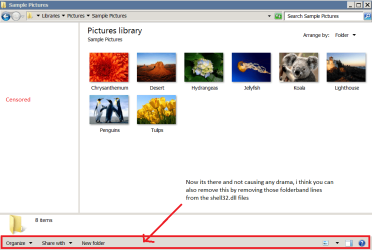
EDIT MANAGED TO GET THE BAR TO MOVE FROM TOP TO BOTTOM WORKS ON ALL THEMES , CLASSIC AND CUSTOM TOO.

peskybar.png

Here is what i did if anyone is interested. Im on w7x64 ultimate build 7601.

READ: I needed to multiboot for this to work so install somekinda usb stick with prebootable environment or second windows to other disk. Also you can take the drive off and take it to other pc when you get to the relevant step

>Install the take ownership context menu addon
>Find the shell32.dll files from windows/system32 and windows/syswow64 folders.
>Copy those two files to your desktop onto their own folders named like: S32 and SW64 so you know where they came from
>Take ownership of those shell32.dll files, (right click and context menu should pop)
>Use the resource hacker to open shell32.dll from the S32 folder you made.
>Search for word: folderbandstyle
>When you find the word look for word "Top" nearby that folderband line , change that top to "Bottom"
>Compile and save. Search again and press F3 to move to second find.
>I received 5 finds and 4 edits to make. One of the findings did not need editing as it had no "Top" anywhere near
>Repeat for the file in SW64 folder.
>Note that resource hacker saved the original unedited files as shell32_original so you have something to revert to

>Restart pc and boot into the prebootable windows or your second os or take the harddrive to other computer
>Explore the filesystem of your windows 7 os you wanted to edit
>Take the shell.32 files from your S32 and S64 folders and copy them over to their places on windows/system32 and windows/syswow64
>Reboot now to your windows 7 and the bar has moved to bottom. You made it

Its easier to boot into second os to copy because you never know how windows is protecting those files
 
Last edited:

My Computers

System One System Two

  • OS
    7
  • Computer type
    PC/Desktop
Back
Top