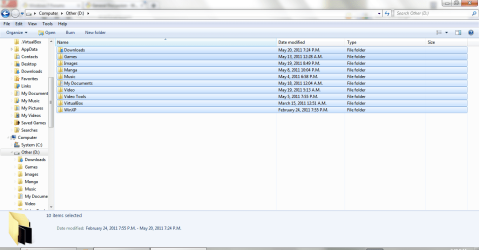
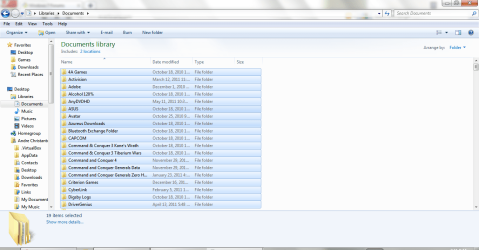
My folder view is resetted for all folder types to default details view, auto-folder discovery is likely turned off too, and some view modes is too tight including list, details view modes. But view modes in Library doesn't affected. Well, I can't explain it clearly but focus on the blue selection color where at library is wider than in any other mode
I've tried to remove DreamScene Activator and sfc with no luck
Thanks
EDIT: Auto-Refresh is disabled too. So I have to click Refresh to view file I copied, moved, or extracted. And I don't have any idea to enable it
My Computer
Computer type
Laptop
Computer Manufacturer/Model Number
ASUS N56VB
OS
Windows 7 Ultimate x64 SP1
CPU
Intel Core i7 3630QM
Motherboard
ASUS N56VB
Memory
8GB
Graphics Card(s)
NVIDIA GeForce 740M 2GB
Sound Card
Realtek
Screen Resolution
1920*1080
Hard Drives
1 Drive 1TB 5400RPM:
C Drive : 149GB
D Drive : 781GB
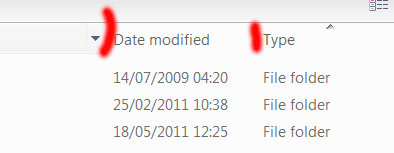
i'm not quite sure what your problem is, if you want to make the columns wider or narrower, move your mouse pointer to the top of the column where i've put the red lines.
your mouse cursor should then change, and you will be able to resize the width. i tried to get a screenshot of this, but it was difficult.
==========================================
the auto-refresh thing is an annoying bug that only a few people experience. i've had it from time to time (even with sp1) and would love to know what the fix is. do you have any system restore points? that was the only way i could get rid of the very annoying problem.
If I change the folder type to something other than "General Items", the row width is back to normal. So I guess the problem is with "General Items" folder types
My Computer
Computer type
Laptop
Computer Manufacturer/Model Number
ASUS N56VB
OS
Windows 7 Ultimate x64 SP1
CPU
Intel Core i7 3630QM
Motherboard
ASUS N56VB
Memory
8GB
Graphics Card(s)
NVIDIA GeForce 740M 2GB
Sound Card
Realtek
Screen Resolution
1920*1080
Hard Drives
1 Drive 1TB 5400RPM:
C Drive : 149GB
D Drive : 781GB
OK. Solved.
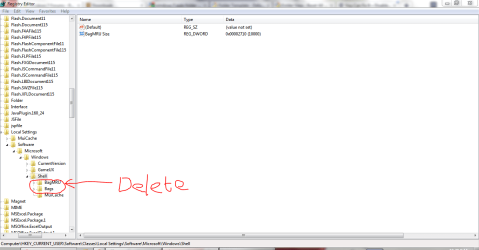
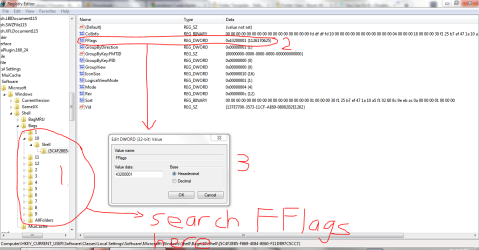
First, close all Explorer windows. Open Regedit and go to HKEY_CURRENT_USER\Software\Classes\Local Settings\Software\Microsoft\Windows\Shell and delete "BagMRU" and "Bag" keys and close Regedit
Then open ONE folder you want to fix and close it
Open Regedit again and go to HKEY_CURRENT_USER\Software\Classes\Local Settings\Software\Microsoft\Windows\Shell\Bags (This key store all your folder view settings) and find ALL DWORD Values called FFlags and change its value to 41200001 in hexadecimal and close Regedit
Open troubled folder again (it should be fixed now) and open Folder Options -> View -> Apply to Folders. And if you happen to come across a folder that is "fixed" but you don't want to fix it (for example Computers) just open Folder Options -> View -> Reset Folders.
Done and sorry I can't make better tutorials
Thanks
Last edited:
My Computer
Computer type
Laptop
Computer Manufacturer/Model Number
ASUS N56VB
OS
Windows 7 Ultimate x64 SP1
CPU
Intel Core i7 3630QM
Motherboard
ASUS N56VB
Memory
8GB
Graphics Card(s)
NVIDIA GeForce 740M 2GB
Sound Card
Realtek
Screen Resolution
1920*1080
Hard Drives
1 Drive 1TB 5400RPM:
C Drive : 149GB
D Drive : 781GB