Device and printer window screen blank

Since the family account is likely a Standard User account, I'd boot into it to install the HP Printer software which will prompt for Admin permission. This should give it full rights and features.

If HP Solution Center is allowed to boot with Windows in msconfig>Startup then you should be able to initiate the scan from the printer top and from it's icon on the desktop. Otherwise you'd need to use the Windows Scan utility on the Devices and Printers rightclick context menu when you click on the printer.
 
Since the family account is likely a Standard User account, I'd boot into it to install the HP Printer software which will prompt for Admin permission. This should give it full rights and features.

If HP Solution Center is allowed to boot with Windows in msconfig>Startup then you should be able to initiate the scan from the printer top and from it's icon on the desktop. Otherwise you'd need to use the Windows Scan utility on the Devices and Printers rightclick context menu when you click on the printer.

I can use the printer top options OK. There's no icon on the desktop, only in admin. side. I don't understand your last sentence, about the Windows Scan Utility.
Thanks
 

My Computer

OS
Windows 7 Home Premium 32 bit
The Windows Scan Utility is used when HP SOlutions Center isn't available, like when it's turned off to start with Windows.

What about the suggestion to install the printer software again from the Standard User account?
 
The Windows Scan Utility is used when HP SOlutions Center isn't available, like when it's turned off to start with Windows.

What about the suggestion to install the printer software again from the Standard User account?
If I do that it install will automaticly uninstall the HP Printer program before installing the new one, I think.
 

My Computer

OS
Windows 7 Home Premium 32 bit
If the Devices and Printers panel remains blank for a User, can you run Add a Printer from the top of it to search for and install the Printer for that user?

Did you do the Full Install which HP says will make the software work for "most Users." That also might be worth a try.

This is unusual enough you may need to consult HP Tech Support or their forums for help with the device.
 
If the Devices and Printers panel remains blank for a User, can you run Add a Printer from the top of it to search for and install the Printer for that user?

Did you do the Full Install which HP says will make the software work for "most Users." That also might be worth a try.

This is unusual enough you may need to consult HP Tech Support or their forums for help with the device.
I tried the add printer and also add devices and it didn't find anything.
It didn't ask me for installing for all users.
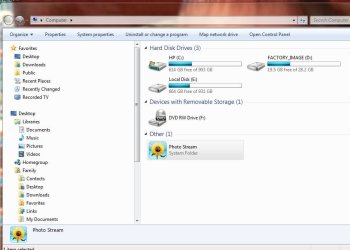
Whats in the folder Factory_image (D:)? Could that straighten things out, what will it screw up?
Thanks
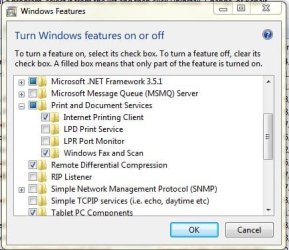
Is all of this set right?
 

Attachments

  • Capture Factory_Image.JPG
    Capture Factory_Image.JPG
    75.6 KB · Views: 2
  • Capture Features on and off.JPG
    Capture Features on and off.JPG
    52.3 KB · Views: 1

My Computer

OS
Windows 7 Home Premium 32 bit
I can't get Windows device and printer window to recognize any devices and my printer. Can't get HP Printer C309g-m to install right. Have tryied uninstalling several times and everything works great on Administration account but on users account can't see any devices in window. Also in IE10 when I click on download button nothing happens. I can get same download to work in Safari. Any advice? Thanks
 

Attachments

  • CaptureComputer reliability report.JPG
    CaptureComputer reliability report.JPG
    110.3 KB · Views: 2
  • Devices and Printers Window.JPG
    Devices and Printers Window.JPG
    46.2 KB · Views: 2
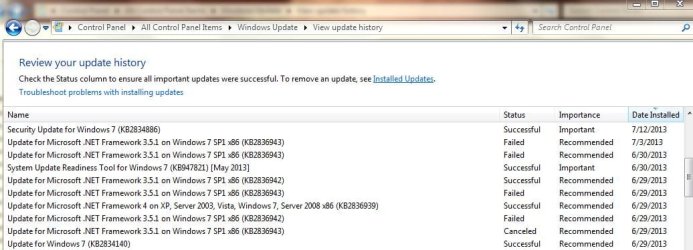
  • Capture Updates.JPG
    Capture Updates.JPG
    93.3 KB · Views: 2

My Computer

OS
Windows 7 Home Premium 32 bit
Was this an in-place Upgrade from Vista or did you Clean install with the UPgrade version?

Either way it's apparent you have a badly corrupted install so I would follow the steps I've given you repeatedly to get a perfect Clean Reinstall - Factory OEM Windows 7.

This time boot the installer to do a Custom install, delete all partitions during install using the Drive Options pictured in Steps 7 and 8 of Clean Install Windows 7 .

After install stick closely to the step for how to handle drivers in Win7. Put the network driver in your backup so if it isn't provided during install you can install it to get online to do all rounds of Important and Optional Windows Updates, after enabling hardware driver auto-updating (Option 3). Plug in the printer and turn it on so its driver will be delivered, then see if you have enough functionality with just the driver before installing the software package.
 
Last edited:
I don't feel I can handle a clean install. I don't have anyway to back up my data. Thanks for that advice though
 

My Computer

OS
Windows 7 Home Premium 32 bit
Hi Rick lets try this


Click on :orb: inside
2nqbqes.png
type services.msc and press [ENTER]
Double click Print Spooler and set its start type to Automatic
Click Start to start the service, and click OK.
Double click Bluetooth Support Service and set its start type to Manual
Click Start to start the service, and click OK.
Once done close the Services Window

Open Devices and Printers and see if its still empty .
 

My Computer

Computer Manufacturer/Model Number
Custom Built
OS
Windows 7 Ultimate 32-Bit & Windows 7 Ultimate 64-Bit
CPU
Intel Core i7 CPU 950 @ 3.07GHz
Motherboard
ASUS P6T DELUXE V2
Memory
OCZ 6GB (3 x 2GB) 240-Pin DDR3 SDRAM DDR3 1600 OCZ3X1600R2
Graphics Card(s)
ATI Radeon HD 5700 Series
Sound Card
OnBoard
Hard Drives
WD6400AACS-00M3B0 (640GB SATA )
PSU
CORSAIR 850w
Case
NZXT LEXA
Cooling
Intel Stock Heatsink Fan
Keyboard
Microsoft Wireless Laser Keyboard 7000
Mouse
Microsoft Wireless Laser Mouse 7000
Hi Rick lets try this


Click on :orb: inside
2nqbqes.png
type services.msc and press [ENTER]
Double click Print Spooler and set its start type to Automatic
Click Start to start the service, and click OK.
Double click Bluetooth Support Service and set its start type to Manual
Click Start to start the service, and click OK.
Once done close the Services Window

Open Devices and Printers and see if its still empty .
Print Spooler was already set to Auto and didn't have option to click start
Bluetooth Support Services was all ready set to Manual but I could click on start
Thanks
 

My Computer

OS
Windows 7 Home Premium 32 bit
You should have your files backed up anyway since the HD could fail at any time, so that's no reason not to do the Clean Reinstall. You can back up up to 7gb free and more for cheap with each WIndows Live ID using MS Skydrive. http://www.sevenforums.com/backup-r...re-your-files-cloud-skydrive.html#post2269172

Some users who can't afford any other option shrink C to create a Logical partition to store their data in before reinstall. As long as you don't touch it during the reinstall, deleting all other partitions except it which you've clearly labeled, then it will be safe enough.
http://www.sevenforums.com/tutorials/2672-partition-volume-shrink.html
http://www.sevenforums.com/tutorials/146694-partition-extended-logical-drives.html

Repair Install

If http://www.sevenforums.com/tutorials/1538-sfc-scannow-command-system-file-checker.html finds nothing and you're not willing to get the superior Clean Reinstall to finally enjoy Win7 performance on that HP, then I'd consider a http://www.sevenforums.com/tutorials/3413-repair-install.html?ltr=R.

In your case I'd turn off everything first in msconfig>Startup and Services after hiding all MS Services.

I'd also uninstall everything in the Control Panel you don't use or need, then run CCleaner Disk and Registry cleaners, followed by Puran Defrag Download Boot Time defrag with full Disk Check.

Then run the Repair Install to see if it can force a decent install into the cleaned up HP mess.
 
Last edited:
You should have your files backed up anyway since the HD could fail at any time, so that's no reason not to do the Clean Reinstall. You can back up up to 7gb free and more for cheap with each WIndows Live ID using MS Skydrive. http://www.sevenforums.com/backup-r...re-your-files-cloud-skydrive.html#post2269172

Some users who can't afford any other option shrink C to create a Logical partition to store their data in before reinstall. As long as you don't touch it during the reinstall, deleting all other partitions except it which you've clearly labeled, then it will be safe enough.
http://www.sevenforums.com/tutorials/2672-partition-volume-shrink.html
http://www.sevenforums.com/tutorials/146694-partition-extended-logical-drives.html

If http://www.sevenforums.com/tutorials/1538-sfc-scannow-command-system-file-checker.html finds nothing and you're not willing to get the superior Clean Reinstall to finally enjoy Win7 performance on that HP, then I'd consider a http://www.sevenforums.com/tutorials/3413-repair-install.html?ltr=R.

In your case I'd turn off everything first in msconfig>Startup and Services after hiding all MS Services.

I'd also uninstall everything in the Control Panel you don't use or need, then run CCleaner Disk and Registry cleaners, followed by Puran Defrag Download Boot Time defrag with full Disk Check.


Then run the Repair Install to see if it can force a decent install into the cleaned up HP mess.


OK, man that was a mouth full. I'm going out of town so will address this when I get back and let you know. Thanks gregrocker and everyone for the help and suggestions.
 

My Computer

OS
Windows 7 Home Premium 32 bit
Back
Top