
Find and Identify Unknown Devices through Device Manager
Information
This guide will show you how to locate the unidentified hardware in your device manager by using Hardware Identification. The goal of this tutorial is to help identify an unidentified device.
Note
Prerequisite knowledge includes opening windows device manager, surfing the internet, data entry and basic windows navigation skills
Warning
- Installing the wrong driver can crash your system, this technique revolves around the use of a 3rd party online hardware ID database.
- Some devices (such as legacy devices) may not have hardware ID's. See the "But what if there's no Hardware ID in the drop down box?" for tips on finding out what these devices are.
Here's how
- Open Device Manager and find the device. It most likely has a yellow exclamation mark on it like the one in this screenshot below.
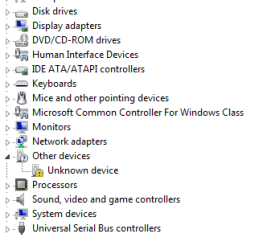
TipYou can open Device Manager quickly by typing devmgmt.msc into RUN or SEARCH and pressing ENTER.
- Now that you've found your device, right click on it and select properties.
- Click on the Details Tab.
- Drop the 'Property' box until you find 'Hardware Id's".
This picture shows my webcam, but unknown devices have hardware ID's too
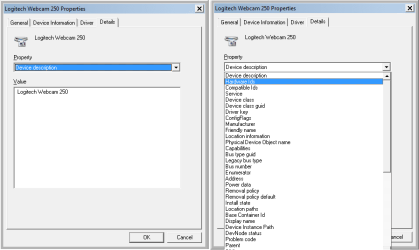
- You'll find some number-letter combinations, here's what they mean:
HID = Hardware ID
PID = Product ID
VID = Vendor ID
NoteThe Vendor ID may also be called VEN, so look out for this too. If you're having trouble locating these then please take a look at this great Hardware Identification tutorial by DwarfTipIf you need a driver for this unknown device, then you could do this below by Kari:
Copy the Hardware IDs value.

Go directly to a driver database site, for instance Drivers Lookup and search there with the hardware id.

- In my screen print I've looked up my Webcam again. My PID=0804, My VID = 046D.
- We need to reference these, so open your browser of choice and navigate to the www.pcidatabase.com website.
- There are other websites, but I think that the PCIdatabase.com team has put together a great site with a lot of information should you need to know more about devices and drivers.
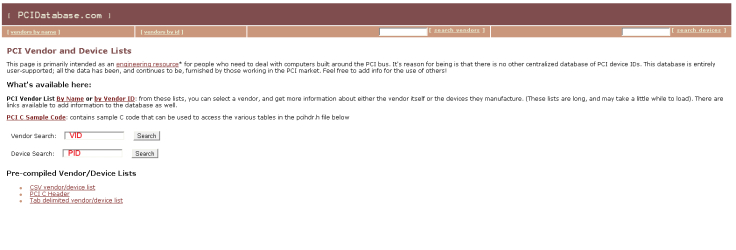
- Type your PID where it says Device Search and press SEARCH (e.g. for my example I type in 0804 and click on the Search button to the right of the Device Search box).
- All Devices with that PID show. This is usually enough; but sometimes multiple devices will show.
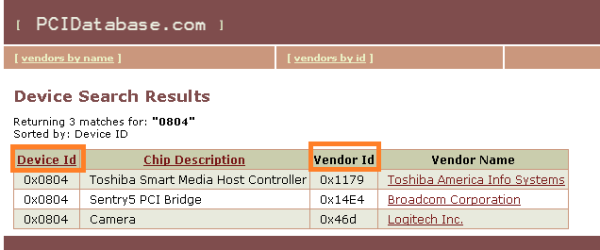
- If you have multiple Devices, then you need your VID, so look back to your details column under Hardware ID's and reference it against the Vendor ID column with your VID. Mine was 046D and you can see 0x46d in the Vendor column. That's a match.
- You've now identified your device and can now search for the correct drivers for it.
With older legacy devices, some virtual devices, non-plug and play devices, and some viruses there may not be a hardware ID, however there there are other things you can do to find your unrecognized device.
Have a look at these entries in the drop down, there are others, but these are the most common that you will find when the Hardware ID is missing.
- DevNode status - This will tell us the current status of the device and differentiate between a driver existing and a driver loading. If the driver exists you can look at it's *.inf file (the inf file name is in the Inf Name drop down)
- Device Instance path - Often contains Vendor and hardware information, if not than it may contain an ACPI linking it to a processor group.
- Class Long Name - It's group name (e.g. Processors)
- Class Short Name - It's short (actual) name (e.g. Processor)
- Class icon path - The path to a dll that houses this devices icons. Although this is likely to be windows generic, it;s worthwhile taking a look at the icons in the *.dll, the easiest way to do this is to change an icon on any shortcut or folder and navigate to that *.dll to browse the icons.
- siblings - Any related siblings
- parent - any related parents
HKEY_LOCAL_MACHINE\SYSTEM\ControlSet001\Enum\Root\. It should begin with the LEGACY_ (e.g. HKEY_LOCAL_MACHINE\SYSTEM\ControlSet001\Enum\Root\LEGACY_CPUZ132)
The Windows Registry Editor can be opened by typing REGEDIT into RUN or SEARCH.
Some other locations that you may find this information (with thanks to WindowsStar)are:
HKEY_LOCAL_MACHINE\SYSTEM\CurrentControlSet\Enum\Root
HKEY_LOCAL_MACHINE\SYSTEM\ControlSet002\Enum\Root\
Warning
Edit the registry can crash your machine, use this as a research tool only, unless you know what you are doing
Enjoy!
TimStitt
REFERENCES
These References have been added after additional information was provided. The added dates refer to when this tutorial was updated with the additional information.
- WindowsStar - Additional Registry Paths in the thread Unknown Device (added 8th and 9th July 2010).
- Dwarf - Hardware ID's called VEN and color coded fining of PCI and VEN in the thread Hardware Identification (added 9th July 2010).
Related Tutorials
- http://www.sevenforums.com/tutorials/73420-hardware-identification.html
- http://www.sevenforums.com/tutorials/77614-device-manager-hidden-devices.html
- How to Uninstall a Device and Device Driver in Vista and Windows 7
- How to Roll Back a Device Driver in Device Manager
- How to Uninstall a Device in Windows 7 and Windows 8
Last edited by a moderator:


