Disable horizontal scroll bar (see screenshot)

Gums

New member
Power User
Local time
2:14 AM
Messages
106
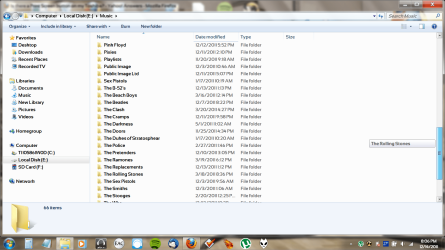
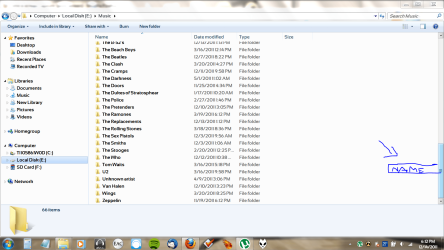
Can't really put it into words so I'll just provide a screenshot. When I'm in Explorer scrolling with the vertical scrollbar, a pop up horizontal bar comes into view with the name of the file that's located to the left. It only occurs when using the cursor to move the scroll bar. Doesn't appear when using the scroll wheel. Really serves no purpose and is more of a distraction and minor irritant as I'm looking at the files on the left side to begin with. It's something that seemed to pop outta nowhere. Was it something I downloaded? Maybe. Don't know. Couldn't tell you honestly but I'd sure like to disable it. If not, no big deal. I can live with it but not if I don't have to. Thanks.

I had to pencil in the actual object in question as I can't snip a screen shot and scroll at the same time.
horizontal bar.PNG
 

My Computer My Computer

OS
Windows 7 64 bit
Just Press the Print Screen key to capture a picture of the Desktop or Alt+Print Screen to capture the active window then paste it into MS Paint. You can crop it or post the whole image here.
 

My Computer My Computer

Computer type
PC/Desktop
Computer Manufacturer/Model Number
Lenovo IdeaCenter 450
OS
Windows 10 Pro X64
CPU
Intel Quad Core i7-4770 @ 3.4Ghz
Memory
16.0GB PC3-12800 DDR3 SDRAM 1600 MHz
Graphics Card(s)
Intel Integrated HD Graphics
Sound Card
Realtek HD Audio
Monitor(s) Displays
HP 22" LCD
Screen Resolution
1680 x 1050
Hard Drives
250GB Samsung EVO SATA-3 SSD
2TB Seagate ST2000DM001 SATA-2
1.5TB Seagate ST3150041AS SATA
Keyboard
Dell USB
Mouse
Lenovo USB
Internet Speed
Cable via Road Runner 3MB Upload, 30MB Download
Antivirus
Windows Defender, MBAM Pro, MBAE
Browser
Seamonkey
Other Info
UEFI/GPT
PLDS DVD-RW DH16AERSH
Tried all that. It's not a universal function as it varies according to each manufacturer. I have a Toshiba Qosmio x505-q890. Could never get that damn Print Screen function to work. That's why I snipped it. Can't figure it out! Anyone who knows how Print Screen works on a Toshiba, please advise. In fact, it says "PRTSC" on top with "SYSRQ" beneath that. I suppose that key has a dual function.
 

My Computer My Computer

OS
Windows 7 64 bit
OK, I got the Toshiba print screen aspect figured out. You can use CTRL + PRTSC, ALT + PRTSC, or FN + PRTSC. I'd advise against using the FN key because that will automatically bring up the Toshiba Hot Key menu pop up at the top of your screen. Either the CTRL or the ALT key plus the print screen will work. This will put a copy onto the clipboard. You then have to open Paint, paste it and Save. OK, 'nuff with that.

Here's the screen shot:

Toshiba print.png

As you can see, as I scroll with the vertical scroll bar, a tiny window with the name of the file moves alongside with it. It doesn't accomplish anything as the names of the files change in rapid succession. Like pages in a phone book.
 

My Computer My Computer

OS
Windows 7 64 bit
I see it but I have no idea what it is or what causes it, sorry. Hopefully with the info (and screen shot) you've provided one of the folks here can help.

Does this happen if you boot to Safe Mode or Safe Mode with Networking?
 

My Computer My Computer

Computer type
PC/Desktop
Computer Manufacturer/Model Number
Lenovo IdeaCenter 450
OS
Windows 10 Pro X64
CPU
Intel Quad Core i7-4770 @ 3.4Ghz
Memory
16.0GB PC3-12800 DDR3 SDRAM 1600 MHz
Graphics Card(s)
Intel Integrated HD Graphics
Sound Card
Realtek HD Audio
Monitor(s) Displays
HP 22" LCD
Screen Resolution
1680 x 1050
Hard Drives
250GB Samsung EVO SATA-3 SSD
2TB Seagate ST2000DM001 SATA-2
1.5TB Seagate ST3150041AS SATA
Keyboard
Dell USB
Mouse
Lenovo USB
Internet Speed
Cable via Road Runner 3MB Upload, 30MB Download
Antivirus
Windows Defender, MBAM Pro, MBAE
Browser
Seamonkey
Other Info
UEFI/GPT
PLDS DVD-RW DH16AERSH
What you have just shows which file/folder you stopped on. It's not a scroll bar at all but rather a label. If you note as you scroll up and down it will change depending on your cursor's postition. It's a Windows feature and can't be disabled to my knowledge.:(
It is to better help locate files/folders.

If you go to the upper right of any explorer window and choose any icon view I think it will go away for you.
 

My Computer My Computer

Computer type
PC/Desktop
Computer Manufacturer/Model Number
Home Built Desktop By DataTech
OS
Windows 7 Ultimate X64 SP1
CPU
Intel i5-2550K, Differing ~4.4-4.8GHz No built in GPU
Motherboard
ASUS P8Z68-V PRO/GEN3
Memory
16GB G.Skill Sniper 1866MHz @ 2133MHz 2x8GB
Graphics Card(s)
ASUS GTX650TIB-DC2OC-2GD5, (650TI Boost)
Sound Card
Onboard Realtek 5-1
Monitor(s) Displays
Samsung P2570HD
Screen Resolution
1920x1080
Hard Drives
Samsung 840 Pro 256GB SSD for OS, 500GB Seagate Constellation (Enterprise drive) for Data
PSU
Corsair HX650W
Case
Inwin Dragon Rider
Cooling
Hyper 212 EVO w/two Noctua fans, push-pull, @1300 RPM
Keyboard
E-Z Eyes, bright yellow keys with large characters
Mouse
steelseries SENSEI Laser Pro Gaming
Internet Speed
48-51Mbs Mbs down, 11 Mbs up Xfinity Cable
Antivirus
Norton Internet Security 2013
Browser
IE 10, Opera, Pale Moon if needed
Other Info
4 case fans, LG BluRay-RE, ASUS DVD-RW, Mr. Fusion power supply, 1.21 gigawatts.
Back
Top