Disc Management problem

Novel8

New member
Member
VIP
Local time
1:18 PM
Messages
182
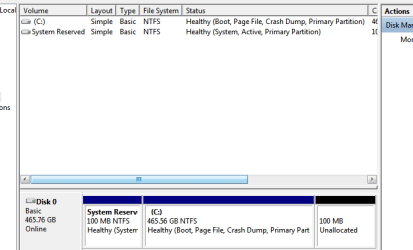
Never attempted to use this win 7 feature until I just done my first build and installed Win 7. I have a 500 gb sata HD with just my C drive. Recently I wanted to add a partition for just my photos and etc and some small programs that I seldom use. Stupid me, I created a 100 MB partition. I think I know how to increase that partition, but upon looking at my system in DM, I saw another 100 MB Partition? in front of my C drive. The one I created came after my C drive. I didn't know or even noticed that part before, so I don't know if it was always there or I made a mistake somehow. I tried to delete it, but delete is greyed out. BTW, the info in that section says:System Reserve 100 MB NTSF Healthy ( System Active Primary Partition ) and the one I created says Unallocated....100 MB. Do I need that partition? If so, what is its purpose?
 

My Computer

Computer type
PC/Desktop
Computer Manufacturer/Model Number
Build OEM Desktop
OS
Win 7 x64.Win 10
CPU
AMD A10 7850K
Motherboard
Asus A88X-Pro
Memory
8 gb
Graphics Card(s)
Nil
Sound Card
Nil
Monitor(s) Displays
Insignia
Screen Resolution
1376 x
Hard Drives
500 gb
Case
ABS
Keyboard
Sony
Mouse
OEM
Antivirus
Windows defender, Windows essential, Malware, autospyware
Browser
Firefox,Vivaldi
You don't want to mess with that system reserved partition, that is what is booting your computer, (The System and Active labels on that).

The reason it isn't seen in Explorer is the lack of a drive letter, that is done on purpose to keep it hidden, except in disk management.

Here is a tutorial for posting a screenshot of your disk management, that will help with further advice,

http://www.sevenforums.com/tutorials/274797-disk-management-post-screen-capture-image.html

You might already be familiar with these,

http://www.sevenforums.com/tutorials/2672-partition-volume-shrink.html

http://www.sevenforums.com/tutorials/2674-partition-volume-create-new.html

I recommend posting back and asking questions before doing anything further.
 

My Computer

Computer type
PC/Desktop
Computer Manufacturer/Model Number
Self Built
OS
Win 10 Pro x64
CPU
Intel I5-2500K @3.3GHz
Motherboard
Asrock P67 Extreme4
Memory
16GB G.Skill Ripjaws X (4x4GB)
Graphics Card(s)
EVGA GeForce 750 Ti SC 2GB
Sound Card
ASUS Xonar DG 5.1 Channels 24-bit 96KHz PCI Interface Sound
Monitor(s) Displays
auria eq2367
Screen Resolution
1920 x 1080
Hard Drives
250GB Samsung 850 EVO SSD
1TB WD Blue
1TB Hitachi
PSU
SeaSonic X 650W 80 Plus Gold
Case
Corsair Obsidian 750D
Cooling
Corsair H60, Three 140mm case fans
Keyboard
Logitech Wireless Keyboard K520
Mouse
Logitech Wireless Mouse M310
Internet Speed
Wave Broadband ~ 100 dn 5 up
Antivirus
Windows Defender, Malwarebytes Premium
Browser
Edge, IE11, Chrome
Other Info
Laptop specs: HP g7-1365dx /
CPU: AMD A6-3420M APU with Radeon(tm) HD Graphics /
RAM: Crucial 8Gb (2x4Gb) /
SSD: Crucial M4-CT128M4SSD2 ATA Device/ FW 000F /
GFX: AMD Radeon HD 6520G /
OS: Windows 10 Pro x64

My Computer

Computer type
PC/Desktop
Computer Manufacturer/Model Number
Skylake Special #666
OS
Windows 10 Pro x64
CPU
Intel Core i7 6700K
Motherboard
Asus Sabertooth Z170 Mark 1
Memory
GSkill TridentZ RGB 16GB 3600 16-16-16-36
Graphics Card(s)
EVGA GTX 980 Ti SC x2
Sound Card
Realtek High Definition
Monitor(s) Displays
AOC G2460PG
Screen Resolution
1920 x 1080 144Hz
Hard Drives
Samsung 860 Pro 256GB, Seagate Barracuda 4TB x2
PSU
EVGA 1000 P2, EVGA White Custom Braided Cables
Case
Corsair Vengeance C70 Gunmetal Black
Cooling
Corsair H100i v2, Corsair ML120 x2, Thermal Grizzly Kryonaut
Keyboard
Logitech G910 Orion Spectrum
Mouse
Logitech G700s
Internet Speed
Verizon Fios Quantum Gateway 75/75
Antivirus
Windows Defender, Malwarebytes Free 3.8.3
Browser
Chrome
Other Info
Corsair SP120 x4, LG Blu-ray Drive, Durabrand HT-395 100 Watt Dolby Digital Amp, Corsair H2100 Wireless 7.1 Headset
Right, a screenshot of your disk management would be helpful. There are a lot of traps you can fall into with disk management.

E.g you cannot have more than 4 primary partitions or more than 3 primary partitions and 1 extended partition. But then you can have a lot of logical partitions (up to 120) that are created under the umbrella of the extended partition. If you violate those rules, you get dynamic partitions and those are a bitch and very hard to work with.

In fact the only primary partition you need is the one that contains the bootmgr (the active partition). All other partitions can be logical partitions - even the C partition if you have an active 100MB system partition (or another partition that is active). Unfortunately the OEMs have made it a (bad) habit to make every partition a primary. Then the uninitiated user is stuck and does not know what to do when he wants an additional partition.

Disk Management is very hard to work with (e.g. for shrinking large bits). It is better to use Partition Wizard home edition. And here is their tutorial section with a video tutorial for any possible operation. If you want to make any operation on the C partition, you need to use the bootable CD of Partition Wizard.

And very important: Image your system before you manipulate partitions. It is easy to lose a partition when you make a minor mistake - has happened to me too, LOL.
 

My Computer

Computer Manufacturer/Model Number
HP, Dell, Gateway, Toshiba - 4 laptops and 2 desktops
OS
Vista, Windows7, Mint Mate, Zorin, Windows 8
CPU
from 1.6GHz Duo to i7
Monitor(s) Displays
2x HP w2207
Hard Drives
5x HDD, 7x SSD, 12x Externals
Keyboard
with trackball - no mices
Mouse
Trackball mice
Internet Speed
DSL 6000
You don't want to mess with that system reserved partition, that is what is booting your computer, (The System and Active labels on that).

The reason it isn't seen in Explorer is the lack of a drive letter, that is done on purpose to keep it hidden, except in disk management.

Here is a tutorial for posting a screenshot of your disk management, that will help with further advice,

http://www.sevenforums.com/tutorials/274797-disk-management-post-screen-capture-image.html

You might already be familiar with these,

http://www.sevenforums.com/tutorials/2672-partition-volume-shrink.html

http://www.sevenforums.com/tutorials/2674-partition-volume-create-new.html

I recommend posting back and asking questions before doing anything further.
here is a picture of my Disk Manager what threw me is that the reserve and the created unallocated are 100 MB's....is this a coincidence?
 

Attachments

  • Partition.PNG
    Partition.PNG
    7.6 KB · Views: 24

My Computer

Computer type
PC/Desktop
Computer Manufacturer/Model Number
Build OEM Desktop
OS
Win 7 x64.Win 10
CPU
AMD A10 7850K
Motherboard
Asus A88X-Pro
Memory
8 gb
Graphics Card(s)
Nil
Sound Card
Nil
Monitor(s) Displays
Insignia
Screen Resolution
1376 x
Hard Drives
500 gb
Case
ABS
Keyboard
Sony
Mouse
OEM
Antivirus
Windows defender, Windows essential, Malware, autospyware
Browser
Firefox,Vivaldi
Pure coincidence. but don't touch the system reserved partition.
 

My Computer

Computer Manufacturer/Model Number
HP, Dell, Gateway, Toshiba - 4 laptops and 2 desktops
OS
Vista, Windows7, Mint Mate, Zorin, Windows 8
CPU
from 1.6GHz Duo to i7
Monitor(s) Displays
2x HP w2207
Hard Drives
5x HDD, 7x SSD, 12x Externals
Keyboard
with trackball - no mices
Mouse
Trackball mice
Internet Speed
DSL 6000
Back
Top