Displaying inactive network connections

stlolth

New member
Local time
10:17 AM
Messages
20
Recently i installed a new wireless card, and now under Connections in Network and sharing center i have "Wireless network connection 2".

That means that somewhere on the computer there is still information stored about the previous wireless network configuration i had. I'd like a way to show that previous network and manage it.

What i'd really like to do is delete the "Wireless network connection 2" and just use the old "Wireless network connection", but i see no way of displaying all once active connections in Windows.
 

My Computer

OS
Windows 7 Enterprise 64-bit
CPU
I3-2120
Motherboard
Gigabyte B75M-D2V
Memory
4GB Corsair 1333
Graphics Card(s)
Radeon 7750
Sound Card
Realtek
PSU
400W
Antivirus
Avira Free
Browser
Firefox
Hi,

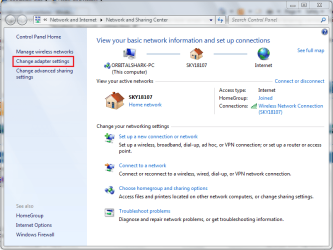
If you open up Network and Sharing center and click 'Change adapter settings'

Network & Sharing Center.PNG

Change Adapter Settings.PNG

From there you can remove all unneccessary network connections and rename the in use 1 back to 'Wireless network connection'

   Information
This can be cause if your network hardware failed at some point and Windows had to recover the device and re-install the drivers


Hope this helps :)


OS
 

My Computer

Computer Manufacturer/Model Number
Compaq Desktop
OS
Windows 7 Ultimate x64
CPU
AMD Sempron Dual Core
Memory
3GB
Graphics Card(s)
NVIDIA GeForce 6150SE nForce 430
Screen Resolution
1024x768
Hard Drives
150GB Sata
I know, I know, this thread is as old as walking backwards, but hey, I came here looking for a solution and although Orbital Shark's answer not quite solved what I was expecting, I went looking by myself and found a way to get rid of the old, outdated network connections.

The issue was, I could not rename my Wireless connection. But that's because I had already renamed an old Wireless connection before. Thus, Windows did not allowed me to rename this new one because it already knew about another one with this very same name. So I went in the Windows registry and searched for my network connection. When I found it, I just deleted the key and its subkeys and voilá, problem has been solved.

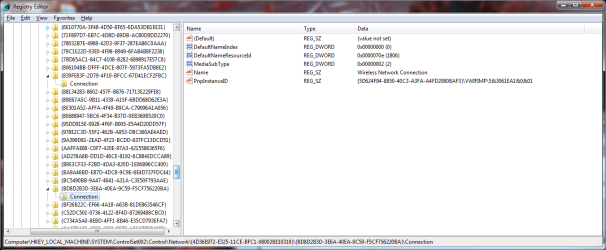
Please note, this is a very unsafe method, particularly if you are not sure on what to do or if you have no much expertise playing with Windows Registry. So let me do a quick tutorial with an image to better explain:

0. Create a system restore point before messing up things;

1. Open an command prompt with administrative privileges;

2. Type "regedit" without quotes to open Registry Editor application;

3. Click on Edit, then Find... (or press Ctrl+F);

4. Type the network name you are looking for - in my case, "Wireless Network Connection" (again, no quotes);

5. When you find a key, it will look like the following:
attachment.php


6. To find out if this belongs the current network interface or to an older interface, take a look at "PnpInstanceID" value (in my picture it is shown right below "Name" key). Any valid network adapter will have an Instance ID value similar to "PCI\VEN_1234&DEV_5678&SUBSYS_12345678&REV_01\blablabla". That is because the hardware is currently detected by the OS, so it is pointing to the hardware.

7. Assuming you found a key not pointing to any currently active interface, you can select the parent key and delete it. In the above image, the parent key is the "{BD8D2B3D-3E6A-40EA-9C59-F5CF756220BA}" key, as found on the left panel.

8. You may need to search a couple more times to find out all old entries. They may be multiple. Proceed as above for removal of any other inactive interfaces;

9. Now you can proceed as Orbital Shark posted above, and Windows will accept the "previous" name in this "new" connection.

Again, I apologise by ressing such old thread. I hope this may be helpful to anyone as it was to me.

 

Attachments

  • regedit_1.png
    regedit_1.png
    47.4 KB · Views: 3,609

My Computer

OS
Windows 7 Ultimate x64 SP1 | OSX Lion 10.7 x64
CPU
Intel Core i5 750
Motherboard
Asus P7P55D LE
Memory
4x Corsair Value DDR-3 1333MHz 2Gb
Graphics Card(s)
Sapphire HD4850 512Mb HDMI+DVI+VGA
Sound Card
Sound Blaster Audigy 2 ZS Platinum
Monitor(s) Displays
Samsung Syncmaster 245BW
Screen Resolution
1920x1200
Hard Drives
Samsung Spinpoint 160Gb
Seagate Barracuda 200Gb
PSU
Seventeam 650W ATX 2.3
Case
Coolermaster Centurion 532
Cooling
Stock cooling system
Keyboard
Logitech G15 Gaming Keyboard
Mouse
Razer Deathadder
Internet Speed
10Mbit Down / 1Mbit Up ADSL2+M
Other Info
Apple AirPort Extreme 802.11n (single band)
1Tb External USB HDD (AEBS volume)
Linksys WAG120N ADSL2+ Modem/Router
I'll risk my first post in this form bumping an old thread for two reasons. First its the first return I found when searching for the solution myself and second, I've found a way to do this without resorting to regedit.

1) Open Control Panel > Network and Sharing Center.
2) Click on the ICON of a currently connected network
3) Click on the "Merge or delete network locations" at the bottom left of the new dialog.

That will bring up a new dialog showing a list of all defined wired, wireless and vpn networks. You can then delete ones you don't want (I havn't tried merge) and rename your existing network in the Network and Sharing Center.
 

My Computer

Computer Manufacturer/Model Number
Custom
OS
Windows 7 Pro x64 SP1
CPU
Intel Core 2 Quad Q6600
Motherboard
Gigabyte GA-X48-DS5
Memory
8GB (4x2GB) Corsair DDR2 PC2-6400
Graphics Card(s)
Gigabyte GTX 460 SOC (nVidia)
Sound Card
Built-in
Monitor(s) Displays
ViewSonic VM2239m
Screen Resolution
1920x1080
Hard Drives
Seagate Barracuda 7200.11, ST3500320AS, 500GB.
Samsung Spinpoint T166, HD501LJ, 500GB.
Hitachi Deskstar 7K1000.B, HDT721075SLA380, 750GB (x2).
Western Digital Elements (USB External), 2TB (x2).
PSU
Corsair tx650w
Case
Thermaltake
Cooling
Lots of near-silent fans.
Keyboard
Logitech S510
Mouse
Logitech
Internet Speed
18Mb Down / 2Mb Up, ADSL2+ Annex M
Back
Top