
Downloads Library - Create

How to Create a "Downloads" Library with Correct Icon in Windows 7 and Windows 8

   Information
This will show you how to create a Downloads library in Windows 7 and Windows 8 that has the original default Downloads library icon with the blue arrow pointing downwards on a glass plate.


EXAMPLE: Original Downloads Library Icon
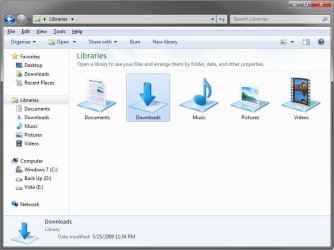
Download_Example.jpg
Here's How:
1. To Download the Downloads Library Icon
A) Click/tap on the Download button below to download the Downloads_Library.zip file that contains the original Downloads library icon.

Download


B) Save the ZIP file to your desktop.

C) Double click/tap on the ZIP file to open it, then extract (drag and frop) the Downloads_Library.ico file to the location that you want to keep it at.
WARNING: The icon file will need to remain at this location while it is being used (step 3) for the Downloads library. If you move it, then the icon will no longer be displayed for the Downloads library.

D) Right click or press and hold on the Downloads_Library.ico file, and click/tap on Properties, General tab, on the Unblock button, and on OK. (see screenshot below)
NOTE: If you do not have a Unblock button under the General tab, then the shortcut is already unblocked and you can continue on to step 2.
2. To Create the Downloads Library
A) In Windows Explorer, navigate to your C:\Users\(user-name) folder, then create a new library with the Downloads folder. (see screenshot below)
Download1.jpg
B) Open the new Downloads library, and include the C:\Users\Public\Public Downloads folder. (see screenshot below)
NOTE: If you like, you could include any other folder location(s) that you would like to also be included inside the Downloads library as well.
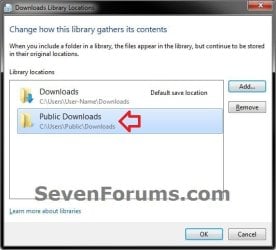
include.jpg
3. Do step 4 or 5 below depending on if you are in Windows 7 or Windows 8.

4. To Change the Downloads Library Icon in Windows 7
A) Change the Downloads library icon to use the Downloads_Library.ico icon file at the location you have saved it to in step 1. (see screenshots below)

   Note
For example, I saved my icon from step 1 to C:\Users\(user-name)\My Documents, so I would add the line below (right screenshot below) while changing the icon at step 5 at that link.

<iconReference>"C:\Users\User-Name\Documents\Downloads_Library.ico"</iconReference>

You would substitute the path in red to the full path of where you saved the Downloads_Library.ico file instead in step 1.

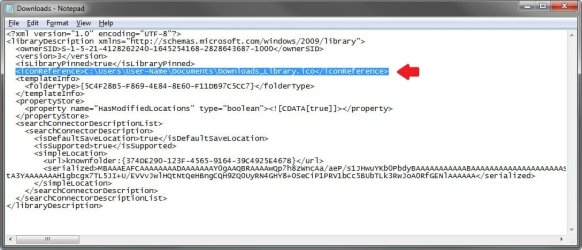
Download2A.jpg

Download2B.jpg

B) Go to step 6 below.
5. To Change the Downloads Library Icon in Windows 8
A) Using OPTION ONE in the tutorial below, change the new library's icon using the Downloads_Library.ico icon file at the location you have saved it to in step 1. (see screenshot below)
How to Change a Library Icon in Windows 8
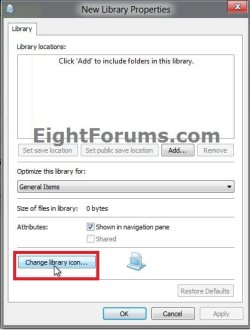
Change_New-Library_Icon.jpg
6. You will now notice that the Downloads library icon has changed.
NOTE: See example screenshot at the top of the tutorial.
That's it,
Shawn


Attachments

Last edited:
Hello svnpenn,

Links is the folder that the "Favorites" in the navigation pane of Windows Explorer are stored at. Since "Favorites" is the same as "Links", "Links" is basically already in the navigation pane as "Favorites" for quick access.

Did you still want a "Links" library even though Favorites is already there in it's own group above the libraries?
 

My Computer

Computer type
PC/Desktop
Computer Manufacturer/Model Number
Self built custom
OS
64-bit Windows 11 Pro for Workstations
CPU
Intel i7-8700K OC'd to 5 GHz
Motherboard
ASUS ROG Maximus XI Formula Z390
Memory
64 GB (4x16GB) G.SKILL TridentZ RGB DDR4 3600 MHz
Graphics Card(s)
ASUS ROG-STRIX-GTX1080TI-O11G-GAMING
Sound Card
Integrated
Monitor(s) Displays
2 x Samsung Odyssey G7 27"
Screen Resolution
2560x1440
Hard Drives
1TB Samsung 990 PRO M.2,
4TB Samsung 990 PRO PRO M.2,
TerraMaster F8 SSD Plus NAS
PSU
Seasonic Prime Titanium 850W
Case
Thermaltake Core P3
Cooling
Corsair Hydro H115i
Keyboard
Logitech wireless K800
Mouse
Logitech MX Master 4
Internet Speed
2 Gb/s Download and 100 Mb/s Upload
Antivirus
Malwarebyte Anti-Malware Premium
Browser
Google Chrome
Other Info
Logitech Z625 speaker system,
Logitech BRIO 4K Pro webcam,
HP Color LaserJet Pro MFP M477fdn,
APC SMART-UPS RT 1000 XL - SURT1000XLI,
Galaxy S23 Plus phone
The default icons, that is the icons for the folders in c:/users/brink, I dont like the default icons. I really like the icons for Windows 7 Libraries, so I want to use all those.

So far I have:
Downloads Library Icon
Favorites Library Icon
Documents Library Icon
Music Library Icon
Pictures Library Icon
Videos Library Icon
Games Library Icon
Searches Library Icon

If I could add the
Links Library Icon
that would be excellent!
 

My Computer

OS
Windows 7 Ultimate x64

My Computer

Computer type
PC/Desktop
Computer Manufacturer/Model Number
Self built custom
OS
64-bit Windows 11 Pro for Workstations
CPU
Intel i7-8700K OC'd to 5 GHz
Motherboard
ASUS ROG Maximus XI Formula Z390
Memory
64 GB (4x16GB) G.SKILL TridentZ RGB DDR4 3600 MHz
Graphics Card(s)
ASUS ROG-STRIX-GTX1080TI-O11G-GAMING
Sound Card
Integrated
Monitor(s) Displays
2 x Samsung Odyssey G7 27"
Screen Resolution
2560x1440
Hard Drives
1TB Samsung 990 PRO M.2,
4TB Samsung 990 PRO PRO M.2,
TerraMaster F8 SSD Plus NAS
PSU
Seasonic Prime Titanium 850W
Case
Thermaltake Core P3
Cooling
Corsair Hydro H115i
Keyboard
Logitech wireless K800
Mouse
Logitech MX Master 4
Internet Speed
2 Gb/s Download and 100 Mb/s Upload
Antivirus
Malwarebyte Anti-Malware Premium
Browser
Google Chrome
Other Info
Logitech Z625 speaker system,
Logitech BRIO 4K Pro webcam,
HP Color LaserJet Pro MFP M477fdn,
APC SMART-UPS RT 1000 XL - SURT1000XLI,
Galaxy S23 Plus phone
Brink, could you possibly create a "Backups" Library icon similar to the others you have created?

Thanks,
Yogi
 

My Computer

OS
Windows 8 Pro 64-bit
Hello Yogi, and welcome to Seven Forums.

Since there's not a "Backups" user folder by default to included in a library, you would need to create a new library, then include any folders you wanted in this new library. Afterwards, you could change the icon of the library to whatever icon you like.

I'll post back later with an icon.

Hope this helps for now, :)
Shawn
 

My Computer

Computer type
PC/Desktop
Computer Manufacturer/Model Number
Self built custom
OS
64-bit Windows 11 Pro for Workstations
CPU
Intel i7-8700K OC'd to 5 GHz
Motherboard
ASUS ROG Maximus XI Formula Z390
Memory
64 GB (4x16GB) G.SKILL TridentZ RGB DDR4 3600 MHz
Graphics Card(s)
ASUS ROG-STRIX-GTX1080TI-O11G-GAMING
Sound Card
Integrated
Monitor(s) Displays
2 x Samsung Odyssey G7 27"
Screen Resolution
2560x1440
Hard Drives
1TB Samsung 990 PRO M.2,
4TB Samsung 990 PRO PRO M.2,
TerraMaster F8 SSD Plus NAS
PSU
Seasonic Prime Titanium 850W
Case
Thermaltake Core P3
Cooling
Corsair Hydro H115i
Keyboard
Logitech wireless K800
Mouse
Logitech MX Master 4
Internet Speed
2 Gb/s Download and 100 Mb/s Upload
Antivirus
Malwarebyte Anti-Malware Premium
Browser
Google Chrome
Other Info
Logitech Z625 speaker system,
Logitech BRIO 4K Pro webcam,
HP Color LaserJet Pro MFP M477fdn,
APC SMART-UPS RT 1000 XL - SURT1000XLI,
Galaxy S23 Plus phone
Since there's not a "Backups" user folder by default to included in a library, you would need to create a new library, then include any folders you wanted in this new library. Afterwards, you could change the icon of the library to whatever icon you like.

I'll post back later with an icon.

Yeah, I already have the Library created and it has all my content in it, I just want a better looking icon that matches the other default Library icons. The other ones you made earlier in this thread look good, so I figure it was worth a shot to ask you to make another.

Also, as I'm sure you probably already noticed, changing the icon to a Library in Windows 8 is much easier. There is now a "Change library icon..." button on the Properties page of any Library which lets you do it without needing a third party tool or mucking about in the xml of the file.

Thanks,
Yogi
 

My Computer

OS
Windows 8 Pro 64-bit
Yogi,

Yeah, Windows 8 make it much easier to change "new" library icons, but it's still the same for the existing default libraries.
Library Icons - Change in Windows 8

Here's the .ico file in the attached ZIP download below. The image below is just a .PNG to see what it looks like. I hope you like. :)
Backup_Library.png
 

Attachments

Last edited:

My Computer

Computer type
PC/Desktop
Computer Manufacturer/Model Number
Self built custom
OS
64-bit Windows 11 Pro for Workstations
CPU
Intel i7-8700K OC'd to 5 GHz
Motherboard
ASUS ROG Maximus XI Formula Z390
Memory
64 GB (4x16GB) G.SKILL TridentZ RGB DDR4 3600 MHz
Graphics Card(s)
ASUS ROG-STRIX-GTX1080TI-O11G-GAMING
Sound Card
Integrated
Monitor(s) Displays
2 x Samsung Odyssey G7 27"
Screen Resolution
2560x1440
Hard Drives
1TB Samsung 990 PRO M.2,
4TB Samsung 990 PRO PRO M.2,
TerraMaster F8 SSD Plus NAS
PSU
Seasonic Prime Titanium 850W
Case
Thermaltake Core P3
Cooling
Corsair Hydro H115i
Keyboard
Logitech wireless K800
Mouse
Logitech MX Master 4
Internet Speed
2 Gb/s Download and 100 Mb/s Upload
Antivirus
Malwarebyte Anti-Malware Premium
Browser
Google Chrome
Other Info
Logitech Z625 speaker system,
Logitech BRIO 4K Pro webcam,
HP Color LaserJet Pro MFP M477fdn,
APC SMART-UPS RT 1000 XL - SURT1000XLI,
Galaxy S23 Plus phone
Brink,

Microsoft has changed the look of the library icons in Windows 10. I was wondering if you could update your Downloads Library icon to the new look.
 

My Computer

OS
Windows 8 Pro 64-bit
Hello Yogi, :)

Yeah, I'll have an updated version of this tutorial for Windows 10 over at www.tenforums.com hopefully soon.
 

My Computer

Computer type
PC/Desktop
Computer Manufacturer/Model Number
Self built custom
OS
64-bit Windows 11 Pro for Workstations
CPU
Intel i7-8700K OC'd to 5 GHz
Motherboard
ASUS ROG Maximus XI Formula Z390
Memory
64 GB (4x16GB) G.SKILL TridentZ RGB DDR4 3600 MHz
Graphics Card(s)
ASUS ROG-STRIX-GTX1080TI-O11G-GAMING
Sound Card
Integrated
Monitor(s) Displays
2 x Samsung Odyssey G7 27"
Screen Resolution
2560x1440
Hard Drives
1TB Samsung 990 PRO M.2,
4TB Samsung 990 PRO PRO M.2,
TerraMaster F8 SSD Plus NAS
PSU
Seasonic Prime Titanium 850W
Case
Thermaltake Core P3
Cooling
Corsair Hydro H115i
Keyboard
Logitech wireless K800
Mouse
Logitech MX Master 4
Internet Speed
2 Gb/s Download and 100 Mb/s Upload
Antivirus
Malwarebyte Anti-Malware Premium
Browser
Google Chrome
Other Info
Logitech Z625 speaker system,
Logitech BRIO 4K Pro webcam,
HP Color LaserJet Pro MFP M477fdn,
APC SMART-UPS RT 1000 XL - SURT1000XLI,
Galaxy S23 Plus phone
Back
Top