DPI Display Size Settings - Change

How to Change the Display DPI Size in Windows 7 and Windows 8

   Information
This will show you how to change the DPI (Dots per Inch) size settings to allow text and other items, such as icons, fonts, and windows, to display larger or smaller in Windows 7 and Windows 8.

For Windows 8.1, see instead: How to Change DPI Scaling Size for Displays in Windows 8.1

The DPI setting you set below only affects the current user account that you are logged in, and not all users.

In Windows 8, the DPI setting only affects screens on the desktop. For only Metro (modern UI) screens, see: How to Turn "Make everything on your screen bigger" On or Off in Windows 8

   Note
Setting the DPI size to a smaller number or percentage will decrease all items size on the display, while setting the DPI size to a larger number or percentage will increase all items size on the display.

   Tip
Typically, the higher the dots per inch (DPI), the better the fonts will look. If you set the DPI higher than 96, and you are running a Windows Aero theme, the text and other items on the screen might appear blurry in some programs that are not designed for high–DPI display in this version of Windows. You can avoid this issue by using legacy DPI scaling (Windows XP style DPI scaling) for these programs.


OPTION ONE

Change DPI Through Display Settings

1. Open the Control Panel (icons view), click/tap on the Display icon, and go to step 4.

OR

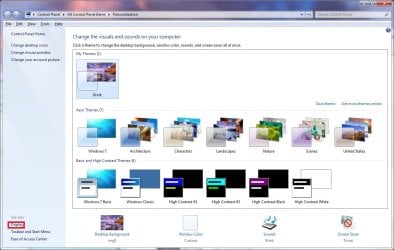
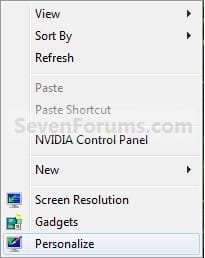
2. Right click or press and hold on an empty area of your desktop, and click/tap on Personalize. (See screenshot below)
NOTE: The Windows 7 Starter and Home Basic editions do not have Personalize included in them.
452d1231904752-dpi-display-size-settings-change-right_click.jpg


A) Towards the bottom left corner, click/tap on the Display link. (See screenshot below)Personalize.jpg


B) Go to step 4.

OR

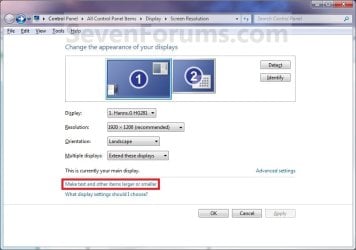
3. Right click or press and hold on an empty area of your desktop, and click/tap on Screen Resolution. (See screenshot below step 2)A) Click/tap on the Make text and other items larger or smaller link. (See screenshot below)Display_Settings.jpg


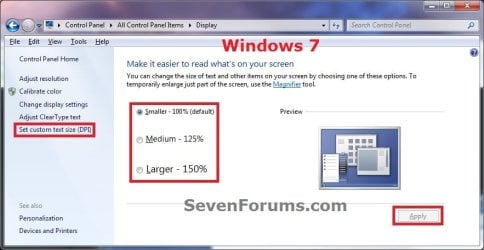
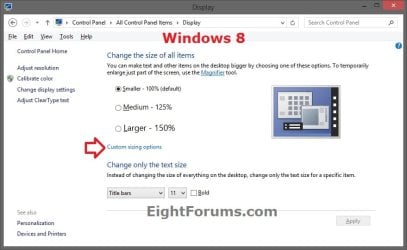
4. You will now see this screen. (See screenshots below)W7-Display.jpg W8-Display.jpg

5. To Select a DPI SizeA) Dot a size that you want for the Display DPI size. (See screenshot above)


  • Smaller - 100% = 96 DPI (Pixels/Dots Per Inch)
  • Medium - 125% = 120 DPI (Pixels/Dots Per Inch)
  • Larger - 150% = 144 DPI (Pixels/Dots Per Inch)
B) Go to step 7.

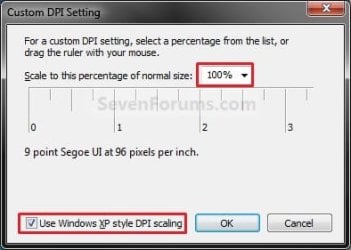
6. To Set a Custom DPI SizeA) In the left pane, click/tap on the Set custom text size (DPI) link (Windows 7) or Custom sizing options link (Windows 8). (See screenshot below step 4)

B) To the right of Scale to this percentage of normal size, click on the drop down arrow and select a percentage you want the DPI size to be. (See screenshot below step 6D)
NOTE: You can also click and hold on the Inch Scale below this and drag it to change the percentage.

C) If needed, check the Use Windows XP style DPI scaling box to make text and items clearer in programs that are not designed for higher settings than 96 DPI (100%). (See screenshot below step 6D)
NOTE: See the TIP box at the top of the tutorial.

D) Click/tap on OK. (See screenshot below)
454d1226302789-dpi-display-size-settings-change-custom_dpi.jpg


8. Click/tap on the Apply button. (See screenshot below step 4)

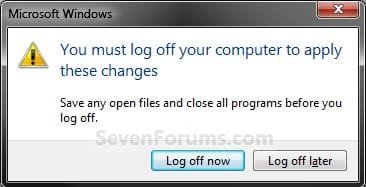
9. Click/tap on the Log off now button to apply the DPI changes. (See screenshot below)
WARNING: This will log you off immediately. Be sure to save anything you are working on before you click on this.
455d1226302789-dpi-display-size-settings-change-log_off.jpg


10. Log back on.


OPTION TWO

Change DPI Manually in Registry Editor

1. Press the Windows + R keys to open the Run dialog, type regedit, and press Enter.

2. If prompted by UAC, click/tap on Yes.

3. In regedit, navigate to the location below: (see screenshot below)HKEY_CURRENT_USER\Control Panel\Desktop


Step1.jpg

4. In the right pane of Desktop, double click/tap on LogPixels to modify it. (see screenshot above)
NOTE: If you do not have the LogPixels DWORD value, then right click on a empty space in the right pane of Desktop, click on New and DWORD (32-bit) Value, type LogPixels, and press Enter.

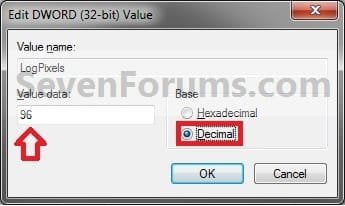
5. In the edit/modify window, select (dot) Decimal, type in the registry data value from the table below for the DPI setting that you want to use, and click/tap on OK.
DPI SettingRegistry Data Value
Smaller - 100%96
Medium - 125%120
Larger - 150%144

Step2.jpg

6. Close regedit.

7. Log off and log on, or restart the computer to apply.


OPTION THREE

To Restore Default 96 DPI Using a REG File Download


NOTE: This can be handy if you accidentally set the DPI to large and everything is extended way past the display screen, making them distorted and unreadable. You can also boot into Safe Mode and change the DPI scaling back to a smaller number using a option above.1. Click/tap on the download button below to download the file below.Restore_Default_96_DPI.reg


Download


2. Save the .reg file to your desktop.

3. Double click/tap on the downloaded .reg file to merge it.

4. Click/tap on Run, Yes (UAC), Yes, and OK when prompted.

5. Log off and Log on, or restart the computer to apply changes.

6. When finished, you can delete the downloaded .reg file if you like.


That's it,
Shawn Brink


Attachments

  • Custom_DPI.jpg
    Custom_DPI.jpg
    56.2 KB · Views: 638,637
  • Log_off.jpg
    Log_off.jpg
    45.8 KB · Views: 636,005
  • Right_Click.jpg
    Right_Click.jpg
    27.3 KB · Views: 637,894
  • Restore_Default_96_DPI.reg
    Restore_Default_96_DPI.reg
    1.3 KB · Views: 12,988
Last edited:
Hello Gophur, and welcome to Seven Forums.

I'm sorry, but the DPI settings are applied everywhere and cannot be set or unset for specific items. :(

Depending on the user's needs, you might see if having the DPI back to 100%, and using Magnifier instead to avoid this may work for the user.
 

My Computer

Computer type
PC/Desktop
Computer Manufacturer/Model Number
Self built custom
OS
64-bit Windows 11 Pro for Workstations
CPU
Intel i7-8700K OC'd to 5 GHz
Motherboard
ASUS ROG Maximus XI Formula Z390
Memory
64 GB (4x16GB) G.SKILL TridentZ RGB DDR4 3600 MHz
Graphics Card(s)
ASUS ROG-STRIX-GTX1080TI-O11G-GAMING
Sound Card
Integrated
Monitor(s) Displays
2 x Samsung Odyssey G7 27"
Screen Resolution
2560x1440
Hard Drives
1TB Samsung 990 PRO M.2,
4TB Samsung 990 PRO PRO M.2,
TerraMaster F8 SSD Plus NAS
PSU
Seasonic Prime Titanium 850W
Case
Thermaltake Core P3
Cooling
Corsair Hydro H115i
Keyboard
Logitech wireless K800
Mouse
Logitech MX Master 4
Internet Speed
2 Gb/s Download and 100 Mb/s Upload
Antivirus
Malwarebyte Anti-Malware Premium
Browser
Google Chrome
Other Info
Logitech Z625 speaker system,
Logitech BRIO 4K Pro webcam,
HP Color LaserJet Pro MFP M477fdn,
APC SMART-UPS RT 1000 XL - SURT1000XLI,
Galaxy S23 Plus phone
Hello Brink and everybody,

Happy New Year to all of you !

I have a question this DPI change.
Is it mandatory to Log On/Off each time you change this settings or is there a way to change it more easily/faster ?

In fact there is only one software that requires me to change back to 100% while I am used to have 125%, and I'm getting upset to close all programs, browser, etc, just for few minutes of use of the other program and after, do that again to come back to previous settings...

Thanks for your help,

Lim.
 
Last edited:

My Computer

Computer Manufacturer/Model Number
Toshiba Qosmio
OS
Windows 7 x86 Professional SP1
CPU
Intel Core2 Duo CPU P8600 2.40GHz
Memory
4 Gb
Graphics Card(s)
NVIDIA GeForce 9600M GT
Screen Resolution
Laptop 1920x1080 + Screen 1680x1050
Need Help With DPI set to high fix

Hi,

I'm currently trying to fix a win 7 system that someone has set the DPI at a high custom scale. I've had tried to change it back by using key press ex.. right menu button from keyboard then r for personalize and so on..... to no avail due to the setting to high not all the menu items can fit in the window so there are un accessable. I've tried the download regedit tool but cannot view the menus due to the same problem. I've manage to fix the desktop by hitting ctrl and scrolling the wheel on the mouse. I've also attempted a restore point with no fix as well. Just wandering if I can load a hirens or live CD and manually change the reg. that way and if so where do I make those changes. The only alternative I can think of is to do a wipe reload of the OS... Please let me know if there is anything else I can try.
 

My Computer

Computer type
Laptop
Computer Manufacturer/Model Number
Toshiba
OS
Windows 7 Ultimate x64
CPU
I 5
Memory
8 GB DDR 3
Antivirus
Avast
Hello Ryan, and welcome to Seven Forums.

If you like, you could also boot into Safe Mode, and use one of the options in the tutorial on the first page to change the DPI back to default.

Hope this helps, :)
Shawn
 

My Computer

Computer type
PC/Desktop
Computer Manufacturer/Model Number
Self built custom
OS
64-bit Windows 11 Pro for Workstations
CPU
Intel i7-8700K OC'd to 5 GHz
Motherboard
ASUS ROG Maximus XI Formula Z390
Memory
64 GB (4x16GB) G.SKILL TridentZ RGB DDR4 3600 MHz
Graphics Card(s)
ASUS ROG-STRIX-GTX1080TI-O11G-GAMING
Sound Card
Integrated
Monitor(s) Displays
2 x Samsung Odyssey G7 27"
Screen Resolution
2560x1440
Hard Drives
1TB Samsung 990 PRO M.2,
4TB Samsung 990 PRO PRO M.2,
TerraMaster F8 SSD Plus NAS
PSU
Seasonic Prime Titanium 850W
Case
Thermaltake Core P3
Cooling
Corsair Hydro H115i
Keyboard
Logitech wireless K800
Mouse
Logitech MX Master 4
Internet Speed
2 Gb/s Download and 100 Mb/s Upload
Antivirus
Malwarebyte Anti-Malware Premium
Browser
Google Chrome
Other Info
Logitech Z625 speaker system,
Logitech BRIO 4K Pro webcam,
HP Color LaserJet Pro MFP M477fdn,
APC SMART-UPS RT 1000 XL - SURT1000XLI,
Galaxy S23 Plus phone
Brink,

I appreciate your response but unfortunately I already tried Safe Mode. It is a strange thing when I open up any menus beyond the desktop the Text is to large for the display area and individual windows so I cannot access parts of the windows. I did manage to change to the highest resolution but still the DPI is set entirely to high.

I appreciate any additional advice you might have.
Thanks In Advance,
Ryan
 
Last edited by a moderator:

My Computer

Computer type
Laptop
Computer Manufacturer/Model Number
Toshiba
OS
Windows 7 Ultimate x64
CPU
I 5
Memory
8 GB DDR 3
Antivirus
Avast
What happened in Safe Mode?

You could also do a system restore at boot using a restore point dated before the DPI setting was changed to undo it.
 

My Computer

Computer type
PC/Desktop
Computer Manufacturer/Model Number
Self built custom
OS
64-bit Windows 11 Pro for Workstations
CPU
Intel i7-8700K OC'd to 5 GHz
Motherboard
ASUS ROG Maximus XI Formula Z390
Memory
64 GB (4x16GB) G.SKILL TridentZ RGB DDR4 3600 MHz
Graphics Card(s)
ASUS ROG-STRIX-GTX1080TI-O11G-GAMING
Sound Card
Integrated
Monitor(s) Displays
2 x Samsung Odyssey G7 27"
Screen Resolution
2560x1440
Hard Drives
1TB Samsung 990 PRO M.2,
4TB Samsung 990 PRO PRO M.2,
TerraMaster F8 SSD Plus NAS
PSU
Seasonic Prime Titanium 850W
Case
Thermaltake Core P3
Cooling
Corsair Hydro H115i
Keyboard
Logitech wireless K800
Mouse
Logitech MX Master 4
Internet Speed
2 Gb/s Download and 100 Mb/s Upload
Antivirus
Malwarebyte Anti-Malware Premium
Browser
Google Chrome
Other Info
Logitech Z625 speaker system,
Logitech BRIO 4K Pro webcam,
HP Color LaserJet Pro MFP M477fdn,
APC SMART-UPS RT 1000 XL - SURT1000XLI,
Galaxy S23 Plus phone
Sorry it took so long to get back to you. Safe mode did'nt allow any fixes same issue when going in to the menus/settings. We did manage to find and do a restore point that fixed the problem.
 

My Computer

Computer type
Laptop
Computer Manufacturer/Model Number
Toshiba
OS
Windows 7 Ultimate x64
CPU
I 5
Memory
8 GB DDR 3
Antivirus
Avast
That's great news Ryan. :)
 

My Computer

Computer type
PC/Desktop
Computer Manufacturer/Model Number
Self built custom
OS
64-bit Windows 11 Pro for Workstations
CPU
Intel i7-8700K OC'd to 5 GHz
Motherboard
ASUS ROG Maximus XI Formula Z390
Memory
64 GB (4x16GB) G.SKILL TridentZ RGB DDR4 3600 MHz
Graphics Card(s)
ASUS ROG-STRIX-GTX1080TI-O11G-GAMING
Sound Card
Integrated
Monitor(s) Displays
2 x Samsung Odyssey G7 27"
Screen Resolution
2560x1440
Hard Drives
1TB Samsung 990 PRO M.2,
4TB Samsung 990 PRO PRO M.2,
TerraMaster F8 SSD Plus NAS
PSU
Seasonic Prime Titanium 850W
Case
Thermaltake Core P3
Cooling
Corsair Hydro H115i
Keyboard
Logitech wireless K800
Mouse
Logitech MX Master 4
Internet Speed
2 Gb/s Download and 100 Mb/s Upload
Antivirus
Malwarebyte Anti-Malware Premium
Browser
Google Chrome
Other Info
Logitech Z625 speaker system,
Logitech BRIO 4K Pro webcam,
HP Color LaserJet Pro MFP M477fdn,
APC SMART-UPS RT 1000 XL - SURT1000XLI,
Galaxy S23 Plus phone
Text in application Windows not using DPI settings

Hi All, Need some help.

we have an application where we are trying to diplay the test using DPI custom settings at 111%.
The adjustments are showing in normal apps, but in a particular custom application (using Java) only the window heading is using the DPI setting, the text within the windows are still at 100%.

This used to work, and we havent made any changes to the application.

Any help appreciated.

Phil K
 

My Computer

Computer type
PC/Desktop
OS
Windows 7 Enterprise SP1
Hello Phil, and welcome to Seven Forums. :)

What application is this? Someone using the same may know a solution.

Does the application have it's own settings for text size?
 

My Computer

Computer type
PC/Desktop
Computer Manufacturer/Model Number
Self built custom
OS
64-bit Windows 11 Pro for Workstations
CPU
Intel i7-8700K OC'd to 5 GHz
Motherboard
ASUS ROG Maximus XI Formula Z390
Memory
64 GB (4x16GB) G.SKILL TridentZ RGB DDR4 3600 MHz
Graphics Card(s)
ASUS ROG-STRIX-GTX1080TI-O11G-GAMING
Sound Card
Integrated
Monitor(s) Displays
2 x Samsung Odyssey G7 27"
Screen Resolution
2560x1440
Hard Drives
1TB Samsung 990 PRO M.2,
4TB Samsung 990 PRO PRO M.2,
TerraMaster F8 SSD Plus NAS
PSU
Seasonic Prime Titanium 850W
Case
Thermaltake Core P3
Cooling
Corsair Hydro H115i
Keyboard
Logitech wireless K800
Mouse
Logitech MX Master 4
Internet Speed
2 Gb/s Download and 100 Mb/s Upload
Antivirus
Malwarebyte Anti-Malware Premium
Browser
Google Chrome
Other Info
Logitech Z625 speaker system,
Logitech BRIO 4K Pro webcam,
HP Color LaserJet Pro MFP M477fdn,
APC SMART-UPS RT 1000 XL - SURT1000XLI,
Galaxy S23 Plus phone
Thanks Brink, the application is called Quintiq, its a unqiue application used for scheduling based on Java.

No the application does not have its own settings for text size
 

My Computer

Computer type
PC/Desktop
OS
Windows 7 Enterprise SP1
I'm not familiar with that program. If you haven't already, you might see if restarting the PC may allow the DPI setting to work in the program as well.
 

My Computer

Computer type
PC/Desktop
Computer Manufacturer/Model Number
Self built custom
OS
64-bit Windows 11 Pro for Workstations
CPU
Intel i7-8700K OC'd to 5 GHz
Motherboard
ASUS ROG Maximus XI Formula Z390
Memory
64 GB (4x16GB) G.SKILL TridentZ RGB DDR4 3600 MHz
Graphics Card(s)
ASUS ROG-STRIX-GTX1080TI-O11G-GAMING
Sound Card
Integrated
Monitor(s) Displays
2 x Samsung Odyssey G7 27"
Screen Resolution
2560x1440
Hard Drives
1TB Samsung 990 PRO M.2,
4TB Samsung 990 PRO PRO M.2,
TerraMaster F8 SSD Plus NAS
PSU
Seasonic Prime Titanium 850W
Case
Thermaltake Core P3
Cooling
Corsair Hydro H115i
Keyboard
Logitech wireless K800
Mouse
Logitech MX Master 4
Internet Speed
2 Gb/s Download and 100 Mb/s Upload
Antivirus
Malwarebyte Anti-Malware Premium
Browser
Google Chrome
Other Info
Logitech Z625 speaker system,
Logitech BRIO 4K Pro webcam,
HP Color LaserJet Pro MFP M477fdn,
APC SMART-UPS RT 1000 XL - SURT1000XLI,
Galaxy S23 Plus phone
Have tried restarting and also applying a Hotfix for DPI settings
 

My Computer

Computer type
PC/Desktop
OS
Windows 7 Enterprise SP1
I'm not sure what else to suggest other than to do a system restore using a restore point dated when it did work properly. :(
 

My Computer

Computer type
PC/Desktop
Computer Manufacturer/Model Number
Self built custom
OS
64-bit Windows 11 Pro for Workstations
CPU
Intel i7-8700K OC'd to 5 GHz
Motherboard
ASUS ROG Maximus XI Formula Z390
Memory
64 GB (4x16GB) G.SKILL TridentZ RGB DDR4 3600 MHz
Graphics Card(s)
ASUS ROG-STRIX-GTX1080TI-O11G-GAMING
Sound Card
Integrated
Monitor(s) Displays
2 x Samsung Odyssey G7 27"
Screen Resolution
2560x1440
Hard Drives
1TB Samsung 990 PRO M.2,
4TB Samsung 990 PRO PRO M.2,
TerraMaster F8 SSD Plus NAS
PSU
Seasonic Prime Titanium 850W
Case
Thermaltake Core P3
Cooling
Corsair Hydro H115i
Keyboard
Logitech wireless K800
Mouse
Logitech MX Master 4
Internet Speed
2 Gb/s Download and 100 Mb/s Upload
Antivirus
Malwarebyte Anti-Malware Premium
Browser
Google Chrome
Other Info
Logitech Z625 speaker system,
Logitech BRIO 4K Pro webcam,
HP Color LaserJet Pro MFP M477fdn,
APC SMART-UPS RT 1000 XL - SURT1000XLI,
Galaxy S23 Plus phone
You could try researching desktop resizing. I am using a TV as a secondary monitor and found that the taskbar was falling off the screen and adjusted it using desktop resizing. I was able to use the NVIDIA control panel.
 

My Computer

Computer type
PC/Desktop
OS
Windows 8.1
hey guys
Since doing my i7 build a few days ago I have had problems with some applications not displaying the content within their windows correctly. I have uploaded a picture of one of the interface that is doing it. It worked perfectly fine on all other windows 7 64bit installations I have had until I built the i7 one.

The problem is that whenever you initially load this interface up, it presents it self fine and well proportioned to the window it is held in. As soon as you try to move the window or close and then re-open it shrinks from the right side inwards and cuts off tabs at the top rendering them inaccessible.

I have tried formatting 3 times again and decided it must be something to do with the DPI scaling. I have tried your registry method and checked DXDiag, which is now displayin 96DPI for user and system (it was showing as User: 96 DPI and system 120 DPI as I read this thread). Still no luck!

Ive been trying to fix this for days now. I installed Vista 64bit on my other partition and there are no problems on with that version!

Any idea? :)

Solution:
Set custom text size (DPI) -> Uncheck the Use Windows XP style DPI scaling box
This is a Fix to have bigger DPI Size but makes old Applications Blury.
Yes, I know this post is old, but... someone might need it...
 

My Computer

Computer type
PC/Desktop
OS
Windows 7 Pro x64
Back
Top