
How to Change the OS Name in Windows Boot Manager
Information
When you multi boot, this will show you how to change the name of a operating system listed in the Windows Boot Manager to what you want to change the name to instead.
You must be logged in as an administrator to be able to do the steps in this tutorial.
You must be logged in as an administrator to be able to do the steps in this tutorial.
Tip
It can be real useful to rename a operating system if you have more than one OS listed with the same name, or you would like to have a better description (ex: 32-bit, 64-bit, build number), etc..)
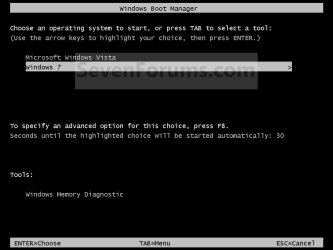
EXAMPLE: Windows Boot Manager
NOTE: This is an example of the default Windows 7 name (left) renamed to Windows 7 (build 7000) (right) instead. You can rename the OS to any name that you like though.

OPTION ONE
Using the bcdedit Command
1. Open an elevated command prompt or a command prompt at boot.
NOTE: If you have a RAID setup or a PCI-E SSD as your boot drive and want to open a command prompt at boot, then you may need to use the Load Drivers option in the System Recovery Options screen to load it's drivers first before Windows will see the boot drive to be able to use the bcdedit command on it.
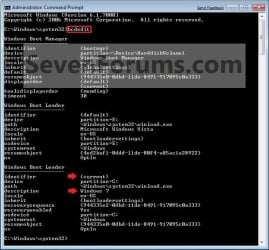
2. In the elevated command prompt, type bcdedit and press enter. (see screenshot below)
NOTE: This will let you see what the description (name) and identifier of the operating system(s) listed in Windows Boot Manager are under the Windows Boot Loader section(s). For example, Windows 7 (description) as {current} (identifier).
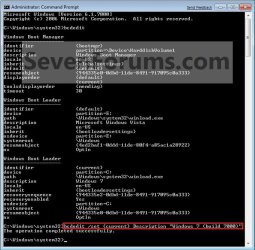
3. In the elevated command prompt, type the command below for a listed OS that you want to change the name of, and press Enter. (see screenshot below)
bcdedit /set {identifier} Description "name you want"
For example: If I wanted to change the name from Windows 7 (description) as {current} (identifier) to Windows 7 (build 7000), I would type this below and press Enter.
bcdedit /set {current} Description "Windows 7 (build 7000)"
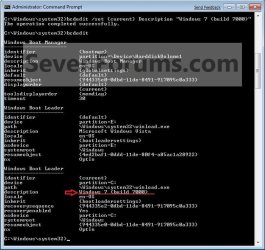
4. In the elevated command prompt, type bcdedit and press enter. (see screenshot below)
NOTE: This will let you see and verify the new name of the {current} operating system.
5. Close the elevated command prompt.
6. When you restart the computer next, you will see the new name listed for the operating system in the Windows Boot Manager screen. (see example screenshots at the top of the tutorial)
OPTION TWO
Using the Free "EasyBCD" Program
1. Download and install the latest free version of the EasyBCD program, then run it.
NOTE: The free version download is at the bottom under "Download free for limited, non-commercial use". Registration is not required to download.
2. Click on the Edit Boot Menu button, select the OS (ex: Windows 7) that you want to rename, and click on the Rename button. (see screenshot below)
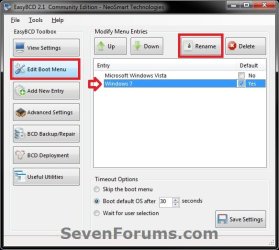
3. Type in the new name (ex: Windows 7 Ultimate) and press Enter. (see screenshots below)

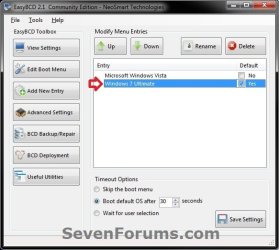
4. When finished, close EasyBCD.
That's is,
Shawn
Related Tutorials
- How to Use the BCDEDIT Command Line Tool
- How to Change Time to Display Operating Systems at Boot in Windows 7
- How to Change the Default Operating System to Start in Windows 7
- How to Delete an Operating System Listed in Windows Boot Manager
- How to Setup a Dual Boot Installation with Windows 7 and Vista
- How to Setup a Dual Boot Installation with Windows 7 and XP
- How to Properly Delete a OS in a Dual Boot
- How to Add Windows 7 "Safe Mode" to Windows Boot Manager Screen
- How to Add Windows 7 "Safe Mode with Command Prompt" to Windows Boot Manager Screen
- How to Add Windows 7 "Safe Mode with Networking" to Windows Boot Manager Screen
- How to Change the Listed OS Arrangement Order in Windows Boot Manager Screen
Last edited:


