

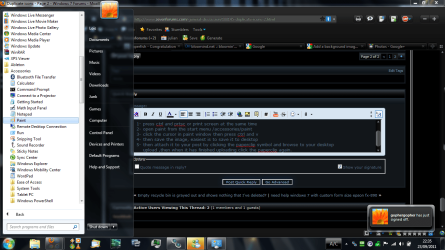
patti ,this is how to take a screenshot including the sart menu.
1- press ctrl and prtsc or print screen at the same time
2- open paint from the start menu /all programs/accessories/paint
3- click the cursor in paint window then press ctrl and v
4- then save the image, easiest is to save it to desktop
5- then attach it to your post by clicking the paperclip symbol and browse to your desktop
upload ,then when it has finished uploading click the paperclip again when it shows the screenshot name then click that .
like so
1- press ctrl and prtsc or print screen at the same time
2- open paint from the start menu /all programs/accessories/paint
3- click the cursor in paint window then press ctrl and v
4- then save the image, easiest is to save it to desktop
5- then attach it to your post by clicking the paperclip symbol and browse to your desktop
upload ,then when it has finished uploading click the paperclip again when it shows the screenshot name then click that .
like so
My Computer
- Computer Manufacturer/Model Number
- Hewlett packard/p6512uk
- OS
- Microsoft Windows 7 Home Premium 64-bit 7600
- CPU
- IIx4 amd athelon 635 processor
- Motherboard
- FOXCONN 2AA9
- Memory
- 2x2gb
- Graphics Card(s)
- ati radeon HD 5450
- Sound Card
- (1) Realtek High Definition Audio (2) AMD High Definition
- Monitor(s) Displays
- samsung lcd tv 32"
- Screen Resolution
- 1360x 768
- Hard Drives
- (1) WDC WD10 01FAES-60Z2A0 SATA Disk Device (2) Maxtor OneTouch USB Device (3) ST310003 33AS USB Device (4) WD My Book 1111 USB Device
- PSU
- ?
- Cooling
- air!
- Keyboard
- wireless hp
- Mouse
- wireless Hp,optical
- Internet Speed
- 1.10mb/s
- Antivirus
- MSE
- Browser
- Firefox
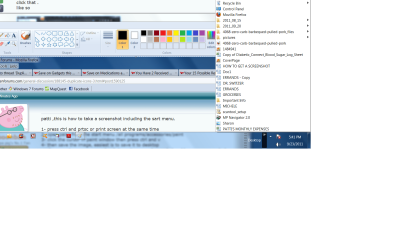

 rb: type in Desktop and hit enter. The folder which opens contains what will be shown in the Desktop Toolbar. The default Windows icons like Libraries or Control Panel can't be moved, but you can place all of your created ones in another folder and they won't show then.


