
DWM.exe Disabled?

the repair install failed, it BSOD'd right at the end, however i did find out something,
uDWM.dll was the corrupted file when i did the system file checker, and its 0 bytes in size when i looked for it in system32. im thinking this is the root of my problems.

i have vista on my other partition with an INTACT uDWM.dll file thats 189KB in size. ive tried pasting over the 0 byte file (backed it up, just in case) but it says i need permission to perform the action:
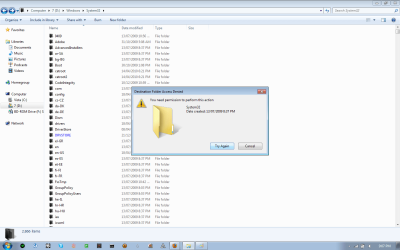
Untitled.png

is it even worthwhile replacing it with the vista file? if so, how would i get around this?

EDIT: I have solved the problem!! i took control of the file and deleted it, using the uDWM.dll file from the tutorial to enable full clear glass transparency :cool: http://www.sevenforums.com/tutorials/14121-transparency-enable-full-clear-glass-transparency.html
thank you for the help however, if i didnt run the system file checker i never would have seen that uDWM was corrupted :D
 
Last edited:

My Computer

Computer Manufacturer/Model Number
Acer Aspire 8943G
OS
Windows 7 Home Premium 64 bit
CPU
Intel Core i3 350M 2.27GHz
Motherboard
?
Memory
4 GB DDR3
Graphics Card(s)
Ati Mobility Radeon HD 5650
Sound Card
?
Monitor(s) Displays
18.4" Full HD 1080p LED LCD
Screen Resolution
1920x1080
Hard Drives
500GB HDD
PSU
?
Case
?
Cooling
?
Mouse
Razer Mamba
Internet Speed
15 Mbps
Sorry to bump this thread, but I did a repair install and it worked perfectly, until now. I have just booted up the computer and aero is disabled again. :(

EDIT: I just rebooted after installing 2 updates, and it is working again, although this did happen last time. Windows occasionally booted up with aero, and occasionally without, until it was just permanently without it.

EDIT (1st May 2010): For anyone who happens to come across this problem and thread in the future:

The problem was caused by a device driver for a device that was only compatible with Windows XP (and may be running in XP compatiblity mode) (an old Lexmark printer in my case), uninstalling the driver fixes the problem.
 
Last edited:

My Computer

OS
Windows 7
hello.

ive had problems with windows aero recently. aero effects used to work some time ago, but for some reason it wont work and im stuck using windows 7 basic visual effects. when i open up the troubleshooter for aero it says than the Desktop Window Manager is disabled, but dwm.exe is still active in my task manager;

ive tried regedit fixes (highlighted)
View attachment 67229

ive tried disabling and enabling, stopping and restarting dwm.exe, and nothing seems to work.

my graphics card is an intel 965 express chipset, and aero effects used to work.
help with this would be appreciated.


The dwm can be permanently disabled, and restored later, if desired.

1. In Windows 7, while holding down the Ctrl key and the Alt key at the same time, press the Del key.
This will open the panel that allows for the Management of Services.
2. The last (bottom) option on the list, is the Windows Manager. Click it.
This opens up the Services Tab on the Windows Manager.
3. At the very bottom right, there is a small button that reads Services. Click it.
This opens up the Local Services Manager.
4. Now, what you are looking for, is the Desktop Windows Manager.
Right Click on the Desktop Windows Manager, This offers you the Context Menu. Select Properties.
This opens the General Tab on the DWM properties menu.
5. On the General Tab, about halfway down, you will see a start-up option, which will allow you to disable the service.
Disable it, and select Accept.
There is nothing else to do, but to close the open Local Services Menu and Windows Manager.

This has worked on my laptop, running Windows 7 Ultimate.

You should notice a faster computer response, due to the freeing up of computer resources,
and you will never again be annoyed by the "dwm.exe has stopped working" alert.

Glad to be of service :)
Pepe Rockola
 

My Computer

Computer type
Laptop
Computer Manufacturer/Model Number
Toshiba R835
OS
Windows 7 Ultimate x64
CPU
intel core i3
Browser
Windows Internet Explorer, Google Chrome, Mozilla Fofire
The dwm can be permanently disabled, and restored later, if desired.

1. In Windows 7, while holding down the Ctrl key and the Alt key at the same time, press the Del key.
This will open the panel that allows for the Management of Services.
2. The last (bottom) option on the list, is the Windows Manager. Click it.
This opens up the Services Tab on the Windows Manager.
3. At the very bottom right, there is a small button that reads Services. Click it.
This opens up the Local Services Manager.
4. Now, what you are looking for, is the Desktop Windows Manager.
Right Click on the Desktop Windows Manager, This offers you the Context Menu. Select Properties.
This opens the General Tab on the DWM properties menu.
5. On the General Tab, about halfway down, you will see a start-up option, which will allow you to disable the service.
Disable it, and select Accept.
There is nothing else to do, but to close the open Local Services Menu and Windows Manager.

This has worked on my laptop, running Windows 7 Ultimate.

You should notice a faster computer response, due to the freeing up of computer resources,
and you will never again be annoyed by the "dwm.exe has stopped working" alert.

Glad to be of service :)
Pepe Rockola
 

My Computer

Computer type
Laptop
Computer Manufacturer/Model Number
Toshiba R835
OS
Windows 7 Ultimate x64
CPU
intel core i3
Browser
Windows Internet Explorer, Google Chrome, Mozilla Fofire
Back
Top