
Dynamic and Basic Partitions?!?!

maxell505

New member
Local time
4:06 PM
Messages
25
Hi everyone. I am trying to Dual Boot Windows 7 and Windows 8. I have the Windows 8 boot DVD already and when I tried to boot everything went well except when I said I wanted a custom installation and I want to install on my partition that I have created and it said that it was dynamic and it could not install Windows 8 on it. Is there any way to convert the 105 GB dynamic partition I have in my hard drive to be a basic partition. When I open My Computer, this is what I have in my Hard Disk Drives Section:

Local Disk (C:) : 372 GB free of 471 GB

Recovery (D:) : 1.73 GB free of 15.7 GB

HP_TOOLS (E:) : 1.09 GB free of 3.95 GB

Windows 8 (M:) : 104 GB free of 104 GB (This is the partition that I have created.)


Somebody please help. Thank You.
 

My Computer

Computer type
Laptop
Computer Manufacturer/Model Number
HP DM4-3099se
OS
Windows 7 Home Premium 64bit
CPU
Intel Core i5 2450M @ 2.50GHz Sandy Bridge 32nm Technology
Motherboard
Hewlett-Packard 1793 (CPU1)
Memory
6.00GB Dual-Channel DDR3 @ 665MHz
Graphics Card(s)
Generic PnP Monitor (1600x900@40Hz) Intel HD Graphics 3000 (
Sound Card
IDT High Definition Audio CODEC
Screen Resolution
1600x900
Hard Drives
596GB Hitachi HTS547564A9E384 (SATA)
Browser
Google Chrome

My Computer

Computer Manufacturer/Model Number
Custom Built
OS
Windows 7 Ultimate 32-Bit & Windows 7 Ultimate 64-Bit
CPU
Intel Core i7 CPU 950 @ 3.07GHz
Motherboard
ASUS P6T DELUXE V2
Memory
OCZ 6GB (3 x 2GB) 240-Pin DDR3 SDRAM DDR3 1600 OCZ3X1600R2
Graphics Card(s)
ATI Radeon HD 5700 Series
Sound Card
OnBoard
Hard Drives
WD6400AACS-00M3B0 (640GB SATA )
PSU
CORSAIR 850w
Case
NZXT LEXA
Cooling
Intel Stock Heatsink Fan
Keyboard
Microsoft Wireless Laser Keyboard 7000
Mouse
Microsoft Wireless Laser Mouse 7000

My Computer

Computer type
Laptop
Computer Manufacturer/Model Number
HP DM4-3099se
OS
Windows 7 Home Premium 64bit
CPU
Intel Core i5 2450M @ 2.50GHz Sandy Bridge 32nm Technology
Motherboard
Hewlett-Packard 1793 (CPU1)
Memory
6.00GB Dual-Channel DDR3 @ 665MHz
Graphics Card(s)
Generic PnP Monitor (1600x900@40Hz) Intel HD Graphics 3000 (
Sound Card
IDT High Definition Audio CODEC
Screen Resolution
1600x900
Hard Drives
596GB Hitachi HTS547564A9E384 (SATA)
Browser
Google Chrome
Dynamic isn't a partition it a Drive .

Do you have more than one drive?
 

My Computer

Computer Manufacturer/Model Number
Custom Built
OS
Windows 7 Ultimate 32-Bit & Windows 7 Ultimate 64-Bit
CPU
Intel Core i7 CPU 950 @ 3.07GHz
Motherboard
ASUS P6T DELUXE V2
Memory
OCZ 6GB (3 x 2GB) 240-Pin DDR3 SDRAM DDR3 1600 OCZ3X1600R2
Graphics Card(s)
ATI Radeon HD 5700 Series
Sound Card
OnBoard
Hard Drives
WD6400AACS-00M3B0 (640GB SATA )
PSU
CORSAIR 850w
Case
NZXT LEXA
Cooling
Intel Stock Heatsink Fan
Keyboard
Microsoft Wireless Laser Keyboard 7000
Mouse
Microsoft Wireless Laser Mouse 7000
The problem is that you converted your HD to Dynamic which is only meant to be used to span a partition across multiple HD's. Apparently you didn't see the warning message when you added a partition.

You can only have four Primary partitions or 3 Primary and unlimited Logical. Had you asked us we would have advised you that to keep HP Recovery and Diagnostics tools (OEM) partitions bootable you'd need to convert C to Logical to add another adjacent partition.

The solution to reconvert to Basic non-destructively is to boot free Partition Wizard CD version 4.2 which is the last one which offers this as a free feature: pw422.zip ISO - Windows Live.

Download the ISO, rightclick to burn it to CD using Windows Image Burner, or use ImgBurn.

Back up the files on partition which tipped disk to Dynamic which will need to be deleted before disk will convert back to Basic. If it won't boot you can Copy & Paste - in Windows Recovery Console.

Boot CD, follow these video steps: How to convert dynamic disk to basic disk with Partition Wizard?

After conversion to Basic, set C to Logical then create a new adjacent Logical partition for Win8:
How to set partition as Primary or Logical.
Partition Wizard Create Partition Video Help

If you need further help post back a screenshot of Disk Management - Post a Screen Capture Image - Windows 7 Help Forums and describe what you want to do.
 
The problem is that you converted your HD to Dynamic which is only meant to be used to span a partition across multiple HD's. Apparently you didn't see the warning message when you added a partition.

You can only have four Primary partitions or 3 Primary and unlimited Logical. Had you asked us we would have advised you that to keep HP Recovery and Diagnostics tools (OEM) partitions bootable you'd need to convert C to Logical to add another adjacent partition.

The solution to reconvert to Basic non-destructively is to boot free Partition Wizard CD version 4.2 which is the last one which offers this as a free feature: pw422.zip ISO - Windows Live.

Download the ISO, rightclick to burn it to CD using Windows Image Burner, or use ImgBurn.

Back up the files on partition which tipped disk to Dynamic which will need to be deleted before disk will convert back to Basic. If it won't boot you can Copy & Paste - in Windows Recovery Console.

Boot CD, follow these video steps: How to convert dynamic disk to basic disk with Partition Wizard?

After conversion to Basic, set C to Logical then create a new adjacent Logical partition for Win8:
How to set partition as Primary or Logical.
Partition Wizard Create Partition Video Help

If you need further help post back a screenshot of Disk Management - Post a Screen Capture Image - Windows 7 Help Forums and describe what you want to do.

Ok. I kind of understand what you are saying to do.One thing I dont understand is that you said "Back up the files on H which will need to be deleted before disk will convert back to Basic."
What is "H" as you are saying in the sentence above?
 

My Computer

Computer type
Laptop
Computer Manufacturer/Model Number
HP DM4-3099se
OS
Windows 7 Home Premium 64bit
CPU
Intel Core i5 2450M @ 2.50GHz Sandy Bridge 32nm Technology
Motherboard
Hewlett-Packard 1793 (CPU1)
Memory
6.00GB Dual-Channel DDR3 @ 665MHz
Graphics Card(s)
Generic PnP Monitor (1600x900@40Hz) Intel HD Graphics 3000 (
Sound Card
IDT High Definition Audio CODEC
Screen Resolution
1600x900
Hard Drives
596GB Hitachi HTS547564A9E384 (SATA)
Browser
Google Chrome
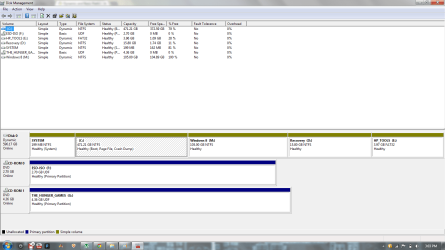
You really need to post a picture of your disk management because you have more than just the 4 partitions you listed in your first post. There is at least a system partition but because this does not have a drive letter, it does not show up in Computer.

Before you can go any further, you have to reduce the number of primary partitions to three - and that after we get rid of your dynamics. But without a peak at your disk management it is difficult to advise the best strategy.
 

My Computer

Computer Manufacturer/Model Number
HP, Dell, Gateway, Toshiba - 4 laptops and 2 desktops
OS
Vista, Windows7, Mint Mate, Zorin, Windows 8
CPU
from 1.6GHz Duo to i7
Monitor(s) Displays
2x HP w2207
Hard Drives
5x HDD, 7x SSD, 12x Externals
Keyboard
with trackball - no mices
Mouse
Trackball mice
Internet Speed
DSL 6000
You really need to post a picture of your disk management because you have more than just the 4 partitions you listed in your first post. There is at least a system partition but because this does not have a drive letter, it does not show up in Computer.

Before you can go any further, you have to reduce the number of primary partitions to three - and that after we get rid of your dynamics. But without a peak at your disk management it is difficult to advise the best strategy.

Can you please show me how to reduce my primary partitions to 3.
 

Attachments

  • Disk Management Screenshot.png
    Disk Management Screenshot.png
    45 KB · Views: 8

My Computer

Computer type
Laptop
Computer Manufacturer/Model Number
HP DM4-3099se
OS
Windows 7 Home Premium 64bit
CPU
Intel Core i5 2450M @ 2.50GHz Sandy Bridge 32nm Technology
Motherboard
Hewlett-Packard 1793 (CPU1)
Memory
6.00GB Dual-Channel DDR3 @ 665MHz
Graphics Card(s)
Generic PnP Monitor (1600x900@40Hz) Intel HD Graphics 3000 (
Sound Card
IDT High Definition Audio CODEC
Screen Resolution
1600x900
Hard Drives
596GB Hitachi HTS547564A9E384 (SATA)
Browser
Google Chrome
Here is what you do:

1. Download the pw422 .iso as was said before

2. Burn this ,iso to CD

3. Boot your system with that CD - you may have to change the BIOS boot sequence

4. Delete that M partition you created for Windows 8

5. Reconvert the remaining 4 dynamic partitions to primary partitions (you are still in pw422)

6. Convert the C partition to a Logical partition - the controls are in Partition tab > Modify (still in pw422)

Now you have 3 primary partitions and 1 logical (extended) partition. Now you can reboot your Windows 7 and create more partitions with Disk Management. Windows 8 you can install in a logical partition because the bootmgr will go into your System partition.
 

My Computer

Computer Manufacturer/Model Number
HP, Dell, Gateway, Toshiba - 4 laptops and 2 desktops
OS
Vista, Windows7, Mint Mate, Zorin, Windows 8
CPU
from 1.6GHz Duo to i7
Monitor(s) Displays
2x HP w2207
Hard Drives
5x HDD, 7x SSD, 12x Externals
Keyboard
with trackball - no mices
Mouse
Trackball mice
Internet Speed
DSL 6000
Ok. I kind of understand what you are saying to do.One thing I dont understand is that you said "Back up the files on H which will need to be deleted before disk will convert back to Basic."
What is "H" as you are saying in the sentence above?

That's why I messaged you to refresh the thread, as I was adapting another post I'd made and needed to edit for your exact situation, and posted before I noticed that reference. Follow my post now as it's written.

I am sorry you missed my message saying to refresh your browser so the post would be correct. :geek:
 
Last edited:
Ok. I kind of understand what you are saying to do.One thing I dont understand is that you said "Back up the files on H which will need to be deleted before disk will convert back to Basic."
What is "H" as you are saying in the sentence above?

That's why I messaged you to refresh the thread, as I was adopting another post I'd made and needed to edit for your exact situation, and posted before I noticed that. Follow my post now as it's written.

I am sorry you missed my message saying to refresh your browser so the post would be correct. :geek:

I am burning the ISO with IMGBURN and it has stopped at 48% on the buffer. It has been like that for 10 minutes. Should I go burn the pw422.iso cd from another computer?
 

My Computer

Computer type
Laptop
Computer Manufacturer/Model Number
HP DM4-3099se
OS
Windows 7 Home Premium 64bit
CPU
Intel Core i5 2450M @ 2.50GHz Sandy Bridge 32nm Technology
Motherboard
Hewlett-Packard 1793 (CPU1)
Memory
6.00GB Dual-Channel DDR3 @ 665MHz
Graphics Card(s)
Generic PnP Monitor (1600x900@40Hz) Intel HD Graphics 3000 (
Sound Card
IDT High Definition Audio CODEC
Screen Resolution
1600x900
Hard Drives
596GB Hitachi HTS547564A9E384 (SATA)
Browser
Google Chrome
Maxell505

You may burn the ISO within Windows 7 . Just right click on the .iso file choose Burn image to disc . Might want to use a new disc though .
 

My Computer

Computer Manufacturer/Model Number
Custom Built
OS
Windows 7 Ultimate 32-Bit & Windows 7 Ultimate 64-Bit
CPU
Intel Core i7 CPU 950 @ 3.07GHz
Motherboard
ASUS P6T DELUXE V2
Memory
OCZ 6GB (3 x 2GB) 240-Pin DDR3 SDRAM DDR3 1600 OCZ3X1600R2
Graphics Card(s)
ATI Radeon HD 5700 Series
Sound Card
OnBoard
Hard Drives
WD6400AACS-00M3B0 (640GB SATA )
PSU
CORSAIR 850w
Case
NZXT LEXA
Cooling
Intel Stock Heatsink Fan
Keyboard
Microsoft Wireless Laser Keyboard 7000
Mouse
Microsoft Wireless Laser Mouse 7000
You can also use Windows Image Burner by right clicking on the ISO file. Make sure it downloaded completely as shown in the screenshot below.

Capture.PNGclick to enlarge
 
Ok. I don't know why but it's not burning and unfortuneately I don't have another CD to burn. Is it alright if I use a USB Drive instead. I have already burned the ISO on the USB but I wanted to have your permission before continuing.
 

My Computer

Computer type
Laptop
Computer Manufacturer/Model Number
HP DM4-3099se
OS
Windows 7 Home Premium 64bit
CPU
Intel Core i5 2450M @ 2.50GHz Sandy Bridge 32nm Technology
Motherboard
Hewlett-Packard 1793 (CPU1)
Memory
6.00GB Dual-Channel DDR3 @ 665MHz
Graphics Card(s)
Generic PnP Monitor (1600x900@40Hz) Intel HD Graphics 3000 (
Sound Card
IDT High Definition Audio CODEC
Screen Resolution
1600x900
Hard Drives
596GB Hitachi HTS547564A9E384 (SATA)
Browser
Google Chrome
Using the USB should be the same as using the disc . So I don't see a problem using the USB flash drive to boot with the program in it . While the PC is booting up on the HP splash screen press F9 and you will see a boot menu choose USB device or Removable Drive to boot off the USB
 

My Computer

Computer Manufacturer/Model Number
Custom Built
OS
Windows 7 Ultimate 32-Bit & Windows 7 Ultimate 64-Bit
CPU
Intel Core i7 CPU 950 @ 3.07GHz
Motherboard
ASUS P6T DELUXE V2
Memory
OCZ 6GB (3 x 2GB) 240-Pin DDR3 SDRAM DDR3 1600 OCZ3X1600R2
Graphics Card(s)
ATI Radeon HD 5700 Series
Sound Card
OnBoard
Hard Drives
WD6400AACS-00M3B0 (640GB SATA )
PSU
CORSAIR 850w
Case
NZXT LEXA
Cooling
Intel Stock Heatsink Fan
Keyboard
Microsoft Wireless Laser Keyboard 7000
Mouse
Microsoft Wireless Laser Mouse 7000
I am using this tool called ISO to USB to burn my ISO to a USB Drive but when I change my boot order to boot my flash drive first, it waits and then it just boots up Windows.
 

My Computer

Computer type
Laptop
Computer Manufacturer/Model Number
HP DM4-3099se
OS
Windows 7 Home Premium 64bit
CPU
Intel Core i5 2450M @ 2.50GHz Sandy Bridge 32nm Technology
Motherboard
Hewlett-Packard 1793 (CPU1)
Memory
6.00GB Dual-Channel DDR3 @ 665MHz
Graphics Card(s)
Generic PnP Monitor (1600x900@40Hz) Intel HD Graphics 3000 (
Sound Card
IDT High Definition Audio CODEC
Screen Resolution
1600x900
Hard Drives
596GB Hitachi HTS547564A9E384 (SATA)
Browser
Google Chrome
Use UltraISO

Download link : http://dw.ezbsys.net/uiso9_pe.exe its a 30-day trial

In the home screen, click File > Open option to browse to your ISO file

Next, in the home screen of UltraISO, click on Bootable menu and then click Write Disk Image option to launch Write Disk Image dialog box.

In the Write Disk Image dialog, select the Disk Drive as your USB flash drive, select the write method as USB-HDD before hitting the Format button. It will then launch Format Removable Disk dialog, where you need to simply click Start button to begin formatting the flash drive. Please backup all data from the USB device before hitting the Format button.

Once the format in done, click Write button and then click Yes for the warning prompt to start the process. When the writing is finished, you will see Burn Successful message event list.
 

My Computer

Computer Manufacturer/Model Number
Custom Built
OS
Windows 7 Ultimate 32-Bit & Windows 7 Ultimate 64-Bit
CPU
Intel Core i7 CPU 950 @ 3.07GHz
Motherboard
ASUS P6T DELUXE V2
Memory
OCZ 6GB (3 x 2GB) 240-Pin DDR3 SDRAM DDR3 1600 OCZ3X1600R2
Graphics Card(s)
ATI Radeon HD 5700 Series
Sound Card
OnBoard
Hard Drives
WD6400AACS-00M3B0 (640GB SATA )
PSU
CORSAIR 850w
Case
NZXT LEXA
Cooling
Intel Stock Heatsink Fan
Keyboard
Microsoft Wireless Laser Keyboard 7000
Mouse
Microsoft Wireless Laser Mouse 7000
Ok. I deleted the Windows 8 partition. Now it just has a small star and it has a gray box and beside the gray box it says unallocated. And then it shows how much memory which is 105 GB. Can you please show me how to "Reconvert the remaining 4 dynamic partitions to primary partitions"
 

My Computer

Computer type
Laptop
Computer Manufacturer/Model Number
HP DM4-3099se
OS
Windows 7 Home Premium 64bit
CPU
Intel Core i5 2450M @ 2.50GHz Sandy Bridge 32nm Technology
Motherboard
Hewlett-Packard 1793 (CPU1)
Memory
6.00GB Dual-Channel DDR3 @ 665MHz
Graphics Card(s)
Generic PnP Monitor (1600x900@40Hz) Intel HD Graphics 3000 (
Sound Card
IDT High Definition Audio CODEC
Screen Resolution
1600x900
Hard Drives
596GB Hitachi HTS547564A9E384 (SATA)
Browser
Google Chrome
Boot Partition Wizard flash stick by tapping the ESC or F9 key at boot, then select the flash stick to boot.

Highlight the HD by clicking on it, then from Disk tab select Convert DYnamic Disk to Basic: How to convert dynamic disk to basic disk with Partition Wizard?

Confirm the System partition is marked Active: How to Set Active/Inactive partition -Partition Wizard Video Help.

Apply steps, reboot. If WIn7 will not boot then you may need to run Startup Repair - Run up to 3 Separate Times.

Once Win7 starts you can again boot PW to rightclick C to Modify>Set to Logical, click OK.
then rightclick the deleted WIn8 partition space to Create a new Logical Partition, click OK, Apply both steps. How to Set Active/Inactive partition -Partition Wizard Video Help.
Partition Wizard Create Partition Video Help
 
Back
Top