Easy switchting between wired and wifi network

DriesBessels

New member
Local time
11:46 PM
Messages
3
Hi all,

something I have not been able to figure out in Win7:

When I take my laptop to the living room it has access to my network via WiFi which works fine but a little slow. When I take it into my home-office I can connect the LAN cable and this makes things much quicker.

However, it seems to always conect via Wireless unless I disable that connection. Is there a way to make it go to the wired connection unless that is not available and only then switch to Wireless?

Thanks!
Dries
 

My Computer

OS
Windows 7 RTM
Hi Dries, welcome to the forums :)

If you right-click the network icon on the notification area and select 'Network and Sharing center' then click 'Manage Wireless Networks' in the left panel. Next, right-click the wireless network and choose Properties

Capture.PNG

Try experimenting with those settings and see if it helps.


OS
 

My Computer

Computer Manufacturer/Model Number
Compaq Desktop
OS
Windows 7 Ultimate x64
CPU
AMD Sempron Dual Core
Memory
3GB
Graphics Card(s)
NVIDIA GeForce 6150SE nForce 430
Screen Resolution
1024x768
Hard Drives
150GB Sata
Hi all,

something I have not been able to figure out in Win7:

When I take my laptop to the living room it has access to my network via WiFi which works fine but a little slow. When I take it into my home-office I can connect the LAN cable and this makes things much quicker.

However, it seems to always conect via Wireless unless I disable that connection. Is there a way to make it go to the wired connection unless that is not available and only then switch to Wireless?

Thanks!
Dries

Is a matter of fact Windows 7 will choose to use the wired connection if both connections are working or plugged in. So in order to use the wireless simply unplug the eithernet cable and it should connect automatically to the wireless connection. You can also just turn off the wireless connection by using the wireless off switch on the laptop.

If you want to use the wired connection just plug it in and it will take over the wireless connection automatically without having to do a thing. I have tested this out on my laptop and it works for me everytime.
 

My Computer

Computer type
PC/Desktop
Computer Manufacturer/Model Number
Home built
OS
Windows 7 Ult, Windows 8.1 Pro,
CPU
Q9650-4.275GHz, E8600 4.5GHz, E6750-3.8GHz
Motherboard
Evga 780i FTW
Memory
G.Skill PC2 9600 1200Mhz 5 5 5 15 2T
Graphics Card(s)
GTX480
Sound Card
Asus Xonar D2
Monitor(s) Displays
HannsG
Screen Resolution
1680X1050
Hard Drives
GSkill Phoenix Pro 120GB SSD
PSU
ThermalTake Toughpower 1000Watt modular
Case
ThermalTake XaserV
Cooling
Xigmatek S1283
Keyboard
Logitech G15
Mouse
Logitech G9
Internet Speed
T1
Somehow, when I connect the ethernet cable the adapter get's an IP address but that is all. It does not use that connection until I disconnect from the wireless network. I have figured out how to set a preferred wireless network but not how to make my wired connection preferred...
If anybody knows?
thanks!
Dries
 

My Computer

OS
Windows 7 RTM
Somehow, when I connect the ethernet cable the adapter get's an IP address but that is all. It does not use that connection until I disconnect from the wireless network. I have figured out how to set a preferred wireless network but not how to make my wired connection preferred...
If anybody knows?
thanks!
Dries

In that case something is wrong with your wired connection or the router is having problems with DHCP.

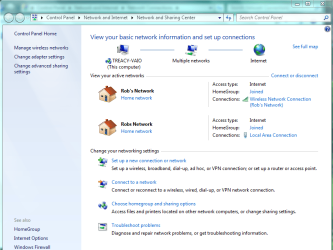
I have tested this out six ways to Sunday and the wired connection always takes over and works perfectly for me the second I plug it in. It shows up in the network and sharing center as two networks when they are both plugged in. It should look like the picture below.

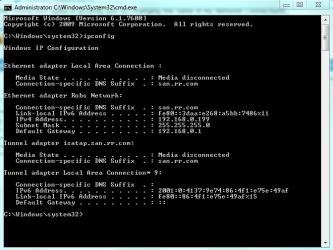
You will need to post the ipconfig /all from your machine when it's plugged in. If there is a problem it will show up there. The ipconfig looks like the picture below, I need that from your machine when it's plugged in with the wireless still connected.
 

Attachments

  • Rob's Network both connected.PNG
    Rob's Network both connected.PNG
    48.4 KB · Views: 94
  • ipconfig both connections.PNG
    ipconfig both connections.PNG
    15.9 KB · Views: 72

My Computer

Computer type
PC/Desktop
Computer Manufacturer/Model Number
Home built
OS
Windows 7 Ult, Windows 8.1 Pro,
CPU
Q9650-4.275GHz, E8600 4.5GHz, E6750-3.8GHz
Motherboard
Evga 780i FTW
Memory
G.Skill PC2 9600 1200Mhz 5 5 5 15 2T
Graphics Card(s)
GTX480
Sound Card
Asus Xonar D2
Monitor(s) Displays
HannsG
Screen Resolution
1680X1050
Hard Drives
GSkill Phoenix Pro 120GB SSD
PSU
ThermalTake Toughpower 1000Watt modular
Case
ThermalTake XaserV
Cooling
Xigmatek S1283
Keyboard
Logitech G15
Mouse
Logitech G9
Internet Speed
T1
Ipconfig /all

To be honest, I doubt if that is it. I have one HP netbook and one Acer Laptop and they both do the same thing. DHCP is working fine and so is everything else.
Output from IPCONFIG is too much for one screen so I piped it to a text file, sorry for the bad formatting:

Windows IP Configuration

Host Name . . . . . . . . . . . . : hppc-PC
Primary Dns Suffix . . . . . . . :
Node Type . . . . . . . . . . . . : Hybrid
IP Routing Enabled. . . . . . . . : No
WINS Proxy Enabled. . . . . . . . : No
DNS Suffix Search List. . . . . . : fritz.box

Ethernet adapter Bluetooth-netwerkverbinding:

Media State . . . . . . . . . . . : Media disconnected
Connection-specific DNS Suffix . :
Description . . . . . . . . . . . : Bluetooth-apparaat (Personal Area Network)
Physical Address. . . . . . . . . : 00-24-7E-1A-9D-57
DHCP Enabled. . . . . . . . . . . : Yes
Autoconfiguration Enabled . . . . : Yes

Wireless LAN adapter Draadloze netwerkverbinding:

Connection-specific DNS Suffix . : fritz.box
Description . . . . . . . . . . . : Broadcom 802.11g Network Adapter
Physical Address. . . . . . . . . : 00-21-00-9C-15-F0
DHCP Enabled. . . . . . . . . . . : Yes
Autoconfiguration Enabled . . . . : Yes
Link-local IPv6 Address . . . . . : fe80::39ec:9721:504c:51d0%12(Preferred)
IPv4 Address. . . . . . . . . . . : 192.168.178.25(Preferred)
Subnet Mask . . . . . . . . . . . : 255.255.255.0
Lease Obtained. . . . . . . . . . : vrijdag 5 november 2010 17:01:58
Lease Expires . . . . . . . . . . : maandag 15 november 2010 17:01:58
Default Gateway . . . . . . . . . : 192.168.178.1
DHCP Server . . . . . . . . . . . : 192.168.178.1
DHCPv6 IAID . . . . . . . . . . . : 218112256
DHCPv6 Client DUID. . . . . . . . : 00-01-00-01-14-47-7E-21-00-22-64-83-F0-51
DNS Servers . . . . . . . . . . . : 192.168.178.1
NetBIOS over Tcpip. . . . . . . . : Enabled

Ethernet adapter LAN-verbinding:

Connection-specific DNS Suffix . : fritz.box
Description . . . . . . . . . . . : Broadcom NetLink (TM) Gigabit Ethernet
Physical Address. . . . . . . . . : 00-22-64-83-F0-51
DHCP Enabled. . . . . . . . . . . : Yes
Autoconfiguration Enabled . . . . : Yes
Link-local IPv6 Address . . . . . : fe80::193e:fafa:1f15:6257%11(Preferred)
IPv4 Address. . . . . . . . . . . : 192.168.178.22(Preferred)
Subnet Mask . . . . . . . . . . . : 255.255.255.0
Lease Obtained. . . . . . . . . . : vrijdag 5 november 2010 17:01:55
Lease Expires . . . . . . . . . . : maandag 15 november 2010 17:01:54
Default Gateway . . . . . . . . . : 192.168.178.1
DHCP Server . . . . . . . . . . . : 192.168.178.1
DHCPv6 IAID . . . . . . . . . . . : 234889828
DHCPv6 Client DUID. . . . . . . . : 00-01-00-01-14-47-7E-21-00-22-64-83-F0-51
DNS Servers . . . . . . . . . . . : 192.168.178.1
NetBIOS over Tcpip. . . . . . . . : Enabled
 

My Computer

OS
Windows 7 RTM
Back
Top