Solved Editing login text message "Welcome"

1992Sara

New member
Local time
10:07 AM
Messages
9
Location
Sweden
Hello! I've been trying to edit the "Welcome" message for some time now, searching threads, yourube etc. But I've never succeed using their methods. Does any1 know what I'm doing wrong/Another way of doing this?

Here's what I did:
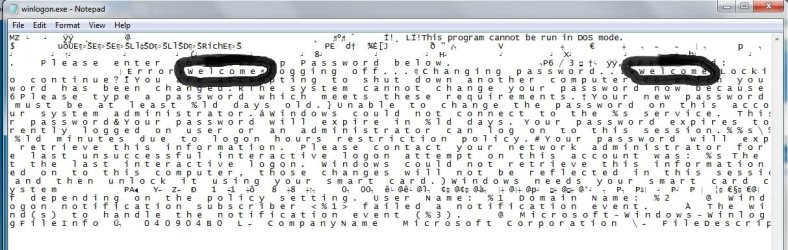
Opened (with wordpad) the winlogon.exe.MUI file in C:>windows>system32>en-US
And changed these two marked words to another 7-letter word.

<See picture at the bottom>

I saved the file, orerwrote the existing one in folder en-US, but when i relogged, it still said "Welcome" when I logged in.

Thanks for your help.
 

Attachments
  • Untitled.jpg
    Untitled.jpg
    102 KB · Views: 1,498

My Computer

OS
Windows 7
The link was interesting but that wasn't exactly what I was after. What I meant to change was the actual text: "Wlcome" that appears right after you write your password end press enter.
 

Attachments

  • windows7welcome.jpg
    windows7welcome.jpg
    13 KB · Views: 184

My Computer

OS
Windows 7
I just did it...

http://www.sevenforums.com/tutorials/126315-welcome-log-text-message-change.html

I used Resource Hacker, before opening the file, you must Take Ownership of it, then open it with resource hacker...

then go to "String Table" > "63" > "1033"

and replace the two "Welcome" word you find...

after you replace the word, Press "Compile Script" and then "Save"...

then restart your system...
 
Last edited by a moderator:

My Computer

OS
Windows 7 Ultimate
@ jasluv

Nice hack!

Remember if you ever use System File Checker, that file will get replaced with the original, might be best to keep a backup of the hacked copy somewhere.

.
 

My Computer

OS
XP-Vista-W7
Okay so I've downloaded reshacker. Which file should I open in it??
Doesn't seem to be the winlogon file cuz I can't open it in reshacker.
 

My Computer

OS
Windows 7
I just did it... I used Resource Hacker, before opening the file, you must Take Ownership of it, then open it with resource hacker...

then go to "String Table" > "63" > "1033"

and replace the two "Welcome" word you find...

after you replace the word, Press "Compile Script" and then "Save"...

then restart your system...

Okay so I've downloaded reshacker. Which file should I open in it??
Doesn't seem to be the winlogon file cuz I can't open it in reshacker.

Did you take ownership of it first?

http://www.sevenforums.com/tutorials/1911-take-ownership-shortcut.html?ltr=T
 

My Computer

Computer type
PC/Desktop
Computer Manufacturer/Model Number
Self Built
OS
Win 10 Pro x64
CPU
Intel I5-2500K @3.3GHz
Motherboard
Asrock P67 Extreme4
Memory
16GB G.Skill Ripjaws X (4x4GB)
Graphics Card(s)
EVGA GeForce 750 Ti SC 2GB
Sound Card
ASUS Xonar DG 5.1 Channels 24-bit 96KHz PCI Interface Sound
Monitor(s) Displays
auria eq2367
Screen Resolution
1920 x 1080
Hard Drives
250GB Samsung 850 EVO SSD
1TB WD Blue
1TB Hitachi
PSU
SeaSonic X 650W 80 Plus Gold
Case
Corsair Obsidian 750D
Cooling
Corsair H60, Three 140mm case fans
Keyboard
Logitech Wireless Keyboard K520
Mouse
Logitech Wireless Mouse M310
Internet Speed
Wave Broadband ~ 100 dn 5 up
Antivirus
Windows Defender, Malwarebytes Premium
Browser
Edge, IE11, Chrome
Other Info
Laptop specs: HP g7-1365dx /
CPU: AMD A6-3420M APU with Radeon(tm) HD Graphics /
RAM: Crucial 8Gb (2x4Gb) /
SSD: Crucial M4-CT128M4SSD2 ATA Device/ FW 000F /
GFX: AMD Radeon HD 6520G /
OS: Windows 10 Pro x64
I just did it... I used Resource Hacker, before opening the file, you must Take Ownership of it, then open it with resource hacker...

then go to "String Table" > "63" > "1033"

and replace the two "Welcome" word you find...

after you replace the word, Press "Compile Script" and then "Save"...

then restart your system...

Okay so I've downloaded reshacker. Which file should I open in it??
Doesn't seem to be the winlogon file cuz I can't open it in reshacker.

Did you take ownership of it first?

http://www.sevenforums.com/tutorials/1911-take-ownership-shortcut.html?ltr=T


Yes I have. But I can't even find the winlogon file when browsing in reshacker. And if I pull the file into the reshacker window, nothing happens.
 

My Computer

OS
Windows 7
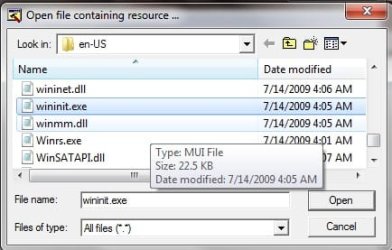
I supposed you forgot to use "All Files" in open dialog box of ResHacker when Browsing for the winlogon.exe.mui...
 

My Computer

OS
Windows 7 Ultimate
No I didn't. It's supposed to be here between these files right? (This is the en-US folder located in the system32 folder.)
 

Attachments

  • fds.jpg
    fds.jpg
    23.5 KB · Views: 69

My Computer

OS
Windows 7
I did everything as detailed above and it worked fine on one Win7 system, then did everything exactly the same and it didn't work on another Win7 system. Reopening the winlogon.exe.mui file with ResHack shows the changes I made, but Windows opens with "Welcome" anyway. It must be getting it from another location...?
 

My Computer

OS
Windows 7
Hello! I've been trying to edit the "Welcome" message for some time now, searching threads, yourube etc. But I've never succeed using their methods. Does any1 know what I'm doing wrong/Another way of doing this?

Here's what I did:
Opened (with wordpad) the winlogon.exe.MUI file in C:>windows>system32>en-US
And changed these two marked words to another 7-letter word.

<See picture at the bottom>

I saved the file, orerwrote the existing one in folder en-US, but when i relogged, it still said "Welcome" when I logged in.

Thanks for your help.

Hi.
How to do this?
I go to C:windows>system32>en-US, but i can't open this file.
Acces denied is message when i continye to open.
Anybody some help please?
Thnx.:cry:
 

My Computer

OS
w7 home premium
CPU
2.1
Motherboard
amd athlon
Memory
3gb
Graphics Card(s)
1gb
Internet Speed
8MBS/S
I did everything as detailed above and it worked fine on one Win7 system, then did everything exactly the same and it didn't work on another Win7 system. Reopening the winlogon.exe.mui file with ResHack shows the changes I made, but Windows opens with "Welcome" anyway. It must be getting it from another location...?


I have the same issue, it worked on one machine, but when i try to do it on a different machine, the text shows up, any ideas gentleman to resolve this issue ??
 

My Computer

OS
windows 7 32 bit

My Computer

Computer type
PC/Desktop
Computer Manufacturer/Model Number
Self built custom
OS
64-bit Windows 11 Pro for Workstations
CPU
Intel i7-8700K OC'd to 5 GHz
Motherboard
ASUS ROG Maximus XI Formula Z390
Memory
64 GB (4x16GB) G.SKILL TridentZ RGB DDR4 3600 MHz
Graphics Card(s)
ASUS ROG-STRIX-GTX1080TI-O11G-GAMING
Sound Card
Integrated
Monitor(s) Displays
2 x Samsung Odyssey G7 27"
Screen Resolution
2560x1440
Hard Drives
1TB Samsung 990 PRO M.2,
4TB Samsung 990 PRO PRO M.2,
TerraMaster F8 SSD Plus NAS
PSU
Seasonic Prime Titanium 850W
Case
Thermaltake Core P3
Cooling
Corsair Hydro H115i
Keyboard
Logitech wireless K800
Mouse
Logitech MX Master 4
Internet Speed
2 Gb/s Download and 100 Mb/s Upload
Antivirus
Malwarebyte Anti-Malware Premium
Browser
Google Chrome
Other Info
Logitech Z625 speaker system,
Logitech BRIO 4K Pro webcam,
HP Color LaserJet Pro MFP M477fdn,
APC SMART-UPS RT 1000 XL - SURT1000XLI,
Galaxy S23 Plus phone
Is there any way (once the file has been modified) to replace it through Active Directory and push it out to the desktops? just as we do with msgina.dll for the different CTRL+ALT+DEL designs we deploy for our XP systems...


Help would be greatly appreciated.
 

My Computer

Computer Manufacturer/Model Number
HP
OS
Windows 7 64bit
CPU
Intel Cire i7
Memory
4GB
Is there another place besides "winlogom.exe.mui" that has the "WELCOME " message?
 

My Computer

Computer Manufacturer/Model Number
HP Pavilion a1328x
OS
Windows Home Premium 32 bit
CPU
Pentium 4- 3gHz
Motherboard
Asus
Memory
2 Gb
Graphics Card(s)
ATI 200
Monitor(s) Displays
HP vs17e
Hello RetiredMan, and welcome to Seven Forums.

Not that I am aware of for the log on screens. Are you having some sort of issue changing it?
 

My Computer

Computer type
PC/Desktop
Computer Manufacturer/Model Number
Self built custom
OS
64-bit Windows 11 Pro for Workstations
CPU
Intel i7-8700K OC'd to 5 GHz
Motherboard
ASUS ROG Maximus XI Formula Z390
Memory
64 GB (4x16GB) G.SKILL TridentZ RGB DDR4 3600 MHz
Graphics Card(s)
ASUS ROG-STRIX-GTX1080TI-O11G-GAMING
Sound Card
Integrated
Monitor(s) Displays
2 x Samsung Odyssey G7 27"
Screen Resolution
2560x1440
Hard Drives
1TB Samsung 990 PRO M.2,
4TB Samsung 990 PRO PRO M.2,
TerraMaster F8 SSD Plus NAS
PSU
Seasonic Prime Titanium 850W
Case
Thermaltake Core P3
Cooling
Corsair Hydro H115i
Keyboard
Logitech wireless K800
Mouse
Logitech MX Master 4
Internet Speed
2 Gb/s Download and 100 Mb/s Upload
Antivirus
Malwarebyte Anti-Malware Premium
Browser
Google Chrome
Other Info
Logitech Z625 speaker system,
Logitech BRIO 4K Pro webcam,
HP Color LaserJet Pro MFP M477fdn,
APC SMART-UPS RT 1000 XL - SURT1000XLI,
Galaxy S23 Plus phone
Thanks for the quick reply, Brink. The problem I am having is strange. I had no problem changing the text the first time ,but I tried to change it again, but it remained the same text from the first change. I double checked winlogon.exe.mui and it showed the second change I had made. Just wondered if there was another location it was getting the first change from. Really like the web sit . Keep up the good work.
 

My Computer

Computer Manufacturer/Model Number
HP Pavilion a1328x
OS
Windows Home Premium 32 bit
CPU
Pentium 4- 3gHz
Motherboard
Asus
Memory
2 Gb
Graphics Card(s)
ATI 200
Monitor(s) Displays
HP vs17e
If you changed both the 63 and 1033 string table items, then I'm not sure why it didn't change it again.

If you like, you could run a sfc /scannow command to restore the default unmodified winlogon.exe.mui file so that you could start from scratch again with it. Beware though, the sfc command will also restore all other modified system files as well.
 

My Computer

Computer type
PC/Desktop
Computer Manufacturer/Model Number
Self built custom
OS
64-bit Windows 11 Pro for Workstations
CPU
Intel i7-8700K OC'd to 5 GHz
Motherboard
ASUS ROG Maximus XI Formula Z390
Memory
64 GB (4x16GB) G.SKILL TridentZ RGB DDR4 3600 MHz
Graphics Card(s)
ASUS ROG-STRIX-GTX1080TI-O11G-GAMING
Sound Card
Integrated
Monitor(s) Displays
2 x Samsung Odyssey G7 27"
Screen Resolution
2560x1440
Hard Drives
1TB Samsung 990 PRO M.2,
4TB Samsung 990 PRO PRO M.2,
TerraMaster F8 SSD Plus NAS
PSU
Seasonic Prime Titanium 850W
Case
Thermaltake Core P3
Cooling
Corsair Hydro H115i
Keyboard
Logitech wireless K800
Mouse
Logitech MX Master 4
Internet Speed
2 Gb/s Download and 100 Mb/s Upload
Antivirus
Malwarebyte Anti-Malware Premium
Browser
Google Chrome
Other Info
Logitech Z625 speaker system,
Logitech BRIO 4K Pro webcam,
HP Color LaserJet Pro MFP M477fdn,
APC SMART-UPS RT 1000 XL - SURT1000XLI,
Galaxy S23 Plus phone
Back
Top