Elevated Program Shortcut without UAC Prompt - Create

How to Create an Elevated Program Shortcut without a UAC Prompt in Windows


   Information
This will show you how to create an elevated "Run as administrator" shortcut of any installed program using Task Scheduler so that it will not give you a UAC prompt for permission when you start it while still having UAC turned on in Vista, Windows 7, and Windows 8.

In the tutorial, you will first create a new task, then a new shortcut to run the task. Afterwards, how to change the icon of the shortcut.

   Note
Special thanks to OEM for pointing this out, and the previous Vista version by DMEX.

   Warning


  • This shortcut and task can only be created and work while logged in as an administrator account.
  • This shortcut will not work in a standard user account.


Here's How:
1. Press the Windows + R keys to open the Run dialog, type taskschd.msc, and press Enter.
NOTE: This will open Task Scheduler. This file is located at:
C:\Windows\system32\taskschd.msc.

2. While having Task Scheduler Library selected in the left pane, click/tap on Create task in the far right pane. (see screenshot below)
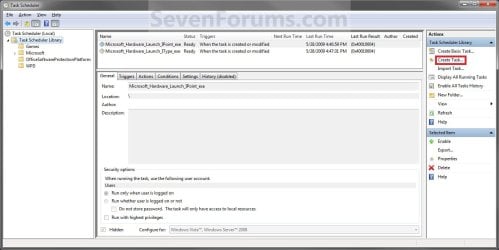
Step1.jpg
3. Under the General tab, type in the "Name" of the program you want to create this shortcut for. (see screenshot below)
NOTE: This will be the name of the task. As an example, I will use CCleaner for that program. Make note of this name, you will need it later in step 12 and 14 below.
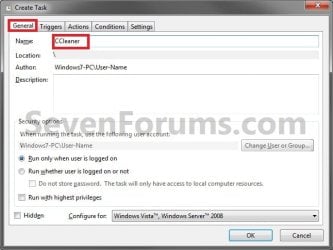
Step2.jpg
4. Check the Run with highest privileges box. (See screenshot below)
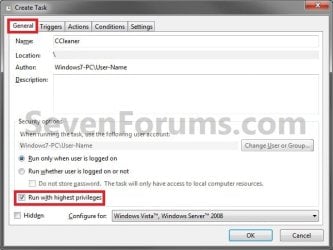
Step3.jpg
5. Click/tap on the Configure for drop down box to open it, and select Windows® 7, Windows Server™ 2008 R2 or the Windows you are currently in. (see screenshot above and below)
NOTE: This is like compatibility mode. If the program does not support running in Windows 7 normally, then you can select the OS that is does support running in instead to have it run in compatibility mode as if it was running in that OS instead of Windows 7.

Drop_Down_Box.jpg
6. Click/tap on the Actions tab, then on the New button. (see screenshot below)
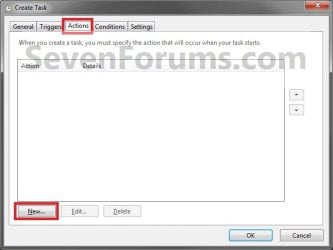
Step4.jpg
7. In the Program/script: box in the Actions tab, copy and paste the path below. (see screenshot below step 9)
NOTE: Thank you to chillz for the updated steps 7 and 8.
%windir%\System32\cmd.exe
8. In the Add arguments (optional): box in the Actions tab, type in the argument below. (see screenshot below step 9)

NOTE: Substitute Task Name in the argument below with the name you entered in step 3 (ex: CCleaner) within quotes, and substitute Full Path of Program in the argument below with the actual full path of the program's .exe file within quote.
/c start "Task Name" "Full Path of Program"


For example:

Code:
/c start "CCleaner" "C:\Program Files\CCleaner\CCleaner64.exe"
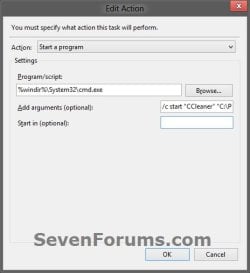
9. Click/tap on OK. (see screenshot below)
step7.jpg
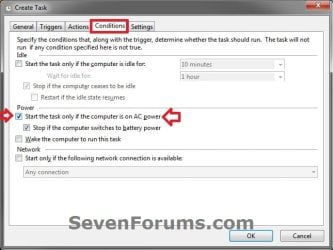
10. Click/tap on the Conditions tab, and uncheck the Stop if the computer switches to battery power box first, then uncheck the Start the task only if the computer is on AC power box. (see screenshots below)
NOTE: This step is mostly for laptops, so that you will be able to run the program when the laptop is running on battery power.
step8.jpg

Conditions.jpg

11. Click/tap on OK. (See screenshots above)

12. You will now see your new task created with the name (ex: CCleaner) you gave it in step 3. Close Task Scheduler. (see screenshot below)
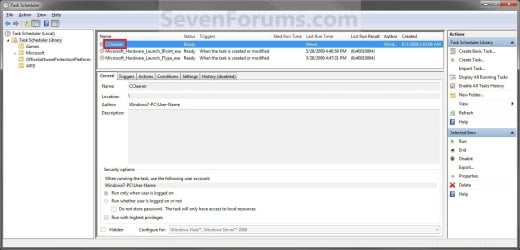
Step9.jpg
13. Right click or press and hold on an empty area of your desktop, then click/tap on New and Shortcut.

14. Type in the target below for the location field, then click/tap on the Next button. (see screenshot below)
NOTE: Subsitute task-name in the target with the name (ex: CCleaner) within quotes that you used in step 3.
schtasks /run /tn "task-name"

For example: For my task name CCleaner I used from step 3, I would type:
schtasks /run /tn "CCleaner"
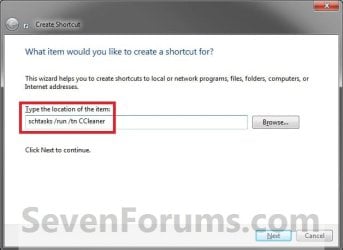
Step10.jpg
15. Type in a name you want for the shortcut (ex: CCleaner), then click/tap on the Finish button. (see screenshot below)
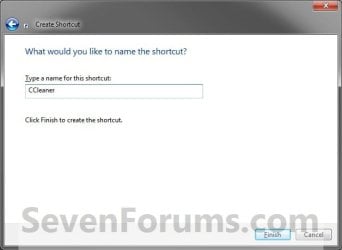
Step11.jpg
16. Right click on the new shortcut (ex: CCleaner) on the desktop, then click/tap on Properties.

17. Click/tap on the Shortcut tab, and on the Change Icon button. (see screenshot below)
Step12.jpg
18. Click/tap on OK. (see screenshot below)
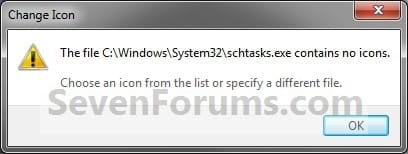
Step13.jpg
19. Click/tap on the Browse button. (see screenshot below)
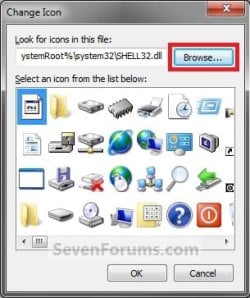
Step14.jpg
20. Navigate to the .exe file of the program that you have created this shortcut with, select it, and click/tap on Open. (see screenshot below)
NOTE: If you have a icon of your own that you would prefer to use instead, then navigate to where you have that icon saved at instead.
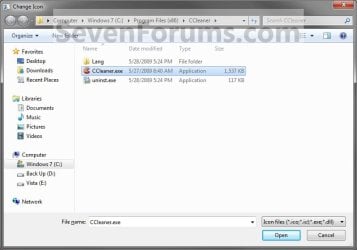
Step15.jpg
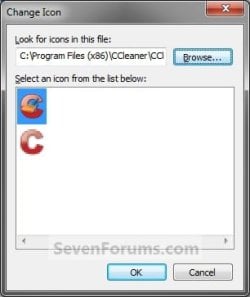
21. Select the icon you want for the shortcut, then click/tap on OK. (see screenshot below)
Step16.jpg
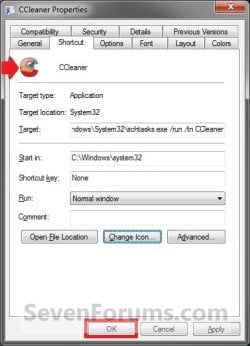
22. Click/tap on OK. (see screenshot below)
Step17.jpg
23. You can now use this elevated shortcut to run at startup in your "Startup" folder, run at startup as a task, Pin to Start Menu, Pin to Taskbar, assign a keyboard shortcut, or move to where you like for easy use.

24. When you run this new elevated shortcut, you will now no longer have to click/tap on YES to approve the UAC prompt to allow the program run as administrator.


   Tip
To Undo and Remove this Task:
  • While having Task Scheduler Library selected in the left pane, right click on the task in the right pane that you created in step 12, then click on Delete and Yes to approve.
  • Delete the shortcut.
That's it,
Shawn


Last edited:
I wrote a reply a few minutes ago that appears to have disappeared. I guess I'll try retyping it.

I found this tutorial incredibly helpful but can't seem to get it to work for one of my tasks. I got it to work with CCleaner, but the task I'm struggling with is running two .exes simultaneously. I checked and double-checked and everything looks good, but when I hit run or when I use the desktop shortcut, it doesn't run either program.

The two actions link to these locations:
/c/start "ESO AddOn Clients" "C:\Documents\Elder Scrolls Online\live\AddOns\TamrielTradeCentre\Client\Client.exe"
/c/start "ESO AddOn Clients" "C:\Users\Veronica\AppData\Local\Minion\Minion.exe"

The apps are standalone exes for the game The Elder Scrolls Online. Currently, I have to select each exe individually and hit yes on the UAC prompt for each one. It's really annoying, so I was really hoping there was a way to just have one button run both, without the prompt. I edited the shortcut to bypass the UAC and to run in administrator mode. I'm not really sure how I messed up or if it just can't work with two exes simultaneously. If that's the case, what are my options?

Thanks in advance!
 

My Computer

Computer type
PC/Desktop
Computer Manufacturer/Model Number
Custom build
OS
Windows 10 64-bit Version 1909
CPU
Intel i7-4790K @ 4.0 GHz
Motherboard
ASRock Z97 Pro3
Memory
16 GB
Graphics Card(s)
NVIDIA 1070
Hard Drives
2 SSDs=1250GB
2 HDDS=1.5TB
Antivirus
Malwarebytes
Browser
Chrome
Hello verajart, and welcome to Seven Forums. :-)

I've found this doesn't usually work well for games due to the multiple files being launched.
 

My Computer

Computer type
PC/Desktop
Computer Manufacturer/Model Number
Self built custom
OS
64-bit Windows 11 Pro for Workstations
CPU
Intel i7-8700K OC'd to 5 GHz
Motherboard
ASUS ROG Maximus XI Formula Z390
Memory
64 GB (4x16GB) G.SKILL TridentZ RGB DDR4 3600 MHz
Graphics Card(s)
ASUS ROG-STRIX-GTX1080TI-O11G-GAMING
Sound Card
Integrated
Monitor(s) Displays
2 x Samsung Odyssey G7 27"
Screen Resolution
2560x1440
Hard Drives
1TB Samsung 990 PRO M.2,
4TB Samsung 990 PRO PRO M.2,
TerraMaster F8 SSD Plus NAS
PSU
Seasonic Prime Titanium 850W
Case
Thermaltake Core P3
Cooling
Corsair Hydro H115i
Keyboard
Logitech wireless K800
Mouse
Logitech MX Master 4
Internet Speed
2 Gb/s Download and 100 Mb/s Upload
Antivirus
Malwarebyte Anti-Malware Premium
Browser
Google Chrome
Other Info
Logitech Z625 speaker system,
Logitech BRIO 4K Pro webcam,
HP Color LaserJet Pro MFP M477fdn,
APC SMART-UPS RT 1000 XL - SURT1000XLI,
Galaxy S23 Plus phone
Hello verajart, and welcome to Seven Forums. :-)

I've found this doesn't usually work well for games due to the multiple files being launched.

Hi, Brink. Thanks for the super speedy reply!

The two programs I'm trying to launch aren't actually games, they're standalone desktop applications that provide features that enhance my game. One is an addon management app and the other polls my auction sales and syncs my data with the website. Neither are games themselves.

Thanks!
 

My Computer

Computer type
PC/Desktop
Computer Manufacturer/Model Number
Custom build
OS
Windows 10 64-bit Version 1909
CPU
Intel i7-4790K @ 4.0 GHz
Motherboard
ASRock Z97 Pro3
Memory
16 GB
Graphics Card(s)
NVIDIA 1070
Hard Drives
2 SSDs=1250GB
2 HDDS=1.5TB
Antivirus
Malwarebytes
Browser
Chrome
Hi, Brink. Thanks for the super speedy reply!

The two programs I'm trying to launch aren't actually games, they're standalone desktop applications that provide features that enhance my game. One is an addon management app and the other polls my auction sales and syncs my data with the website. Neither are games themselves.

Thanks!

You might test creating separate elevated shortcuts for each .exe file.

Afterwards, you could run the elevated shortcuts together from say a BAT file.
 

My Computer

Computer type
PC/Desktop
Computer Manufacturer/Model Number
Self built custom
OS
64-bit Windows 11 Pro for Workstations
CPU
Intel i7-8700K OC'd to 5 GHz
Motherboard
ASUS ROG Maximus XI Formula Z390
Memory
64 GB (4x16GB) G.SKILL TridentZ RGB DDR4 3600 MHz
Graphics Card(s)
ASUS ROG-STRIX-GTX1080TI-O11G-GAMING
Sound Card
Integrated
Monitor(s) Displays
2 x Samsung Odyssey G7 27"
Screen Resolution
2560x1440
Hard Drives
1TB Samsung 990 PRO M.2,
4TB Samsung 990 PRO PRO M.2,
TerraMaster F8 SSD Plus NAS
PSU
Seasonic Prime Titanium 850W
Case
Thermaltake Core P3
Cooling
Corsair Hydro H115i
Keyboard
Logitech wireless K800
Mouse
Logitech MX Master 4
Internet Speed
2 Gb/s Download and 100 Mb/s Upload
Antivirus
Malwarebyte Anti-Malware Premium
Browser
Google Chrome
Other Info
Logitech Z625 speaker system,
Logitech BRIO 4K Pro webcam,
HP Color LaserJet Pro MFP M477fdn,
APC SMART-UPS RT 1000 XL - SURT1000XLI,
Galaxy S23 Plus phone
You might test creating separate elevated shortcuts for each .exe file.

Afterwards, you could run the elevated shortcuts together from say a BAT file.

Awesome, thank you.
They work individually as elevated shortcuts. How do I run them from a BAT file? I'm not familiar with that.

Thanks again!
 

My Computer

Computer type
PC/Desktop
Computer Manufacturer/Model Number
Custom build
OS
Windows 10 64-bit Version 1909
CPU
Intel i7-4790K @ 4.0 GHz
Motherboard
ASRock Z97 Pro3
Memory
16 GB
Graphics Card(s)
NVIDIA 1070
Hard Drives
2 SSDs=1250GB
2 HDDS=1.5TB
Antivirus
Malwarebytes
Browser
Chrome
You're most welcome. :-)

A .bat file basically just runs commands.

You could have two lines in the .bat file with each line a command to run a shortcut.

The command line below is an example of what to use per line. Substitute the part in red with the actual full path of an elevated shortcut.

Code:
start "[COLOR="Red"]<full path of shortcut>[/COLOR]"
 

My Computer

Computer type
PC/Desktop
Computer Manufacturer/Model Number
Self built custom
OS
64-bit Windows 11 Pro for Workstations
CPU
Intel i7-8700K OC'd to 5 GHz
Motherboard
ASUS ROG Maximus XI Formula Z390
Memory
64 GB (4x16GB) G.SKILL TridentZ RGB DDR4 3600 MHz
Graphics Card(s)
ASUS ROG-STRIX-GTX1080TI-O11G-GAMING
Sound Card
Integrated
Monitor(s) Displays
2 x Samsung Odyssey G7 27"
Screen Resolution
2560x1440
Hard Drives
1TB Samsung 990 PRO M.2,
4TB Samsung 990 PRO PRO M.2,
TerraMaster F8 SSD Plus NAS
PSU
Seasonic Prime Titanium 850W
Case
Thermaltake Core P3
Cooling
Corsair Hydro H115i
Keyboard
Logitech wireless K800
Mouse
Logitech MX Master 4
Internet Speed
2 Gb/s Download and 100 Mb/s Upload
Antivirus
Malwarebyte Anti-Malware Premium
Browser
Google Chrome
Other Info
Logitech Z625 speaker system,
Logitech BRIO 4K Pro webcam,
HP Color LaserJet Pro MFP M477fdn,
APC SMART-UPS RT 1000 XL - SURT1000XLI,
Galaxy S23 Plus phone
For posterity, I'm going to share what I did (basically) to create a .bat file.
I opened a new doc in Notepad.
I typed:
cd c:\ESO
start Minion.lnk
start TTC.lnk
Then I saved that as a .bat file. That's not a default 'save as' option, so you have to choose 'All Files' and then type .bat, if memory serves.
Unfortunately memory does not serve well for all the steps to this solution.
I know that this runs through CMD. I made a desktop shortcut for it, then put that in my start menu to replace the three other icons, and now this runs all three programs simultaneously. It works great! If I can remember what else I did to create this (with my hubby's help) I'll update this post again with that.
Thanks again!
 

My Computer

Computer type
PC/Desktop
Computer Manufacturer/Model Number
Custom build
OS
Windows 10 64-bit Version 1909
CPU
Intel i7-4790K @ 4.0 GHz
Motherboard
ASRock Z97 Pro3
Memory
16 GB
Graphics Card(s)
NVIDIA 1070
Hard Drives
2 SSDs=1250GB
2 HDDS=1.5TB
Antivirus
Malwarebytes
Browser
Chrome
Anybody know why my attempt at doing this trick has resulted in a shortcut that only intermittently succeeds in opening my program? It flips from working to not working during the same Windows session. No error messages, the program just doesn't open.
 

My Computer

Computer type
Laptop
Computer Manufacturer/Model Number
HP Probook
OS
Win 7 Pro 32-bit
.Bat invoked by Task Scheduler doesn't take focus

I don't know if this has been addressed. I mean, this thread goes back only to 2009 & spans 50 pages (when you're not logged on -- only 13 when you are -- that's weird). I did plow through about half the thread before I couldn't take any more. So here's the deal . . .

I wrote a command script (.Bat file) maybe a few years ago that does a couple of things that require elevation. For these past few years I have popped up the context menu on the file in the file manager & selected Run as administrator. Then it gives me the UAC prompt. But I got fed up with that, especially since about half the time I forget that I need to elevate the thing before it will work correctly.

A number of years ago, I applied this tutorial to create a task that executes Task Manager elevated so it comes up with the Show processes from all users already checked. Now I want to take the same approach with my .Bat script.

So I actually have 2 levels of script. The script I double click on contains 1 line: schtasks /run etc. as prescribed in this tutorial. The task defined in Task Scheduler then invokes the script that I really want to run. The script is sort of interactive. Actually, all it does is Pause every so often so I can read the results of the various commands it is invoking along the way. My approach has eliminated the need to explicitly do the Run as administrator thing, & it avoids the UAC prompt. All good.

Here's what's annoying. The script invoked from the Task Scheduler does not take focus. The command window opens up on top of everything else, which is what I want. But the command window does NOT have focus. I have to do a task switch (Alt+Tab or mouse click) to get into the thing. After that it works as intended.

Any idea how I can make the stupid command window take focus?
 

My Computer

Computer type
PC/Desktop
Computer Manufacturer/Model Number
ASUS (assembled myself)
OS
Windows 7 Professional 64-bit
CPU
Intel Core i7-4790K Quad CPU @ 4.00 GHz
Motherboard
ASUS Z97-AR, Intel Z97 Express chipset, ATX form factor
Memory
2x4G DDR3 1600MHz DIMMs
Graphics Card(s)
Intel HD Graphics 4600 on mobo; NVidia GeForce GT 710 PCI-E
Sound Card
Realtek High Definition Audio, integrated on mobo
Monitor(s) Displays
Dell SE2417HGX, 20.5"x11.5" viewable area; 32" Toshiba HDTV
Screen Resolution
1920 x 1080 @ 60 Hz, 32-bit color depth
Hard Drives
Western Digital 500G SATA
Seagate 150G SATA
2 x Seagate 6T SATA
2 x Seagate 18T SATA
PSU
EVGA 500B (500 Watts)
Case
NZXT H230 mid-tower
Cooling
CPU fan, PSU fan, 2 case fans, NVidia fan
Keyboard
Perixx 513H
Mouse
Touch pad integrated into keyboard
Internet Speed
Intel Ethernet Conn(2)I218-V, on mobo, ISP=cableTV 400Mbps
Antivirus
Comodo
Browser
Firefox
Other Info
Ext'l DVD rec: LG HL-DT-ST DVDRAM GP10NB20 USB
Monitor conn to VideoPort via HDMI-to-VideoPort adap
Realtek ALC892 8-channel High Definition Audio CODEC featuring Crystal Sound 2
Audio conn to surr recv via 25' optical S/PDIF TOSLINK audio cable
SYSINFO: 11 NIC ports but only 1 actively conn via DHCP to ISP
ISP bundled w/ cable TV+cell, claims 400Mbps,
but really 50 million bytes/sec
Back
Top