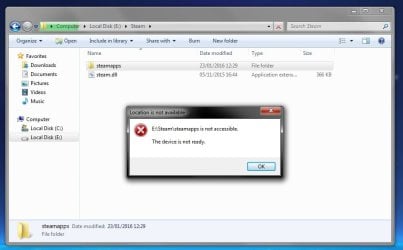
Error message X:\ is not accessible the device is not ready

Amaterasu

Member
Member
Local time
5:31 AM
Messages
74
Hi There,

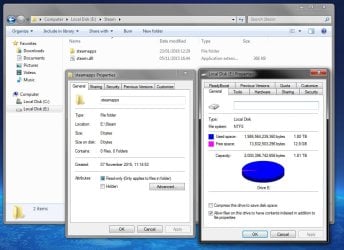
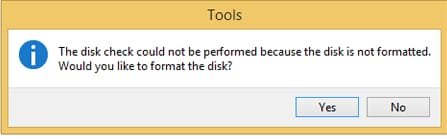
i just plugged in my external drive to play a game on steam but it's telling the file is empty (as seen in the screenshots below) it's a 2TB drive that is nearly full. i have tried "dskchk" with admin right but the device type is unknown even though in my computer it's says it's NTFS i have tried some of the file recovery programs but they don't work as i think it needs to be in RAW type. steam is the only thing on this drive but it's nearly 2TB so for me to redownload it all will take weeks and weeks and i live in the countryside.

Thanks Jake
 

Attachments
  • prob 1.jpg
    prob 1.jpg
    44.7 KB · Views: 1
  • prob 2.jpg
    prob 2.jpg
    74.8 KB · Views: 2
  • prob 3.jpg
    prob 3.jpg
    84.3 KB · Views: 2

My Computer My Computer

Computer type
PC/Desktop
Computer Manufacturer/Model Number
Custom Build
OS
Windows 7 Ultimate 64-bit SP1
CPU
Intel i7-3930K 3.20GHz 6-Core Processor
Motherboard
Asus Sabertooth X79
Memory
G Skill Ripjaws Z 32GB DDR3 1866MHz
Graphics Card(s)
EVGA Nvidia GeForce GTX 980 4GB
Monitor(s) Displays
29" LG Curved Ultrawide IPS Monitor
Screen Resolution
2560 x 1080
Hard Drives
Samsung 850 Pro 128GB
PSU
Corsair AX760
Case
Aerocool DS200
Cooling
Cooler Master Nepton 240M
Keyboard
Wireless Keyboard
Mouse
Wireless Mouse
Internet Speed
32MB
Antivirus
Bitdefender
Browser
Google Chrome
Other Info
TP-LINK Archer T9E Network adapter
Hello Amaterasu!

This is not pleasant, I agree. :/

What is the make and model of the drive? You say you've tried chkdsk, what exactly did you try with it and what were the results?

I would suggest you safely remove the drive, change its USB cable with a new one, try it on all USB ports available. Go to Disk Management and right click on the drive and change its drive letter. See if that helps. Also, check it on another system. If nothing from this works, go to Device Manager (post a screenshot from there) and uninstall the device, replug it and let it reinstall itself automatically. Check if your USB drivers need updating.

Post back after these with the results, good luck! :)

CK_WD
 

My Computer My Computer

Computer type
PC/Desktop
OS
Windows 7 Home Premium x64
Hello Amaterasu!

This is not pleasant, I agree. :/

What is the make and model of the drive? You say you've tried chkdsk, what exactly did you try with it and what were the results?

I would suggest you safely remove the drive, change its USB cable with a new one, try it on all USB ports available. Go to Disk Management and right click on the drive and change its drive letter. See if that helps. Also, check it on another system. If nothing from this works, go to Device Manager (post a screenshot from there) and uninstall the device, replug it and let it reinstall itself automatically. Check if your USB drivers need updating.

Post back after these with the results, good luck! :)

CK_WD

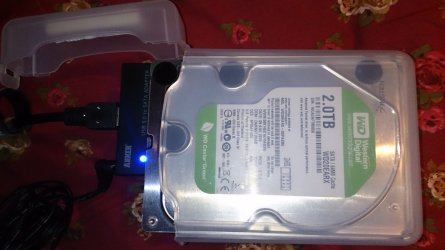
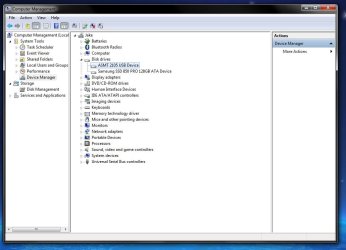
hi thanks for the reply i have tried what you said do to but now it is RAW formant here is a picture of the drive and from device manager. what do you suggest i do now is there any programs that you think are good for recovering RAW drives?
 

Attachments

  • 4.JPG
    4.JPG
    578 KB · Views: 3
  • 5.jpg
    5.jpg
    62.7 KB · Views: 2

My Computer My Computer

Computer type
PC/Desktop
Computer Manufacturer/Model Number
Custom Build
OS
Windows 7 Ultimate 64-bit SP1
CPU
Intel i7-3930K 3.20GHz 6-Core Processor
Motherboard
Asus Sabertooth X79
Memory
G Skill Ripjaws Z 32GB DDR3 1866MHz
Graphics Card(s)
EVGA Nvidia GeForce GTX 980 4GB
Monitor(s) Displays
29" LG Curved Ultrawide IPS Monitor
Screen Resolution
2560 x 1080
Hard Drives
Samsung 850 Pro 128GB
PSU
Corsair AX760
Case
Aerocool DS200
Cooling
Cooler Master Nepton 240M
Keyboard
Wireless Keyboard
Mouse
Wireless Mouse
Internet Speed
32MB
Antivirus
Bitdefender
Browser
Google Chrome
Other Info
TP-LINK Archer T9E Network adapter
That was a good suggestion by ComputerGeek.

I was mulling over your problem off and on since you posted it and was thinking off a few solutions you may try. I had some intuitive feeling a drive cleanup may resolve the issue. But the scene has changed now.

In your first post the drive did appear with a drive letter E: and a drive cleanup - which removes non-existent drives , and the drive letters associated with such non-existent drives and held in Windows registry - could have helped.

But now you say that the drive appears as "RAW" which it was not before. In the circumstances, a Partition Recovery attempt may help. First try Partition Recovery Wizard in Partition Wizard instead of TestDisk. Let us see what info it yields. MiniTool Partition Wizard | Best partition magic alternative for Windows PC and Server

1. For the record, post the Windows Disk Management picture showing your drive as RAW.( Please post a untruncated full screenshot with full information. Follow the guidelines here http://www.sevenforums.com/tutorials/274797-disk-management-post-screen-capture-image.html to hide the Console Tree, Action Pane and adjust the seperators so that all the information can be seen)

2. Next run Partition Recovery Wizard Quick Scan and see what partitions show up. Post the screenshot of Partitions found Window.. Cancel and close PW till I see it and suggest further course of action.

Note: Stop trying other data recovery programs. Wrongly used without an understanding what they do and how they do may make matters worse. It is for this reason I don't want you to straightaway go to TestDisk. We shall use it later if need be but with proper guidance.
 

My Computer My Computer

OS
Windows 7 Home Premium 32 bit
A chkdsk will sometimes fix the RAW problem.
 

My Computer My Computer

Computer Manufacturer/Model Number
HP, Dell, Gateway, Toshiba - 4 laptops and 2 desktops
OS
Vista, Windows7, Mint Mate, Zorin, Windows 8
CPU
from 1.6GHz Duo to i7
Monitor(s) Displays
2x HP w2207
Hard Drives
5x HDD, 7x SSD, 12x Externals
Keyboard
with trackball - no mices
Mouse
Trackball mice
Internet Speed
DSL 6000
^Chkdisk can run provided the RAW drive has a drive letter. Let us see the current Disk Management picture.( The OP had run check disk when it showed drive letter E: - Disk was not RAW at that time - with no success as reported in his first post)
 
Last edited:

My Computer My Computer

OS
Windows 7 Home Premium 32 bit
just a quick footnote: chkdsk attempts to fix the filesystem. There's no filesystem on a raw drive. Chkdsk isn't available to run on a raw drive. Try jumanji's suggestions for partition recovery
 

Attachments

  • 2016-02-12_224845.jpg
    2016-02-12_224845.jpg
    8.6 KB · Views: 22

My Computer My Computer

Computer type
PC/Desktop
Computer Manufacturer/Model Number
Dell Optiplex 360 and Optiplex 755
OS
Desk 1: Win 7 Pro x32; Desk 2: Windows 10 x64
Hard Drives
500GB Crucial SSD in both Desktops
Other Info
Buffalo 6TB NAS, Raid 1
Can checkdisk run on a RAW drive?

A corrupt file system (?) can make a drive RAW. In those cases the RAW drive will show up with a drive letter and we can run check disk on the RAW drive. I learnt this from kaktussoft.

We have had atleast two instances when CHKDSK <drive letter:> /f /v /r /x repaired a RAW drive/partition and made the drive accessible.

http://www.sevenforums.com/hardware...nation-column-filesystem-raw.html#post3212407 OP: Alonzo Poodle

http://www.sevenforums.com/hardware...ion-magic-but-not-explorer-2.html#post3089770 OP: nexus87

In the case of nexus87, we tried TestDisk to find out and repair any file system problems. But it said the primary bootsector as well as the backup of that were ok. Then MFT check. It said both MFT and MFT mirror also were OK. Then as a last resort he was asked to run CHKDSK K: /f /v /r /x and voila! it did the job and corrected the problem. Nexus87 jumped with joy:"Woohoo! Chkdsk finished and the disk looks like it's back to normal! Thanks for all your help jumanji :D"

In the case of Alonzo Poodle seeing that the RAW drive had a drive letter, I straightaway asked him to run CHKDSK K: /f /v /r /x Alonzo Poddle states:" Done. It appears to have worked perfectly. The partition is accessible again. chkdsk ran about 8, 9 hours (over one million files)."

Alonzo Poodle had run the manufacturer's diagnostic Utility also which found atleast three bad sectors.

So what I am hypothesising now is that emergence of bad sectors in a drive can make the drive inaccessible and show it as RAW and that it may not really be a filesystem error, as we have been loosely describing and ascribing to. The drive may still have a drive letter. Some more cases will be required before we can categorically conclude on it.

At the moment however, if the drive is RAW but has a drive letter, our first stop should be to run check disk to correct /repair bad sectors. If it does work the OP should immediately back up all critical data on the drive and run the manufacturer's Diagnostic Utility to determine the health of the drive.If bad sectors are found, then the drive should not be used to store any critical data. The bad sectors may or may not grow with time. It is impossible to tell whether it will fail at all, fail slowly or fail today/tomorrow. Any of these can happen.
 
Last edited:

My Computer My Computer

OS
Windows 7 Home Premium 32 bit
A corrupt file system (?) can make a drive RAW. In those cases the RAW drive will show up with a drive letter and we can run check disk on the RAW drive. I learnt this from kaktussoft.

We have had atleast two instances when CHKDSK <drive letter:> /f /v /r /x repaired a RAW drive/partition and made the drive accessible.
Now I can see said the blind man. Thanks for the good info and OP support! :)
 

My Computer My Computer

Computer type
PC/Desktop
Computer Manufacturer/Model Number
Dell Optiplex 360 and Optiplex 755
OS
Desk 1: Win 7 Pro x32; Desk 2: Windows 10 x64
Hard Drives
500GB Crucial SSD in both Desktops
Other Info
Buffalo 6TB NAS, Raid 1
Jumanji explained that a lot better than I could have ever done.
 

My Computer My Computer

Computer Manufacturer/Model Number
HP, Dell, Gateway, Toshiba - 4 laptops and 2 desktops
OS
Vista, Windows7, Mint Mate, Zorin, Windows 8
CPU
from 1.6GHz Duo to i7
Monitor(s) Displays
2x HP w2207
Hard Drives
5x HDD, 7x SSD, 12x Externals
Keyboard
with trackball - no mices
Mouse
Trackball mice
Internet Speed
DSL 6000
Using my 3 brain cells I think I got it.

If a RAW drive has a drive letter try running Check Disk.
It may or may not solve the problem. Two out of two times so far it solved the problem.

jumanji did I understand you correctly?

If so I have a question.

I have never had a RAW drive so here is the question.

If a RAW drive does not have a drive letter can one be added and then run Check Disk?
 

My Computer My Computer

Computer type
PC/Desktop
Computer Manufacturer/Model Number
Home made Desktop
OS
Windows 10 Pro. 64/ version 1709 Windows 7 Pro/64
CPU
Intel i7-6800K @ 4.3
Motherboard
ASUS X-99 Deluxe II
Memory
Corsair Platinum 16 gig @2400
Graphics Card(s)
EVGA GTX 1070 OC
Monitor(s) Displays
Asus 27" LED LCD/VE278Q
Screen Resolution
1920-1080 or 1280-720 HDMI
Hard Drives
INTEL SSD 730-240 Gb Sata 3.0/
PSU
EVGA Platium 1200W
Case
Phanteks Luxe Tempered Glass 8 fans/ one radiator
Cooling
XSPC/ Water Cooled CPU
Keyboard
Das 4 Professional
Mouse
Logitech M705/MX Anywhere 2-S
Internet Speed
100 mbits
Antivirus
Microsoft Security Essentials/ Malwarebytes Premium 3.0/ SAS
Browser
I.E. 11 default/Firefox/ ISP Time Warner Cable/Spectrum
Other Info
LG BluRay Burner/
Sound system-KLipsch-THX/
Icy Dock ssd Hot Swap bays.
......If a RAW drive has a drive letter try running Check Disk.
It may or may not solve the problem. Two out of two times so far it solved the problem.

jumanji did I understand you correctly?.......

Absolutely. It should work in most cases where bad sectors have just started emerging but does not exceed a handful and not a deluge of bad sectors.

.........If so I have a question.

I have never had a RAW drive so here is the question.

If a RAW drive does not have a drive letter can one be added and then run Check Disk?

I learn a lot when people ask questions because that propels me to find an answer when I don't know one :)...

In the Alonze Poodle thread, while he reported that checkdisk was successful and he is now able to access the drive, he had also posted a screenshot of the checkdisk run. Since it was in German language I didn't look into it deeply. There was a message in it ""Unbekannter Fehler (75736e6a726e6c2e 4f6)" He asked me what that "Unknown error" is.

I had to make a google search with the correct search terms. The final finding in my own words "The one positive thing that has emerged from this thread is that if Checkdisk gives a message "An unspecified error occurred (75736e6a726e6c2e 4f6)" that is a warning bell that the drive is failing and one should ASAP back up the data."

Your question falls in the same category :). A google search and what a surprise. There was atleast one user who was advised to give a drive letter to the RAW drive and check. And the OP reported that worked. Not even a checkdisk run was required. Just assign a drive letter.

Recover NTFS Partition on RAW Drive - Hard Drives - Storage

In the very next post another user reported that it did not work for him for "Change Drive Letter and Paths" was greyed out.

Whatever with this new-found knowledge, we shall henceforth ask users reporting a RAW drive without a drive letter, to try assigning a drive letter first. It isn't much of an effort to try that.

Thank you for the question.
 
Last edited:

My Computer My Computer

OS
Windows 7 Home Premium 32 bit
That was a good suggestion by ComputerGeek.

I was mulling over your problem off and on since you posted it and was thinking off a few solutions you may try. I had some intuitive feeling a drive cleanup may resolve the issue. But the scene has changed now.

In your first post the drive did appear with a drive letter E: and a drive cleanup - which removes non-existent drives , and the drive letters associated with such non-existent drives and held in Windows registry - could have helped.

But now you say that the drive appears as "RAW" which it was not before. In the circumstances, a Partition Recovery attempt may help. First try Partition Recovery Wizard in Partition Wizard instead of TestDisk. Let us see what info it yields. MiniTool Partition Wizard | Best partition magic alternative for Windows PC and Server

1. For the record, post the Windows Disk Management picture showing your drive as RAW.( Please post a untruncated full screenshot with full information. Follow the guidelines here http://www.sevenforums.com/tutorials/274797-disk-management-post-screen-capture-image.html to hide the Console Tree, Action Pane and adjust the seperators so that all the information can be seen)

2. Next run Partition Recovery Wizard Quick Scan and see what partitions show up. Post the screenshot of Partitions found Window.. Cancel and close PW till I see it and suggest further course of action.

Note: Stop trying other data recovery programs. Wrongly used without an understanding what they do and how they do may make matters worse. It is for this reason I don't want you to straightaway go to TestDisk. We shall use it later if need be but with proper guidance.

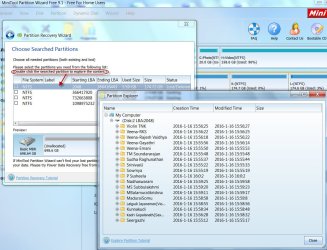
ok sorry about the wait here the screenshots you wanted. what's weird is that is back to the way this problem started when i plugged it in today. the PW didn't work as you will see in the screenshot below
 

Attachments

  • a.jpg
    a.jpg
    141.5 KB · Views: 4
  • b.jpg
    b.jpg
    113.8 KB · Views: 4

My Computer My Computer

Computer type
PC/Desktop
Computer Manufacturer/Model Number
Custom Build
OS
Windows 7 Ultimate 64-bit SP1
CPU
Intel i7-3930K 3.20GHz 6-Core Processor
Motherboard
Asus Sabertooth X79
Memory
G Skill Ripjaws Z 32GB DDR3 1866MHz
Graphics Card(s)
EVGA Nvidia GeForce GTX 980 4GB
Monitor(s) Displays
29" LG Curved Ultrawide IPS Monitor
Screen Resolution
2560 x 1080
Hard Drives
Samsung 850 Pro 128GB
PSU
Corsair AX760
Case
Aerocool DS200
Cooling
Cooler Master Nepton 240M
Keyboard
Wireless Keyboard
Mouse
Wireless Mouse
Internet Speed
32MB
Antivirus
Bitdefender
Browser
Google Chrome
Other Info
TP-LINK Archer T9E Network adapter
Your HDD is definitely not RAW. The Windows Disk Management picture is the same as you posted in the first post with only the additional information that it has 12.88GB free space which is visible now after you hid the Console Tree and Action Pane.

1. Just right click on it and "Explore". Can you see all your files inside that single folder??

Partition Wizard shows the same drive as Bad Disk - a little disturbing. Quick Scan shows a Lost/Deleted partition starting at LBA 0. That can't be true. The starting LBA should be either 63 or 2048 ( depending upon which utility formatted it).

2. Again run Quick Scan. On the Partition Found just double click on it and check whether you can see all your files in the resulting Partition Explorer Window. After the Quick Scan, Cancel and quit PW

08-02-2016 12-02-32.jpg

3.Launch PW again and now run a Full Scan, which may take sometime to complete. When complete, post a screenshot of Partitions found.( Just select only that Window and take a screenshot. I don't need the PW screen in the background.) Again Cancel and quit PW.

Once you have posted all the above info,

4. Run CHKDSK E: /f /v /r /x Replace E: with the actual drive letter of the drive. Once started, do not interrupt/abort it for any reason for upto 24 hours. During this period do not use your PC for any other purpose. Leave checkdisk alone to run. When it completes/or aborts itself for any reason post a screenshot like the one Alonzo Poodle posted here http://www.sevenforums.com/hardware...nation-column-filesystem-raw.html#post3212407 from which we can see any error message. I want to see any error message as it appears in that screen.
 

My Computer My Computer

OS
Windows 7 Home Premium 32 bit
Back
Top