Extending C

Keln

New member
Local time
7:47 PM
Messages
36
I have been messing around with partitions for a while now, but have never tried to extend or change a C: partition before. Now I find that I need more space on my C: partition, but, unfortunately, the partition is to the right of the space I want to extend into.

So, I tried method 2 of the tutorial provided on this site, and it didn't work saying that I didn't have enough space. I've downloaded MiniTool Partition Wizard, but I am a bit nervous here.

First, is it safe to do anything with the C: partition? I mean...it is in use while the OS is in use. It is the active/boot/system partition on that drive.

Second, is there a way to physically move the C: partition to the left/ first spot on the drive?

I guess I just don't quite understand how partitioning operations work, even though I understand what a partition is. Since I have a new, 2TB drive, and will be getting another one soon, I'd like to make the whole HD that my C: partition is on, into one big C: drive, since I no longer need to share it for other things.

Anyone have advice on this?
 

My Computer

OS
W7

My Computer

Computer Manufacturer/Model Number
* BFK Customs *
OS
W 7 64-bit Ultimate
CPU
Intel Q9550 Yorkfield
Motherboard
ASUS P5Q Pro
Memory
8GB Dominator 8500C5D
Graphics Card(s)
ATI : XFX 5870
Sound Card
Realtek HD Audio 7-1
Monitor(s) Displays
1x 47" LCD HDMI & 3x 26" LCD HDMI
Screen Resolution
1920x1080P & 1920x1200
Hard Drives
1x 80GB Intel X25-M G2 SSD : 1x 500GB & 1x 640GB WD Caviar Black(s)
PSU
Corsair 620HX
Case
Cooler Master RC-690
Cooling
Tuniq Tower 120, 2x 140mm and 3x 120mm case fans
Keyboard
Microsoft 500
Mouse
Razer Diamondback 3G
Internet Speed
14 Mb/s
Other Info
1x Koutech 3Gb/s SATA HDD Hot Swap Rack
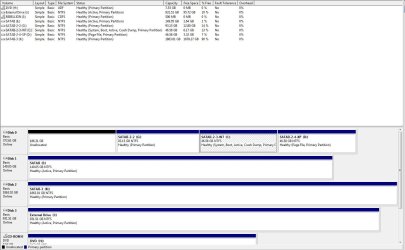
Please post back a screenshot of your full Disk management drive map and listings, using Snipping Tool in Start menu. We can give you the steps to extend C to the whole HDD if this is what you want.,
 

My Computer

OS
W7
It is not as stable and you want complete stability when Resizing OS.

PW CD is the most stable Disk Manager we know of. It gives accurate readings even when Disk Mgmt or PW run from Win7 is inaccurate.

Unlike all other Partition managers except Disk Mgmt, PW will not fail as long as Data Protection mode is selected. If it fails to resize (virtually) it will simply restart and try again until you bail out at startup countdown.
 
Please post back a screenshot of your full Disk management drive map and listings, using Snipping Tool in Start menu. We can give you the steps to extend C to the whole HDD if this is what you want.,

Never knew about that snipping tool...that's awful handy, thanks.


Ok, so I have not wiped the two other partitions on this drive yet because I am still moving files around, but I had wanted to go ahead and add unallocated space to C: now, and the rest later. I am not averse to using the methods described by BF Kid, but I am trying to understand more about partitioning operations involving the C partition, and mostly what NOT to do.

And I am assuming that I can use a flash drive instead of a CD or DVD for the bootable disc (like for windows recovery)?
 

Attachments

  • drives.JPG
    drives.JPG
    118.9 KB · Views: 35

My Computer

OS
W7
PW has a new feature to write to USB flash stick from Win7, but I think it's in a paid version.

Try writing the PW CD ISO to flash stick using Win2Flash: YouTube - How to install Windows 7 from USB (WinToFlash) then boot under USB flash on BIOS Boot Menu.

I'd start by booting PW to rightclick delete G (after backing up its files),

then rightclick Resize C, drag its left grey border all the way to the left to take up the unallocated space, OK, Apply.

Have your Installation DVD or Repair CD standing by in case you need to run Startup Repair to repair the System MBR since resizing will occur on the boot sector: http://www.sevenforums.com/tutorials/105541-startup-repair-run-3-separate-times.html
 
Last edited:
Thanks greg. I'll give this stuff a go.
 

My Computer

OS
W7
1. Whatever you do to your C partition, make sure you take an image first to be on the safe side.
2. If you still have your user data folders on C, it may be easier to move those to another partition/drive rather than extending C
 

My Computer

Computer Manufacturer/Model Number
HP, Dell, Gateway, Toshiba - 4 laptops and 2 desktops
OS
Vista, Windows7, Mint Mate, Zorin, Windows 8
CPU
from 1.6GHz Duo to i7
Monitor(s) Displays
2x HP w2207
Hard Drives
5x HDD, 7x SSD, 12x Externals
Keyboard
with trackball - no mices
Mouse
Trackball mice
Internet Speed
DSL 6000
I have a question on another subject; are there bootable Operating System(s) on the other Disk #s 1 & 3 as I see from the snip they are marked "Active" and that may cause other issues if they are just data drives.
 

My Computer

Computer Manufacturer/Model Number
* BFK Customs *
OS
W 7 64-bit Ultimate
CPU
Intel Q9550 Yorkfield
Motherboard
ASUS P5Q Pro
Memory
8GB Dominator 8500C5D
Graphics Card(s)
ATI : XFX 5870
Sound Card
Realtek HD Audio 7-1
Monitor(s) Displays
1x 47" LCD HDMI & 3x 26" LCD HDMI
Screen Resolution
1920x1080P & 1920x1200
Hard Drives
1x 80GB Intel X25-M G2 SSD : 1x 500GB & 1x 640GB WD Caviar Black(s)
PSU
Corsair 620HX
Case
Cooler Master RC-690
Cooling
Tuniq Tower 120, 2x 140mm and 3x 120mm case fans
Keyboard
Microsoft 500
Mouse
Razer Diamondback 3G
Internet Speed
14 Mb/s
Other Info
1x Koutech 3Gb/s SATA HDD Hot Swap Rack
I have a question on another subject; are there bootable Operating System(s) on the other Disk #s 1 & 3 as I see from the snip they are marked "Active" and that may cause other issues if they are just data drives.

Disk 1 is the drive that is used to run programs like games. The only OS (now) is on disk 0. Disk 1 is games and large programs. Disk 3 is storage for a lot of data like movies. I do not know why they are both marked active. I do not remember ever marking them that. Perhaps because they had paging files on them at one point? I have shifted paging files around several times.
 

My Computer

OS
W7
Hello again, thanks for the update.


It would be a good idea to mark them " Inactive " from an elevated command prompt so they don't cause future issues; have a look at this snip below for the steps, obviously you would substitute your specific disk/partition info.


My Computer

Computer Manufacturer/Model Number
* BFK Customs *
OS
W 7 64-bit Ultimate
CPU
Intel Q9550 Yorkfield
Motherboard
ASUS P5Q Pro
Memory
8GB Dominator 8500C5D
Graphics Card(s)
ATI : XFX 5870
Sound Card
Realtek HD Audio 7-1
Monitor(s) Displays
1x 47" LCD HDMI & 3x 26" LCD HDMI
Screen Resolution
1920x1080P & 1920x1200
Hard Drives
1x 80GB Intel X25-M G2 SSD : 1x 500GB & 1x 640GB WD Caviar Black(s)
PSU
Corsair 620HX
Case
Cooler Master RC-690
Cooling
Tuniq Tower 120, 2x 140mm and 3x 120mm case fans
Keyboard
Microsoft 500
Mouse
Razer Diamondback 3G
Internet Speed
14 Mb/s
Other Info
1x Koutech 3Gb/s SATA HDD Hot Swap Rack
Hello again, thanks for the update.


It would be a good idea to mark them " Inactive " from an elevated command prompt so they don't cause future issues; have a look at this snip below for the steps, obviously you would substitute your specific disk/partition info.


Thanks. I actually finished freeing up all of the data on the harddrive with my OS on it and did everything with the partition program as you guys had suggested. While I was in that CD-ROM screen extending my C: drive, I went ahead and marked every disk inactive except C:. After I did all of this, I rebooted with the Windows repair disc in that I had made. It said no errors were found, so I rebooted without it and everything is working perfectly now, thanks to all of you guys' advice.

Now I have another question. After shuffling all of this data around and deleting partitions, my drive letters are out of whack. When I try to rename a drive letter it warns me that "some programs may not function after renaming a drive letter....etc". My question is, is there an easy way to reassign the drive number to programs on my harddrives? Really, only one HD is at issue here, and that is the one that I have most of my games on. I would like to rename it D: instead of E:, but I am afraid most of the games on it will not work if I do. Is this a concern, or does this only apply to much older programs and games?
 

My Computer

OS
W7
Windows will not allow the "System" OS partition drive letter to be changed and if you did find a way it would cause untold issues/errors with the installed programs/apps that were installed to look for the 'old' drive letter.


Partitions/drives HDDs that have no data on them will have no issue changing the drive letter.


Anything that was installed will have issues changing the drive letter.
 

My Computer

Computer Manufacturer/Model Number
* BFK Customs *
OS
W 7 64-bit Ultimate
CPU
Intel Q9550 Yorkfield
Motherboard
ASUS P5Q Pro
Memory
8GB Dominator 8500C5D
Graphics Card(s)
ATI : XFX 5870
Sound Card
Realtek HD Audio 7-1
Monitor(s) Displays
1x 47" LCD HDMI & 3x 26" LCD HDMI
Screen Resolution
1920x1080P & 1920x1200
Hard Drives
1x 80GB Intel X25-M G2 SSD : 1x 500GB & 1x 640GB WD Caviar Black(s)
PSU
Corsair 620HX
Case
Cooler Master RC-690
Cooling
Tuniq Tower 120, 2x 140mm and 3x 120mm case fans
Keyboard
Microsoft 500
Mouse
Razer Diamondback 3G
Internet Speed
14 Mb/s
Other Info
1x Koutech 3Gb/s SATA HDD Hot Swap Rack
Windows will not allow the "System" OS partition drive letter to be changed and if you did find a way it would cause untold issues/errors with the installed programs/apps that were installed to look for the 'old' drive letter.


Partitions/drives HDDs that have no data on them will have no issue changing the drive letter.


Anything that was installed will have issues changing the drive letter.


Yeah, that is what I was afraid of. I have no reason to change the drive letter for the system partition (which is the whole drive now), but the other drives I would like to change. Is there a way, or a program, that will update the paths in all installed programs/games/etc?
 

My Computer

OS
W7
Back
Top