extending partition?

Alsenor

New member
Local time
11:44 AM
Messages
119
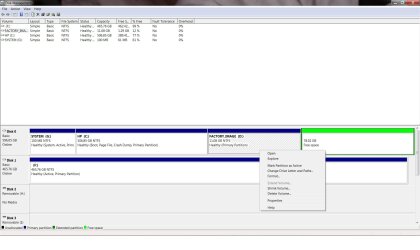
According to the help files the adjacent partition should allow me to be extended and absorb the partition next to it which is free space. See screenshot. Why does it not allow it?
 

Attachments

  • screen01.jpg
    screen01.jpg
    124.2 KB · Views: 84

My Computer

Computer Manufacturer/Model Number
HP p6347c
OS
W7
CPU
AMD Athlon(tm) II X4 630 Processor
Motherboard
AMD RS780/RS880
Memory
8 GB
Graphics Card(s)
ATI Radeon HD 4200
Sound Card
Realtek High Definition Audio
Monitor(s) Displays
HP w2338h (HP w2338h Wide LCD Monitor)
Hard Drives
WDC WD6400AAKS-65A7B SCSI Disk Device
Because it is free space within a partition and not unallocated space. Right click on it and delete the volume.
 

My Computer

Computer Manufacturer/Model Number
HP, Dell, Gateway, Toshiba - 4 laptops and 2 desktops
OS
Vista, Windows7, Mint Mate, Zorin, Windows 8
CPU
from 1.6GHz Duo to i7
Monitor(s) Displays
2x HP w2207
Hard Drives
5x HDD, 7x SSD, 12x Externals
Keyboard
with trackball - no mices
Mouse
Trackball mice
Internet Speed
DSL 6000
You wind up with Free Space when you have an Extended Logical partition which you delete sub-partitions within. As Wolfgang says, you need to delete the Free Space to get Unallocated Space you can extend a Primary partition into.
 
Because it is free space within a partition and not unallocated space. Right click on it and delete the volume.
This is the result:
 

Attachments

  • screen02.jpg
    screen02.jpg
    170.9 KB · Views: 61

My Computer

Computer Manufacturer/Model Number
HP p6347c
OS
W7
CPU
AMD Athlon(tm) II X4 630 Processor
Motherboard
AMD RS780/RS880
Memory
8 GB
Graphics Card(s)
ATI Radeon HD 4200
Sound Card
Realtek High Definition Audio
Monitor(s) Displays
HP w2338h (HP w2338h Wide LCD Monitor)
Hard Drives
WDC WD6400AAKS-65A7B SCSI Disk Device
You have to have the "unallocated" space directly to the right of the drive that you want to expand. With your picture above, you could expand the D drive with the unallocated space to the right of it. However, if you want to expand the C drive...you would have to delete the D drive partition immediately to it's right to do it.

Oops...didn't read closely enough. As the message says, it sees this recovery partition as having boot files and won't let you change it.

You might have better luck with something like Gparted. It's a bootable .ISO that you can freely download to resize drives. It works outside of windows...so you aren't hampered with the limitations of Windows as shown above.
 

My Computer

Computer Manufacturer/Model Number
Self-Built in July 2009
OS
Windows 7 Ultimate x64
CPU
Intel Q9550 2.83Ghz OC'd to 3.40Ghz
Motherboard
Gigabyte GA-EP45-UD3R rev. 1.1, F12 BIOS
Memory
8GB G.Skill PI DDR2-800, 4-4-4-12 timings
Graphics Card(s)
EVGA 1280MB Nvidia GeForce GTX570
Sound Card
Realtek ALC899A 8 channel onboard audio
Monitor(s) Displays
23" Acer x233H
Screen Resolution
1920x1080
Hard Drives
Intel X25-M 80GB Gen 2 SSD
Western Digital 1TB Caviar Black, 32MB cache. WD1001FALS
PSU
Corsair 620HX modular
Case
Antec P182
Cooling
stock
Keyboard
ABS M1 Mechanical
Mouse
Logitech G9 Laser Mouse
Internet Speed
15/2 cable modem
Other Info
Windows and Linux enthusiast. Logitech G35 Headset.
You have to have the "unallocated" space directly to the right of the drive that you want to expand. With your picture above, you could expand the D drive with the unallocated space to the right of it.
That is exactly what I want to do, but as my screenshot shows, it does not let me!
However, if you want to expand the C drive...you would have to delete the D drive partition immediately to it's right to do it.
I didn't intend to expand the C partition. Also, it is not adjacent!
The D is where the restore points are kept, and I want to make room for more.
There may be a reason that the system doesn't allow it to be made larger?

 

My Computer

Computer Manufacturer/Model Number
HP p6347c
OS
W7
CPU
AMD Athlon(tm) II X4 630 Processor
Motherboard
AMD RS780/RS880
Memory
8 GB
Graphics Card(s)
ATI Radeon HD 4200
Sound Card
Realtek High Definition Audio
Monitor(s) Displays
HP w2338h (HP w2338h Wide LCD Monitor)
Hard Drives
WDC WD6400AAKS-65A7B SCSI Disk Device
Your best option there is GParted live for cd where you would start off by moving the factory image(D) partition all the way to the right being the rear of the drive. The move will take some time however while nowhere as long as a few hundred GBs! :D

The latest 0.6.2-5 release of GParted is seen at Browse GParted Files on SourceForge.net

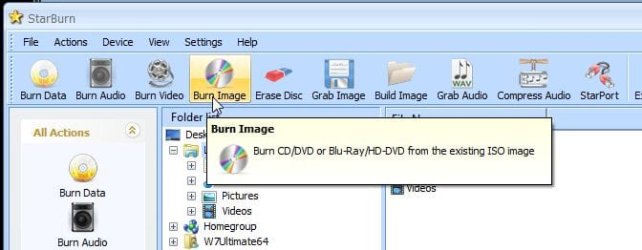
The 3rd link in the green area "Newest Files" when clicking the "View all files" button will be for the ISO disk image you burn to a cd-r. If you need a burning program that works well on the 64bit 7 go for the free version of StarBurn at :: RocketDivision :: CD/DVD/Blu-Ray/HD-DVD recording and mastering

ImgBurn is what many will point to but was written for the 32bit XP and doesn't like the 64bit Windows too well. If you have a small usb flash drvie you can also see the disk image written to that to make up a boot from flash drive key and load GParted from that. The same shareware version of UltraISO used for 7 install keys will write the image when selecting the "bootable" option along the menu bar. http://www.ezbsystems.com/ultraiso/index.html

(comes in handy for writting live distros too :D )
 

Attachments

  • Burn ISO with StarBurn.jpg
    Burn ISO with StarBurn.jpg
    34 KB · Views: 7

My Computers

System One System Two

  • Computer type
    PC/Desktop
    Computer Manufacturer/Model Number
    Custom builds = 2
    OS
    W7 Ultimate x64/W10 Pro x64/W11 Pro Triple Boot - Main PC W7 Remote PC Micro ATX W7 Pro x64/W11 Pro
    CPU
    AMD Phenom II X4 975 Deneb 3.6ghz - 965 2nd remote pc
    Motherboard
    Gigabyte GA-790XTA-UD4-Gigabyte GA-880GM-D2H remote pc
    Memory
    Kingston Hyper X DDR3 1600 1.5v 16gb - Hyper X Fury 8gb 2nd
    Graphics Card(s)
    MSI HD Radeon 5750 1gb - MSI HD Radeon 6450 on mini tower
    Sound Card
    Creative Labs X-Fi Xtreme Audio P - Realtek onooard 2nd case
    Monitor(s) Displays
    ASUS VW199T-P 19" HP 2082a Main-HP 2082a 20" remote pc
    Screen Resolution
    Asus 1440x900 - HP 1600x900
    Hard Drives
    WD Black 1TB HD per OS W7, W10, and pending W11 presently on 500gb OS Drive - Pending Triple 1TB HDs for Spanned Storage/backup volume
    Single 2TB external USB enclosure, single 1TB System 7 Host/Boot drive, Pending 8TB external HD for system image b
    PSU
    Corsair 750TX - primary / Corsair CX600 - second
    Case
    Antec 900-2 - SSD compatible / NZXT Vulcan mini tower
    Cooling
    Zalman CNPS9900A
    Keyboard
    AZIO L70 Backlit Letters Gaming - ONN Cordless/USB
    Mouse
    MSI DS200 Programmable, Logitech Cordless
    Internet Speed
    30mbps upgrade - primary hard wired - mini tower usb WiFi
    Antivirus
    GFI VIPRE Internet Security 2014 on W7 2016 beta on W10,
    Browser
    Cyberfox, WaterFox 64bit FF variants, FireFox x64, Pale Moon
    Other Info
    Accomdata fan cooled usb 2.0 PIDE/Sata II, III external enclosure.
    Sambient usb/eSata PATA/Sata II, III external enclosure.
  • Computer type
    PC/Desktop
    System Manufacturer/Model Number
    CUSTOM ASSEMBLY
    OS
    W7 Pro x64/W11 Pro
    CPU
    AMD Deneb 3.6ghz - 965
    Motherboard
    Gigabyte GA-880GM-D2H remote pc
    Memory
    Kingston Hyper X Fury 8gb
    Graphics Card(s)
    MSI HD Radeon 6450 DVI Output
    Sound Card
    Realtek onooard Creative or Other separate PENDING
    Monitor(s) Displays
    VIZIO 32" LCD TV Separate LCD Pending
    Screen Resolution
    1600x1080
    Hard Drives
    WD 500GB OS Host/Boot WD Green 1TB Storage/Backup
    PSU
    Corsair 600W - THERMALTAKE 600W spare case
    Case
    NZXT Vulcan mini tower
    Cooling
    Twin 120mm Top Fans - 240mm Side Cover
    Keyboard
    ONN Cordless/USB Logitech Cordless
    Mouse
    ONN USB/Cordless - Logitech Cordless
    Internet Speed
    DSL 5G
    Browser
    MS Edge, FireFox, WaterFox x64, FireFox Nightly
    Other Info
    OS Testing-Remote Access to Main TeamViewer
You have to have the "unallocated" space directly to the right of the drive that you want to expand. With your picture above, you could expand the D drive with the unallocated space to the right of it.
That is exactly what I want to do, but as my screenshot shows, it does not let me!
However, if you want to expand the C drive...you would have to delete the D drive partition immediately to it's right to do it.
I didn't intend to expand the C partition. Also, it is not adjacent!
The D is where the restore points are kept, and I want to make room for more.
There may be a reason that the system doesn't allow it to be made larger?

FYI, restore points are stored on all drives and contain the information to restore that particular drive. In other words, if you have issues on the C: drive, more room on D: won't help you.
 

My Computer

Computer Manufacturer/Model Number
Custom
OS
Windows 7 Ultimate RTM (Technet)
CPU
3.00 gigahertz Intel Core2 Duo E8400
Motherboard
ASUSTeK Computer INC. P5K/EPU Rev 1.xx
Memory
4GB
Graphics Card(s)
ATI Radeon X1950 Pro
Sound Card
Built in HD Audio
Monitor(s) Displays
22" Gateway LCD
Screen Resolution
1920 x 1200
Hard Drives
ST3160023A [Hard drive] (160.04 GB) -- drive 0, rev 8.01, ST3500630AS [Hard drive] (500.11 GB) -- drive 2, rev 3.AAK
ST3500630AS [Hard drive] (500.11 GB) -- drive 1, rev 3.AAK
Keyboard
Logitech G11
Mouse
Microsoft Wireless Laser Mouse 5000
Internet Speed
13.44 Mbps
Make your Recovery Disks and then you don't have to worry about deleting the Recovery partition or moving it to the end of the drive. There are no boot files on it.

If you decide to move it, use free Partition Wizard bootable CD which is tool we use to help hundreds of similar operations here. http://www.sevenforums.com/tutorials/93322-partition-wizard-use-bootable-cd.html

In this case, boot PW CD, rightclick Factory Recovery then Click/hold and slide the whole partition intact to the right end of the HD, click OK. Next rightclick Win7 partition and drag the left grey border all the way to the right to take up the space OK, Apply.
 

My Computer

Computer type
PC/Desktop
Computer Manufacturer/Model Number
Home Built
OS
Windows 8.1 Pro w/Media Center 64bit, Windows 7 HP 64bit
CPU
Phenom II X6 1100T
Motherboard
ASUS M5A99X EVO
Memory
Crucial Balistic 8gb DDR3-1866 CL9
Graphics Card(s)
MSI R6850 Cyclone IGD5 PE
Sound Card
On Board
Monitor(s) Displays
ASUS VE258Q 25" LED with DVI-HDMI-DisplayPort
Screen Resolution
1920 x 1080
Hard Drives
Two WD Cavier Black 2TB Sata III, WD My Book Essential 2TB USB 3.0
PSU
Seasonic X650 80 Plus GOLD Modular
Case
Corsair 400R
Cooling
Antec Kuhler H2O 620, Two 120mm and four 140mm
Keyboard
Logitech K120
Mouse
Logitech Marble Mouse USB, Logitech Precision Game Pad
Internet Speed
15MB
Antivirus
Norton IS 2013, Malwarebytes Pro Beta 2
Browser
IE-11, FF-27
Other Info
APC UPS ES 750, Netgear WNR3500L Gigabit & Wireless N Router with SamKnows Test Program, Motorola SB6120 Gigabit Cable Modem. Brother HL-2170W Laser Printer, Epson V300 Scanner
The D partition on your drive, in common with many computers particularly laptops, is where the manufacturers place an image of the preloaded OS so that you can restore the original factory state of your machine should the need arise. On many systems, this is also super-hidden and only accessible by means of pressing F12 (or whatever key your manual says) during BOOT (just after the BIOS screen).

I recommend that, until you create the factory restore disks, you do not touch this partition at all (I notice that it was called FACTORY_IMAGE).

There is nothing stopping you in allocating and formatting the free space - you can choose the letter you give to it providing no other device/partition shares that letter.
 

My Computer

Computer type
PC/Desktop
Computer Manufacturer/Model Number
Dwarf Dwf/11/2012 r09/2013
OS
Windows 8.1 Pro RTM x64
CPU
Intel Core-i5-3570K 4-core @ 3.4GHz (Ivy Bridge) (OC 4.4GHz)
Motherboard
ASRock Z77 Extreme4-M
Memory
4 x 4GB DDR3-1600 Corsair Vengeance CMZ8GX3M2A1600C9B (16GB)
Graphics Card(s)
MSI GeForce GTX770 Gaming OC 2GB
Sound Card
Realtek High Definition on board solution (ALC 898)
Monitor(s) Displays
ViewSonic VA1912w Widescreen (VGA)
Screen Resolution
1440x900
Hard Drives
OCZ Agility 3 SSD 120GB SATA III x2 (RAID 0)
Samsung HD501LJ 500GB SATA II x2
Hitachi HDS721010CLA332 1TB SATA II
Iomega 1.5TB Ext USB 2.0
WD 2.0TB Ext USB 3.0
PSU
XFX Pro Series 850W Semi-Modular
Case
Gigabyte IF233
Cooling
1 x 120mm Front Inlet 1 x 120mm Rear Exhaust
Keyboard
Microsoft Comfort Curve Keyboard 3000 (USB)
Mouse
Microsoft Comfort Mouse 3000 for Business (USB)
Internet Speed
NetGear DG834Gv3 ADSL Modem/Router (Ethernet) ~4.0 Mb/s (O2)
Antivirus
Avast! 8.0.1497
Browser
IE 11
Other Info
Optical Drive: HL-DT-ST BD-RE BH10LS30 SATA Bluray
Lexmark S305 Printer/Scanner/Copier (USB)
WEI Score: 8.1/8.1/8.5/8.5/8.25
Asus Eee PC 1011PX Netbook (Windows 7 x86 Starter)
hi guys i have a question. here goes at one stage i was gonna add partions to my harddrive i was gonna break it into 3 or 4 partions for example i was gonna make a partion for my os and other for download music files or movies. but the guy at the computer shop told me not to because it will slow ur computer down is this true?
 

My Computer

Computer Manufacturer/Model Number
gigabyte
OS
windows 7 64bit
CPU
intel core 2 duo E8600 @3.33ghz
Motherboard
gigabyte ep45-ds5 (socket 775)
Memory
8.0gb dual-channel DDR2 @400mhz (6-6-6-18
Graphics Card(s)
2X ATI Radeon HD 4800 series (sapphire) crossfire
Sound Card
realtek high definition audio
Monitor(s) Displays
benq E2200w (digital)
Screen Resolution
1680 x 1050
Hard Drives
1 313GB Western digital WDC
No it isn't true, Gigabyte. Use Disk Management to shrink whichever partition you want to break up into smaller one(s).
http://www.sevenforums.com/tutorials/2672-partition-volume-shrink.html
http://www.sevenforums.com/tutorials/2674-partition-volume-create-new.html

You can move your User files to another partition which protects them in case your OS ever becomes irreparable - you just reimage or reinstall your OS and your data will be waiting in the separate partition(s). Here's how to move the User files to new partition: http://www.sevenforums.com/tutorials/18629-user-folders-change-default-location.html

You need a separate HD or external HD to back up your System Image to: http://www.sevenforums.com/tutorials/663-backup-complete-computer-create-image-backup.html Then you never have to reinstall again, just reimage the HD or it's replacement in 15 minutes. Keep a set of files backed up on your external or secondary HD, too.
 
Last edited:
I think we are talking about the wrong problem. The OP said: "D is where the restore points are stored". As was already pointed out, that is not correct. However, D is the default for storing during Data backup. I therefore suggest NOT to extend D (which is a bad idea anyhow since it is the recovery partition) but define a new partition in this available space and direct the data backup to that new partition (change the drive letter for data backup).
 

My Computer

Computer Manufacturer/Model Number
HP, Dell, Gateway, Toshiba - 4 laptops and 2 desktops
OS
Vista, Windows7, Mint Mate, Zorin, Windows 8
CPU
from 1.6GHz Duo to i7
Monitor(s) Displays
2x HP w2207
Hard Drives
5x HDD, 7x SSD, 12x Externals
Keyboard
with trackball - no mices
Mouse
Trackball mice
Internet Speed
DSL 6000
I did go to my PW just to see what it offers, and it did expand the D partition.
I have my rescue disks, and used that in the past for boot recovery.
But I noticed that my system claimed that no restore points were available I figured it may be out of room on D.
 

My Computer

Computer Manufacturer/Model Number
HP p6347c
OS
W7
CPU
AMD Athlon(tm) II X4 630 Processor
Motherboard
AMD RS780/RS880
Memory
8 GB
Graphics Card(s)
ATI Radeon HD 4200
Sound Card
Realtek High Definition Audio
Monitor(s) Displays
HP w2338h (HP w2338h Wide LCD Monitor)
Hard Drives
WDC WD6400AAKS-65A7B SCSI Disk Device
I did go to my PW just to see what it offers, and it did expand the D partition.
I have my rescue disks, and used that in the past for boot recovery.
But I noticed that my system claimed that no restore points were available I figured it may be out of room on D.
Again, Restore points are not on D but on the partition where they were activated. D is only the default location for file backups. For your OS, you must activate the restore points on C. You can check which restore points exist. Open an elevated (run as Admin) Command Prompt and type: vssadmin list shadows. That will show you all restore points on all partitions.
PS: Extending D is not such a good idea. It is your recovery patition and should never be touched except for full system recovery (reset to factory state).
 

My Computer

Computer Manufacturer/Model Number
HP, Dell, Gateway, Toshiba - 4 laptops and 2 desktops
OS
Vista, Windows7, Mint Mate, Zorin, Windows 8
CPU
from 1.6GHz Duo to i7
Monitor(s) Displays
2x HP w2207
Hard Drives
5x HDD, 7x SSD, 12x Externals
Keyboard
with trackball - no mices
Mouse
Trackball mice
Internet Speed
DSL 6000
I tried using my PM now and it did expand the D partition.
I do have recovery disks, and have used them before to repair a booting problem. That is when I noticed that there were no restore points in my system. Figuring D was out of room I wanted to expand it, assuming that was where the restore points reside.
 

My Computer

Computer Manufacturer/Model Number
HP p6347c
OS
W7
CPU
AMD Athlon(tm) II X4 630 Processor
Motherboard
AMD RS780/RS880
Memory
8 GB
Graphics Card(s)
ATI Radeon HD 4200
Sound Card
Realtek High Definition Audio
Monitor(s) Displays
HP w2338h (HP w2338h Wide LCD Monitor)
Hard Drives
WDC WD6400AAKS-65A7B SCSI Disk Device
You are just repeating your story. Did you read my post #16 and did you check with vssadmin whether there are any restore points.
 

My Computer

Computer Manufacturer/Model Number
HP, Dell, Gateway, Toshiba - 4 laptops and 2 desktops
OS
Vista, Windows7, Mint Mate, Zorin, Windows 8
CPU
from 1.6GHz Duo to i7
Monitor(s) Displays
2x HP w2207
Hard Drives
5x HDD, 7x SSD, 12x Externals
Keyboard
with trackball - no mices
Mouse
Trackball mice
Internet Speed
DSL 6000
You are just repeating your story. Did you read my post #16 and did you check with vssadmin whether there are any restore points.
Sorry, that what old guys supposedly do. I don't even know how to get to the command prompt screen in W7.
 

My Computer

Computer Manufacturer/Model Number
HP p6347c
OS
W7
CPU
AMD Athlon(tm) II X4 630 Processor
Motherboard
AMD RS780/RS880
Memory
8 GB
Graphics Card(s)
ATI Radeon HD 4200
Sound Card
Realtek High Definition Audio
Monitor(s) Displays
HP w2338h (HP w2338h Wide LCD Monitor)
Hard Drives
WDC WD6400AAKS-65A7B SCSI Disk Device
Go to Start > All Programs > Accessories > right click on Comand Prompt > Open as administrator. Then type or paste vssadmin list shadows and hit Enter. It will list all the restore points on the system. Look for the partition letter. See below example of one restore point on my system.
 

Attachments

  • 2010-09-05_213110.png
    2010-09-05_213110.png
    19.6 KB · Views: 6

My Computer

Computer Manufacturer/Model Number
HP, Dell, Gateway, Toshiba - 4 laptops and 2 desktops
OS
Vista, Windows7, Mint Mate, Zorin, Windows 8
CPU
from 1.6GHz Duo to i7
Monitor(s) Displays
2x HP w2207
Hard Drives
5x HDD, 7x SSD, 12x Externals
Keyboard
with trackball - no mices
Mouse
Trackball mice
Internet Speed
DSL 6000
Back
Top