Solved External hard drive visible in Partition Magic but not explorer

nexus87

New member
Local time
8:50 PM
Messages
10
A few days ago my Seagate 3TB external hard drive failed without warning and I've been trying to recover it. I ran Test Disk but it didn't appear to locate any partitions. I tried Minitool Partition Wizard and while the Partition Recovery Wizard did locate the partition, identify it as NTFS and even shows me all the files it never adds 'recover partition' as an operation so I can't run it. What do I need to do?

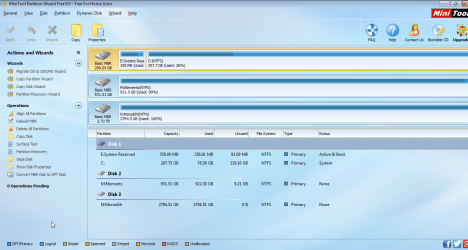
Here's the disk in Partition Magic (drive N)
2015-06-13 10_45_06-Hardware & Devices - Windows 7 Help Forums.png

Here's it in Disk Management
2015-06-13 10_47_13-MiniTool Partition Wizard Free 9.0 - Free For Home Users.png

Here's it in Explorer
2015-06-13 10_44_26-Computer.png

I feel like I'm close because Partition Wizard can show me the files but I just can't browse the drive.
 

My Computer My Computer

At a glance

Windows 7 Ultimate 64 bitIntel Celeron4GB
Computer type
Laptop
Computer Manufacturer/Model Number
Asus x401a
OS
Windows 7 Ultimate 64 bit
CPU
Intel Celeron
Memory
4GB

My Computer My Computer

At a glance

Windows 7 Ultimate x64 SP1AMD Phenom 2 1090T2x8GB Kingston HyperX Fury Black 1600Mhz Unga...MSI GTX 970 Gaming 4G
Computer type
PC/Desktop
Computer Manufacturer/Model Number
Custom Build
OS
Windows 7 Ultimate x64 SP1
CPU
AMD Phenom 2 1090T
Motherboard
Gigabyte GA-890FXA-UD5
Memory
2x8GB Kingston HyperX Fury Black 1600Mhz Unganged
Graphics Card(s)
MSI GTX 970 Gaming 4G
Sound Card
Realtek On-Board HD 7.1 Audio / Logitech G35
Monitor(s) Displays
3xAcer GD245HQ
Screen Resolution
1920x1080
Hard Drives
Samsung 850 Pro 512GB SSD - OS /
WD Caviar Black SATA 3 - 1 TBx2 - Dynamic RAID 0 /
WD Caviar Green SATA 2 - 640GBx2 - Dynamic RAID 0 /
WD Caviar Green SATA 2 - 640GB - Internal Backup /
Seagate Barracude SATA 3 - 3TB - External Backup/ Sync
PSU
HighPower 1000W
Case
Cooler Master HAF 932
Cooling
Noctua NH-D14
Keyboard
Logitech G19
Mouse
Logitech G500
Internet Speed
100/4 Mbit Cable (100GB quota)
Antivirus
ZoneAlarm Extreme Security / MBAM Pro / MBAE Free / SAS Free
Browser
IE 11 - Firefox - Chrome
Other Info
Logitech F710/ G27/ G940/ Z5500 // TrackIR 5 // Nvidia 3D Surround Vision
Hi nexus 87,

How many partitions did you have on that HDD?

What is the nature of the data in it? If you specify the file formats like .jpg, .mov etc., it is ok.

You said in Partition Recovery Wizard you could see the files.

Launch PW and post a screenshot.

Then on the left pane click on Partition Recovery Wizard > Next > Choose your Seagate 3TB external to recover > Next > Full Disk > Next > Quick scan >Next.

After QuicK Scan completes you will get a Window showing the found partitions. Post the screenshot of it.

Double click on that partition/s also and show me the files.

You may then close the explorer,click on the Cancel tab to close the Window and then close PW. ( You may run Quick Scan again if needed.)

Wait for further instructions after I see the screenshot.

If I am awake I shall see it before retiring for the day. Or else I shall return after another 12 hours.

There is no need to hurry up things.
 

My Computer My Computer

At a glance

Windows 7 Home Premium 32 bit
OS
Windows 7 Home Premium 32 bit
Thanks for your reply

jumanji said:
How many partitions did you have on that HDD?

Just one

jumanji said:
What is the nature of the data in it? If you specify the file formats like .jpg, .mov etc., it is ok.

Video and audio files: .avi, .mp4, .mkv, .mp3

jumanji said:
You said in Partition Recovery Wizard you could see the files.

Launch PW and post a screenshot.

PW.png

jumanji said:
Then on the left pane click on Partition Recovery Wizard > Next > Choose your Seagate 3TB external to recover > Next > Full Disk > Next > Quick scan >Next.

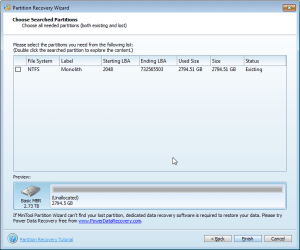
After QuicK Scan completes you will get a Window showing the found partitions. Post the screenshot of it.

2015-06-13 19_34_13-Partition Recovery Wizard.png

jumanji said:
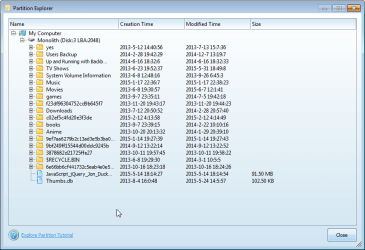
Double click on that partition/s also and show me the files.

2015-06-13 19_34_33-Partition Explorer.png

All the files look like they are there, it's just I can't open the drive in windows explorer.

Will it be possible to restore the drive? Previously when hard drives have failed I have used recovery software to restore the files to another location, reformat the drive then copy the files back. The problem this time is this is my largest disk so I don't have enough space anywhere else to back up the files.
 

My Computer My Computer

At a glance

Windows 7 Ultimate 64 bitIntel Celeron4GB
Computer type
Laptop
Computer Manufacturer/Model Number
Asus x401a
OS
Windows 7 Ultimate 64 bit
CPU
Intel Celeron
Memory
4GB
Our first effort is always to retsore the whole HDD using PW. If not possible then we have to necessarily get into data recovery mode and copy the files to another drive.

Your drive seems to be full to the brim. Is it so? Have you filled the whole 2.73TB?

Run Quickscan again. Put a tick mark in the square in the Partition shown to select it. The preview map at the bottom should turn from Unallocated to what the drive was before. Click on "Finish" and then "Apply"

Let us see whether your drive comes back alive.

( Did you do that before? PRW shows the partition as "Existing" and not "Lost/deleted" which means the partition table exists in sector 0 which in turn implies that it is not a partition lost problem. If partition table exists in sector 0, PW will not rewrite/overwrite it.)
 
Last edited:

My Computer My Computer

At a glance

Windows 7 Home Premium 32 bit
OS
Windows 7 Home Premium 32 bit
I have tried that but I can't click Apply because it is disabled and no pending operation is added. The drive was not full previously.
 

My Computer My Computer

At a glance

Windows 7 Ultimate 64 bitIntel Celeron4GB
Computer type
Laptop
Computer Manufacturer/Model Number
Asus x401a
OS
Windows 7 Ultimate 64 bit
CPU
Intel Celeron
Memory
4GB
OK, that confirms it is not a partition lost problem.

Please ensure that you have removed all other external drives/pen drives from your PC.

Run Partition Wizard, Right click on the drive icon of the 3TB external drive in the disk map and click on Rebuild MBR. Click on Apply. If the rebuild goes through, safely remove the external drive and plug it in again. Check whether you are able to access the drive.

If this operation also cannot be performed or it was performed but the drive cannot be accessed still, we may need to run TestDisk and try to repair the File System.

But before that try Partition Find and Mount and check whether it can mount the Partition and show the files. Partition Find and Mount — free partition recovery software Read the How to use page and scan your drive accordingly. If it mounts the Partition and shows your files you can copy the files to some other location. Make sure you Unmount after copying.

If it does not work then go to TestDisk. Follow the process in this post http://www.sevenforums.com/hardware-devices/372121-external-hdd-k-not-accessible-2.html#post3084128 Post a screenshot of the fifth Screen you get. In your case this screen may look quite different depending upon the nature of file system corruption. I need to check it and advise the next step.

After posting the screenshot, quit Test Disk. You may run it later if we cannot maintain an online dialog because of the timezone difference.. I shall be awake for another five hours.

( At this point I need to tell you this. If it is the Master File Table corruption, and TestDisk is unable to repair the MFT you may have to buy a licensed version of GetDataback Simple. Even now you can download the trial version of it, run it and check if it shows all your files. You can also preview and check your files are OK. But you may not be able to copy. You have to buy a licence to do it.The author of TestDisk himself recommends this program if TestDisk is unable to repair MFT.We have found that it has worked in many cases. https://www.runtime.org/data-recovery-software.htm)
 

My Computer My Computer

At a glance

Windows 7 Home Premium 32 bit
OS
Windows 7 Home Premium 32 bit
Unfortunately rebuilding the MBR in Partition wizard didn't work.

I'm currently scanning in Partition Find and Mount - this may take some time.

[UPDATE]

Intelligent scan and Normal scan with Find and Mount found nothing, trying Thorough scan now.
 
Last edited:

My Computer My Computer

At a glance

Windows 7 Ultimate 64 bitIntel Celeron4GB
Computer type
Laptop
Computer Manufacturer/Model Number
Asus x401a
OS
Windows 7 Ultimate 64 bit
CPU
Intel Celeron
Memory
4GB
OK, if Find and Mount is not successful, straightaway download GetdataBack Simple , run and check whether you can see all files and preview to confirm those are OK. If results are positive, then run TestDisk as advised in post#7.
 

My Computer My Computer

At a glance

Windows 7 Home Premium 32 bit
OS
Windows 7 Home Premium 32 bit
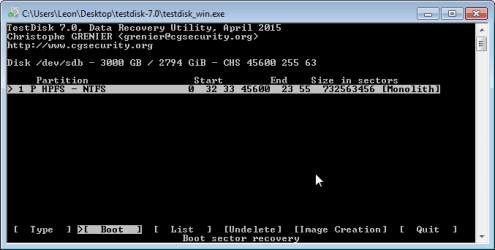
OK, Find and Mount didn't find anything but GetDataBack did and showed all my files. Here's the screenshot from TestDisk

2015-06-14 19_59_37-C__Users_Leon_Desktop_testdisk-7.0_testdisk_win.exe.png

Thanks for your patience.
 

My Computer My Computer

At a glance

Windows 7 Ultimate 64 bitIntel Celeron4GB
Computer type
Laptop
Computer Manufacturer/Model Number
Asus x401a
OS
Windows 7 Ultimate 64 bit
CPU
Intel Celeron
Memory
4GB
OK, run TestDisk again. I would like to see the screenshot of the Second screen where you selected the 3TB Disk. Just wanting to confirm that Disk capacity is shown correctly.

When you reach the screen you had posted above, [Boot] is highlighted. Press Enter and post the ensuing screen.

After posting the above two screenshots you can quit TestDisk till I see it and return with a reply post.
 

My Computer My Computer

At a glance

Windows 7 Home Premium 32 bit
OS
Windows 7 Home Premium 32 bit
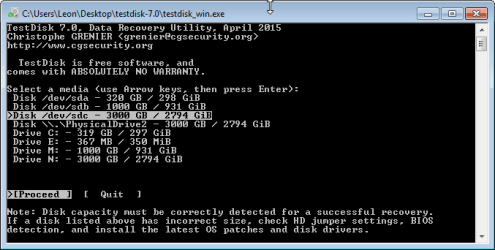
ok, run testdisk again. I would like to see the screenshot of the second screen where you selected the 3tb disk. Just wanting to confirm that disk capacity is shown correctly.

2015-06-15 13_16_40-C__Users_Leon_Desktop_testdisk-7.0_testdisk_win.exe.png

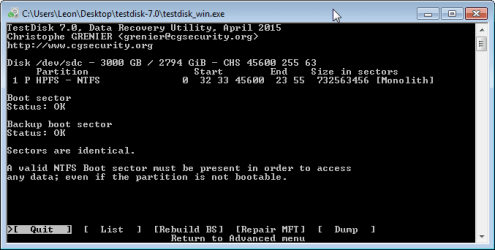
when you reach the screen you had posted above, [boot] is highlighted. Press enter and post the ensuing screen.

2015-06-15 13_19_27-C__Users_Leon_Desktop_testdisk-7.0_testdisk_win.exe.png
 

My Computer My Computer

At a glance

Windows 7 Ultimate 64 bitIntel Celeron4GB
Computer type
Laptop
Computer Manufacturer/Model Number
Asus x401a
OS
Windows 7 Ultimate 64 bit
CPU
Intel Celeron
Memory
4GB
OK, thanks for the screenshots. The correct disk capacity is shown. And in your case both the boot sector and backup boot Sector are ok and both are identical.( Boot Sector here refers to the NTFS boot sector which is the first sector of the partition which is also known as Partition Boot Record/Volume Boot Record. Not to be confused with MBR boot sector 0, which we rebuilt with Partition Wizard earlier.)

Move to [MFT Repair] with right arrow and enter. Read "Repair an NTFS MFT" here Advanced NTFS Boot and MFT Repair - CGSecurity

"The MFT (Master File Table) is sometimes corrupted. If Microsoft's Checkdisk (chkdsk) failed to repair the MFT, run TestDisk. In the Advanced menu, select your NTFS partition, choose Boot, then Repair MFT. TestDisk will compare the MFT and MFT mirror (its backup). If the MFT is damaged, it will try to repair the MFT using the backup. If the MFT backup is damaged, it will use the main MFT.
If both MFT and MFTMirr are damaged and thus cannot be repaired using TestDisk, you might want to try commercial software like Zero Assumption Recovery, GetDataBack for NTFS or Restorer 2000."

If Test Disk repairs the MFT, well and good. Consider yourself lucky. (In most cases TestDisk is unable to repair MFT). If not GetDataback Simple.

If you do not want to spend $70, then go ahead with PhotoRec. While it will recover most of your files what you will get is a bunch of files renamed with numbers without the folder structure. GetdataBack simple on the other hand should let you copy the original folders and files with the folder structure intact.

Good Luck. Report whether MFT Repair was successful.
 
Last edited:

My Computer My Computer

At a glance

Windows 7 Home Premium 32 bit
OS
Windows 7 Home Premium 32 bit
Thanks, jumanji. I'll run that when I can and get back to you.
 

My Computer My Computer

At a glance

Windows 7 Ultimate 64 bitIntel Celeron4GB
Computer type
Laptop
Computer Manufacturer/Model Number
Asus x401a
OS
Windows 7 Ultimate 64 bit
CPU
Intel Celeron
Memory
4GB
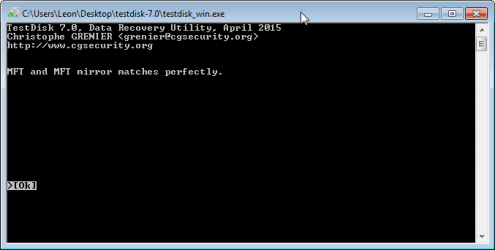
When I ran Repair MFT I got this immediately

2015-06-15 22_42_52-C__Users_Leon_Desktop_testdisk-7.0_testdisk_win.exe.png

Nothing else happened
 
Last edited:

My Computer My Computer

At a glance

Windows 7 Ultimate 64 bitIntel Celeron4GB
Computer type
Laptop
Computer Manufacturer/Model Number
Asus x401a
OS
Windows 7 Ultimate 64 bit
CPU
Intel Celeron
Memory
4GB
Reboot, plug in your drive and see whether you can access your files.

Examine it in Windows Disk Management and PW. Is it still showing as RAW in Disk Management and 100% full in PW?

Run check disk from command prompt.

Open Command prompt. Start > All programs > Accessories > Command Prompt

Type
CHKDSK K: /f /v /r /x Press enter. Note: Replace K: with the actual drive letter of the external drive

Allow check disk to complete.
 
Last edited:

My Computer My Computer

At a glance

Windows 7 Home Premium 32 bit
OS
Windows 7 Home Premium 32 bit
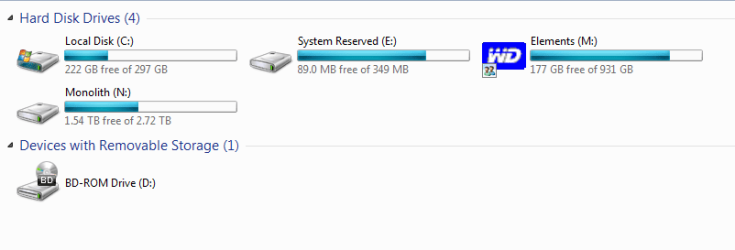
Woohoo! Chkdsk finished and the disk looks like it's back to normal! Thanks for all your help jumanji :D

2015-06-16 21_37_17-Computer.png
 

My Computer My Computer

At a glance

Windows 7 Ultimate 64 bitIntel Celeron4GB
Computer type
Laptop
Computer Manufacturer/Model Number
Asus x401a
OS
Windows 7 Ultimate 64 bit
CPU
Intel Celeron
Memory
4GB
That was some real good thing to see - the solved tick mark - early in the morning when I barged into Seven Forums :) . You did a great job in executing all the instructions patiently without panicking. Since you already had some familiarity with data recovery programs, it made my job easy.

Now here is a tip.

Install bootice (x86 version for Windows 32bit and x64 version for Windows 64bit) Bootice Download - Softpedia

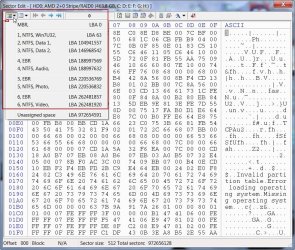
Save all the important sectors shown in the Partition Table by sector number to another drive..(Each saved .bin file will be 512bytes or 4096 bytes depending upon the sector size of your HDD - 512 for drives <2TB, 4096 for drives >2TB generally)

17-06-2015 08-16-16.jpg

When you encounter any accessibility problems with that drive, simply restore the saved sectors.

In most cases restoring the sector 0 (MBR + partition table) and other Volume Boot Records can make your drive accessible again.

Even if not - in rest of the cases, it will make the process of restoring your hard drive or recovering data simpler.

Your case is an illustration of this philosophy.

Even after restoring the sector 0 (MBR+Partition Table) and other volume boot records, you will still not able to access the drive.

Knowing that everything else is fine - after such a restore, we would have straightaway gone to the last step above - running check disk. There would have been no need for running PW to rebuild MBR, rewrite the partition table and use TestDisk to restore the volume boot record or repair MFT. We were literally groping in the dark trying to do all this only to find that everything was fine :)

Saving with bootice: http://www.sevenforums.com/hardware-devices/310295-lost-partitions.html#post2584426

Note: For GPT drives in addition to the important sectors shown by bootice, you also need to save their backups residing at Sector n (the last sector - backup of the GPT Header), and n-32 ( backup of the GPT partition table (four partitions) for 512bytes/sector drives) or n-4 ( backup of the GPT partition table (thirty two partitions) for 4096bytes/sector drives)
 
Last edited:

My Computer My Computer

At a glance

Windows 7 Home Premium 32 bit
OS
Windows 7 Home Premium 32 bit
I'll certainly try that and be a lot more careful when disconnecting the drive from now on. The only thing I can think of that might have caused this was last week when I was copying a lot of files to the drive across the network which I cancelled partway through.
 

My Computer My Computer

At a glance

Windows 7 Ultimate 64 bitIntel Celeron4GB
Computer type
Laptop
Computer Manufacturer/Model Number
Asus x401a
OS
Windows 7 Ultimate 64 bit
CPU
Intel Celeron
Memory
4GB
Yep, that is one of the cardinal rules. You should always "safely remove" the drives. That will prevent the drive being removed during the read/write process if you heed to the warning " The drive is still in use. Close all running programs and try again" But in most cases you will not know which running process/es is holding the drive. In that event you need to shut down the computer. During the shut down process the OS will terminate all running processes properly and after the shut down you can remove the drive.

If you are plagued with this situation more often, and do not want to shut down to kill the running processes then use the program Unlocker More programs by Cedrick Collomb - Softpedia or any other program that finds the running processes and kill those. ( In my case Perfect Disk keeps running in the background defragmenting the drives whenever the drive is idle and that prevents the external drive being safely removed. I use unlocker to kill the processes and then remove the drive)

Note: Whenever you install new programs especially free programs, watch out during the installation and say no any to "add-ons" that may get installed otherwise. When I installed Unlocker there was no Open Candy but now I think it is there with Unlocker.

While "Safely Remove" is in your control, there may be some abrupt shut downs due to failure of the Main power supply or hardware failure and in these cases the external drives being used may become inaccessible.

You will be better prepared to deal with such situations, if you save the important sectors on your drives for later restoration.
 

My Computer My Computer

At a glance

Windows 7 Home Premium 32 bit
OS
Windows 7 Home Premium 32 bit
Back
Top