external HDD ( detected and seen but not accessible)

sweetnightmare

New member
Member
Local time
5:22 PM
Messages
34
hi tech gurus,

need help for this one...

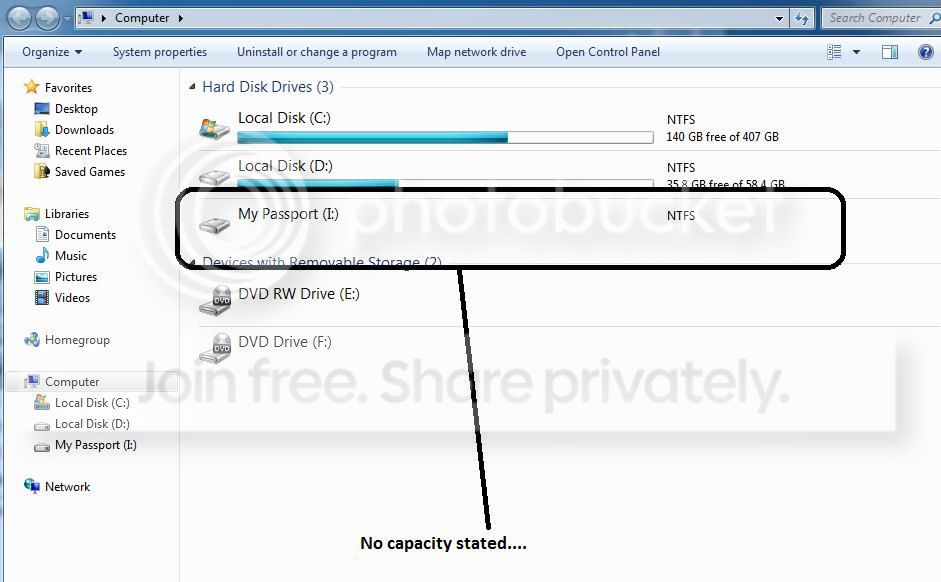
my external hdd is detected by My Computer and the dive I: is seen...
but, there is no capacity seen also.. when i tried to click the drive, it stated "needs reformat."

is there a way to recover this problem..? picture is attached...
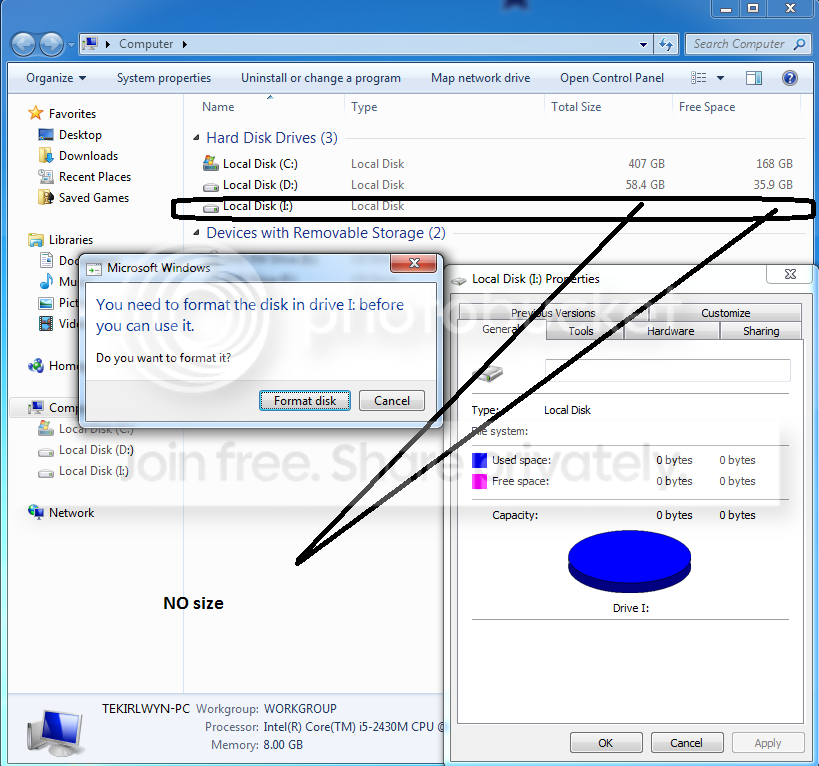
qqqqqqqqqqqqqqqqqqq.png
 

My Computer My Computer

At a glance

win7 ultimate 64bit
OS
win7 ultimate 64bit
hi jumaji, pls seen snapshot...

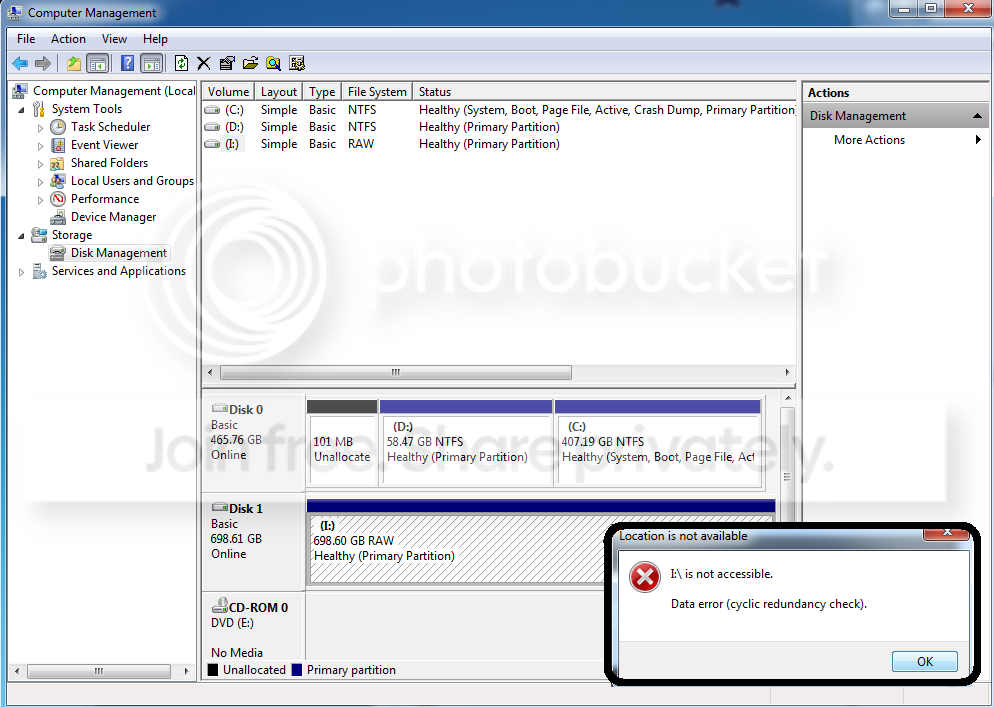
on disk management, drive I (external HDD) still can be seen..

but right clicking then selecting explore or open drive, will result in an error. see highlighted below...


aaaaaaaaaaaa.png
 

My Computer My Computer

At a glance

win7 ultimate 64bit
OS
win7 ultimate 64bit
it happened when i was watching a tv series thru my external hdd...

there's a lag causing the movie to slow down.. then i cant transfer any files from or to my hdd anymore... then, suddenly it cannot be detected anymore... least its still detected but needs to be reformated as stated..
 

My Computer My Computer

At a glance

win7 ultimate 64bit
OS
win7 ultimate 64bit
OK, your external HDD shows as RAW. A potential candidate for using Partition Recovery Wizard.

1. Do not format the external drive drive on any count.

2. Do not run chkdsk on any count..

Straightaway try the Partition Recovery Wizard.

Download, install and run MiniTools Partition Wizard Home Edition 7.7 Best Free Partition Manager Freeware and free partition magic for Windows 7, Windows 8, Windows Vista and Windows XP 32 bit & 64 bit. MiniTool Free Partition Manager Software Home Edition. and use the Partition Recovery Wizard in it on your external drive.
Head to the topic Recovery with Partition Wizard: SanDisk Cruzer Blade 16GB (In your case select your external drive for partition recovery) in http://www.sevenforums.com/software/266879-recover-flash-drive-turned-raw-partition-wizard-testdisk.html


If the lost partition is found, double click on it and check whether you can see all the files in the Partition Explorer. If yes, finish and give the drive its letter.


Good luck.
 
Last edited:

My Computer My Computer

At a glance

Windows 7 Home Premium 32 bit
OS
Windows 7 Home Premium 32 bit
hi jumanji..

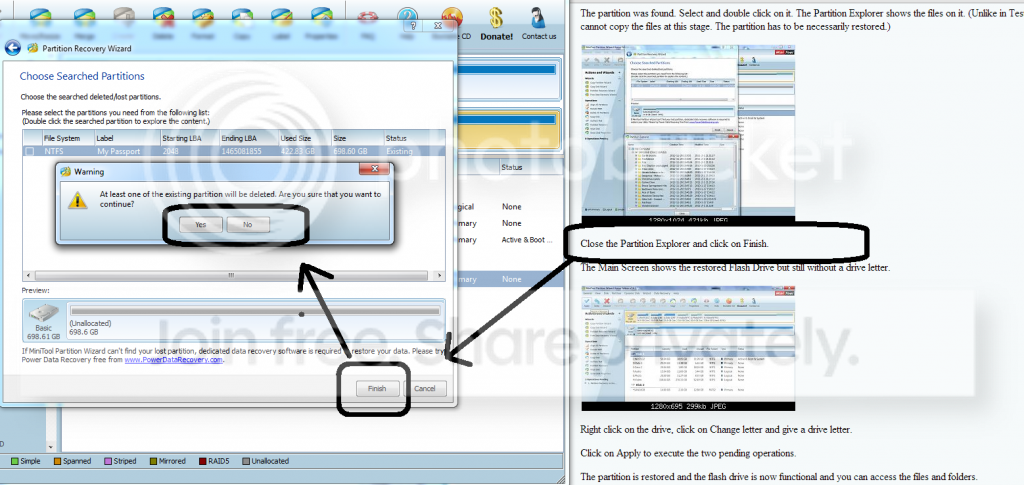
at the part where instructions saying to click finish, a pop-up not stated on the guide showed...

do i need to click YES?!?!

see snapshot...


zzzzzzzzzzzzz.png
 

My Computer My Computer

At a glance

win7 ultimate 64bit
OS
win7 ultimate 64bit
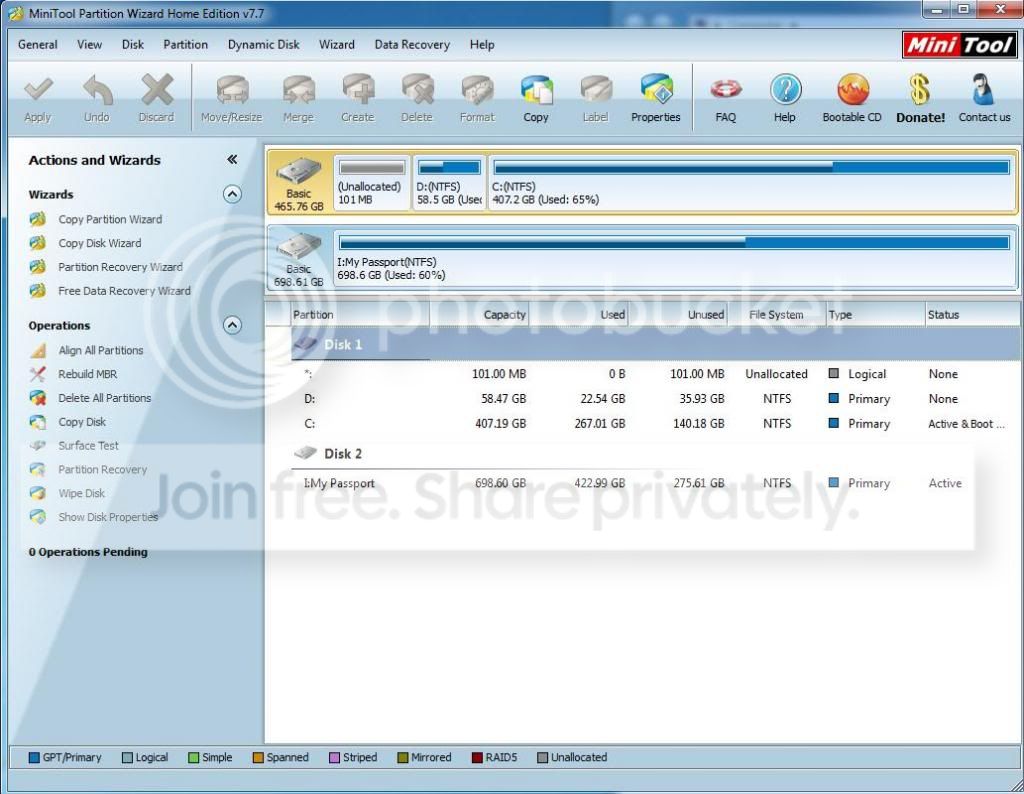
and also, the external drive has already a letter...

sssssssssss.png
 

My Computer My Computer

At a glance

win7 ultimate 64bit
OS
win7 ultimate 64bit
Sorry, I had a real problem reading your screenshots - blame it on my poor sight.

Say no and quit the program. It appears that a lost partition is not the problem here and it would be necessary to try some other Data Recovery program.

You may now try to access the external drive with a live Linux CD/pendrive.

Download Lucid Puppy (Ubuntu-Compatible Build) v5.2.8 ISO from http://puppylinux.org/main/Download%20Latest%20Release.htm It is light and only 132.6 MB.

Make a Bootable pendrive with Rufus v1.3.1 (438 KB) [URL="http://rufus.akeo.ie/%20It"]http://rufus.akeo.ie/ [/URL]It takes less than 2 minutes to create your bootable live Linux pendrive.

For more guidance on the recovery process directly get into the heading Recovering files from the non-bootable Internal Drive - applicable to recovery from any hard drive - in

[URL="http://www.sevenforums.com/software/198909-lucid-puppy-way-recover-files-non-bootable-computer.html"]Lucid Puppy way to recover files from a non-bootable computer[/URL]

You may also use this tutorial by Golden http://www.sevenforums.com/tutorials/256518-peppermint3-create-live-cd-dvd-usb-use-emergency-backup.html to create your bootable pendrive with Peppermint Linux - whichever is easy on you.

If it does not work, then PhotoRec, Test Disk but first try the above.
 

My Computer My Computer

At a glance

Windows 7 Home Premium 32 bit
OS
Windows 7 Home Premium 32 bit
Hi,

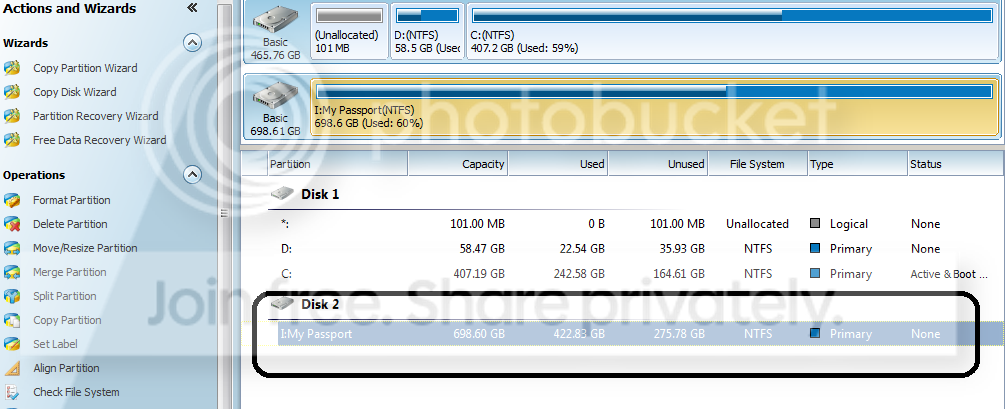
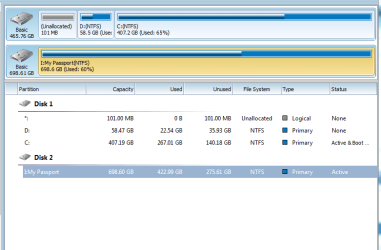
I just noticed that your external Passport HDD looks absolutely ok in the Partition Wizard with NTFS file system. Select it, right click on it, explore and see whether you can see all the files.

Does the drive still show as RAW in Windows Disk Management?

( I would prefer that you use the Windows snipping Tool for the screenshots. It will be easy on my tired eyes. :) )
 

My Computer My Computer

At a glance

Windows 7 Home Premium 32 bit
OS
Windows 7 Home Premium 32 bit
yup, on the partition wizard, my external HDD is still is NTFS... right clicking it and selecting explore, yup, i can still see all my files...

at disk management, everytime i clicked it with the exteral hdd attached, a mini pop-up still open with a command "drive needs to be reformatted".. i selected "no", then, the disk management will be shown..
still the same disk management results as seen above image...
external HDD is still in RAW....

...still downloading windows snipping tool..
 

My Computer My Computer

At a glance

win7 ultimate 64bit
OS
win7 ultimate 64bit
hi jumanji,

at the disk management, previously i tried clicking the external HDD and selecting open or explore... this would result to a pop-up "the drive needs to be reformated."

lately, i tried selecting the extend volume and shrink volume, but prior initiating the command, a pop-up showed that the drive needs to be scanned... after scanning, surprisingly, i was able to access my external HDD....

as of logged time, i am able to access my HDD...

thanks to all the help and knowledge you have given...:D
 

My Computer My Computer

At a glance

win7 ultimate 64bit
OS
win7 ultimate 64bit
hi jumanji,

currently, after accessing, i had a hard time copying or transfering files from or to my HDD..

right now, i think it has corrupted again...

just a mere 20mb files would take an hour, but in the end, it is not successful...

i will update my post again..i think my problem has just returned..:shock:
 

My Computer My Computer

At a glance

win7 ultimate 64bit
OS
win7 ultimate 64bit

My Computer My Computer

At a glance

Windows 7 Home Premium 32 bit
OS
Windows 7 Home Premium 32 bit
my problem has just returned...

a.jpg


b.jpg


c.jpg


right now im doing checkdisk...
 

My Computer My Computer

At a glance

win7 ultimate 64bit
OS
win7 ultimate 64bit
testing
 

Attachments

  • aaaaaaaaaaaaaaaaaaaaaaaaaa.PNG
    aaaaaaaaaaaaaaaaaaaaaaaaaa.PNG
    13.5 KB · Views: 4

My Computer My Computer

At a glance

win7 ultimate 64bit
OS
win7 ultimate 64bit
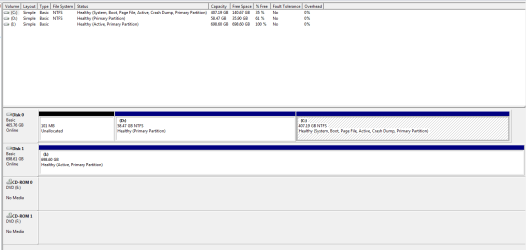
already attached disk management... below is the recovery partition image..
 

Attachments

  • bbbbbbbbbbbbb.PNG
    bbbbbbbbbbbbb.PNG
    14.7 KB · Views: 2

My Computer My Computer

At a glance

win7 ultimate 64bit
OS
win7 ultimate 64bit
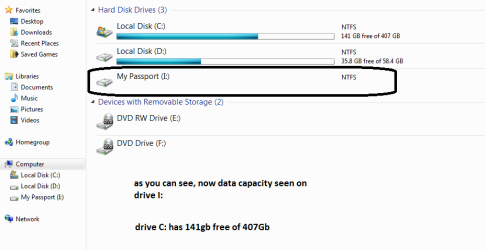
added image... detected but not accessible..
 

Attachments

  • ccccccccccc.PNG
    ccccccccccc.PNG
    17.4 KB · Views: 1

My Computer My Computer

At a glance

win7 ultimate 64bit
OS
win7 ultimate 64bit
No problem. Let it finish.

Disk check should correct any File System errors.

However, I would think that you need to run the HDD manufacturer's diagnostic Utility.

Your Disk may be failing and that is why CRC error. A failing disk may be corrupting the data as well as the filesystem that can make the disk RAW.

If the Disk check completes successfully and you are able to access the data, do not attempt to write anything but recover as much data as possible copying it to another drive.If your disk is failing at a faster rate than you could, it is going to be a difficult task.

Then run the manufacturer's diagnostic Utility.
 

My Computer My Computer

At a glance

Windows 7 Home Premium 32 bit
OS
Windows 7 Home Premium 32 bit
what would be the expected result of the diagnostic utility?

what if too many bad sectors is one of the result...
 

My Computer My Computer

At a glance

win7 ultimate 64bit
OS
win7 ultimate 64bit
Now just do what is asked.

Just two screenshots.

1. the HDD as seen in the Disk Management.

2. the HDD as seen in Partition Wizard.

Wait to see if someone else has any ideas on how to go further, before running the diagnostic test.

I am hitting the sack now.

Data Lifeguard Diagnostic for Windows http://support.wdc.com/product/download.asp?groupid=606&sid=3 You may find the instructions there.

Do only the Quick Test and extended Test. You can view the Test Results and you will also be notified whether the HDD passed or failed.
 

My Computer My Computer

At a glance

Windows 7 Home Premium 32 bit
OS
Windows 7 Home Premium 32 bit
Back
Top