Favorites not working

pirateduck

New member
Local time
7:55 PM
Messages
2
I recently installed a fresh copy of RC and after using it for a while I noticed that I had no favorites, no even the default favorites. When I try to add a new favorite nothing happens, if I try to manually paste a shortcut the Paste shortcut in the context menu is grayed out.

Has this happened to anybody else? Any suggestions to fix it?

Thanks
 

My Computer My Computer

OS
Windows 7
Hi pirateduck, welcome to the forums.

You could try the registry (type regedit in the start menu search bar) and navigate to

HKEY_CURRENT_USER\Software\Microsoft\Windows\CurrentVersion\Explorer\Shell Folders

Look to see if Favorites is in the list. If not, add a new string value (edit->new->string value) and call it Favorites.

Then right-click the new entry & Modify it to read c:\users\[your user name]\Favorites

Hope this helps :)


Jeff
 

My Computer My Computer

Computer Manufacturer/Model Number
Compaq Desktop
OS
Windows 7 Ultimate x64
CPU
AMD Sempron Dual Core
Memory
3GB
Graphics Card(s)
NVIDIA GeForce 6150SE nForce 430
Screen Resolution
1024x768
Hard Drives
150GB Sata
Thanks for the info, but unfortunately that did not work at all...

Any other ideas?

Not really interested in reformatting AGAIN.
 

My Computer My Computer

OS
Windows 7
.

Have you found a solution to this as yet ? I have had the same problem for a couple of days, since moving the default location for the favorites folder away then back again. I can't add, or see any favorites, just a star with the name. I tried re creating the reg key, and re creating the folder in the correct spelling ( Honestly, why in English UK versions is it not FavoUrites )

There seem to be a few others on the web reporting the same problem, but as yet, no solution.
 

My Computer My Computer

OS
7
I had the same problem and the solution is indeed as simple as recreating the "Link" folder in your "User" folder and pressing "restore favorites." Pretty lame you can just delete a folder and that this whole "default" function messes up, isn't it? I guess Microsoft forgot to program the function to automatically create a new Links folder.

At least thanks for the solution Scotterlsdon!
 

My Computer My Computer

OS
Windows 7
I am unfortunately having a similar problem, but neither of these solutions are working for me.

I can see the Favorites link, and by default it has the right-facing arrow next to it, suggesting that it doesn't have anything in it, or that it is not expanded. If I expand it, the icon goes away, but nothing happens. When I click on the name, it does show me several folders that are in it, but still doesn't drop down the tree nav in the list.

When I try to save something to the desktop (From, say, Word), I click on favorites, and it shows me the message "no items match your search"

I also can't delete files from it. I accidentally saved the "Links" folder into favorites, and if I try to remove it, it sits on "Preparing to recycle" indefinitely.
 

My Computer My Computer

OS
Windows 7
CPU
ADM Athlon 64 X2 4000+ 2.11GHz
Motherboard
Asus M2N-SLI
Memory
2gb
Graphics Card(s)
NVIDIA GeForce 9600 GSO 512mb
Sound Card
Creative Sounblaster Live! 5.1 (Ancient, I know...)
Monitor(s) Displays
Dual ASUS VW224U 22"
Hard Drives
Nothing special
PSU
Rosewill RP600V2-S-SL 600W
Windows 7 Favorites not working

If you deleted the default folders in your profile and along with it went the links folder your favorites is not going to work and you will not be able to add anything to it. The easiest way to fix it is to log off and log into another profile, even if it is a brand new one. When that profile loads expore to the new user folder and copy and paste the newly created Links folder into your profile. Log off and log your profile back in. Your Links have been restored.
 

My Computer My Computer

OS
Windows 7
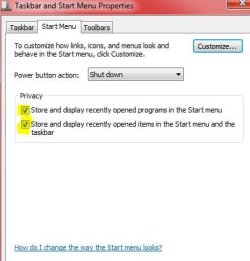
Might check that storing of this info is enabled
Right click on Start and select Properties
Check the two boxes in the Privacy section

This worked for one of my users who "lost her stuff"
 

Attachments

  • Capture.JPG
    Capture.JPG
    25.7 KB · Views: 11

My Computer My Computer

Computer type
PC/Desktop
Computer Manufacturer/Model Number
HP
OS
Windows 7 Pro x86
CPU
i7
Memory
4gb
Browser
Chrome
Might check that storing of this info is enabled
Right click on Start and select Properties
Check the two boxes in the Privacy section

This worked for one of my users who "lost her stuff"

Hi:

This post was started in May 2009.

I suspect that the OP might no longer be following it.;)

<Just saying>
 

My Computer My Computer

Computer type
PC/Desktop
Computer Manufacturer/Model Number
Dell Studio XPS 8500
OS
OEM Windows 7 Ult (x64) SP1
CPU
Intel Core-i7 3770 @ 3.4 GHz
Motherboard
"Dell" branded
Memory
16 GB DDR3 SDRAM @ 1333 MHz
Graphics Card(s)
NVidia GeForce GT620 1 GB
Sound Card
THX TruStudio PC
Monitor(s) Displays
Dell U2410 Full HD
Hard Drives
2.0 TB SATA2 @ 7200 RPM
PSU
350W
Keyboard
MS 4000 Ergon - Wired
Mouse
Logitech Anywhere MX
Internet Speed
Cable HSI w/Turbo (router)
Antivirus
KIS-MBAM Premium-MBAE Premium
Browser
Fx (current version); IE
Other Info
And a Win7/64 Pro laptop; And a Win10/64 Pro desktop.
Back
Top