File and Folder Read only attribute wont disable

jasonb36

New member
Local time
3:41 AM
Messages
5
When i create a new folder it automatically sets the read only attribute, if i try and turn it off it just turns back on again.

I have tried using command prompt to disable it as well as playing with the security settings and account permissions.

does any one have any ideas?
 

My Computer

Computer Manufacturer/Model Number
HP - HDX16 1310EA
OS
Windows 7 Ultimate 64 Bit Edition
CPU
Intel C2Duo 2.00Ghz
Motherboard
-
Memory
4Gb DDR2
Graphics Card(s)
Nvidia HD
Sound Card
-
Monitor(s) Displays
HP 16" 1080p
Screen Resolution
1920 x 1080
Hard Drives
1TB Samsung Spinpoint F3 - External
320GB Interlan
1. First question, why are you trying to do it?

2. look here:
Unable to remove Read-Only attribute from folder
You cannot view or change the Read-only or the System attributes of folders in Windows Server 2003, in Windows XP, in Windows Vista or in Windows 7

To view or to remove the Read-only or the System attributes of folders in Windows Vista or Windows 7
Click Start, click Run, type cmd, and then press ENTER..
To view the syntax for the Attrib command, type attrib /? at the command prompt.
To remove the Read-only attribute and to set the System attribute, use the following command:
attrib -r +s drive:\<path>\<foldername>
For example, to remove the Read-only attribute and to set the System attribute for the C:\Test folder, use the following command:
attrib -r +s c:\test
Be aware that some programs may not operate correctly with folders for which the System attribute and the Read-only attribute are set. Therefore, use the following command to remove these attributes:
attrib -r -s drive:\<path>\<foldername>
For example, to remove both the Read-only and the System attributes from the C:\Test folder, use the following command:
attrib -r -s c:\test
If the Run command is not listed on the Start menu, do the following:
Click Start, click All Programs, click Accessories, and then click Run..

note: Open cmd with run as administrator
 

My Computer

OS
Windows 7 Ultimate x86 SP1
Question about the read only attribute for folders in Windows 7.

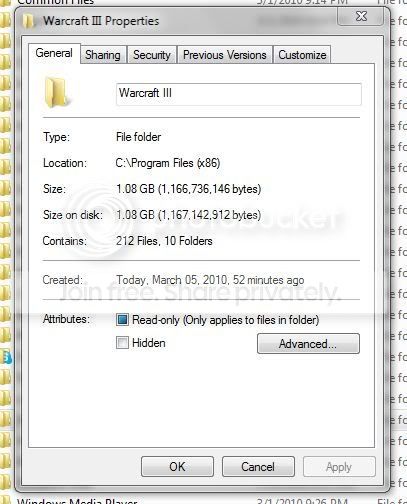
I was trying to play warcraft III on battle.net and I got the error that the game couldn't patch the files because it couldn't write to the hdd. I then noticed that all my folders including program files were set to read only like in the following pic:

Capture.jpg


So I went to the program files folder and opened the properties, cleared the checkbox and hit apply (I'm used to previous versions of windows where read only was different). I told it to apply the setting to all the subfolders and files. A progress bar came up and it did its thing. After this I checked and all the subfolders still had the read only box checked in the same manner as the picture above, but all the files within did not (Is this how it is by default?). This did not fix the problem with patching wc3 though.

My question is: In unchecking the read only box and hitting apply, did that actually modify any of the attributes within the program files folder?

After realizing why the folders are set up this way and figuring out the correct way to fix the problem by setting the user privileges I'd rather not modify this setting.

EDIT: Judging by folders I didn't modify, all folders on my c: drive are [o] read-only and all subfiles are not. Therefore I believe that in doing what I did no changes were made to the program files or its sub-folders/files. Kinda misleading when there's a progress bar that takes a couple minutes to do nothing but fill up for show lol. Amirite?
 

My Computer

Computer type
PC/Desktop
Computer Manufacturer/Model Number
Pnashty.com
OS
Windows 7 Professional x64
CPU
Intel Core i7 3930k @ 3.2GHz
Motherboard
Asus P9X79 Pro
Memory
32 GB Corsair Vengeance DDR3 1600
Graphics Card(s)
NVIDIA EVGA Geforce GTX 680
Sound Card
Realtek HD Audio
Monitor(s) Displays
2 Samsung Syncmaster 24"
Screen Resolution
1920x1080, 1920x1200
Hard Drives
120GB Corsair Force GT SATA III 6Gb/s SSD
500GB Western Digital VelociRaptor 10,000 RPM HDD
2TB Western Digital Caviar Green Series HDD
PSU
Corsair TX750
Case
Cooler Master HAF X
Cooling
Corsair H100i
Keyboard
Ducky DK9008 Shine 2 Brown Cherry MX Mechanical Keyboard
Mouse
Logitech G500 Wired Laser Gaming Mouse
Internet Speed
http://www.speedtest.net/result/2843030796.png
Antivirus
MSE
Browser
Chrome
When i create a new folder it automatically sets the read only attribute, if i try and turn it off it just turns back on again.

I have tried using command prompt to disable it as well as playing with the security settings and account permissions.

does any one have any ideas?

I think you are seriously confusing read only attributes on a folder with read only NTFS permissions (ACL).

How to set, view, change, or remove special permissions for files and folders in Windows XP
 

My Computer

OS
Windows 7 Home Premium x64
CPU
Intel Core 2 Quad Q9450 @ 3.2GHz
Motherboard
Asus P5Q PRO Turbo
Memory
4GB DDR2-800
Graphics Card(s)
MSI Radeon HD 5850
Sound Card
Creative Labs Audigy2 ZS
Monitor(s) Displays
Samsung 225BW
Hard Drives
(2) 1TB Samsung F1, (2) 1.5TB Samsung F2, 1TB Samsung F2, 2TB Samsung F3
PSU
Corsair HX650
Case
Antec Nine Hundred
I am having the same problem as CircatM2001 described. In this case it is with my photos. the folder properties seems to be defaulted to "read only" and when i unset the read only in the folder properties and apply it seems to unset, but it actually doesn't. This is preventing me from editing the photos.

Any advice on how i can unset the "read only"?

Also where can i set the preferences to prevent downloaded/imported files from defaulting to read only?

Thanks
 

My Computer

OS
windows 7
Tick = Enabled
Square = Folders or files within this folder have read only flag.

the square is present because the folder contains desktop.ini which sets folder views, folder icons, folder type or ntfs hardlinking, this file is set as system and hidden at the same time which prevents modification unless you remove both flags at the same time.
Unnecessary obviously...

because your issue is caused by launching the game without Run as Admin, which in turn prevents the application from reading or writing to the Program Files(Program Files (x86) directory.

There is a easy fix for this however. simply install the Take Ownership reg patch and Take ownership of the entire Warcraft III folder. this should immediately give you full permissions over that individual folder and remove this issue without having to set the run as admin compatibility, and not compromise the entire program files folder in the process.
 

My Computer

OS
Windows 7
CPU
Core i7 920 D0
Motherboard
Rampage II Gene
Memory
Corsair Dominator 1600
Graphics Card(s)
Geforce GTX 275
Sound Card
Auzentech Prelude
Monitor(s) Displays
BenQ G2400WD
Screen Resolution
1920x1200
Hard Drives
WD AAKS 500GB
WD 1TB
Seagate 160GB
PSU
Corsair HX620
Case
NZXT Rogue
Cooling
TRUE Copper
Keyboard
Logitech G15
Internet Speed
Anywhere from 2.5 to 3.5mb

My Computer

OS
Windows 7
CPU
Core i7 920 D0
Motherboard
Rampage II Gene
Memory
Corsair Dominator 1600
Graphics Card(s)
Geforce GTX 275
Sound Card
Auzentech Prelude
Monitor(s) Displays
BenQ G2400WD
Screen Resolution
1920x1200
Hard Drives
WD AAKS 500GB
WD 1TB
Seagate 160GB
PSU
Corsair HX620
Case
NZXT Rogue
Cooling
TRUE Copper
Keyboard
Logitech G15
Internet Speed
Anywhere from 2.5 to 3.5mb
Thanks for the advice. Yes, you were right, it is the square "read only" not the checkmark.

I have downloaded and installed the Take Ownership patch and do get Take Ownership on the right click menu. i Take ownership of the folder in question (in this case i folder of .jpg pics from a friend) and get a prompt asking me if i allow the program to make changes to the computer, which i do of course and the cmd window pops up for a microsecond so it looks like the program is doing its thing...

However after doing this repeatedly, it does not change the situation: i still have a read only folder which i cannot unset the read only (square).

What am i doing wrong?
 

My Computer

OS
windows 7
you aren't doing anything wrong, just not understanding.

the square will not be removed, it cannot be on NTFS partitions.

If it still cannot write to the folder, then the only solution is to run the application as admin everytime you use it. You can do this manually via the right click menu, or enable it as a compatibility option in the applications properties.

Depending where the folder is placed, it will be restricted to the parent folders permissions if the folder inherits them.

I was about to type a bunch of unnecessary stuff, when all that needs to be done is the contents of the folder moved into a newly created folder on your drive.
 

My Computer

OS
Windows 7
CPU
Core i7 920 D0
Motherboard
Rampage II Gene
Memory
Corsair Dominator 1600
Graphics Card(s)
Geforce GTX 275
Sound Card
Auzentech Prelude
Monitor(s) Displays
BenQ G2400WD
Screen Resolution
1920x1200
Hard Drives
WD AAKS 500GB
WD 1TB
Seagate 160GB
PSU
Corsair HX620
Case
NZXT Rogue
Cooling
TRUE Copper
Keyboard
Logitech G15
Internet Speed
Anywhere from 2.5 to 3.5mb
i was just going to say you need to run as admin everytime you want to run it.
 

My Computer

Computer Manufacturer/Model Number
HP Pavilion p6795a
OS
windows 7 64 bit
CPU
intel core i5 3.30GHz Quad Core
Motherboard
HP
Memory
6gb
Graphics Card(s)
AMD RADEON HD 6450 1GB Dedicated
Sound Card
ATI HIGH DEFINITION SOUND
Monitor(s) Displays
LG
Screen Resolution
16:9 Hd
Hard Drives
1TB
Cooling
Fan
Keyboard
Wireless
Mouse
HP wireless keyboard and mouse
Internet Speed
fast enough
Other Info
Beast Of A Machine!
yeah, but we're addressing 2 different people with similar but different problems.

the ops issue is the vista/7 program files permission restrictions while the second is a folder that lacks permissions for this user account i think.
 

My Computer

OS
Windows 7
CPU
Core i7 920 D0
Motherboard
Rampage II Gene
Memory
Corsair Dominator 1600
Graphics Card(s)
Geforce GTX 275
Sound Card
Auzentech Prelude
Monitor(s) Displays
BenQ G2400WD
Screen Resolution
1920x1200
Hard Drives
WD AAKS 500GB
WD 1TB
Seagate 160GB
PSU
Corsair HX620
Case
NZXT Rogue
Cooling
TRUE Copper
Keyboard
Logitech G15
Internet Speed
Anywhere from 2.5 to 3.5mb
yes that sounds correct account restrictions due to limited account or parental controls. or both
 

My Computer

Computer Manufacturer/Model Number
HP Pavilion p6795a
OS
windows 7 64 bit
CPU
intel core i5 3.30GHz Quad Core
Motherboard
HP
Memory
6gb
Graphics Card(s)
AMD RADEON HD 6450 1GB Dedicated
Sound Card
ATI HIGH DEFINITION SOUND
Monitor(s) Displays
LG
Screen Resolution
16:9 Hd
Hard Drives
1TB
Cooling
Fan
Keyboard
Wireless
Mouse
HP wireless keyboard and mouse
Internet Speed
fast enough
Other Info
Beast Of A Machine!
Thanks squall, but the work-around of moving everything to a new folder is impractical. i have a new computer with win7 and have copied all my files from my old computer. I now have thousands of folders that are seemingly-irreversibly read-only. This is very not cool.

Is there no way to transfer folders from other computers and not end up with read-only?

Thanks
 

My Computer

OS
windows 7
Everyone needs to take a step back on this. These are not file permissions that are Read Only. These are ATTRIBUTES that are Read Only. There is a big difference between the two.
 

My Computer

OS
Windows 7 Home Premium x64
CPU
Intel Core 2 Quad Q9450 @ 3.2GHz
Motherboard
Asus P5Q PRO Turbo
Memory
4GB DDR2-800
Graphics Card(s)
MSI Radeon HD 5850
Sound Card
Creative Labs Audigy2 ZS
Monitor(s) Displays
Samsung 225BW
Hard Drives
(2) 1TB Samsung F1, (2) 1.5TB Samsung F2, 1TB Samsung F2, 2TB Samsung F3
PSU
Corsair HX650
Case
Antec Nine Hundred
I'm getting an error in my Drupal 6 website. filename.tmp in folder /tmp cannot be copied. I'm running Windows 7 64bit. I am unable to remove the Read-Only attribute on the /tmp folder. I am logged in as admin and according to the Properties tab for /tmp, I have all the permissions. I uncheck the square for Read Only and it does not change it. I did this command, attrib -r -s c:\path\tmp but it didn't work. Any suggestions?
 

My Computer

OS
64 bit Windows 7 Ultimate
1. First question, why are you trying to do it?

2. look here:
Unable to remove Read-Only attribute from folder
You cannot view or change the Read-only or the System attributes of folders in Windows Server 2003, in Windows XP, in Windows Vista or in Windows 7

To view or to remove the Read-only or the System attributes of folders in Windows Vista or Windows 7
Click Start, click Run, type cmd, and then press ENTER..
To view the syntax for the Attrib command, type attrib /? at the command prompt.
To remove the Read-only attribute and to set the System attribute, use the following command:
attrib -r +s drive:\<path>\<foldername>
For example, to remove the Read-only attribute and to set the System attribute for the C:\Test folder, use the following command:
attrib -r +s c:\test
Be aware that some programs may not operate correctly with folders for which the System attribute and the Read-only attribute are set. Therefore, use the following command to remove these attributes:
attrib -r -s drive:\<path>\<foldername>
For example, to remove both the Read-only and the System attributes from the C:\Test folder, use the following command:
attrib -r -s c:\test
If the Run command is not listed on the Start menu, do the following:
Click Start, click All Programs, click Accessories, and then click Run..

note: Open cmd with run as administrator


yes, it works... but i want to hide file (not folder) as system file how can do this? : )
 

My Computer

OS
Windows 7 ultimate x86 (32bit)
CPU
Intel Core 2 due E4500 2.2GH
Motherboard
Asus P5LD2
Memory
2 GB
Graphics Card(s)
Nvidia GEforce 9400
Monitor(s) Displays
Samsung 19'
Hard Drives
200 GB
So what's the issue here?

Hi

I am logged in with an account that is in the administrator group, I have a folder that is not a system folder, and my account has full permissions on it.
Yesterday the app that uses this folder (and which created it) could write to it quite happily, but today it fails when trying to update the contents.
The 'attributes' for the folder show a solid square in the read-only box. If I 'un-box' the read-only and apply, when I look at the attributes again the box is still here.

So my question is, if it's not (which it shouldn't be) some sort of protected Windows folder, and I have full permissions on the folder (supposedly), why does Windows not respect my wishes, get out of the way, and let me set it to what I want it to be?

Many thanks.
 

My Computer

OS
Win 7 Home
I have the same problem. I need to upload license file to a folder, but I am unable to. I tried that from administrator account (so I have full control NTFS permissions), there is no desktop.ini file anywhere (yes, I did view hidden and system files), but still the read-only persists. I am not even able to remove inheritance for NTFS permissions or to modify them in any way. Not even from builtin administrator account. Obviously, running as administrator won't help, since I want to copy a file in a folder, not to run an application. Command line command does not work, it always says "file not found". Anyone has some PowerShell script or something to solve this?
 

My Computer

Computer type
PC/Desktop
Computer Manufacturer/Model Number
custom
OS
Windows 7 Professional 32 bit
CPU
Intel i5
Memory
3 GB
Graphics Card(s)
integrated
Hard Drives
WD 500, WD 250
Antivirus
AVAST
Browser
Chrome, Safari, Lyoness
Back
Top