Hi KrazyCrayon,
Under certain abnormal conditions, the USB Storage devices can show in Windows Disk Management but without a drive letter. Assigning a drive letter will make that drive accessible. ( Just do this for one drive.)
If it is so in your case please do this:
Start > All Programs > Accessories > Right click on Command Prompt and Run as administrator.
Then
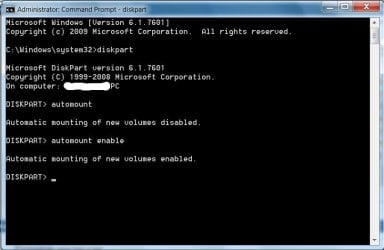
diskpart [ENTER]
Against the DISKPART prompt
automount [ENTER]
Does it say "automatic mounting of new volumes disabled" ? Then
automount enable [ENTER]
"automatic mounting of new volumes enabled"
Close Command Window.
Done.
Now connect the other drive. It should automatically get a drive letter.
Hereafter whenever you plug in a new external Storage device it will be automatically assigned a drive letter.
If you do not enable automount, then everytime you connect a new drive (one you had not connected before and manually assigned a drive letter) you have to manually assign a new drive letter.