Solved Flash drive issue

riffwraith

New member
Member
VIP
Local time
6:13 PM
Messages
240
Hi :)


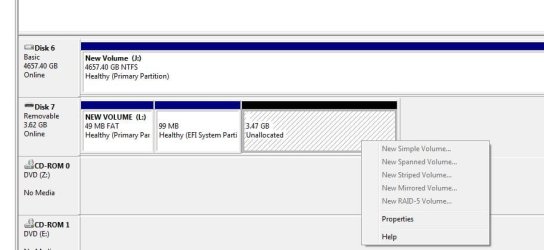
I have a 4GB flash/thumb drive, that shows as having three separate partitions in DM. The only part that is visible to W7 is the one on the left, @ 49MB.


I cant do anything with the unallocated space; the image below is a r-click.


How to best handle this?


Thanks in advance.
 

Attachments
  • dsk.jpg
    dsk.jpg
    34.3 KB · Views: 2

My Computer

Computer type
PC/Desktop
Computer Manufacturer/Model Number
Custom
OS
W7 64 Ult
CPU
Intel Core i9-7940x
Motherboard
ASUS x299 TUF
Memory
GSkill 128GB
Graphics Card(s)
AMD Radeon RX 560
Sound Card
RME
Screen Resolution
1920x1080
Hard Drives
5
PSU
BeQuiet!
Case
BeQuiet!
Keyboard
HyperX
Mouse
Logitech
Browser
IE - what else is there?

My Computer

Computer type
PC/Desktop
Computer Manufacturer/Model Number
HP Desktop & Compaq Laptop
OS
Win 10 x64, Linux Lite, Win 7 x64, BlackArch, & Kali
Hard Drives
Samsung 850 Pro 256Gb,
Hitachi HDD 1Tb,
Crucial MX SSD 250Gb
Segate 3Tb USB 3.0 Ext. Backup HDD
Internet Speed
150Mbps dn, 20Mbps up
Antivirus
Avast Free, Malwarebytes Anti-Exploit & Anti-Ransomware
Browser
Firefox, Chrome, Opera, & VPN
Thanks.


Following the instructions in the vid, I get:


Unallocated space on the destination is not enough to recover the found partition.


Also, it's throwing an error that the free vers does not support more than 6 disks. Although I do have more than 6 disks (this flash drive makes 7), this makes no sense if I am trying to fix one disk.


Any other methods... preferably from within W7?
 

My Computer

Computer type
PC/Desktop
Computer Manufacturer/Model Number
Custom
OS
W7 64 Ult
CPU
Intel Core i9-7940x
Motherboard
ASUS x299 TUF
Memory
GSkill 128GB
Graphics Card(s)
AMD Radeon RX 560
Sound Card
RME
Screen Resolution
1920x1080
Hard Drives
5
PSU
BeQuiet!
Case
BeQuiet!
Keyboard
HyperX
Mouse
Logitech
Browser
IE - what else is there?
Do you need all three partitions as they are now? If not just right click and delete each one, then format the whole thing as one partition.
 

My Computer

Computer type
PC/Desktop
OS
Windows 7 Ultimate x64
Thanks.


No - do not need all three partitions as they are now.


just right click and delete each one


Cant do that - see screen above.
 

My Computer

Computer type
PC/Desktop
Computer Manufacturer/Model Number
Custom
OS
W7 64 Ult
CPU
Intel Core i9-7940x
Motherboard
ASUS x299 TUF
Memory
GSkill 128GB
Graphics Card(s)
AMD Radeon RX 560
Sound Card
RME
Screen Resolution
1920x1080
Hard Drives
5
PSU
BeQuiet!
Case
BeQuiet!
Keyboard
HyperX
Mouse
Logitech
Browser
IE - what else is there?
Try Deleting the NEW VOLUME First and then the EFI one.
 

My Computer

Computer type
Laptop
Computer Manufacturer/Model Number
HP Pavilion dv7-6c23cl
OS
Windows 7 Home Premium 64bit
CPU
AMD A8-3520M
Motherboard
Hewlett-Packard 180B (Socket FS1)
Memory
6.00GB DDR3 @ 674MHz (9-9-9-24)
Graphics Card(s)
512MB ATI AMD Radeon HD 6620G
Sound Card
IDT High Definition Audio CODEC
Monitor(s) Displays
Generic PnP Monitor
Screen Resolution
(1600x900@60Hz)
Hard Drives
Samsung 850 EVO 250GB SSD
Mouse
Logitec M525
Internet Speed
30-75Mbps
Antivirus
Avast Free, Unfortunately
Browser
Google Chrome, Firefox, IE
Try Deleting the NEW VOLUME First and then the EFI one.


Here is a r-click of NEW VOLUME.


How to delete it please?
 

Attachments

  • nv.jpg
    nv.jpg
    32.3 KB · Views: 0

My Computer

Computer type
PC/Desktop
Computer Manufacturer/Model Number
Custom
OS
W7 64 Ult
CPU
Intel Core i9-7940x
Motherboard
ASUS x299 TUF
Memory
GSkill 128GB
Graphics Card(s)
AMD Radeon RX 560
Sound Card
RME
Screen Resolution
1920x1080
Hard Drives
5
PSU
BeQuiet!
Case
BeQuiet!
Keyboard
HyperX
Mouse
Logitech
Browser
IE - what else is there?
Just for my curiosity, you need to explain how in the first instance the three partitions came into existence and especially the EFI system partition in the flash drive.In my opinion your problem is directly related to it. ( Are you able to boot your system without the flash drive plugged in?)

From the screenshots you posted I am unable to make whether it is marked as active.Anyway just as you right clicked on the first Partition, right click on the second EFI partition and in the resulting menu make it inactive. Safely remove the pendrive and plugit in again. Now try to delete all the partitions.

If it does not work, download MiniTool Partition Wizard bootable which runs on Linux, write it to a CD, boot from it using onetime boot menu, and you can delete all partitions with it. ( There may be a simpler method but I don't know)

Bootable Partition Manager| MiniTool Partition Wizard Bootable Edition

( You can also write the ISO on to a pendrive using Rufus Rufus and boot from the pendrive.If I remember correctly Rufus may ask you to download a new Vesa menu. Download it and Rufus will use it to make the pendrive bootable.)
 

My Computer

OS
Windows 7 Home Premium 32 bit
Thanks.


Just for my curiosity, you need to explain how in the first instance the three partitions came into existence and especially the EFI system partition in the flash drive

Absolutely no idea.


Are you able to boot your system without the flash drive plugged in


Sure - this is just a flash drive I have lying around that I was going to transport some music to my g/f's house with. My OS is fine.


right click on the second EFI partition and in the resulting menu make it inactive.


That option does not exist; all other options are greyed out.


Thanks for the Part Wiz, but do I want to boot into that just to wipe partitions from a flash drive?
 

My Computer

Computer type
PC/Desktop
Computer Manufacturer/Model Number
Custom
OS
W7 64 Ult
CPU
Intel Core i9-7940x
Motherboard
ASUS x299 TUF
Memory
GSkill 128GB
Graphics Card(s)
AMD Radeon RX 560
Sound Card
RME
Screen Resolution
1920x1080
Hard Drives
5
PSU
BeQuiet!
Case
BeQuiet!
Keyboard
HyperX
Mouse
Logitech
Browser
IE - what else is there?
.....Thanks for the Part Wiz, but do I want to boot into that just to wipe partitions from a flash drive?

Yep, from the bootable CD you will be running Partition Wizard on Linux ( Windows put to sleep :-) ). You can delete all partitions and then format the pendrive. And here is the way to create a bootable pendrive with Rufus Need help w/ Rufus
 

My Computer

OS
Windows 7 Home Premium 32 bit
You could just Install "MiniTool Partition Wizard" to your OS and use it as a built in app, it's useful for this type of thing. Bootable Drives will do this sometimes and this is the only way I've found to wipe them and start over.

Looks like you did have the option to Format that Partition. If you did that with both, then maybe you could start over from there.
 

My Computer

Computer type
Laptop
Computer Manufacturer/Model Number
HP Pavilion dv7-6c23cl
OS
Windows 7 Home Premium 64bit
CPU
AMD A8-3520M
Motherboard
Hewlett-Packard 180B (Socket FS1)
Memory
6.00GB DDR3 @ 674MHz (9-9-9-24)
Graphics Card(s)
512MB ATI AMD Radeon HD 6620G
Sound Card
IDT High Definition Audio CODEC
Monitor(s) Displays
Generic PnP Monitor
Screen Resolution
(1600x900@60Hz)
Hard Drives
Samsung 850 EVO 250GB SSD
Mouse
Logitec M525
Internet Speed
30-75Mbps
Antivirus
Avast Free, Unfortunately
Browser
Google Chrome, Firefox, IE
Just for my curiosity, you need to explain how in the first instance the three partitions came into existence and especially the EFI system partition in the flash drive.In my opinion your problem is directly related to it. ( Are you able to boot your system without the flash drive plugged in?)

From the screenshots you posted I am unable to make whether it is marked as active.Anyway just as you right clicked on the first Partition, right click on the second EFI partition and in the resulting menu make it inactive. Safely remove the pendrive and plugit in again. Now try to delete all the partitions.

If it does not work, download MiniTool Partition Wizard bootable which runs on Linux, write it to a CD, boot from it using onetime boot menu, and you can delete all partitions with it. ( There may be a simpler method but I don't know)

Bootable Partition Manager| MiniTool Partition Wizard Bootable Edition

( You can also write the ISO on to a pendrive using Rufus Rufus and boot from the pendrive.If I remember correctly Rufus may ask you to download a new Vesa menu. Download it and Rufus will use it to make the pendrive bootable.)


Thanks for that, but I am not paying $40 just to delete the partitions on a $3 flash drive.
 

My Computer

Computer type
PC/Desktop
Computer Manufacturer/Model Number
Custom
OS
W7 64 Ult
CPU
Intel Core i9-7940x
Motherboard
ASUS x299 TUF
Memory
GSkill 128GB
Graphics Card(s)
AMD Radeon RX 560
Sound Card
RME
Screen Resolution
1920x1080
Hard Drives
5
PSU
BeQuiet!
Case
BeQuiet!
Keyboard
HyperX
Mouse
Logitech
Browser
IE - what else is there?

My Computer

Computer type
PC/Desktop
Computer Manufacturer/Model Number
Custom
OS
W7 64 Ult
CPU
Intel Core i9-7940x
Motherboard
ASUS x299 TUF
Memory
GSkill 128GB
Graphics Card(s)
AMD Radeon RX 560
Sound Card
RME
Screen Resolution
1920x1080
Hard Drives
5
PSU
BeQuiet!
Case
BeQuiet!
Keyboard
HyperX
Mouse
Logitech
Browser
IE - what else is there?
Why is that?

Oh, and MiniTool is Free!
 

My Computer

Computer type
Laptop
Computer Manufacturer/Model Number
HP Pavilion dv7-6c23cl
OS
Windows 7 Home Premium 64bit
CPU
AMD A8-3520M
Motherboard
Hewlett-Packard 180B (Socket FS1)
Memory
6.00GB DDR3 @ 674MHz (9-9-9-24)
Graphics Card(s)
512MB ATI AMD Radeon HD 6620G
Sound Card
IDT High Definition Audio CODEC
Monitor(s) Displays
Generic PnP Monitor
Screen Resolution
(1600x900@60Hz)
Hard Drives
Samsung 850 EVO 250GB SSD
Mouse
Logitec M525
Internet Speed
30-75Mbps
Antivirus
Avast Free, Unfortunately
Browser
Google Chrome, Firefox, IE
Thanks for that, but I am not paying $40 just to delete the partitions on a $3 flash drive.

You need not buy anything. The free version of Partition Wizard can delete . format and do other basic things.You only need to download and create a bootable pendrive. Don't tell me you don't have a spare pen drive.

Download pwfree91-x64.iso or pwfree91-x86.iso as per your Windows bit version from Index of /download/utilities


Create a bootable CD or pendrive boot from it and try. How to Build Free Bootable Partition Manager with Pwfree91.iso

If you are creating a bootable pendrive , be aware Rufus will format the drive and all data in it will be lost. If your pendrive is not empty, Backup all data on it to another media before using Rufus on it.

Good luck.

EDIT:
Note:
1.Upto MiniTool Partition Wizard free version 9.1 all features are free. Above version 9.1, only basic features like create volume, format volume,delete volume etc., are free. To unlock other advanced features you have buy a licence.

2. Nasty7, Partition Wizard running on Windows may not be able to delete or format the EFI system partition. Since it is a Windows System partition, Windows will not allow it. Reason why one has to boot into Linux and run Partition Wizard on Linux putting Windows to sleep.

3. @ riffwraith, I have already downloaded 9.1 x86 ISO ( my system is 32 bit Windows 7) , created a bootable pendrive using the latest version of Rufus and checked that it can boot PW on linux. It just took me 10 minutes. Please wait for some more time and I will write a detailed post on how to.
 
Last edited:

My Computer

OS
Windows 7 Home Premium 32 bit
1. Download pwfree91-x64.iso or pwfree91-x86.iso as per your Windows bit version from Index of /download/utilities ( It will be in the Downloads folder)

2. Download Rufus 3.6 portable from Rufus ( You will see rufus-3.6p.exe in the downloads folder. Let it remain there )

3, Plug in an empty pendrive into your PC.

4. Run rufus-3.6p,exe by clicking/double clicking on it. " Check for application Updates" Window appears. Say "NO" since you already have the latest version.

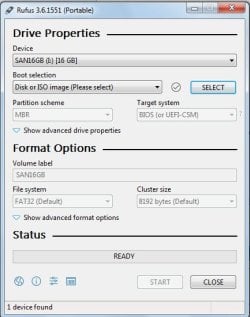
5. The following Window appears showing your plugged in pendrive. (Here it is my SAN16GB pendrive)

24-Jul-19 7-46-59 PM.jpg

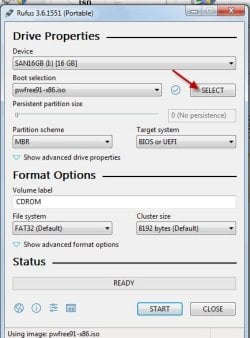
6. Click on SELECT button and select the PW ISO in the downloads folder

24-Jul-19 7-53-08 PM.jpg

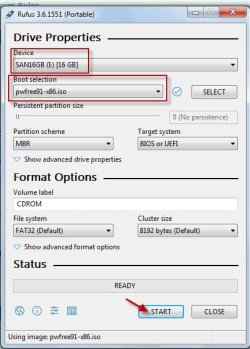
7. Leave everything else at their default value and click on the START button.

24-Jul-19 8-00-21 PM.jpg

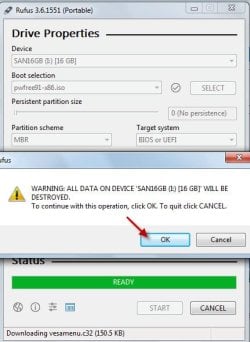
8.The following Window appears.

24-Jul-19 8-05-05 PM.jpg

Click on the YES Button (and the New Vesa menu file ( Folder "rufus files") will be downloaded in the downloads folder. Do nothing to it. Following the new vesa menu download which Rufus uses, a window stating that "all data in the pendrive will be destroyed" appears. Click on the OK button.

24-Jul-19 8-12-48 PM.jpg

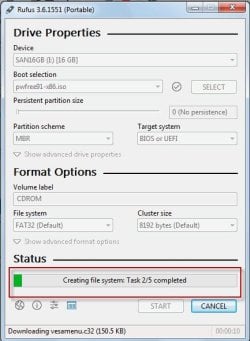
9. Rufus starts writing the ISO to the pendrive.

24-Jul-19 8-16-00 PM.jpg

10. When completed Status shows Ready. Click on the CLOSE button and close Rufus.

24-Jul-19 8-22-13 PM.jpg

Your bootable PW ( running on Linux) is ready.

Plug in your 4GB pen drive with the EFI partition.

Reboot your PC. Invoke onetime boot menu , boot from the Rufus-created-PW bootable pendrive, run Partition Wizard and do whatever you want - delete volume, create a new volume, format
 
Last edited:

My Computer

OS
Windows 7 Home Premium 32 bit
Hey man - thanks so much!


So, that didn't work. Using Rufus and the iso you pointed me to, I made a bootable flash drive, and was able to boot into it - that much worked.


But when I booted into the Wizard (blue screen; press ENTER to cont.) I hit ENTER, and got lines and lines of code that quickly ran up the screen. Ending with: rebooting in 30 sec... So, there was no way to do anything.


BUT - I am smart. :p


I tossed aside the orig. flash drive I used (that I had made bootable). I then repeated the process over again, but to my problem drive. That created a bootable drive, erasing all partitions in the process. The drive now has one 3.81 GB part. I deleted all of the Partition Wizard stuff, and I am good to go.


So, I thank you! ;)
 

My Computer

Computer type
PC/Desktop
Computer Manufacturer/Model Number
Custom
OS
W7 64 Ult
CPU
Intel Core i9-7940x
Motherboard
ASUS x299 TUF
Memory
GSkill 128GB
Graphics Card(s)
AMD Radeon RX 560
Sound Card
RME
Screen Resolution
1920x1080
Hard Drives
5
PSU
BeQuiet!
Case
BeQuiet!
Keyboard
HyperX
Mouse
Logitech
Browser
IE - what else is there?

My Computer

Computer type
PC/Desktop
Computer Manufacturer/Model Number
Custom
OS
W7 64 Ult
CPU
Intel Core i9-7940x
Motherboard
ASUS x299 TUF
Memory
GSkill 128GB
Graphics Card(s)
AMD Radeon RX 560
Sound Card
RME
Screen Resolution
1920x1080
Hard Drives
5
PSU
BeQuiet!
Case
BeQuiet!
Keyboard
HyperX
Mouse
Logitech
Browser
IE - what else is there?
:-)Ha Ha .... the idea of using Rufus on your problem drive was definitely there on my mind, but I wanted to go through the conventional way of creating a bootable PW pendrive and deleting the partitions on your 4GB pendrive.. As I said I created and ran a bootable PW pendrive without any problem and booted into PW. If it did not work for you definitely there is a User error in creating the bootable pendrive or the pendrive you used is faulty..

Anyway, glad that you tried Rufus on the problem drive and that it did the job of deleting all partitions when formatting the drive :thumbsup:

Note:
Possible User Errors in creating the bootable PW pendrive using Rufus:

1. You downloaded and used the wrong ISO. If your system is Windows 64 bit you should download pwfree91-x64.iso. If your system is Windows 32 bit you should download pwfree91-x86.iso

2. The downloaded ISO was corrupt. Redownload or download from another source

Tools_20180525 directory listing

Index of /nick/TOOL/SSD

3. You did not allow download of the new Vesa menu when Rufus prompted for it. When downloaded a folder named "rufus_files" will be downloaded into the same folder where Rufus resides which it uses automatically. Check.

4. The pendrive you used is faulty. If you do not know that the pendrive you are using is good or do not know the history of the pendrive, then in advanced format options, invoke "Check for bad blocks" in Rufus and then click on START.Rufus will check the pendrive and if it is OK then only write the ISO into it.

26-Jul-19 10-02-53 AM.jpg

Now I know that I should always ask the OPs to do it since like you, OPs may be picking up a random pendrive out of a discarded lot :-) ( You did not know the history of the 4GB pendrive and how the EFI and other partitions came into it :p) .

Another unusual Flash drive problem solved here - USB memory stick issues. Flashdrive works perfectly on laptop, does not work on Desktop !!!! USB memory stick issues Solved - Windows 10 Forums
 
Last edited:

My Computer

OS
Windows 7 Home Premium 32 bit
Hi again :)


You downloaded and used the wrong ISO


No - I have the right one.


The downloaded ISO was corrupt.


Possible of course, but I was able to go through the process, and mount the iso in VCD, so I don't think corruption was the issue.


You did not allow download of the new Vesa menu when Rufus prompted for it.


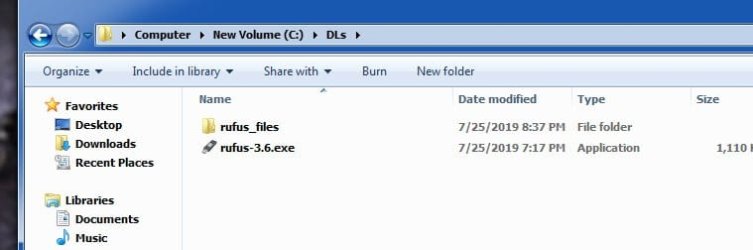
Oh, yes I did! :) And, the folder named rufus_files is in the same dir. as rufus-3.6.exe


The pendrive you used is faulty.


No - the drive is fine. I can r/w, and W7 recognizes it with no issue.


Bottom line is,. I got it to work, so thanks for the help!
 

Attachments

  • iso.jpg
    iso.jpg
    13.4 KB · Views: 7
  • ruf.jpg
    ruf.jpg
    20.8 KB · Views: 0

My Computer

Computer type
PC/Desktop
Computer Manufacturer/Model Number
Custom
OS
W7 64 Ult
CPU
Intel Core i9-7940x
Motherboard
ASUS x299 TUF
Memory
GSkill 128GB
Graphics Card(s)
AMD Radeon RX 560
Sound Card
RME
Screen Resolution
1920x1080
Hard Drives
5
PSU
BeQuiet!
Case
BeQuiet!
Keyboard
HyperX
Mouse
Logitech
Browser
IE - what else is there?
Back
Top