Fonts - Show and Hide

How to Show and Hide Fonts in Windows 7 and Windows 8


   Information
This will show you how to Show and Hide fonts automatically by Windows 7, Windows 8, and manually by you to be available to select the font or not in your programs input language settings. You will also see how to restore the default Show and Hide settings.

For a list of all default fonts that come supplied with Windows 7, see: Windows 7 font list

For a list of all default fonts that come supplied with Windows 8, see: Windows 8 font list

For a list of all default fonts that come supplied with Windows 8, see: Windows 8.1 font list

   Note
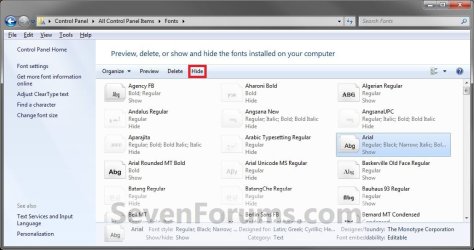
Fonts that are set to Hide are faded, and fonts that are set to Show are not faded.


OPTION ONE

Turn Automatic Show and Hide Fonts by Windows On or Off


NOTE: Windows can hide fonts that won't work with your input language settings in your programs. This may not apply to all of your programs though. You will still be able to manually show and hide fonts in OPTION TWO below.
1. Open the Control Panel (icons view) in Windows 7 or Windows 8.

2. Click/tap on the Fonts icon.

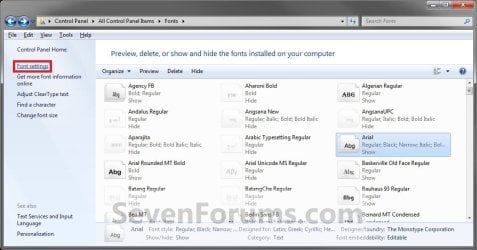
3. Click/tap on the Font settings link in the left pane. (See screenshot below)
Font_Settings.jpg
4. To Turn On Automatic Show and Hide Fonts
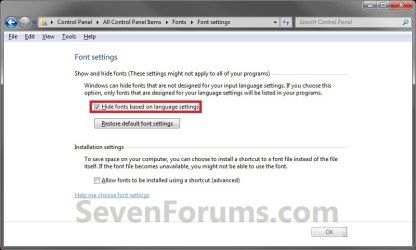
A) Check the Hide fonts based on language settings box. (See screenshot below step 6)
NOTE: This is the default setting in Windows 7.

B) Go to step 6.
5. To Turn Off Automatic Show and Hide Fonts
A) Uncheck the Hide fonts based on language settings box. (See screenshot below step 6)
NOTE: This will have all the fonts set as Show except for the fonts that you manually set to Hide afterwards in OPTION TWO below.
6. Click/tap on OK. (See screenshot below)
Auto_Hide.jpg


OPTION TWO

To Manually Set Fonts to Show and Hide


NOTE: This will allow you to manually set fonts to show or hide to be available to select the font or not in your programs input language settings.
1. Open the Control Panel (icons view) in Windows 7 or Windows 8.

2. Click/tap on the Fonts icon.

3. To Set a Font to Show
A) Select a individual font or font family that you want to set to Show. (See screenshots below)
TIP: To select more than one font at a time, press and hold down the Ctrl key while you click on each font.
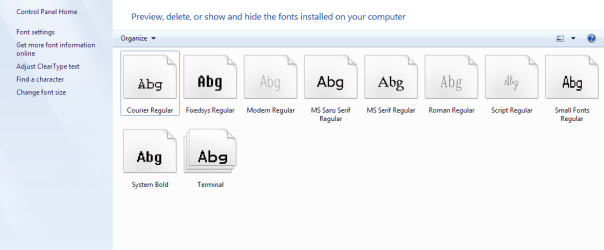
NOTE: A individual font only has a single page on it's icon. A font family has more than one page stacked on it's icon. It means that it has more individual fonts included in that font family. If you wanted to only set a individual font to Show in the font family, then you will need to click on the font family to see the individual fonts inside the font family first.
Show-1.jpg

Show-2.jpg

B) Click on the Show button on the toolbar. (See screenshots above)
NOTE: You can also right click on the font and click on Show. If you do this on a font family, then you will set of all the individual fonts in that font family to Show instead. If you have both the Show and Hide option available, then that means that the individual fonts in the font family have some fonts set to Hide and Show and not just one or the other.
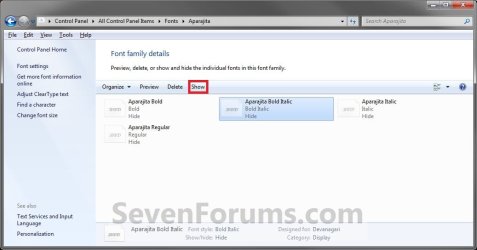
4. To Set a Font to Hide
A) Select a individual font or font family that you want to set to Hide. (See screenshots below)
TIP: To select more than one font at a time, press and hold down the Ctrl key while you click on each font.
NOTE: A individual font only has a single page on it's icon. A font family has more than one page stacked on it's icon. It means that it has more individual fonts included in that font family. If you wanted to only set a individual font to Hide in the font family, then you will need to click on the font family to see the individual fonts inside the font family first.
Hide-1.jpg

Hide-2.jpg

B) Click on the Hide button on the toolbar. (See screenshots above)
NOTE: You can also right click on the font and click on Hide. If you do this on a font family, then you will set of all the individual fonts in that font family to Hide instead. If you have both the Show and Hide option available, then that means that the individual fonts in the font family have some fonts set to Hide and Show and not just one or the other.
5. Close the Fonts window when done. (See screenshot below step 3A or 4A)


OPTION THREE

To Restore the Default Show and Hide Settings


NOTE: This will show you how to restore all of the fonts back to their default Show and Hide settings. This will also turn on OPTION ONE above.
1. Open the Control Panel (icons view) in Windows 7 or Windows 8.

2. Click/tap on the Fonts icon.

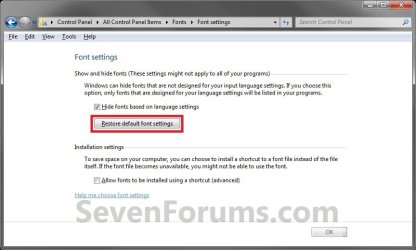
3. Click/tap on the Font settings link in the left pane. (See screenshot below)
Font_Settings.jpg
4. Click/tap on the Restore default font settings button. (See screenshot below)
Restore.jpg
5. Close the Font settings window. (See screenshot above)
That's it,
Shawn


Last edited:
Great tutorial Shawn, as usual

Norm
 

My Computer

Computer Manufacturer/Model Number
Self Built
OS
Vista X32. Windows 7 32bit
CPU
Intel Quad Core 6600
Motherboard
Asus P5B
Memory
4096 MB Xtreme-Dark 800mhz
Graphics Card(s)
Zotac Amp Edition 8800GT - 512MB DDR3, O/C 700mhz
Monitor(s) Displays
Samsung 206BW
Screen Resolution
1680 X 1024
Hard Drives
4 X Samsung 500GB 7200rpm Serial ATA-II HDD w. 16MB Cache .
PSU
550 w
Case
Thermaltake
Cooling
3 x octua NF-S12-1200 - 120mm 1200RPM Sound Optimised Fans
Keyboard
Microsoft
Mouse
Targus
Internet Speed
1500kbs
Thank you Norm.
 

My Computer

Computer type
PC/Desktop
Computer Manufacturer/Model Number
Self built custom
OS
64-bit Windows 11 Pro for Workstations
CPU
Intel i7-8700K OC'd to 5 GHz
Motherboard
ASUS ROG Maximus XI Formula Z390
Memory
64 GB (4x16GB) G.SKILL TridentZ RGB DDR4 3600 MHz
Graphics Card(s)
ASUS ROG-STRIX-GTX1080TI-O11G-GAMING
Sound Card
Integrated
Monitor(s) Displays
2 x Samsung Odyssey G7 27"
Screen Resolution
2560x1440
Hard Drives
1TB Samsung 990 PRO M.2,
4TB Samsung 990 PRO PRO M.2,
TerraMaster F8 SSD Plus NAS
PSU
Seasonic Prime Titanium 850W
Case
Thermaltake Core P3
Cooling
Corsair Hydro H115i
Keyboard
Logitech wireless K800
Mouse
Logitech MX Master 4
Internet Speed
2 Gb/s Download and 100 Mb/s Upload
Antivirus
Malwarebyte Anti-Malware Premium
Browser
Google Chrome
Other Info
Logitech Z625 speaker system,
Logitech BRIO 4K Pro webcam,
HP Color LaserJet Pro MFP M477fdn,
APC SMART-UPS RT 1000 XL - SURT1000XLI,
Galaxy S23 Plus phone
Keep up the good work Shawn, you should have all the tutorials done before 7 is released.
 

My Computer

Computer Manufacturer/Model Number
HP Compaq Presario/SR5113WM
OS
Windows 7 Ultimate x64/ Windows Vista Ultimate x64
CPU
AMD Athlon 64 X2 3600+ 1.9Ghz
Motherboard
Asus M2N68-LA
Memory
PNY Optima Memory DDR2 2GB 2x1 kit
Graphics Card(s)
PNY Nvidia 8400 GS 256MB
Sound Card
On board RealTek
Monitor(s) Displays
Acer X163W LCD
Screen Resolution
1366x768
Hard Drives
Western Digital 160 GB SATA 3G (3.0Gb/sec)
7200 rpm
Western Digital 160 GB IDE
PSU
Dynex 400w
Case
Nothin Special
Cooling
Stock
Keyboard
Standard 102 key with volume and sleep buttons
Mouse
Wireless Logitech LX7
Internet Speed
Comcrap 10mb cable
Other Info
Insignia 2.1 speakers, wireless Xbox 360 controller w/plug n play charger, Belkin wireless G + mimo usb network adapter.
LOL, I wished Mansrm81. ;)
 

My Computer

Computer type
PC/Desktop
Computer Manufacturer/Model Number
Self built custom
OS
64-bit Windows 11 Pro for Workstations
CPU
Intel i7-8700K OC'd to 5 GHz
Motherboard
ASUS ROG Maximus XI Formula Z390
Memory
64 GB (4x16GB) G.SKILL TridentZ RGB DDR4 3600 MHz
Graphics Card(s)
ASUS ROG-STRIX-GTX1080TI-O11G-GAMING
Sound Card
Integrated
Monitor(s) Displays
2 x Samsung Odyssey G7 27"
Screen Resolution
2560x1440
Hard Drives
1TB Samsung 990 PRO M.2,
4TB Samsung 990 PRO PRO M.2,
TerraMaster F8 SSD Plus NAS
PSU
Seasonic Prime Titanium 850W
Case
Thermaltake Core P3
Cooling
Corsair Hydro H115i
Keyboard
Logitech wireless K800
Mouse
Logitech MX Master 4
Internet Speed
2 Gb/s Download and 100 Mb/s Upload
Antivirus
Malwarebyte Anti-Malware Premium
Browser
Google Chrome
Other Info
Logitech Z625 speaker system,
Logitech BRIO 4K Pro webcam,
HP Color LaserJet Pro MFP M477fdn,
APC SMART-UPS RT 1000 XL - SURT1000XLI,
Galaxy S23 Plus phone
Oh I have problem when hiding some font in windows 7, it were showed the following error:

Fonts are currently used by another program
Although I’ve closed all programs, What should I do?
 

My Computer

Computer Manufacturer/Model Number
Lenovo
OS
Windows 7 Professonal
CPU
Intel Pentium Dual Core 2*1.86 GHz
Memory
2GB
Graphics Card(s)
256 MB (Shared)
Hello Trương Quốc Hùng,

It could also be a font currently in use by Windows, or reserved by another program (even if not open) has that font set to be used in it. Double check each program that uses the fonts from Windows to see if they have the font selected that you want to hide.

Hope this helps,
Shawn
 

My Computer

Computer type
PC/Desktop
Computer Manufacturer/Model Number
Self built custom
OS
64-bit Windows 11 Pro for Workstations
CPU
Intel i7-8700K OC'd to 5 GHz
Motherboard
ASUS ROG Maximus XI Formula Z390
Memory
64 GB (4x16GB) G.SKILL TridentZ RGB DDR4 3600 MHz
Graphics Card(s)
ASUS ROG-STRIX-GTX1080TI-O11G-GAMING
Sound Card
Integrated
Monitor(s) Displays
2 x Samsung Odyssey G7 27"
Screen Resolution
2560x1440
Hard Drives
1TB Samsung 990 PRO M.2,
4TB Samsung 990 PRO PRO M.2,
TerraMaster F8 SSD Plus NAS
PSU
Seasonic Prime Titanium 850W
Case
Thermaltake Core P3
Cooling
Corsair Hydro H115i
Keyboard
Logitech wireless K800
Mouse
Logitech MX Master 4
Internet Speed
2 Gb/s Download and 100 Mb/s Upload
Antivirus
Malwarebyte Anti-Malware Premium
Browser
Google Chrome
Other Info
Logitech Z625 speaker system,
Logitech BRIO 4K Pro webcam,
HP Color LaserJet Pro MFP M477fdn,
APC SMART-UPS RT 1000 XL - SURT1000XLI,
Galaxy S23 Plus phone
Thanks a lot Brink, why our forum does not have Thanks button. :D
 

My Computer

Computer Manufacturer/Model Number
Lenovo
OS
Windows 7 Professonal
CPU
Intel Pentium Dual Core 2*1.86 GHz
Memory
2GB
Graphics Card(s)
256 MB (Shared)
You're most welcome Trương Quốc Hùng. :)
 

My Computer

Computer type
PC/Desktop
Computer Manufacturer/Model Number
Self built custom
OS
64-bit Windows 11 Pro for Workstations
CPU
Intel i7-8700K OC'd to 5 GHz
Motherboard
ASUS ROG Maximus XI Formula Z390
Memory
64 GB (4x16GB) G.SKILL TridentZ RGB DDR4 3600 MHz
Graphics Card(s)
ASUS ROG-STRIX-GTX1080TI-O11G-GAMING
Sound Card
Integrated
Monitor(s) Displays
2 x Samsung Odyssey G7 27"
Screen Resolution
2560x1440
Hard Drives
1TB Samsung 990 PRO M.2,
4TB Samsung 990 PRO PRO M.2,
TerraMaster F8 SSD Plus NAS
PSU
Seasonic Prime Titanium 850W
Case
Thermaltake Core P3
Cooling
Corsair Hydro H115i
Keyboard
Logitech wireless K800
Mouse
Logitech MX Master 4
Internet Speed
2 Gb/s Download and 100 Mb/s Upload
Antivirus
Malwarebyte Anti-Malware Premium
Browser
Google Chrome
Other Info
Logitech Z625 speaker system,
Logitech BRIO 4K Pro webcam,
HP Color LaserJet Pro MFP M477fdn,
APC SMART-UPS RT 1000 XL - SURT1000XLI,
Galaxy S23 Plus phone
show and hide problem

Hi Brink - I read you posting and have a different issue. My view of the fonts does not show individual font families. as you can see from the image.
how can i get my folder to show me the actual fonts so that i may remove them and stop clogging up my system?
thanks
olivia
 

Attachments

  • my_fonts_panel.png
    my_fonts_panel.png
    29.3 KB · Views: 912

My Computer

Computer Manufacturer/Model Number
HP pavilion dv7 Notebook PC x65l-based
OS
windows 7
CPU
AMD Turion X2 Dual-Core RM-72 2.10GHz
Memory
4G
Graphics Card(s)
ATI Radeon HD 3200 Graphics
Sound Card
ATI High Def Audio
Monitor(s) Displays
ATI display
Hard Drives
C: 456 GIGs
D: 300 Gigs
Hello Olivia,

The ones that look like they have multiple pages stacked on each other (ex: Terminal in your screenshot) is a font family. If you click on one of them, it will open to show the different fonts for that font family. :)

Hope this helps,
Shawn
 

My Computer

Computer type
PC/Desktop
Computer Manufacturer/Model Number
Self built custom
OS
64-bit Windows 11 Pro for Workstations
CPU
Intel i7-8700K OC'd to 5 GHz
Motherboard
ASUS ROG Maximus XI Formula Z390
Memory
64 GB (4x16GB) G.SKILL TridentZ RGB DDR4 3600 MHz
Graphics Card(s)
ASUS ROG-STRIX-GTX1080TI-O11G-GAMING
Sound Card
Integrated
Monitor(s) Displays
2 x Samsung Odyssey G7 27"
Screen Resolution
2560x1440
Hard Drives
1TB Samsung 990 PRO M.2,
4TB Samsung 990 PRO PRO M.2,
TerraMaster F8 SSD Plus NAS
PSU
Seasonic Prime Titanium 850W
Case
Thermaltake Core P3
Cooling
Corsair Hydro H115i
Keyboard
Logitech wireless K800
Mouse
Logitech MX Master 4
Internet Speed
2 Gb/s Download and 100 Mb/s Upload
Antivirus
Malwarebyte Anti-Malware Premium
Browser
Google Chrome
Other Info
Logitech Z625 speaker system,
Logitech BRIO 4K Pro webcam,
HP Color LaserJet Pro MFP M477fdn,
APC SMART-UPS RT 1000 XL - SURT1000XLI,
Galaxy S23 Plus phone
Back
Top