For Any Thunderbird Users: Deleting Scam eMails Automatically ?

Robert11

New member
Power User
Local time
5:38 PM
Messages
542
Hello,

I use Mozilla Thunderbird for my e Mails.

Their support forums, at least the ones I have found are not very responsive, if at all.
Have Always gotten really great help here, so let me ask:

I cannot figure out how to automatically have Thunderbird place an eMail that comes in, and had previously been "marked" as a scam, directly into the Delete or Trash Folder without it ever showing up as an eMail in the "Inbox" Folder.

If I "Mark" an eMail as a scam all that seems to happen is that it then goes to the Trash Folder.
But, I can do this with the normal Delete function.

Nothing in their Options/Security menu seems to accomplish this.

I get a few eMails every day, each day, that are scams and/or msg's with likely virus's.
Same Senders.

I would like to have them "deleted" automatically and safely before making it to the Inbox.

Any way to do it ?

Thanks,
Bob
 

My Computer

OS
Windows 7 64bit
Check message filters and create something like this:

Filter Rules.jpg

Also check your email provider's message filters as they are likely to have other options that will not be accessible via Thunderbird.
 

My Computer

Computer type
Laptop
Computer Manufacturer/Model Number
ASUS
OS
Microsoft Windows 7 Home Premium 64-bit 7601 Multiprocessor Free Service Pack 1
CPU
AMD C-60 APU with Radeon(tm) HD Graphics
Motherboard
ASUSTeK COMPUTER INC. X501U
Memory
4.00 GB
Graphics Card(s)
AMD Radeon HD 6290 Graphics
Sound Card
(1) AMD High Definition Audio Device (2) Realtek High Defi
Screen Resolution
1366 x 768 x 32 bits (4294967296 colors) @ 60 Hz
Hard Drives
Hitachi HTS545050A7E380 SATA Disk Device
Antivirus
Comodo CIS & FW, SecureAplus App Whitelisting, Threatfire
Browser
Cyberfox 64bit, Opera 64bit, Airfox
Other Info
Spy-The-Spy, HitmanPro.Alert, Norton Connect Safe, MJRegWatcher, BitDefender TrafficLight, Voodoo Shield, Zemana AntiMalware
Hi:

Yep, I agree with Callender -- filters are a good way to do this.
Here links that explain all about message filters:
Message Filters
Organize Your Messages by Using Filters
One needs to configure the controls carefully - there can be a bit of "trial and error".
And it's a good idea to check the junk mail folder from time to time, just to be sure that "good" emails haven't been accidentally filtered as junk/spam.

Thunderbird also has built-in Junk Mail controls.
As with most other spam-filtering products, these controls must be "trained".
Here are links that explain the Junk Mail controls:
Junk Mail Controls
Thunderbird and Junk

Another approach is a 3rd-party spam filtering software application (which can be layered onto message filters and junk mail controls).
I have had lifetime Pro licenses of Mailwasher Pro since its beta days.
Although I get little spam, it permits me to preview, forward, reply, sort and delete messages from multiple ISP, webmail and OWA accounts in one grid.
The messages are viewed while still on the mail server, BEFORE they are downloaded on to my computer.
So, I can easily delete the occasional spam message without any risk to my system.
It works great with all standard mail clients, including Thunderbird.
It adds a layer of safety between the mail servers and the local mail client.
The mobile version is browser-based and cross-platform, permitting one to sync accounts across multiple devices.
There is a Free version that can be used with a single email account.
The Pro version allows multiple email accounts and is well worth every penny.
Very powerful. Excellent support. Excellent user forum with helpful "power users".
It's the single most important "productivity application" on my systems for as long as I can remember.
(I have no financial relationship with the company or the product.)

Re: TBird support. The "Mozilla" folks don't spend much time at the mozilla.org support sites. I have always found the user community at forums.mozillazine.org to be VERY VERY helpful and responsive, for both Firefox and Thunderbird.

Hope this helps,
 

My Computer

Computer type
PC/Desktop
Computer Manufacturer/Model Number
Dell Studio XPS 8500
OS
OEM Windows 7 Ult (x64) SP1
CPU
Intel Core-i7 3770 @ 3.4 GHz
Motherboard
"Dell" branded
Memory
16 GB DDR3 SDRAM @ 1333 MHz
Graphics Card(s)
NVidia GeForce GT620 1 GB
Sound Card
THX TruStudio PC
Monitor(s) Displays
Dell U2410 Full HD
Hard Drives
2.0 TB SATA2 @ 7200 RPM
PSU
350W
Keyboard
MS 4000 Ergon - Wired
Mouse
Logitech Anywhere MX
Internet Speed
Cable HSI w/Turbo (router)
Antivirus
KIS-MBAM Premium-MBAE Premium
Browser
Fx (current version); IE
Other Info
And a Win7/64 Pro laptop; And a Win10/64 Pro desktop.
From OP: Thanks

Hi all,

Just a quick thanks for the help.
Much appreciated, as always.

Regards,
Bob
 

My Computer

OS
Windows 7 64bit
Hi again,

Can't find where to set up the Filter.
Probably looking right at it, but just don't see it.
That old age thing, again.

It is not under the TOOLS pull down menu.
Using vers 31.6.0

Where, exactly, do I find it, please ?

Thanks again for help,
Bob
 

My Computer

OS
Windows 7 64bit
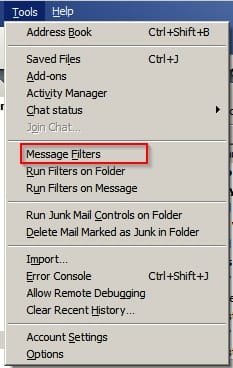
Should be under tools. I'm running the same version.

Filters.jpg

Note: Will be away from my computer immediately after writing this post.
 

My Computer

Computer type
Laptop
Computer Manufacturer/Model Number
ASUS
OS
Microsoft Windows 7 Home Premium 64-bit 7601 Multiprocessor Free Service Pack 1
CPU
AMD C-60 APU with Radeon(tm) HD Graphics
Motherboard
ASUSTeK COMPUTER INC. X501U
Memory
4.00 GB
Graphics Card(s)
AMD Radeon HD 6290 Graphics
Sound Card
(1) AMD High Definition Audio Device (2) Realtek High Defi
Screen Resolution
1366 x 768 x 32 bits (4294967296 colors) @ 60 Hz
Hard Drives
Hitachi HTS545050A7E380 SATA Disk Device
Antivirus
Comodo CIS & FW, SecureAplus App Whitelisting, Threatfire
Browser
Cyberfox 64bit, Opera 64bit, Airfox
Other Info
Spy-The-Spy, HitmanPro.Alert, Norton Connect Safe, MJRegWatcher, BitDefender TrafficLight, Voodoo Shield, Zemana AntiMalware
Hi:

Yep, Callender's screen shot shows where to find them.
(The appearance may be slightly different on your computer if you use a different theme, but the general location in that dropdown menu is correct. Click on "message filters"...)

These links describe how to use filters:

Here links that explain all about message filters:

Message Filters
Organize Your Messages by Using Filters
Cheers,
 

My Computer

Computer type
PC/Desktop
Computer Manufacturer/Model Number
Dell Studio XPS 8500
OS
OEM Windows 7 Ult (x64) SP1
CPU
Intel Core-i7 3770 @ 3.4 GHz
Motherboard
"Dell" branded
Memory
16 GB DDR3 SDRAM @ 1333 MHz
Graphics Card(s)
NVidia GeForce GT620 1 GB
Sound Card
THX TruStudio PC
Monitor(s) Displays
Dell U2410 Full HD
Hard Drives
2.0 TB SATA2 @ 7200 RPM
PSU
350W
Keyboard
MS 4000 Ergon - Wired
Mouse
Logitech Anywhere MX
Internet Speed
Cable HSI w/Turbo (router)
Antivirus
KIS-MBAM Premium-MBAE Premium
Browser
Fx (current version); IE
Other Info
And a Win7/64 Pro laptop; And a Win10/64 Pro desktop.
From OP: Just doesn't seem to be there (Filters) ?

Hi Folks,

I know I'm going to feel so, so, dumb after someone points out what I am doing wrong,
but will again blame it on old age now.

Wonderful Forum and folks on it, and can't express enough how much I appreciate all the help that has been given me, now as well in the past.

I tried to take a screen shot or clip of what I have, but have been unable to do so.
So, let me just describe what is there:

The appropriate menu that everyone is referring to, apparently comes up
when I select WRITE.

Then, at the extreme right hand end, there is TOOLS and HELP

Under TOOLS, I have only 4 items:

Mail and Newsgroups
Address Book
Account Settings
Options

Honest, that's it. Nothing apparently regarding Filters

What am I, as usual, doing wrong ?
Is there something optional to pull down more items in TOOLS ?
Or,...?

Thanks again,
Bob
 

My Computer

OS
Windows 7 64bit
Hi:

>>Can you please tell us: what version of Tbird are you using????
(Open TBird > from the menu bar, click "Help" > click "About Thunderbird")

>>Did you try to follow the instructions in this link, by clicking on the blue words right here >>>> Organize Your Messages by Using Filters ?
The article contains step-by-step instructions for working with filters.

(There is additional help here, in this other article at the Mozillazine forums -- click on the blue words here >>>> Message Filters)

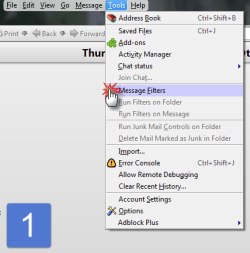
For starters, you just need to click on the "Tools" item in the Menu Bar.
Then click "Message Filters" from the drop-down menu (screen shot 1).
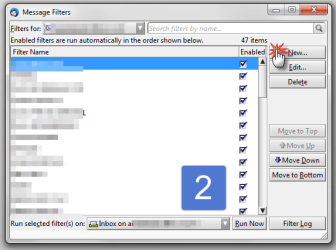
Then click on the "New" button (screen shot 2).
Then follow the instructions in THIS TUTORIAL

The dialogs depicted in my screen shots may not look exactly the same on your system, depending on your version of Tbird and the theme (my pictures are from TBird 31.6.0 under the Nautipolis theme).

Thank you,
 

Attachments

  • Filters-1.png
    Filters-1.png
    13.5 KB · Views: 14
  • Filters-2.png
    Filters-2.png
    21.7 KB · Views: 15

My Computer

Computer type
PC/Desktop
Computer Manufacturer/Model Number
Dell Studio XPS 8500
OS
OEM Windows 7 Ult (x64) SP1
CPU
Intel Core-i7 3770 @ 3.4 GHz
Motherboard
"Dell" branded
Memory
16 GB DDR3 SDRAM @ 1333 MHz
Graphics Card(s)
NVidia GeForce GT620 1 GB
Sound Card
THX TruStudio PC
Monitor(s) Displays
Dell U2410 Full HD
Hard Drives
2.0 TB SATA2 @ 7200 RPM
PSU
350W
Keyboard
MS 4000 Ergon - Wired
Mouse
Logitech Anywhere MX
Internet Speed
Cable HSI w/Turbo (router)
Antivirus
KIS-MBAM Premium-MBAE Premium
Browser
Fx (current version); IE
Other Info
And a Win7/64 Pro laptop; And a Win10/64 Pro desktop.
Hi,

Thanks for taking the time to help me out with this.
I am running Vers. 31.6.0

Will look at all the instructional Links, etc. that are suggested.
Sure is funny.

Regards, and thanks again,
Bob
 

My Computer

OS
Windows 7 64bit
Hi:

Message Filters:

The tutorial breaks down the process into small steps.
Once you've done it once or twice, it becomes much easier.
Perhaps it might help to print out the instructions for reference?

Junk Mail controls:
Thunderbird also has built-in Junk Mail controls.
As with most other spam-filtering products, these controls must be "trained".
Here are links that explain Junk Mail controls - you just need to click on the blue words below to read the articles:

Junk Mail Controls

Thunderbird and Junk

Cheers,
 

My Computer

Computer type
PC/Desktop
Computer Manufacturer/Model Number
Dell Studio XPS 8500
OS
OEM Windows 7 Ult (x64) SP1
CPU
Intel Core-i7 3770 @ 3.4 GHz
Motherboard
"Dell" branded
Memory
16 GB DDR3 SDRAM @ 1333 MHz
Graphics Card(s)
NVidia GeForce GT620 1 GB
Sound Card
THX TruStudio PC
Monitor(s) Displays
Dell U2410 Full HD
Hard Drives
2.0 TB SATA2 @ 7200 RPM
PSU
350W
Keyboard
MS 4000 Ergon - Wired
Mouse
Logitech Anywhere MX
Internet Speed
Cable HSI w/Turbo (router)
Antivirus
KIS-MBAM Premium-MBAE Premium
Browser
Fx (current version); IE
Other Info
And a Win7/64 Pro laptop; And a Win10/64 Pro desktop.
This makes me believe you may not have your Menu Bar showing, so you are only able see limited tools pertaining to an email in progress. At the top of your TB screen, do you see the underlined headings for File, Edit, View, Go, Message, Help ? If not, hold down Alt-V, select Toolbars and check Menu Bar. Hope this helps!
Hi Folks,

The appropriate menu that everyone is referring to, apparently comes up
when I select WRITE.

Then, at the extreme right hand end, there is TOOLS and HELP

Under TOOLS, I have only 4 items:

Mail and Newsgroups
Address Book
Account Settings
Options

Honest, that's it. Nothing apparently regarding Filters

What am I, as usual, doing wrong ?
Is there something optional to pull down more items in TOOLS ?
Or,...?

Thanks again,
Bob
 

My Computer

Computer Manufacturer/Model Number
Dell Inspiron 580s
OS
Windows 7 Home Premium SP1
CPU
i3
Memory
6 GB
Graphics Card(s)
ATI Radeon
This makes me believe you may not have your Menu Bar showing, <snip>

Excellent idea!
I suspect you might be right!
Thanks for the suggestion!
 

My Computer

Computer type
PC/Desktop
Computer Manufacturer/Model Number
Dell Studio XPS 8500
OS
OEM Windows 7 Ult (x64) SP1
CPU
Intel Core-i7 3770 @ 3.4 GHz
Motherboard
"Dell" branded
Memory
16 GB DDR3 SDRAM @ 1333 MHz
Graphics Card(s)
NVidia GeForce GT620 1 GB
Sound Card
THX TruStudio PC
Monitor(s) Displays
Dell U2410 Full HD
Hard Drives
2.0 TB SATA2 @ 7200 RPM
PSU
350W
Keyboard
MS 4000 Ergon - Wired
Mouse
Logitech Anywhere MX
Internet Speed
Cable HSI w/Turbo (router)
Antivirus
KIS-MBAM Premium-MBAE Premium
Browser
Fx (current version); IE
Other Info
And a Win7/64 Pro laptop; And a Win10/64 Pro desktop.
Thanks, MoxieMomma! I hope that's the solution for Bob's getting to the message filters. :)
 

My Computer

Computer Manufacturer/Model Number
Dell Inspiron 580s
OS
Windows 7 Home Premium SP1
CPU
i3
Memory
6 GB
Graphics Card(s)
ATI Radeon
When you said Tools pull down menu I thought you meant the one in this screenshot. In order to display it you can also right click a blank part of the dark blue area and select "Menu Bar"

Thunderbird.jpg
 
Last edited:

My Computer

Computer type
Laptop
Computer Manufacturer/Model Number
ASUS
OS
Microsoft Windows 7 Home Premium 64-bit 7601 Multiprocessor Free Service Pack 1
CPU
AMD C-60 APU with Radeon(tm) HD Graphics
Motherboard
ASUSTeK COMPUTER INC. X501U
Memory
4.00 GB
Graphics Card(s)
AMD Radeon HD 6290 Graphics
Sound Card
(1) AMD High Definition Audio Device (2) Realtek High Defi
Screen Resolution
1366 x 768 x 32 bits (4294967296 colors) @ 60 Hz
Hard Drives
Hitachi HTS545050A7E380 SATA Disk Device
Antivirus
Comodo CIS & FW, SecureAplus App Whitelisting, Threatfire
Browser
Cyberfox 64bit, Opera 64bit, Airfox
Other Info
Spy-The-Spy, HitmanPro.Alert, Norton Connect Safe, MJRegWatcher, BitDefender TrafficLight, Voodoo Shield, Zemana AntiMalware
Back
Top