
Quick Format a HDD or USB
Here's How:
Quick Format
1. Open the Start Menu by clicking the orb
 , and navigate to My Computer.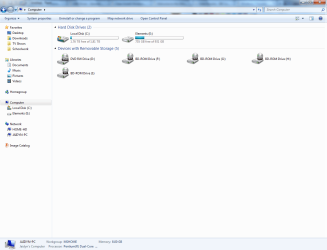
2. Right click the hard drive or USB you would like to format.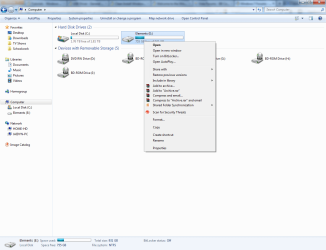
3. Select Format... from the options that drop down.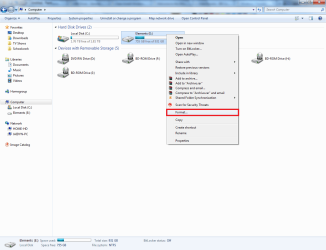
4. A new window should pop up. Change the options in the drop down boxes to suit the requirements of your hard drive. Make sure the option Quick Format is ticked and press Start.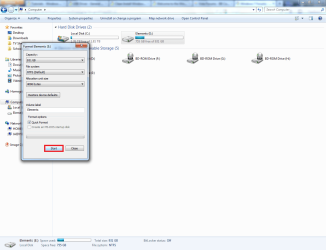
5. A warning message should now pop up. Click OK to continue.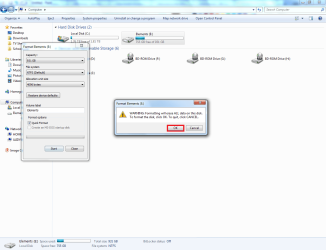
6. A message should pop up saying Format Complete. Click OK.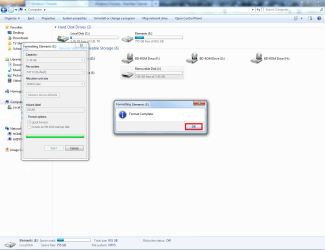
7. The pop up will close and return to the original 'Format Window'. Click Close.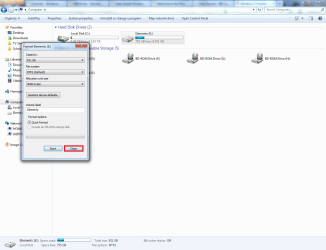
To check whether your hard drive is actually cleared, follow the following steps.
8. Right click the newly formatted hard drive.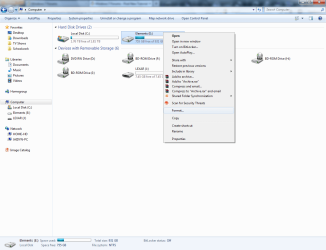
9. Click the Properties option.
10. The properties of your hard drive should look similar to the following image (close to zero used space and a large, almost entirely pink pie graph).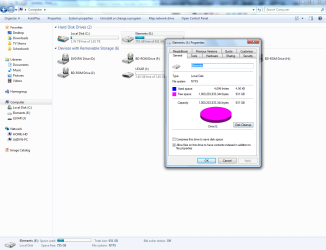 Congratulations! You have successfully quick formatted your hard drive.
That's it,
Jaidyn
How to Quick Format a HDD or USB Drive
Information
This tutorial will show you how to format both external and 'internal' hard disk drives. We will be using both quick formats and also two useful pieces of software that can make fully formatting a HDD or USB much easier. In simple terms, this will remove all your files and folders from your disk storage device.
Note
You cannot quick format your C: drive as it has your OS installed on it.
Warning
Formatting your C: drive WILL kill your system. As I said above, whatever you format, back up a copy of all files and folders first on an external hard drive or CD. You follow this tutorial at your own risk. Please, please, please back up your hard drive.
BEFORE YOU START:
BEFORE YOU START:
- Back up a copy of all your files and folders to an external hard drive or CD.
- Also, either burn or copy all software to a disc (if needed and possible).
Here's How:
Quick Format
1. Open the Start Menu by clicking the orb
2. Right click the hard drive or USB you would like to format.
3. Select Format... from the options that drop down.
4. A new window should pop up. Change the options in the drop down boxes to suit the requirements of your hard drive. Make sure the option Quick Format is ticked and press Start.
5. A warning message should now pop up. Click OK to continue.
6. A message should pop up saying Format Complete. Click OK.
7. The pop up will close and return to the original 'Format Window'. Click Close.
To check whether your hard drive is actually cleared, follow the following steps.
8. Right click the newly formatted hard drive.
9. Click the Properties option.
10. The properties of your hard drive should look similar to the following image (close to zero used space and a large, almost entirely pink pie graph).
Congratulations! You have successfully quick formatted your hard drive. That's it,
Jaidyn
Related Tutorials
- How to Clean or Clean All a Disk with the Diskpart Command
- How to Create a New Partition or Volume in Windows 7
- How to Shrink a Partition or Volume in Windows 7
- How to Extend a Partition or Volume in Windows 7
- How to Delete a Partition or Volume in Windows 7
- How to Convert a FAT or FAT32 Volume to NTFS in Windows 7
- How to Convert a MBR Disk to a GPT Disk
- How to Convert a GPT Disk to a MBR Disk
- How to Convert a Basic Disk to a Dynamic Disk
- How to Convert a Dynamic Disk to a Basic Disk
Last edited:


 - The last picture has your Taskbar in it so you may want to change that


 Same here as well, still finding out things
 . I tried to back up WIN7 PRO64 to a new 256GB USB
  . Well. Not formatted, used up only about 1500 MB. and of course the rest of my available space vanished. Took HOURS online searching to try to figure out what happened and between this and another tutorial by Brink, I think I know what I did wrong. Now I have a 256GB USB stick formatted, and a new Primary partition named E:. I still don't have a backup yet though! So much to learn, thank you again for all your hard work, and also kudos to all of those who write out tutorials and help out all of us who are learning.

