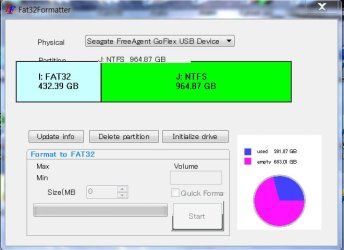
Setting up two partitions on your external drive with one FAT32 and the second NTFS is certainly possible, and easy.
I don't know exactly what you plan to do on that FAT32 partition that requires use of FAT32, but if you can survive with a 32GB FAT32 partition I'd suggest you limit it to that value. However FAT32 can certainly be used for much larger partitions than just 32GB. But FAT32 has "vulnerability" during power failures, etc., which requires CHKDSK to be used to verify the integrity of the file system and attempt to repair it (almost always successful, but...).
Make the rest of the drive your NTFS partition. This is essentially a bullet-proof and failsafe and 100% dependable and reliable file system. It is more efficient than FAT32 and should always be used if given a choice.
Anyway, your best and easiest tool for partitioning functions is to
download and install Partition Wizard v7 Home Edition. It is extremely intuitive for all types of create, delete, move, resize, etc. functions. All functions other than maintenance on the C-partiton itself (where Win7 lives) can be performed while running the installed version under Win7 itself.
For running other functions on the C-partition which cannot be performed while Win7 itself is up and running, you should also
download and burn the ISO image for Partition Wizard Standalone Boot CD. Everything can be done with this standalone boot version, but of course you will not see Windows assigned drive letters... you'll only see the drives and partitions.
So download and install PW for yourself, open the program, and I'll bet the "how do I use it" questions will be self-answered. It's very intuitive. Your drives and existing partitions will appear, and if you select a drive or partition and right-click, the context menu will offer you the options open to you with that space.
Or, you can select the drive/partition and then explicitly select the function to be performed on the left side. That list may change dynamically depending on the drive/partition you select in the graphical area.
You can set up a list of one or more "queued" operations (which can be UNDO'd if you change your mind). Nothing is actually performed until you push the APPLY button. However the graphical area will be changed and updated as you queue the operations, showing you what the drive/partition WILL LOOK LIKE AFTER YOU "APPLY", so that you can easily see what you're accomplishing.
But if you do have questions once you get started, please ask.
One more thing about removable USB drives...
If you want to disconnect them from your PC, be sure you first "safely remove hardware" and wait for Windows to pop up the "it is now safe to remove..." message. Now you can pull the USB cable out of the PC.
This method is mandatory for ALL removable USB devices that are assigned Windows drive letters dynamically when connected, simply because of the data buffering issues inherent in dealing with such devices. This "safely remove" technique guarantees all data will be flushed out and written to the drive before disconnecting, thus ensuring drive data and file system integrity.