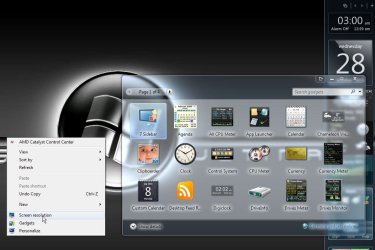
How to Enable or Disable Gadgets in Windows 7 and Vista
Information
This will show you how to enable or disable all currently running gadgets, and from being able to add new desktop gadgets for specific or all users in Vista and Windows 7.
You must be logged in as an administrator to be able to do the steps in this tutorial.
You must be logged in as an administrator to be able to do the steps in this tutorial.
Warning
For you to be able to use and add gadgets to your desktop, you must:
- Have gadgets enabled below.
- Show Desktop Items needs to be checked in order to see the gadgets.
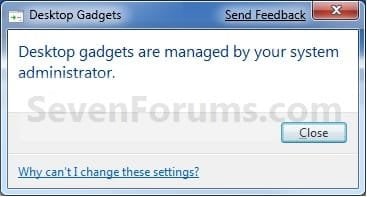
NOTE: When gadgets is disabled, this will be the message all users will get when they try to add a gadget.
OPTION ONE
Using a REG File Download
1. To Enable Gadgets for Current User
A) Click on the Download button below to download the file below.
Enable_Gadgets.reg
Download
B) If not already, make sure that you have Windows Gadget Platform checked in Windows Features.
C) Go to step 3.
2. To Disable Gadgets for Only Current User
A) Click on the Download button below to download the file below.
Disable_Gadgets.reg
Download
3. Click on Save, and save the .reg file to the desktop.
4. Right click on the downloaded .reg file and click on Merge.
5. Click on Run, Yes, Yes, and OK when prompted.
6. Log off and log on, or restart the computer to completely apply.
NOTE: Gadgets that are currently running may not be disabled until you do this step.
7. When done, you can delete the downloaded .reg files on the desktop if you like.
OPTION TWO
Through the Local Group Policy Editor
1. Open the all users, specific users or groups, or all users except administrators Local Group Policy Editor for how you want this policy applied.
2. In the left pane, click on to expand User Configuration, Administrative Templates, Windows Components, and Desktop Gadgets. (See screenshot below)
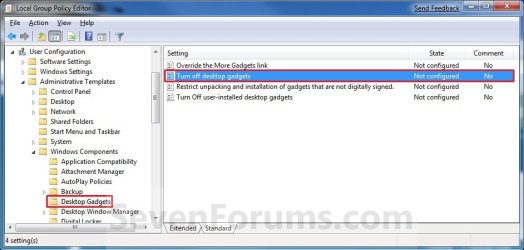
3. In the right pane, right click on Turn off desktop gadgets and click on Edit. (See screenshot above)
4. To Enable Gadgets
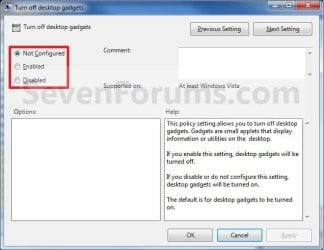
A) Select (dot) either Not Configured or Disabled. (See screenshot below step 6)
B) If not already, make sure that you have Windows Gadget Platform checked in Windows Features.
C) Go to step 6.
5. To Disable Gadgets
A) Select (dot) Enabled. (See screenshot below step 6)
6. Click on OK. (See screenshot below)
7. Close the Local Group Policy Editor window.
8. Log off and log on, or restart the computer to completely apply.
NOTE: Gadgets that are currently running may not be disabled until you do this step.
That's it,
Shawn
Related Tutorials
- How to Turn Windows 7 Gadgets Feature On or Off
- How to Add or Remove Desktop Gadgets in Windows 7
- How to Reinstate the Vista Sidebar on Windows 7
- How to Hide or Show Desktop Gadgets in Windows 7
- How to Allow or Prevent User Installed Gadgets in Windows 7
- How to Allow or Prevent Installation of Unsigned Gadgets in Windows 7
- How to Restore the Default Windows 7 Gadgets
- How to Customize Existing Windows 7 Gadgets
- How to Create a Gadgets Shortcut in Windows 7
- How to Change the "Get more gadgets online" Link in Windows 7
- How to Fix Gadgets not Displaying Correctly in Windows 7
- How to Add or Remove "Gadgets" from Desktop Context Menu in Windows
Attachments
Last edited:


 , kinda like the weather & CPU gadgets but certainly not worth the risk. Upgraded to IE11 & looks like that is even less gadget friendly. @ least IE11 auto pops the Outlook pswd, wouldn't that be a security risk too?