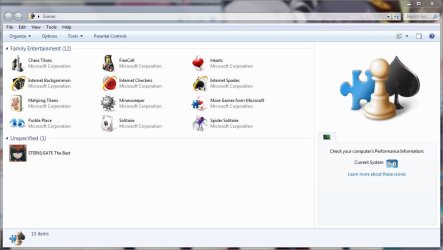
Games Explorer Folder - Add Games To

How to Add Games to Games Explorer Folder in Vista, Windows 7, and Windows 8


"So you add a game into Games Explorer Folder and realize that the game has no
cover, no rating, no info... Well, this tutorial will show you
how to add all that missing information."​


First things First.
  • Adding a shortcut into Game Explorer Folder (GEF):

  • Copy the main executable, then right click and select paste shortcut.

  • Or Just Drag n Drop a shortcut of the game.
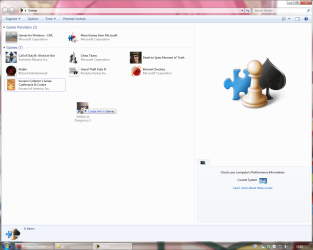
gft1.png
Use a shortcut, never use the main executable.

  • Using the Registry Editor (REd):

  • Hit the Start Orb and type regedit in the search box, an UAC prompt will ask you to authorize access by clicking Continue.

  • The Files you will need:

Download


  • Inside is the GameUXLegacyGDFs.txt file, Just save it for later use.

The Tutorial:


This tutorial subdivides in Semi-Automatic for games already in the database which the GEF doesn't recognize automatically and manual for the ones not included in the database.​

   Note
Always remember to close GEF every time you need to edit the values in the REd, otherwise the game shortcut will be deleted.


Let's Begin...


  • Semi-Automatic
Microsoft has added various old games to be recognized automatically by the GEF using a file called GameUXLegacyGDFs.dll but some of them need a little extra work to show-up.

Step 1: Add a shortcut into the GEF and then close it.

Step 2: Extract and then open the file GameUXLegacyGDFs.txt from the downloadable file.​

  • Hit Ctrl+F to bring the search option in Notepad.
  • Type just a part of the game's name.
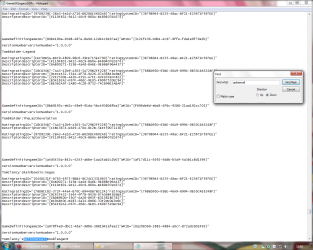
It is very important to search only a part of the name otherwise you will cannot find any game. (e.g. if i want to find Hidden & Dangerous 2, i just type hidden in the search box).

  • Hit "Find Next" button 'till you find the game your looking for.
If you cannot find the game please refer to Manual part of this tutorial.
Step 3: Open the REd and navigate to this location.
HKEY_LOCAL_MACHINE\SOFTWARE\Microsoft\Windows\CurrentVersion\GameUX
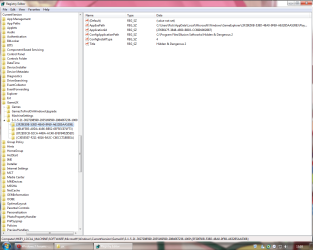
gft3.png
The KEY name might be different from yours.

Step 4: Once you find the KEY that belongs to your game, edit as follow:

  • In AppExePath put the location of your game executable.
(e.g. C:\Program Files\Illusion Softworks\Hidden & Dangerous 2\hd2.exe).

  • In ApplicationId put the xxx value you found in *GameDefinitiongameID="xxx", on the GameUXLegacyGDFs.txt file.
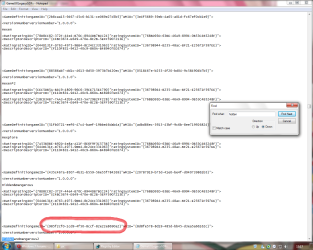
gft4.png
Add just the value between commas.

  • In ConfigInstallType replace the value to 3.
  • Delete the Title String.
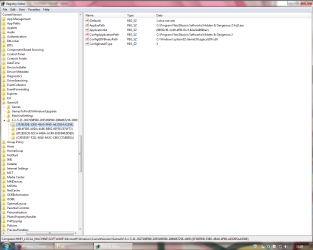
  • Add a new String (Right-click>New>String Value) and name it ConfigGDFBinaryPath, then in the value data space put C:\Windows\system32\GameUXLegacyGDFs.dll
gft6.png
It should be look like this.
Step 5: Close the REd and open GEF, wait 'till windows updates the game info.
gft7.png

  • Manual
If you can't find the game your looking for in GameUXLegacyGDFs.txt, you still can use another already in the file and edit its values.
Step 1: Go to All Game Guide to search your game.
gft9.png
Save the cover image for later use.
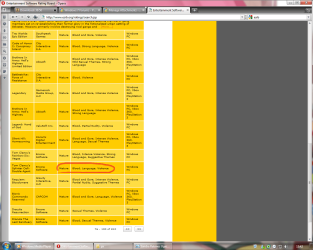
Step 2: Now go to Entertainment Software Rating Board and find a game with similar rating.
gft10.png
Step 3: Now lets find out if its listed on the GameUXLegacyGDFs.txt file, if not keep searching on the ESRB page.
gft11.png
Step 4: Open the REd and navigate to this location.
HKEY_LOCAL_MACHINE\SOFTWARE\Microsoft\Windows\CurrentVersion\GameUX

gft3.png

The KEY name might be different from yours.


Step 5: Once you find the KEY that belongs to your game, edit as follow:


  • In AppExePath put the location of your game executable.
(e.g. C:\Program Files\Illusion Softworks\Hidden & Dangerous 2\hd2.exe).

  • In ApplicationId put the xxx value you found in *GameDefinitiongameID="xxx", on the GameUXLegacyGDFs.txt file.
gft4.png
Add just the value between commas.

  • In ConfigInstallType replace the value to 3.
  • Delete the Title String.
  • Add a new String (Right-click>New>String Value) and name it ConfigGDFBinaryPath, then in the value data space put C:\Windows\system32\GameUXLegacyGDFs.dll
gft6.png
It should be look like this.
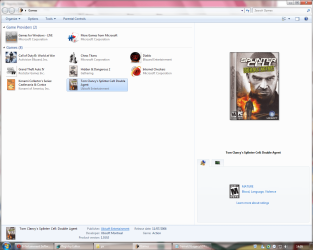
Step 6: Open GEF and wait to update the info.
gft12.png
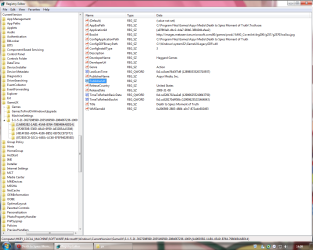
Step 7: Update the REd by hitting the F5 key and replace the info as necessary.
gft13.png
This is just the basic info only, you can fill the blank spaces if you like.
Step 8: Now copy and paste this values and put them like so:

  • in TimeToRefreshBasicData: b357951d59359b57 (Hexadecimal)
  • in TimeToRefreshBoxArt: 855c358859359b57 (Hexadecimal)
The given values should stop reverting the game to its defaults every once in awhile.
Step 9: Now navigate to this location and paste the image your game will use as a cover.
C:\Users\%username%\AppData\Local\Microsoft\Windows\GameExplorer\GamesBoxArt
The AppData folder is hidden by default you can learn how to unhide it in this tutorial.
Step 10: Change the name of the image with the one we're replacing.


  • If you wanna use another type of image you need to edit the last part of the BoxArt String to the kind of file you wanna use.
(e.g. ...//images.../g21004lorom.jpg) JPG/PNG/BMP.

  • Or if you want to use an icon instead, just edit:
AppExePath put the location of the icon.
BoxArt leave it blank.

gft14.png

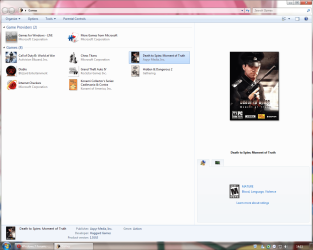
Step 11: Now open the GEF and your game should display with the new info on it.
gft15.png
BTW, if you think is too much work for you, just take a look at this tutorial Games Explorer - Edit all credits to Darkness Warrior '96.


That's all for now...
Rjck.


Attachments

Last edited by a moderator:
My damn Windows... Thanks anyway bro, I will try again with another PNG.

Edit: Dammit, I think the PNG was broken, because it works now :)
 

My Computer

OS
Windows 7 Home Premium 64bit
My damn Windows... Thanks anyway bro, I will try again with another PNG.

Edit: Dammit, I think the PNG was broken, because it works now :)

Gr8 ,)
 

My Computer

Computer type
PC/Desktop
OS
Windows 7 Ultimate x64
CPU
Intel Core i5-2500K @4.5Ghz
Motherboard
Asus Maximus V GENE
Memory
x2 Kingston KHX1600C9D3/4G
Graphics Card(s)
NVIDIA GeForce GTS 250 - 1024MB
Sound Card
SupremeFX III built-in 8-Channel High Definition Audio
Monitor(s) Displays
Samsung Syncmaster P2270
Screen Resolution
1920x1080
Hard Drives
x1 Seagate Barracuda ST3160811AS
x2 Seagate Barracuda ST380817AS
PSU
Corsair TX750
Case
Cooler Master HAF 922 Side Window Model
Cooling
Stock Intel Cooler + Tuniq TX2
Keyboard
Dell SK-8135
Mouse
Logitech G5
Internet Speed
2 Mbps
Other Info
x2 Xbox 360 Wireless Controller for Windows
Logitech Z-5550
Sennheiser HD555
I have one game that, when played, shows up in the GameExplorer folder & I don't want it to. I know how to delete it in the registry, but it just comes back if played again.

My question is:
How do we stop a game from EVER populaing the GameExplorer folder?
 

My Computer

Computer type
PC/Desktop
Computer Manufacturer/Model Number
Self built comfuser
OS
10 Pro. 64Bit
CPU
AMD FX 4100, 4-Core Black Edition. Socket AM3+ ~ 3.60GHz
Motherboard
ASUS M5A97 LE R2.0
Memory
2x 4GB Kingston HyperX DDR3-1866 (PC3-14900) - 8GB Total
Graphics Card(s)
ASUS Radeon HD 6670-2GD3
Sound Card
Onboard High Definition Audio Device
Monitor(s) Displays
HP 2009m LCD
Screen Resolution
1600x900, True Color (32bit), 60Hertz
Hard Drives
WD Blue - 1TB, 3D NAND - SATA SSD
PSU
XFX Pro 450W Core Edition - Fully Wired
Case
Antec Super Lanboy
Cooling
Stock CPU fan + 2 (1 front, 1 back) 120mm Antec fans
Keyboard
Logitech MK700/MK710
Mouse
Logitech M705
Internet Speed
Frontier FiOS 50/50
Antivirus
Windows Security
Browser
Vivaldi
Other Info
1x ASUS DRW-24B1ST Multi-DVD Rewriter
1x RocketFish AIO Media Card Reader
1x WD 1TB Passport USB External Drive

My Computer

Computer type
PC/Desktop
Computer Manufacturer/Model Number
Self built custom
OS
64-bit Windows 11 Pro for Workstations
CPU
Intel i7-8700K OC'd to 5 GHz
Motherboard
ASUS ROG Maximus XI Formula Z390
Memory
64 GB (4x16GB) G.SKILL TridentZ RGB DDR4 3600 MHz
Graphics Card(s)
ASUS ROG-STRIX-GTX1080TI-O11G-GAMING
Sound Card
Integrated
Monitor(s) Displays
2 x Samsung Odyssey G7 27"
Screen Resolution
2560x1440
Hard Drives
1TB Samsung 990 PRO M.2,
4TB Samsung 990 PRO PRO M.2,
TerraMaster F8 SSD Plus NAS
PSU
Seasonic Prime Titanium 850W
Case
Thermaltake Core P3
Cooling
Corsair Hydro H115i
Keyboard
Logitech wireless K800
Mouse
Logitech MX Master 4
Internet Speed
2 Gb/s Download and 100 Mb/s Upload
Antivirus
Malwarebyte Anti-Malware Premium
Browser
Google Chrome
Other Info
Logitech Z625 speaker system,
Logitech BRIO 4K Pro webcam,
HP Color LaserJet Pro MFP M477fdn,
APC SMART-UPS RT 1000 XL - SURT1000XLI,
Galaxy S23 Plus phone
How do you get the "GameDefinitiongameID" >??? :mad:

I tried everything but couldn't get ID for the games. For instance What is the game ID of Borderlands, Deadspace, Torchlight ??!! :cry:

Please Help Rick. :huh:

-Hawk
 

My Computer

OS
Windows 7 Ultimate x86
CPU
Core 2 Duo E8200 @2.66GHz Oc'd @3.2Ghz
Memory
Corsair 4GB Module Timings :
Graphics Card(s)
Sapphire Radeon HD6850 1GB
Screen Resolution
1336x768
Rjck, is there a difference in the GameUXLegacyGDFs file between 7 Pro & 7 Home Premium?

I've followed the tutorial (one page 1) for a lot of games on my own 7 Pro machine w/much success, but I'm now getting a self-built computer ready (as a surprise) for my son which has 7 Home Premium on it & (even though I'm following the same tutorial, when I get to Step 5 (Close the REG & open GEF, wait 'till windows updates the game info.), my games pic & info never changes & when I reopen the REG, nothing gets updated.
 

My Computer

Computer type
PC/Desktop
Computer Manufacturer/Model Number
Self built comfuser
OS
10 Pro. 64Bit
CPU
AMD FX 4100, 4-Core Black Edition. Socket AM3+ ~ 3.60GHz
Motherboard
ASUS M5A97 LE R2.0
Memory
2x 4GB Kingston HyperX DDR3-1866 (PC3-14900) - 8GB Total
Graphics Card(s)
ASUS Radeon HD 6670-2GD3
Sound Card
Onboard High Definition Audio Device
Monitor(s) Displays
HP 2009m LCD
Screen Resolution
1600x900, True Color (32bit), 60Hertz
Hard Drives
WD Blue - 1TB, 3D NAND - SATA SSD
PSU
XFX Pro 450W Core Edition - Fully Wired
Case
Antec Super Lanboy
Cooling
Stock CPU fan + 2 (1 front, 1 back) 120mm Antec fans
Keyboard
Logitech MK700/MK710
Mouse
Logitech M705
Internet Speed
Frontier FiOS 50/50
Antivirus
Windows Security
Browser
Vivaldi
Other Info
1x ASUS DRW-24B1ST Multi-DVD Rewriter
1x RocketFish AIO Media Card Reader
1x WD 1TB Passport USB External Drive
This is a little complicated. I just want to be able to group the games into categories like MMO, Visual Nove, FPS, Puzzle/Platformer. By changing the registery will it allow me to change the genre category from "Unspecified" to something else? I have a lot of foreign games!
 

Attachments

  • example.JPG
    example.JPG
    103 KB · Views: 153

My Computer

Computer Manufacturer/Model Number
Custom Built
OS
Windows 7
CPU
Intel(R) Core(TM)2 Quad CPU Q6600 2.40 GHz
Motherboard
ASUS Striker Extreme
Memory
DDR2 8192 MBytes (G.Skill)
Graphics Card(s)
NVIDIA GeForce 8800 GT OC2
Sound Card
Creative Sound Blaster X-Fi Fatality Professional Series
Monitor(s) Displays
Brand unknown (24in: 1920x1200)
Hard Drives
MVODOA STRIPE 279.47G (raided drives both WD Raptors)

WDC WD1600JB-00EVA0 ATA Device (IDE)

Maxtor 4G160J8 ATA Device (IDE)

WDC WD75 00AAKS-00RBA SCSI Disk Device
PaMil

I know that for each game listed in the registry, there is an entry named 'Genre'; you can edit that.
Then when you open Games Explorer, right-click & Group By 'Genre', that may help.
 

My Computer

Computer type
PC/Desktop
Computer Manufacturer/Model Number
Self built comfuser
OS
10 Pro. 64Bit
CPU
AMD FX 4100, 4-Core Black Edition. Socket AM3+ ~ 3.60GHz
Motherboard
ASUS M5A97 LE R2.0
Memory
2x 4GB Kingston HyperX DDR3-1866 (PC3-14900) - 8GB Total
Graphics Card(s)
ASUS Radeon HD 6670-2GD3
Sound Card
Onboard High Definition Audio Device
Monitor(s) Displays
HP 2009m LCD
Screen Resolution
1600x900, True Color (32bit), 60Hertz
Hard Drives
WD Blue - 1TB, 3D NAND - SATA SSD
PSU
XFX Pro 450W Core Edition - Fully Wired
Case
Antec Super Lanboy
Cooling
Stock CPU fan + 2 (1 front, 1 back) 120mm Antec fans
Keyboard
Logitech MK700/MK710
Mouse
Logitech M705
Internet Speed
Frontier FiOS 50/50
Antivirus
Windows Security
Browser
Vivaldi
Other Info
1x ASUS DRW-24B1ST Multi-DVD Rewriter
1x RocketFish AIO Media Card Reader
1x WD 1TB Passport USB External Drive
I don't know if is the right place to post this but any chance to get this to work on Windows 10? I tried it all methods exhaustively but without success. Some games (the oldest ones, before 2010) does not appear in the game folder and i tried to put them through register but simply don't work.

Somebody could help me please? I really want my games in that folder like was before with Windows 7.
 

My Computer

Computer type
PC/Desktop
OS
Windows 10 Pro x64
jeez

seriously? could they make it any more complicated? what is their beef with third party games and install locations? i think i just used the home button for the first time bc i had to scroll so far up to get back to the top of this tutorial. thanks for all the info. but i seriously don't get why they would make it so hard!!! i'll bookmark it and come back to it later. grrrr. but thanks, good instructions i am sure. props.
 

My Computer

Computer type
Laptop
Computer Manufacturer/Model Number
Acer Aspire One D270-1865
OS
Windows 7 Home Premium x32
CPU
Intel Atom N2600 (1.6 GHz, 1 MB L2 cache)
Motherboard
Acer JE01_CT
Memory
2 GB DDR3
Graphics Card(s)
Intel Graphics Media Accelerator 3600 Series
Hard Drives
320 GB HDD
(set up by Acer with seperate partition for Acer e Recovery with Windows Home Starter)
Antivirus
avast! Free Antivirus 2015
Browser
Maxthon v4.4.7.1000
Back
Top