
- Local time
- 4:07 PM
- Messages
- 31
Hi,
Something has haunted me ever since WinXP.
If I change the default icon for a file type, or if I change the default program for a filetype, or even if I restore the default program for a file type after it was hijacked by a third application, the icon image is displayed "inside" a blank icon template.
This seems to be MS way of telling me that this file type has been altered. While that may be a nice intention, it looks dead ugly and I don't want to see it anymore.
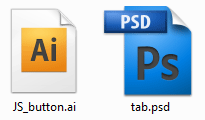
In the image below, the Photoshop PSD-icon looks the way it should. But the Adobe Illustrator AI-icon looks weird because the extension was hijacked by another program and I was forced to reset the file association to Adobe Illustrator. But that did not return the original display of the icon which was identical to the PSD-icon (apart from colour and text, of course).
How can I get my old icon back?
I am willing to edit the registry if I have to.
Thanks!
Something has haunted me ever since WinXP.
If I change the default icon for a file type, or if I change the default program for a filetype, or even if I restore the default program for a file type after it was hijacked by a third application, the icon image is displayed "inside" a blank icon template.
This seems to be MS way of telling me that this file type has been altered. While that may be a nice intention, it looks dead ugly and I don't want to see it anymore.
In the image below, the Photoshop PSD-icon looks the way it should. But the Adobe Illustrator AI-icon looks weird because the extension was hijacked by another program and I was forced to reset the file association to Adobe Illustrator. But that did not return the original display of the icon which was identical to the PSD-icon (apart from colour and text, of course).
How can I get my old icon back?
I am willing to edit the registry if I have to.
Thanks!
Attachments
My Computer
- Computer Manufacturer/Model Number
- built it myself
- OS
- Windows 7 Pro 64-bit
- CPU
- Intel i7 950
- Motherboard
- Asus Sabertooth X58
- Memory
- 18GB
- Graphics Card(s)
- Gigabyte Radeon HD7700
- Sound Card
- onboard Realtek HD audio chip
- Monitor(s) Displays
- 2 x Dell U2412M
- Screen Resolution
- 1920x1200
- Hard Drives
- 3 SSD
4 Western Digital Caviar Green
- PSU
- SeaSonic x650
- Case
- Fractal Design R3 case
- Cooling
- Magehalems rev. B CPU cooler


