
Google Chrome Browser - Applying a Theme

How to Apply a Theme to your Google Chrome Browser

   Information
This tutorial will show you how to apply a theme to your Google Chrome browser.


Here's How:

1. In Chrome, click/tap on the Chrome menu Chrome_menu.png button, and click/tap on Settings. (see screenshot below)
Settings-1.jpg
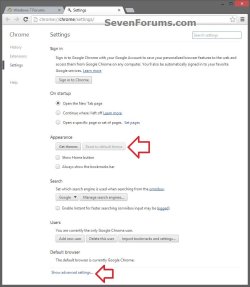
2. In the Settings tab, click/tap on the Get themes button under Appearance. (see screenshot below)
Settings-2.jpg
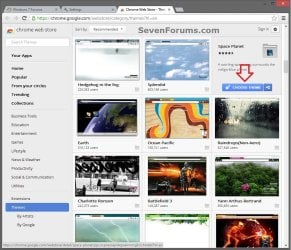
3. In the Chrome Web Store tab, search for a theme you want. (see screenshot below)
Settings-3.jpg
4. When you find a theme you want, hover over it, and click/tap on Choose Theme. (see screenshot above)

5. The theme will now be downloaded and automatically applied to Chrome.

6. If you like, open a New Tab to see the full theme. (see screenshot below)

New_Tab.jpg
7. When finished, you can close the Settings and Chrome Web Store tab if you like.


Last edited by a moderator:
Tutorial updated. :)
 

My Computer

Computer type
PC/Desktop
Computer Manufacturer/Model Number
Self built custom
OS
64-bit Windows 11 Pro for Workstations
CPU
Intel i7-8700K OC'd to 5 GHz
Motherboard
ASUS ROG Maximus XI Formula Z390
Memory
64 GB (4x16GB) G.SKILL TridentZ RGB DDR4 3600 MHz
Graphics Card(s)
ASUS ROG-STRIX-GTX1080TI-O11G-GAMING
Sound Card
Integrated
Monitor(s) Displays
2 x Samsung Odyssey G7 27"
Screen Resolution
2560x1440
Hard Drives
1TB Samsung 990 PRO M.2,
4TB Samsung 990 PRO PRO M.2,
TerraMaster F8 SSD Plus NAS
PSU
Seasonic Prime Titanium 850W
Case
Thermaltake Core P3
Cooling
Corsair Hydro H115i
Keyboard
Logitech wireless K800
Mouse
Logitech MX Master 4
Internet Speed
2 Gb/s Download and 100 Mb/s Upload
Antivirus
Malwarebyte Anti-Malware Premium
Browser
Google Chrome
Other Info
Logitech Z625 speaker system,
Logitech BRIO 4K Pro webcam,
HP Color LaserJet Pro MFP M477fdn,
APC SMART-UPS RT 1000 XL - SURT1000XLI,
Galaxy S23 Plus phone
Back
Top