
How to Reschedule or Disable Google Updater
Information
If your a regular user or someone who doesn't use intensive applications then you may not get so much out of this tutorial. This was created with gamers and users of other intensive applications in mind. However the application can interrupt what your doing to ask your permission before updating an installed program.
Warning
WARNING: Disabling updates here will also prevent updates of any new Google applications released in the future, possibly including dependencies for future versions of installed applications. So it is better to disable the individual applications as shown below.
You will need to download the Google Update Administrative Template for the Local Group Policy Editor: here
Adding the Template to the Policy Editor:
1) open the editor by typing "policy" into the search button on the start menu and click the resulting link,
2) navigate to Local Computer Policy - Computer Configuration - Administrative Templates
3) right click and select add/remove templates
4) in the popup box click add button and navigate to where you downloaded the GoogleUpdate.adm file and then click close button
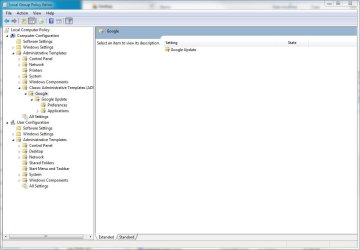
5) You should find a new entry under Local Computer Policy - Computer Configuration - Administrative Templates - Classic Administrative Templates called Google
Note
If this new entry doesnt appear at first you need to right click on Administrative Templates and select filter options. Then change the managed option to any. You may have to untick the filter later on.
Rescheduling Google Updater:
1) go to Google Update - Preferences in the new section you just imported
2) you should find an entry called Auto-update check period override
3) right click on the entry and select edit
4) in the resulting dialog choose enabled

5) In the minutes box enter your desired value and click ok
So now you have altered the period in which the updater checks which should help with resources.
Disabling Individual Application Update Checks:
Information
For this tutorial we will use Chrome as an example in how to disable update checking.
1) Navigate to Administrative Templates - Google - Google Update - Applications - Google Chrome
2) Right click on Update Policy Override and select edit
3) Click enabled button and in the scrollbar list under Policy choose Updates disabled and click ok
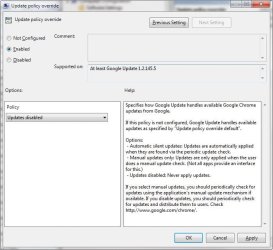
You have now stopped Google Updater from checking for updates for Google Chrome. You can repeat these steps for any listed Google application in the policy editor.
source: Google Support
Last edited by a moderator:


