
Graphics Card - Overclock

How to Overclock a Graphics Card

   Warning
OVERCLOCKING CAN AND WILL DESTROY YOUR VIDEO CARD IF DONE INCORRECTLY!
Overclocking also voids the warranty on most graphics cards.


   Information
Overclocking requires a large time commitment, but can also be done in stages. Make sure you have the time to sit uninterrupted at your computer for around 2 or 3 hours to fully overclock your Card. An addition 2 hours will be needed to finish the final stress tests.


Overclocking (OCing, or OC) is a process by which you increase the clock speed of your GPU and VRAM to increase the performance of your graphics card. This will also heat up the card, and so requires a good cooling system.

If done incorrectly, overclocking WILL DESTROY YOUR CARD! Overclocking also voids the warranty on most graphics cards.

You will need a few programs to overclock. I chose these programs for their ease of use, accuracy, and multiple features. I have also used them to overclock my own cards (a GeForce 9500GT, ATI HD5770, and GeForce 260).

MSI Afterburner:
This is the actual overclocking utility that will let you increase the Voltage, Core/shader/memory clock, and fan speed. It will also show you the temperature of your card in a handy graph.

GPU-Z:
This utility monitors clock speed, temps, and fan speed. I use this as a secondary check on MSI Afterburner.

TechPower-up GPUTool:
This has a similar monitor to GPU-Z, but I used it for stability testing through its Fur Ring feature. It will also allow you to overclock, but I do not like how it works.

FurMark:
This is the ultimate stability and benchmarking test (also my favourite).

Steps:
First thing you need to do is install MSI Afterburner and open it up. Take note of all the default settings, and make sure "Apply settings at Startup" is UNCHECKED. This way if the computer crashes, it will keep your OLD settings (which work).

Secondly, install GPUTool (this is not installed, but you will need to download and install the stability part for some reason) and open it. Run GPU-Z as well.

Third: Make sure all the settings and temperatures are accurate. If one of them shows a radically different setting, take note. (The only one that will be wrong is GPUTools clocks. These will not change, and should not change. Ignore them, and use it only for Stability tests)

Make sure you have adequate cooling, and make sure to know the limits of your card. Do some research and see what other people have overclocked too, what the idle temperature is, the load temperature, and the safe temperature range for your card. You will need to know all this in case you get close to these limits.

When you test for stability, you will need to watch for artifacts (GPUTool will let you know, even if you miss it). Artifacts are small errors in the image, and they look like this:
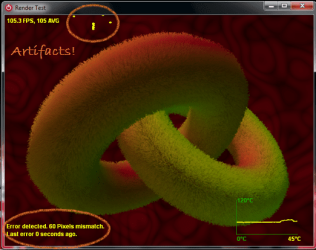
Capture.PNG

If you would like, you can run a pre-oc benchmark test to see how you will compare after you have overclocked your card. Open up FurMark, and select your settings. Run the Benchmark test, and write down your result to compare later.
You can also run a stability test first (through GPUTool or Furmark) just for reference.

Now you are ready to start overclocking.
All overclocking will be done through MSI Afterburner and checked with everything else.

Core Clock
We will start with the Core clock (which will stay attached to the shader clock if you have one).
1) Move the clock slider up about 5-10 points. Check MSI Afterburner to make sure it moved (the graph should jump), then check GPU-Z as well. Take note of the temperature, and the fan speed.
2) Check for stability by hitting the test button on GPUTool, and let it run for about 1 minute. Make sure there are nor artifacts, and watch the temperature (on any of the 3 tools).
3) Should the card pass stability and heat, go ahead and turn the clock up again. Then repeat these steps.
4) ARTIFACT!!!!!! Now that you have seen an artifact (this WILL happen), don't panic. This is normal, and it means that your card has reached its limit.
Take note of the core clock, and move it back 10 or 15 points. This is to make sure that you are truly stable. Now, run the stability test. This time you will need to let it run for about 1 HOUR. If you get even 1 artifact, back it off another 5 or 10 points, until there are no errors.
This step is extremely important! Moving it back may reduce your graphics power, but it will keep your card safe. I cannot stress this enough. Move a good 10 -15 points down from where you first got an artifact.
5) Now that you have completed this stability test, take note of the core clock, and temperatures. This is your stable Core overclock.
6) Turn your core clock back to defaults in preparation for finding the memory clock.

Memory Clock
These steps will overclock the video card memory (not amount, but speed of it).
1) Move the clock slider up about 5-10 points. Check MSI Afterburner to make sure it moved (the graph should jump), then check GPU-Z as well. Take note of the temperature, and the fan speed.
2) Check for stability by hitting the test button on GPUTool, and let it run for about 1 minute. Make sure there are nor artifacts, and watch the temperature (on any of the 3 tools).
3) Should the card pass stability and heat, go ahead and turn the clock up again. Then repeat these steps.
4) ARTIFACT!!!!!! Now that you have seen an artifact (this WILL happen), don't panic. This is normal, and it means that your card has reached its limit.
Take note of the memory clock, and move it back 10 or 15 points. This is to make sure that you are truly stable. Now, run the stability test. This time you will need to let it run for about 1 HOUR. If you get even 1 artifact, back it off another 5 or 10 points, until there are no errors.
This step is extremely important! Moving it back may reduce your graphics power, but it will keep your card safe. I cannot stress this enough. Move a good 10 -15 points down from where you first got an artifact.
5) Now that you have completed this stability test, take note of the core clock, and temperatures. This is your stable memory overclock.

Overclocking the whole thing:
At this point, you have found your separate overclocks, and it is time to combine them.
1) Move the Core clock and Memory clock up to their respective stable speeds.
2) Check to make sure that they new speeds are set in, and stability test. This time you will want to run it for a minimum of 1 hour, more if you can.
3) This time it is extremely important to keep track of temperatures and artifacts. Take note of when the card starts to level out on temperature. This will be its new full load temperature, and will be much higher than your normal before.
4) Should you encounter an Artifact, move both the Core and Memory clock back 10 points, and test again. If you get even 1 artifact, back it off another 5 or 10 points, until there are no errors.
This step is extremely important! Moving it back may reduce your graphics power, but it will keep your card safe. I cannot stress this enough.

Now you can run a benchmark test with FurMark again, and compare your score. It should be significantly higher, depending on the card.
When I OCed my 9500, the score was 300 pre-OC, 450 post-OC. Not much of a difference. Newer cards (such as the HD 5770 and GeForce 260) will have a MUCH higher starting score, in the 3000 range, and will be even higher after overclocking.

That is the basics to overclocking your Graphics card.

   Information
Neither I (Lorbob75), nor Seven Forums (Windows 7 Forums) take responsibility should your card be damaged or destroyed if you follow this advice. We do not advise overclocking your video card unless you know what you are doing, and are willing to risk your video card.


The following section is not necessary to overclock your card, and is here merely to inform. Feel free to skip the section if you have successfully OCed your card and don't care how it works.
Overclocking Theory and Information:
Basic Overclocking Information:
Overclocking is the practice of changing a computer components clock rate (clock cycles per second) to increase performance of that part. Overclocking will increase the heat generated by the component, and generally reduces the lifespan significantly.
The most common overclocked components are: CPUs, GPUs, RAM, VRAM, and motherboard chipsets.
In order to do this, the CPU multiplier, motherboard Front Side Bus clock rate, and other settings must be changed. Due to subtle variations in electrical and physical characteristics in the components, each and every component overclocks uniquely. No two setups (even exactly similar) will overclock the same.

EDIT: I have yet to finish the theory section. I need some time to research, and finish my other tutorials, as this section is not actually necessary to OCing a card.
Thank you for your patience.


Graphics Card series:
1. How a Graphics Card Works
2. AGP vs PCI
3. How to Install a New GPU
4. How to Overclock Your Card
5. How to Test NVIDIA/AMD Performance with OCCT

--------------------
I hope this Tutorial helped a whole bunch of you!
Please vote if you liked it.
~Lordbob
 
Last edited by a moderator:
I do not have a 5770

~Lordbob
 

My Computer

Computer Manufacturer/Model Number
Hera
OS
Windows 7 Ultimate x64, Mint 9
CPU
Intel i5-2500k
Motherboard
ASUS P8P67 Pro
Memory
2x 4Gb Corsair VENGEANCE DDR3-1600
Graphics Card(s)
NVidia GeForce N260GTX Twin Frozr
Sound Card
Realtek HD OnBoard Audio
Monitor(s) Displays
ASUS 24" Monitor
Screen Resolution
1920x1080
Hard Drives
G.SKILL Phoenix Series 60GB SATA II MLC Internal Solid State Drive (SSD)
SAMSUNG Spinpoint F3R 1TB 7200 RPM 32MB Cache SATA II
PSU
Cooler Master Real Power Pro 750W
Case
Cooler Master Haf 932
Cooling
Fans
Keyboard
Razer Tarantula
Mouse
Razer Lachesis
Internet Speed
not fast enough
I do not have a 5770

~Lordbob

I have also used them to overclock my own cards (a GeForce 9500GT, ATI HD5770, and GeForce 260).

Didn't you oc a 5770?
 

My Computer

OS
Windows 7 Ultimate x64
CPU
Intel Core 2 Duo E8400
Motherboard
GIGABYTE GA-EX38-DS4
Memory
Mushkin DDR2 4096MB (2048MBx2) 800Mhz CL 5-5-5-18 SP
Graphics Card(s)
Club3D ATI Radeon HD4850 512MB PCIe
Monitor(s) Displays
Asus 22" VK222U 2ms LCD
Screen Resolution
1680x1050
Hard Drives
Seagate ST3500320AS 500GB SATA2 32MB
PSU
Enermax Pro82+ 525W
Case
NZXT Trinity
Cooling
Arctic Cooling Case Fan AF12025 120mm
Keyboard
Logitech Media Keyboard
Mouse
Logitech RX700 Cordless

My Computer

Computer Manufacturer/Model Number
Hera
OS
Windows 7 Ultimate x64, Mint 9
CPU
Intel i5-2500k
Motherboard
ASUS P8P67 Pro
Memory
2x 4Gb Corsair VENGEANCE DDR3-1600
Graphics Card(s)
NVidia GeForce N260GTX Twin Frozr
Sound Card
Realtek HD OnBoard Audio
Monitor(s) Displays
ASUS 24" Monitor
Screen Resolution
1920x1080
Hard Drives
G.SKILL Phoenix Series 60GB SATA II MLC Internal Solid State Drive (SSD)
SAMSUNG Spinpoint F3R 1TB 7200 RPM 32MB Cache SATA II
PSU
Cooler Master Real Power Pro 750W
Case
Cooler Master Haf 932
Cooling
Fans
Keyboard
Razer Tarantula
Mouse
Razer Lachesis
Internet Speed
not fast enough
I do not have a 5770

~Lordbob

I have also used them to overclock my own cards (a GeForce 9500GT, ATI HD5770, and GeForce 260).

Didn't you oc a 5770?
Yes, but I returned it due to disgust with ATI's drivers.

~Lordbob

I OC'd using MSI afterburner should I apply the new settings through ccc?
or do i have to have msi afterburner run on startup for my oc to apply?
what is the advantages of using ccc or msi ?
 

My Computer

OS
Windows 7 Ultimate x64
CPU
Intel Core 2 Duo E8400
Motherboard
GIGABYTE GA-EX38-DS4
Memory
Mushkin DDR2 4096MB (2048MBx2) 800Mhz CL 5-5-5-18 SP
Graphics Card(s)
Club3D ATI Radeon HD4850 512MB PCIe
Monitor(s) Displays
Asus 22" VK222U 2ms LCD
Screen Resolution
1680x1050
Hard Drives
Seagate ST3500320AS 500GB SATA2 32MB
PSU
Enermax Pro82+ 525W
Case
NZXT Trinity
Cooling
Arctic Cooling Case Fan AF12025 120mm
Keyboard
Logitech Media Keyboard
Mouse
Logitech RX700 Cordless
I have also used them to overclock my own cards (a GeForce 9500GT, ATI HD5770, and GeForce 260).

Didn't you oc a 5770?
Yes, but I returned it due to disgust with ATI's drivers.

~Lordbob

I OC'd using MSI afterburner should I apply the new settings through ccc?
or do i have to have msi afterburner run on startup for my oc to apply?
what is the advantages of using ccc or msi ?
MSI Afterburner is definitely a better program. I don't know if it is required to start up at startup to keep the OC, but I don't think so.

~Lordbob
 

My Computer

Computer Manufacturer/Model Number
Hera
OS
Windows 7 Ultimate x64, Mint 9
CPU
Intel i5-2500k
Motherboard
ASUS P8P67 Pro
Memory
2x 4Gb Corsair VENGEANCE DDR3-1600
Graphics Card(s)
NVidia GeForce N260GTX Twin Frozr
Sound Card
Realtek HD OnBoard Audio
Monitor(s) Displays
ASUS 24" Monitor
Screen Resolution
1920x1080
Hard Drives
G.SKILL Phoenix Series 60GB SATA II MLC Internal Solid State Drive (SSD)
SAMSUNG Spinpoint F3R 1TB 7200 RPM 32MB Cache SATA II
PSU
Cooler Master Real Power Pro 750W
Case
Cooler Master Haf 932
Cooling
Fans
Keyboard
Razer Tarantula
Mouse
Razer Lachesis
Internet Speed
not fast enough
Don't need MSI Afterburner to run, the card will keep the OC.
 

My Computer

Computer type
PC/Desktop
Computer Manufacturer/Model Number
76~2.0
OS
Windows 7 Ult x64 - SP1/ Windows 8 Pro x64
CPU
Intel Core i5-3570K 4.6GHz
Motherboard
Gigabyte GA-Z77X UD3H, f18
Memory
8GB (2X4GB) DDR3 1600 Corsair Vengeance CL8 1.5v
Graphics Card(s)
Sapphire HD 7770 Vapor-X OC 1GB DDR5
Sound Card
Onboard VIA VT2021
Monitor(s) Displays
22" LCD Dell
Screen Resolution
1680x1050
Hard Drives
Samsung 840Pro 128GB SSD,
Seagate Barracuda 500GB SATA2 7200rpm 32MB cache, Seagate Barracuda 1TB SATA2 7200rpm 32MB cache,
PSU
Corsair HX650W
Case
Cooler Master Storm Scout
Cooling
Corsair H80 2x12cm Noctua NF P12 , 2x14cm case fans
Keyboard
Logitech Wave
Mouse
CM Sentinel
Internet Speed
Dismal
Antivirus
Avast
Browser
Opera Next
Other Info
Haswell laptop: HP Envy 17t-j, i7-4700MQ, GeForce 740M 2GB DDR3, 17.3" Full HD 1920x1080, 16GB RAM, Samsung 840 Pro 128GB, 1TB Hitachi 7200 HDD,
Desktop: eSATA ports,
External eSATA Seagate 500GB SATA2 7200rpm,
External WD USB 500GB

My Computer

Computer Manufacturer/Model Number
Hera
OS
Windows 7 Ultimate x64, Mint 9
CPU
Intel i5-2500k
Motherboard
ASUS P8P67 Pro
Memory
2x 4Gb Corsair VENGEANCE DDR3-1600
Graphics Card(s)
NVidia GeForce N260GTX Twin Frozr
Sound Card
Realtek HD OnBoard Audio
Monitor(s) Displays
ASUS 24" Monitor
Screen Resolution
1920x1080
Hard Drives
G.SKILL Phoenix Series 60GB SATA II MLC Internal Solid State Drive (SSD)
SAMSUNG Spinpoint F3R 1TB 7200 RPM 32MB Cache SATA II
PSU
Cooler Master Real Power Pro 750W
Case
Cooler Master Haf 932
Cooling
Fans
Keyboard
Razer Tarantula
Mouse
Razer Lachesis
Internet Speed
not fast enough
You're welcome.

I use MSI Afterburner to OC my graphics card and have never had it leave it running or re-start it, CCC shows the settings that I set with MSI A.
 

My Computer

Computer type
PC/Desktop
Computer Manufacturer/Model Number
76~2.0
OS
Windows 7 Ult x64 - SP1/ Windows 8 Pro x64
CPU
Intel Core i5-3570K 4.6GHz
Motherboard
Gigabyte GA-Z77X UD3H, f18
Memory
8GB (2X4GB) DDR3 1600 Corsair Vengeance CL8 1.5v
Graphics Card(s)
Sapphire HD 7770 Vapor-X OC 1GB DDR5
Sound Card
Onboard VIA VT2021
Monitor(s) Displays
22" LCD Dell
Screen Resolution
1680x1050
Hard Drives
Samsung 840Pro 128GB SSD,
Seagate Barracuda 500GB SATA2 7200rpm 32MB cache, Seagate Barracuda 1TB SATA2 7200rpm 32MB cache,
PSU
Corsair HX650W
Case
Cooler Master Storm Scout
Cooling
Corsair H80 2x12cm Noctua NF P12 , 2x14cm case fans
Keyboard
Logitech Wave
Mouse
CM Sentinel
Internet Speed
Dismal
Antivirus
Avast
Browser
Opera Next
Other Info
Haswell laptop: HP Envy 17t-j, i7-4700MQ, GeForce 740M 2GB DDR3, 17.3" Full HD 1920x1080, 16GB RAM, Samsung 840 Pro 128GB, 1TB Hitachi 7200 HDD,
Desktop: eSATA ports,
External eSATA Seagate 500GB SATA2 7200rpm,
External WD USB 500GB
Excellent work. I'm running FurMark at this time.
GPU-1
Core: 870 MHz, mem: 1846, temp: 69 c
Fan 77% auto
GPU8 load 99%, mem: load 11%
Gpu volts: 1.000
___________________________________
Does anybody have any suggestion for settings? Please see my specs.
 
Last edited:

My Computer

Computer type
PC/Desktop
Computer Manufacturer/Model Number
Home made Desktop
OS
Windows 10 Pro. 64/ version 1709 Windows 7 Pro/64
CPU
Intel i7-6800K @ 4.3
Motherboard
ASUS X-99 Deluxe II
Memory
Corsair Platinum 16 gig @2400
Graphics Card(s)
EVGA GTX 1070 OC
Monitor(s) Displays
Asus 27" LED LCD/VE278Q
Screen Resolution
1920-1080 or 1280-720 HDMI
Hard Drives
INTEL SSD 730-240 Gb Sata 3.0/
PSU
EVGA Platium 1200W
Case
Phanteks Luxe Tempered Glass 8 fans/ one radiator
Cooling
XSPC/ Water Cooled CPU
Keyboard
Das 4 Professional
Mouse
Logitech M705/MX Anywhere 2-S
Internet Speed
100 mbits
Antivirus
Microsoft Security Essentials/ Malwarebytes Premium 3.0/ SAS
Browser
I.E. 11 default/Firefox/ ISP Time Warner Cable/Spectrum
Other Info
LG BluRay Burner/
Sound system-KLipsch-THX/
Icy Dock ssd Hot Swap bays.
What are the benefits of OC'ing your gpu?
 

My Computer

Computer type
PC/Desktop
Computer Manufacturer/Model Number
HP
OS
Windows 7 Ultimate
CPU
DualCore Intel Pentium D 930, 3000 MHz (15 x 200)
Motherboard
Asus P5LP-LE (Emery)
Memory
3x512mb 1x1GB
Graphics Card(s)
NVIDIA GeForce 7800 GTX
Sound Card
Realtek ALC882/D/M @ Intel 82801GB ICH7
Monitor(s) Displays
Iiyama ProLite E2407HDS
Screen Resolution
1920 x 1080 70 Hz
Hard Drives
1TB WD10EARS-00Y5B1 ATA Device
Keyboard
Hewlett Packard Wireless Ergo
Mouse
Logitech USB Wheel Mouse
Internet Speed
20mbps Download - 2mbps Upload
Antivirus
Windows Defender - Malwarebytes Anti Malware
Browser
Google Chrome
What are the benefits of OC'ing your gpu?
higher clocks and slight improvements in heavy graphic aplications such as 3d edditing and gaming. The only con towards overclocking is your gpu will be hotter then it would at stock clocks and slighty shorten the lifespan of your gpu due to it being hotter and working harder with the higher clocks.
 

My Computer

Computer type
PC/Desktop
Computer Manufacturer/Model Number
custom build
OS
Windows 10 64bit
CPU
AMD Phenom II X4 925 (Deneb)(2.8GHz) OC 3.4GHz
Motherboard
M5A78L-MLX Plus
Memory
Corsair Vengeance DDR3 4GBX2 (8192MB)
Graphics Card(s)
XFX HD 6870 1GB (OC)- 940MHz core, mem 1150MHz
Monitor(s) Displays
Vizio 26' 1920x1080 / Acer 1336x768
Screen Resolution
1920x1080 60Hz /1336x768
Hard Drives
Kingston Digital 60GB SSDNow V300/500gb HDD Western Digital 7200rpm (/WD 160GB HDD 7200rpm
PSU
CORSAIR CX600 600w
Case
AZZA Orion 202 EVO
Cooling
cooler master hyper TX3 cpu cooler
Keyboard
Razer DeathStalker
Mouse
Logitech Optical Gaming Mouse G400
Antivirus
Defualt on win 10
Browser
Firefox
Other Info
cpu is overclocked in bios
Back
Top